
roborock Q7 Max
roborock Q7 Max Robot Vacuum and Mop User Manual
Model: Q7 Max
Brand: roborock
Introduction
This manual provides comprehensive instructions for the setup, operation, maintenance, and troubleshooting of your roborock Q7 Max Robot Vacuum and Mop. Please read this manual thoroughly before using the product to ensure safe and optimal performance.

Image: The roborock Q7 Max robot vacuum, black in color, shown alongside a smartphone displaying the Roborock mobile application interface.
Safety Information
For detailed safety guidelines and important warnings, please refer to the official Safety Information PDF document. Adhering to these guidelines is crucial for safe operation and to prevent damage to the device or injury.
Download Safety Information: Safety Information (PDF)
What's in the Box
Upon unboxing your roborock Q7 Max, verify that all the following components are present:
- Q7 Max Robot Vacuum (1)
- Dustbin & Water Tank (1)
- Moisture-Proof Mat (1)
- Mop Cloth Mount (1)
- Mop Cloth (1)
- Charging Dock (1)
- Power Cable (1)
- User Manual (1)
Note: An Auto-empty dock is NOT included with this model. This package comes with a standard charging dock.
Setup
1. Charging Dock Placement
Place the charging dock against a wall on a hard, level surface. Ensure there are no obstacles within 0.5 meters (1.6 feet) to either side and 1.5 meters (4.9 feet) in front of the dock. Connect the power cable to the dock and plug it into a power outlet.

Image: The robot vacuum approaching its charging dock, illustrating the auto-docking feature.
2. Initial Charge
Place the robot on the charging dock. The power indicator light will turn on, indicating that the robot is charging. For first-time use, fully charge the robot before operation.
3. App Connection (2.4GHz Wi-Fi Required)
Download the Roborock app from your mobile app store. Follow the in-app instructions to connect your Q7 Max to your home Wi-Fi network. The robot only supports 2.4GHz Wi-Fi. Ensure your router is configured for 2.4GHz or that you are connected to a 2.4GHz network during setup.
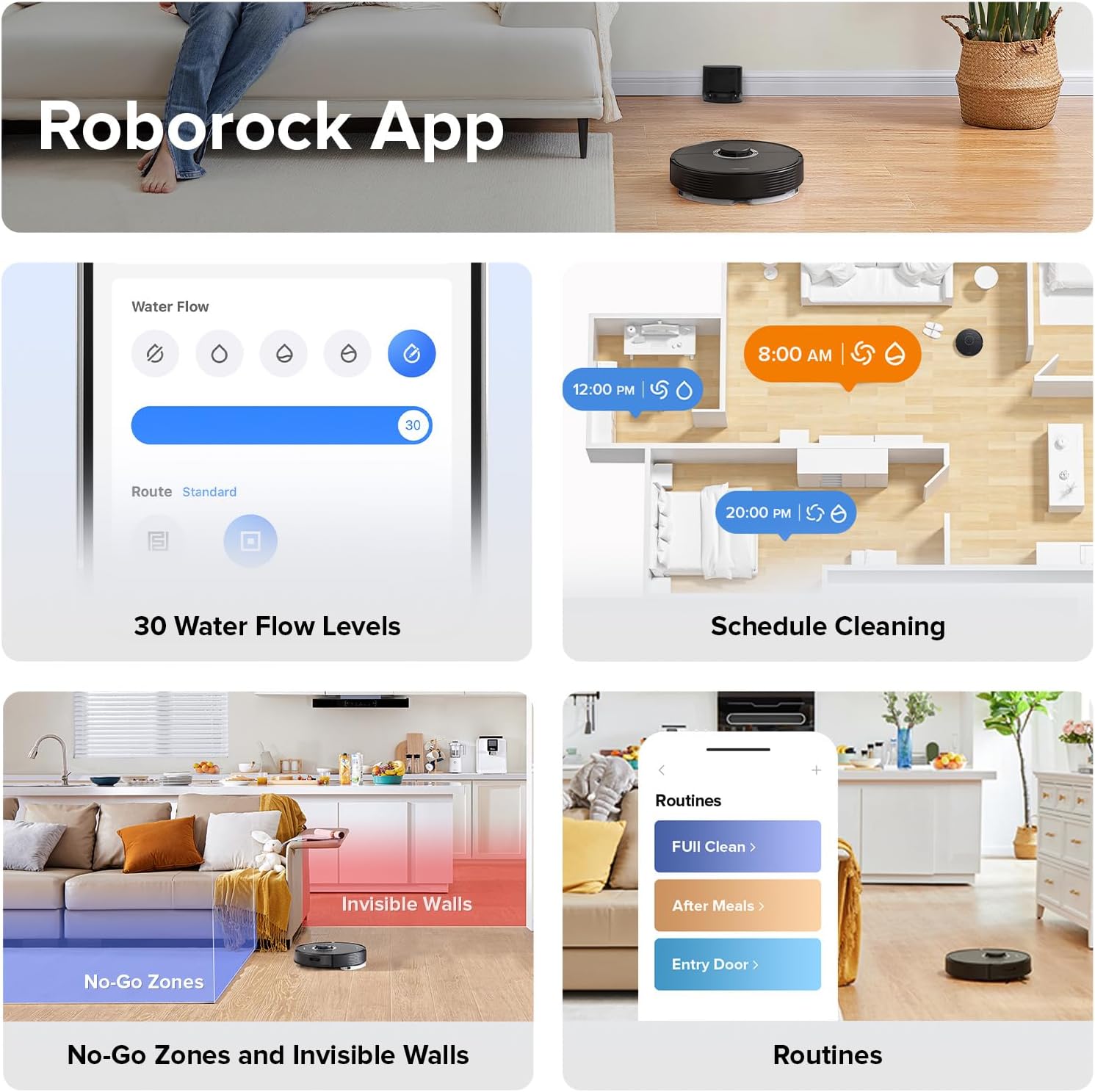
Image: Screenshots of the Roborock app, demonstrating adjustable water flow levels, scheduling options, and the ability to set No-Go Zones and Invisible Walls.
Operating Instructions
Starting a Clean
Press the power button on the robot or use the Roborock app to start a cleaning cycle. The robot will automatically map your home using PreciSense LiDAR Navigation and plan an efficient cleaning route.

Image: The robot vacuum navigating a room, illustrating its precise LiDAR mapping technology with 3D map display and multi-level mapping features.
Vacuuming and Mopping Simultaneously
The Q7 Max can vacuum and mop at the same time. Ensure the mop cloth mount with a damp mop cloth is attached and the water tank is filled. The electronic pump allows for 30 adjustable water flow levels via the app, letting you customize mopping intensity for different floor types.

Image: The robot vacuum performing both vacuuming and mopping functions, highlighting its maximum mopping range, consistent mop pressure, and 30 electronic water flow levels.
Powerful Suction
The robot features 4,200 Pa maximum suction power, effectively lifting debris and pet hair. It automatically boosts suction when carpets are detected for deeper cleaning.

Image: An illustration of the robot vacuum's underside, demonstrating its powerful 4,200 Pa suction capability as it pulls dirt and pet hair from the floor.
App and Voice Control
Manage your Q7 Max through the Roborock app for features like 3D mapping, setting No-Go Zones and No-Mop Zones, scheduling cleanings, and creating custom routines. The robot also supports voice control via Amazon Alexa, Google Home, and Siri Shortcuts.

Image: A woman and child in a kitchen setting, with the robot vacuum on the floor. A smart speaker is visible, indicating voice command capabilities like "Alexa, ask roborock to start cleaning."
Maintenance
Dustbin and Water Tank
The Q7 Max features a combined 470 ml dustbin and 350 ml water tank. Regularly empty the dustbin and refill the water tank for optimal performance. The combined design simplifies maintenance.

Image: A hand demonstrating the removal of the combined dustbin and water tank from the robot vacuum, highlighting their respective capacities of 470 ml and 350 ml.
All-Rubber Brush
The all-rubber brush is designed to resist hair tangles. Periodically check and clean the brush to remove any accumulated hair or debris. Its multi-directional floating design ensures close contact with the floor for effective cleaning.

Image: The robot vacuum alongside an illustration of its all-rubber brush, emphasizing its tangle-resistant design for pet hair and its ability to maintain close contact with the floor.
Filter
The Q7 Max uses a washable filter. Rinse the filter with water regularly to maintain suction performance. Allow it to air dry completely before reinserting.
Sensors and Charging Contacts
Wipe the sensors and charging contacts on the robot and charging dock with a soft, dry cloth periodically to ensure proper function and charging.
Troubleshooting
If you encounter issues with your roborock Q7 Max, refer to the following common solutions:
- Robot not charging: Ensure the charging dock is properly connected to power and the robot is correctly placed on the dock. Clean the charging contacts on both the robot and the dock.
- Robot not connecting to Wi-Fi: Verify that your Wi-Fi network is 2.4GHz. Reset the robot's Wi-Fi and try connecting again through the app. Ensure strong Wi-Fi signal in the robot's operating area.
- Poor suction: Empty the dustbin. Clean or replace the filter. Check the main brush and side brush for tangles or obstructions.
- Mopping not effective: Ensure the water tank is filled and the mop cloth is properly attached and damp. Adjust the water flow level in the app.
- Robot getting stuck frequently: Clear obstacles from the cleaning path. Use the app to set No-Go Zones for areas where the robot frequently gets stuck.
- Error messages: Consult the Roborock app for specific error codes and recommended solutions.
Specifications
| Feature | Detail |
|---|---|
| Brand | roborock |
| Model Name | Q7 Max |
| Color | Black |
| Product Dimensions | 13.9"L x 13.8"W x 3.8"H |
| Item Weight | 8 pounds |
| Suction Power | 4,200 Pa |
| Dustbin Capacity | 470 ml |
| Water Tank Capacity | 350 ml |
| Battery Life | Up to 180 minutes |
| Maximum Vacuuming Area | Up to 3,229 sqft |
| Navigation Type | PreciSense LiDAR Navigation |
| Filter Type | Washable |
| Control Method | App, Voice (Amazon Alexa, Google Home, Siri Shortcuts) |
| Wi-Fi Compatibility | 2.4GHz only |

Image: An overhead view of a house layout with the robot vacuum, illustrating its maximum runtime of 180 minutes and maximum vacuuming area of 3229 sqft on a single charge.
Warranty and Support
Warranty Information
The roborock Q7 Max Robot Vacuum and Mop comes with a 1-year limited warranty. Please retain your proof of purchase for warranty claims. The warranty covers manufacturing defects and malfunctions under normal use conditions.
Customer Support
For technical support, service, or further inquiries, please visit the official roborock website or contact their customer service department. Refer to the contact information provided in the packaging or on the official brand website.
Official Roborock Store: Visit the roborock Store on Amazon
Related documentsQ7 Max


Ask a question about this manual
Ask about setup, troubleshooting, compatibility, parts, safety, or missing instructions. Manuals+ will review the question and use this page’s manual context to help answer it.