
1. Product Overview
The Apple 2021 iPad Pro 3rd Gen (11-inch) is a powerful and versatile tablet designed for a wide range of tasks, from creative work to everyday productivity. This model features the advanced Apple M1 chip, an 11-inch Liquid Retina display, and robust camera systems. This manual provides essential information to help you get the most out of your device.

Figure 1: Front view of the Apple 2021 iPad Pro 3rd Gen (11-inch) in Space Gray, displaying a vibrant wallpaper.
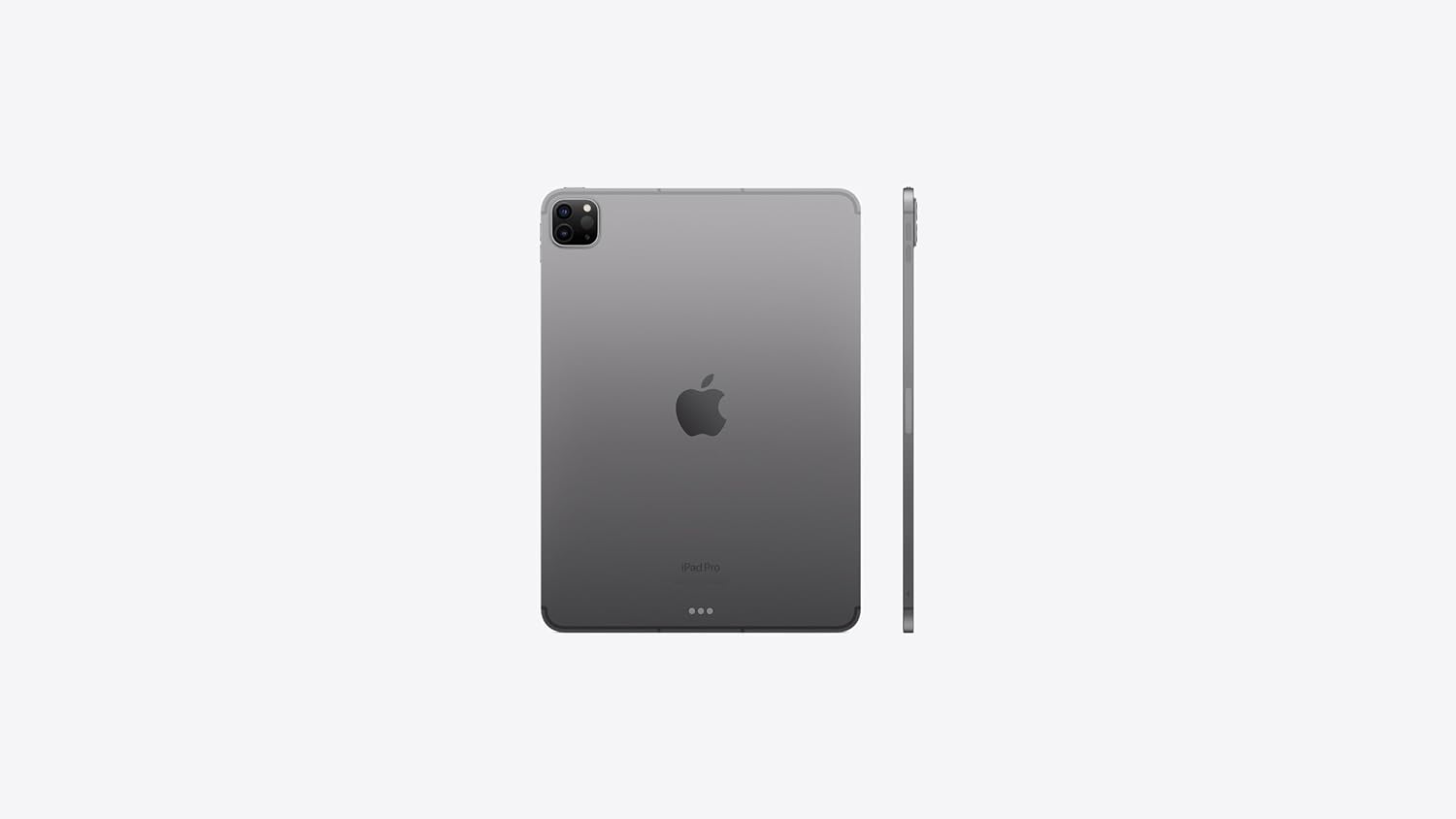
Figure 2: Back and side view of the Apple 2021 iPad Pro 3rd Gen (11-inch) in Space Gray, highlighting the camera module and slim profile.
2. Setup
2.1 Initial Power On
- Press and hold the Top button until the Apple logo appears.
- Follow the on-screen instructions to select your language and region.
2.2 Apple ID Setup
An Apple ID is required to access services like the App Store, iCloud, and FaceTime. If you don't have one, you can create it during the setup process.
- Enter your existing Apple ID and password, or select "Forgot password or don't have an Apple ID?" to create a new one.
2.3 Network Connection
Connect your iPad to a Wi-Fi network or activate cellular data.
- For Wi-Fi: Select your network from the list and enter the password.
- For Cellular: Insert a nano-SIM card (if not pre-installed) and follow the activation steps from your carrier.
2.4 Data Transfer
If you are upgrading from another device, you can transfer your data during setup.
- Options include restoring from an iCloud backup, restoring from a Mac or PC backup, or using Quick Start with another iOS device.
2.5 Face ID Configuration
Set up Face ID for secure authentication and Apple Pay.
- Follow the on-screen prompts to scan your face.
3. Operating Instructions
3.1 Basic Navigation
The iPad Pro uses intuitive multi-touch gestures for navigation.
- Swipe Up: Go to the Home screen.
- Swipe Up and Pause: View open apps (App Switcher).
- Swipe Down from Top Right: Access Control Center.
- Swipe Down from Top Center: Access Notification Center.
3.2 App Management
Download, organize, and remove applications.
- Download Apps: Use the App Store.
- Organize Apps: Touch and hold an app icon until it jiggles, then drag it to a new location or into a folder.
- Delete Apps: Touch and hold an app icon, then tap "Remove App" and confirm.
3.3 Using Apple Pencil (2nd Generation)
The iPad Pro supports the 2nd Generation Apple Pencil for drawing, note-taking, and navigation.
- Pairing: Attach the Apple Pencil magnetically to the right side of your iPad Pro. It will automatically pair and charge.
- Double-Tap: Quickly switch between tools (e.g., pen and eraser) in supported apps.
3.4 Using Magic Keyboard
The Magic Keyboard transforms your iPad Pro into a laptop-like experience with a full-size keyboard and trackpad.
- Attaching: Align the iPad Pro with the magnetic connectors on the Magic Keyboard.
- Trackpad Gestures: Utilize familiar multi-touch gestures for navigation and interaction.
3.5 Camera Functions
The iPad Pro features advanced cameras for photography, videography, and augmented reality.
- Rear Cameras: 12MP Wide and 10MP Ultra Wide cameras for high-quality photos and 4K video recording.
- LiDAR Scanner: Enhances augmented reality (AR) experiences and improves autofocus in low-light conditions.
- Front Camera: TrueDepth camera system with Ultra Wide lens and Center Stage for improved video calls.
4. Maintenance
4.1 Cleaning Your iPad Pro
To maintain the display and finish of your iPad Pro, follow these guidelines:
- Use a soft, lint-free cloth.
- Avoid abrasive cloths, towels, paper towels, or similar items.
- Do not use aerosol sprays, solvents, or abrasives.
- Unplug all cables and power off your iPad Pro before cleaning.
4.2 Software Updates
Keep your iPad Pro updated to the latest iPadOS version for optimal performance and security.
- Go to Settings > General > Software Update.
- If an update is available, tap "Download and Install."
4.3 Storage Management
Monitor and manage your device's storage to ensure smooth operation.
- Go to Settings > General > iPad Storage to view usage and recommendations.
4.4 Battery Care
Optimize battery life and longevity.
- Avoid extreme temperatures.
- Keep software updated.
- Adjust screen brightness and enable Auto-Lock.
- Use Low Power Mode when battery is low.
5. Troubleshooting
5.1 Device Unresponsive
If your iPad Pro is unresponsive, try a force restart.
- Press and quickly release the Volume Up button.
- Press and quickly release the Volume Down button.
- Press and hold the Top button until the Apple logo appears.
5.2 Connectivity Issues
If you experience problems with Wi-Fi or cellular connection:
- Toggle Wi-Fi or Cellular Data off and on in Control Center or Settings.
- Restart your router (for Wi-Fi).
- Reset Network Settings: Go to Settings > General > Transfer or Reset iPad > Reset > Reset Network Settings.
5.3 Factory Reset
If issues persist, you may need to erase all content and settings. Warning: This will delete all data on your iPad. Ensure you have a backup.
- Go to Settings > General > Transfer or Reset iPad > Erase All Content and Settings.
6. Specifications
| Feature | Detail |
|---|---|
| Model | iPad Pro 11" (3rd Generation) |
| Processor | Apple M1 chip (8-core CPU, 10-core GPU) |
| Display | 11-inch Liquid Retina display with ProMotion, True Tone, P3 wide color |
| Screen Resolution | 2388x1668 pixels at 264 ppi |
| Storage Capacity | 128GB |
| RAM | 8 GB |
| Rear Camera | 12MP Wide, 10MP Ultra Wide, LiDAR Scanner |
| Front Camera | TrueDepth with Ultra Wide and Center Stage |
| Connectivity | Wi-Fi 6E, Cellular (5G), Bluetooth 5.0 |
| Ports | USB-C (Thunderbolt / USB 4) |
| Operating System | iPadOS |
| Battery Life | Up to 10 hours (Wi-Fi browsing or video playback) |
| Dimensions (LxWxH) | 9.75 x 7.03 x 0.23 inches |
| Weight | 1.03 pounds |
| Color | Space Gray |
7. Warranty and Support
7.1 Amazon Renewed Guarantee
This product is covered by the Amazon Renewed Guarantee. If you are not satisfied with your purchase, renewed products are eligible for replacement or refund within 90 days of receipt.
- For details, visit the Amazon Renewed Store.
7.2 Technical Support
For further assistance with your Apple iPad Pro, please refer to Apple's official support resources.
- Visit the official Apple Support website for iPad.


