
Blackview A70 Pro
Blackview A70 Pro Smartphone User Manual
Model: A70 Pro
1. Introduction
The Blackview A70 Pro is an economical smartphone designed to offer an elegant look and robust features for everyday use. This updated version of the A70 model features optimized hardware and software to enhance the user experience. Key highlights include a large 6.51-inch HD+ display, ample memory with 4GB RAM and 32GB ROM (expandable up to 256GB), a powerful 5380mAh battery, and a versatile camera system.

Image: Front and back view of the Blackview A70 Pro Smartphone, showcasing its sleek design and triple camera setup on the rear.
2. Setup
2.1 Package Contents
Before you begin, ensure all items are present in the package:
- Blackview A70 Pro Smartphone
- Charger
- USB Cable (Micro USB)
- User Manual (this document)
- Silicone Protective Case (pre-applied screen protector)

Image: Contents of the Blackview A70 Pro retail package, showing the smartphone, charger, USB cable, and documentation.
2.2 Inserting SIM Cards and MicroSD Card
The Blackview A70 Pro supports dual SIM cards (1 Nano SIM + 1 Micro SIM) and a MicroSD card for expandable storage up to 256GB. To insert the cards:
- Power off the device.
- Carefully open the back cover of the phone.
- Locate the SIM and MicroSD card slots.
- Insert your Nano SIM, Micro SIM, and MicroSD card into their respective slots, ensuring correct orientation.
- Close the back cover securely.
- Power on the device. Important: The smartphone does not support hot-swapping of SIM cards. After inserting the SIM card(s), restart the smartphone to ensure they are recognized properly.

Image: A diagram illustrating the internal layout of the Blackview A70 Pro, highlighting the slots for Nano SIM, Micro SIM, and MicroSD cards.
2.3 Initial Charging
Before first use, it is recommended to fully charge your Blackview A70 Pro. Use the provided charger and USB cable.
- Connect the Micro USB end of the cable to the phone's charging port.
- Connect the USB-A end to the power adapter.
- Plug the power adapter into a wall outlet.
- The charging indicator will appear on the screen.
The device features a 5380mAh battery, providing extended usage times. It also supports OTG (On-The-Go) functionality, allowing it to act as a power bank to charge other compatible devices using an OTG cable (sold separately).

Image: The Blackview A70 Pro display showing the battery charging icon and indicating its massive 5380mAh capacity.
2.4 First Boot and Setup Assistant
Upon first power-on, the device will guide you through the initial setup process. This includes selecting your language, connecting to Wi-Fi, and setting up your Google account. The Installation Assistant can help you securely transfer data from an old device to your new Blackview A70 Pro.
3. Operating Your Smartphone
3.1 Display and User Interface
The Blackview A70 Pro features a 6.51-inch HD+ IPS display with a 20:9 aspect ratio and 720x1600 resolution, offering vivid details and an immersive viewing experience. The device runs on Doke OS 2.0, based on Android 11, which enhances aesthetics, interaction, and overall efficiency.
- Adaptive Brightness: This feature automatically adjusts screen brightness based on ambient light, preventing eye strain and optimizing power consumption.
- Night Light Mode: Reduces blue light emission, making the screen more comfortable to view in low-light conditions and potentially aiding sleep.

Image: The Blackview A70 Pro's 6.51-inch HD+ display, highlighting its 720x1600 resolution, 87.6% screen-to-body ratio, and 20:9 aspect ratio.

Image: Screenshots of the Blackview A70 Pro's Doke OS 2.0 interface, demonstrating features like System Manager, Freezer, and Game Mode.
3.2 Performance and System Features
Powered by the Unisoc T310 quad-core processor clocked at up to 2.0 GHz, combined with 4GB of RAM and 32GB of internal storage, the A70 Pro delivers high processing performance and efficient power consumption. It ensures smooth operation and seamless app switching.
- System Manager: An all-in-one tool for optimizing your phone, including junk cleaning and battery management.
- Freezer: Allows you to block apps from running in the background, saving memory and improving performance.
- Game Mode: Optimizes gaming by cleaning RAM and blocking pop-ups, providing an uninterrupted and immersive gaming experience.

Image: Visual representation of the Unisoc T310 Quad-core 4G Chip, alongside indicators for 4GB RAM, 32GB ROM, and 256GB expandable storage.
3.3 Camera Features
Capture life's moments with the Blackview A70 Pro's camera system:
- Rear Camera: 13MP main camera for sharp and detailed photos.
- Front Camera: 5MP camera for clear selfies and video calls.
Both cameras feature a BSI sensor, which helps capture more light, significantly improving performance in low-light conditions.
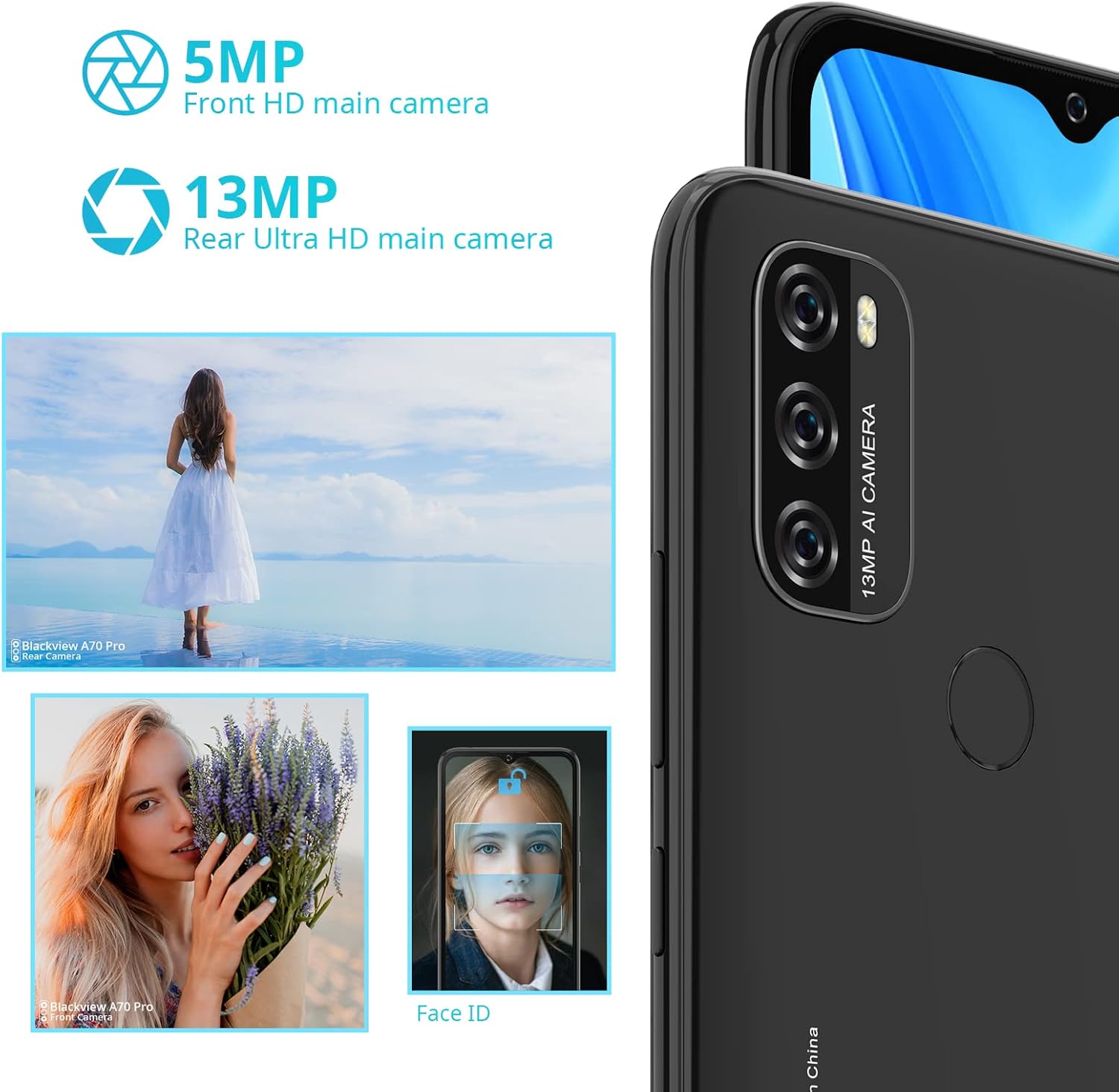
Image: An overview of the Blackview A70 Pro's camera capabilities, featuring the 5MP front and 13MP rear cameras, along with sample images and a depiction of Face ID functionality.
3.4 Security and Connectivity
The A70 Pro offers multiple ways to secure and connect your device:
- Fingerprint Sensor: Located on the back, allows for quick and secure unlocking with a touch.
- Face ID: Unlock your phone with a glance using facial recognition.
- 4G LTE: Ensures reliable and fast data transmission.
- Dual-band Wi-Fi (2.4G & 5G): Provides stable and fast internet connectivity.
- Bluetooth 5.0: For efficient wireless connection to accessories.
- GPS, GLONASS, BeiDou: Multiple satellite navigation systems for accurate and fast positioning.
3.5 Gestures and Shortcuts
The Blackview A70 Pro supports convenient gestures for enhanced usability:
- Three-finger Screenshot: Swipe down with three fingers to quickly capture a screenshot.
- Long Screenshot: Capture extended content on a single screen.
- Screenshots can be shared immediately after capture.
4. Maintenance
4.1 Battery Care
To maximize the lifespan and performance of your 5380mAh battery:
- Avoid extreme temperatures (very hot or very cold).
- Do not let the battery completely drain frequently.
- Use the original charger and cable for optimal charging.
- If the phone will not be used for an extended period, charge it to about 50% before storing.
Expected battery life on a full charge:
- Up to 7 hours of gaming
- Up to 8 hours of video playback
- Up to 9.5 hours of web browsing
- Up to 29 hours of call time
- Up to 45 hours of music playback
4.2 System Optimization
Regularly use the built-in System Manager to keep your device running smoothly. This includes:
- Cleaning junk files.
- Managing battery usage.
- Using the "Freezer" feature to stop background app activity for memory saving.
Ensure your device's software is up to date by checking for system updates in the settings menu.
5. Troubleshooting
This section addresses common issues you might encounter with your Blackview A70 Pro.
| Problem | Possible Solution |
|---|---|
| SIM card not recognized | Ensure the SIM card is correctly inserted. Power off the phone, re-insert the SIM card, and then restart the device. |
| Poor 4G connection | Check your network settings. If issues persist, try switching to 3G mode in your phone's network settings as a temporary solution. Ensure you are in an area with good network coverage. |
| Phone is slow or lagging | Use the System Manager to clean junk files and optimize memory. Utilize the "Freezer" feature to stop unnecessary background apps. Restart the phone. |
| No sound during calls (unless on speakerphone) | Check the volume settings during a call. Ensure the earpiece is not blocked. If the issue persists, a factory reset might be necessary after backing up your data. |
| Camera quality is not as expected | Ensure the camera lens is clean. Check lighting conditions. While the camera is functional, it may not offer professional-grade photo quality. |
| Device not charging | Verify that the charger and cable are securely connected. Try a different power outlet. Ensure the charging port is free of debris. |
For issues not covered here, please refer to the official Blackview support website or contact customer service.
6. Specifications
| Feature | Detail |
|---|---|
| Model Name | Blackview A70 Pro |
| Dimensions | 16.52 x 7.7 x 0.96 cm |
| Weight | 205 grams |
| Display Size | 6.51 inches HD+ IPS |
| Display Resolution | 720 x 1600 pixels (20:9 aspect ratio) |
| Operating System | Android 11 + Doke OS 2.0 |
| Processor | Unisoc T310 Quad-core, 2.0 GHz |
| RAM | 4GB |
| Internal Storage | 32GB |
| Expandable Storage | Up to 256GB via MicroSD card (not included) |
| Rear Camera | 13MP |
| Front Camera | 5MP |
| Battery Capacity | 5380mAh (Non-removable Lithium-ion) |
| SIM Card Support | Dual SIM (1 Nano SIM + 1 Micro SIM) + 1 MicroSD slot |
| Cellular Technology | 4G LTE |
| Wireless Connectivity | Wi-Fi (2.4G & 5G dual-band), Bluetooth 5.0 |
| Navigation | GPS, GLONASS, BeiDou |
| Security Features | Fingerprint Sensor, Face ID |
7. Warranty and Support
For warranty information, please refer to the warranty card included with your product or visit the official Blackview website. For technical support, troubleshooting assistance, or service inquiries, please contact Blackview customer support through their official channels. You may also contact the retailer where you purchased the device for assistance.
Official Blackview Store: Blackview Store on Amazon
Related documentsA70 Pro


Ask a question about this manual
Ask about setup, troubleshooting, compatibility, parts, safety, or missing instructions. Manuals+ will review the question and use this page’s manual context to help answer it.