
Introduction
This manual provides essential information for the proper setup, operation, and maintenance of your BenQ PD2705U 27-inch 4K UHD IPS monitor. Please read this manual thoroughly before using the product to ensure optimal performance and longevity. The BenQ PD2705U is designed for professionals, offering precise color accuracy, extensive connectivity, and ergonomic adjustments.

Image: Front view of the BenQ PD2705U monitor displaying vibrant colors.
Package Contents
Verify that all items are present in the package:
- BenQ PD2705U Monitor
- Monitor Stand (Base and Arm)
- Power Cable
- HDMI Cable
- USB-C Cable
- USB-B to USB-A Cable
- Hotkey Puck G2
- Factory Calibration Report
- Quick Start Guide
Setup Instructions
1. Assembling the Monitor Stand
- Place the monitor panel face down on a soft, clean surface to prevent scratches.
- Attach the stand arm to the back of the monitor panel. Ensure it clicks securely into place.
- Connect the stand base to the stand arm and tighten the screw at the bottom of the base.

Image: Rear view of the monitor with the stand arm and base securely attached.
2. Connecting Cables
The BenQ PD2705U offers various connectivity options. Refer to the port diagram below for proper connections.

Image: Detailed diagram of the monitor's rear input/output ports, including USB 3.2, USB-B, DP1.4, HDMI 2.0, USB-C (65W Power Delivery), and Headphone Jack.
- Power: Connect the power cable to the monitor and a power outlet.
- Video Input: Connect your computer using an HDMI, DisplayPort (DP), or USB-C cable.
- USB Hub: For USB hub functionality and KVM switch, connect the USB-B to USB-A cable from the monitor to your computer. If using USB-C for video, the USB hub functionality is integrated.
- Hotkey Puck: Connect the Hotkey Puck to its dedicated port on the monitor for quick access to OSD functions.
Operating Instructions
1. Power On/Off
Press the power button, typically located on the bottom right corner on the back of the monitor, to turn the monitor on or off.
2. On-Screen Display (OSD) Navigation
The OSD menu allows you to adjust various monitor settings. Use the joystick or buttons, often located on the rear or bottom edge, to navigate the menu. The Hotkey Puck also provides convenient access to frequently used settings.
3. Hotkey Puck Functionality
The Hotkey Puck G2 provides quick access to monitor settings without needing to reach for the OSD buttons. It can be customized to switch between input sources, adjust volume, or change color modes.
4. KVM Switch
The integrated KVM switch allows you to control two different computer systems with a single keyboard and mouse connected to the monitor's USB hub. To utilize this feature, ensure both computers are connected to the monitor via their respective video inputs and the USB upstream cables (USB-B or USB-C).
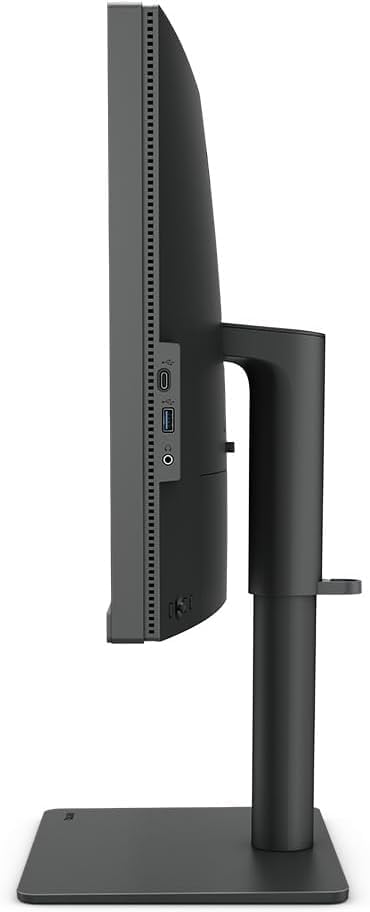
Image: The BenQ PD2705U monitor connected to a laptop and a desktop, demonstrating the KVM switch functionality.
5. Color Modes and AQCOLOR Technology
The PD2705U features BenQ's AQCOLOR technology, ensuring accurate color reproduction. It supports 100% sRGB and Rec. 709 color gamuts with an average Delta E ≤3, and is CalMan and Pantone SkinTone validated. Specific color modes are available for various professional tasks:
- M-book Mode: Optimizes color to match Mac devices.
- DualView Mode: Allows simultaneous display of content in two different color modes side-by-side.
- CAD/CAM Mode: Enhances contrast for lines and shapes in technical drawings.
- Animation Mode: Brightens dark areas without overexposing bright regions.

Image: Visual representation of different expertized color modes available on the monitor.
6. Ergonomic Adjustments
The monitor stand allows for extensive ergonomic adjustments to suit your viewing preferences:
- Height Adjustment: Raise or lower the monitor to eye level.
- Tilt: Adjust the screen angle forward or backward (-5° to +20°).
- Swivel: Rotate the monitor horizontally (15° left/right).
- Pivot: Rotate the screen 90° for portrait viewing.

Image: Side view of the monitor illustrating its ergonomic tilt, swivel, and pivot capabilities.
Maintenance
Cleaning the Monitor
- Always power off the monitor and unplug the power cord before cleaning.
- Use a soft, lint-free cloth lightly dampened with water or a mild, non-abrasive screen cleaner.
- Do not spray cleaner directly onto the screen.
- Avoid using harsh chemicals, solvents, or abrasive materials.
Troubleshooting
If you encounter issues with your BenQ PD2705U monitor, refer to the following common troubleshooting steps:
- No Power: Ensure the power cable is securely connected to both the monitor and the power outlet. Check if the power outlet is functional.
- No Signal: Verify that the video cable (HDMI, DisplayPort, or USB-C) is correctly connected to both the monitor and your computer. Ensure the correct input source is selected via the OSD menu or Hotkey Puck.
- Flickering Screen: Check the video cable connections. Try a different video cable or port. Ensure your graphics card drivers are up to date.
- Incorrect Colors: Reset the monitor to factory default settings via the OSD. Ensure the correct color mode is selected for your task. If using a Mac, verify M-book mode is active.
- USB Ports Not Working: Ensure the USB-B upstream cable (or USB-C for integrated hub) is connected from the monitor to your computer.
For further assistance, consult the BenQ support website or contact customer service.
Specifications
| Feature | Specification |
|---|---|
| Brand | BenQ |
| Model Number | PD2705U |
| Screen Size | 27 Inches |
| Resolution | 3840 x 2160 (4K UHD) |
| Panel Type | IPS |
| Aspect Ratio | 16:9 |
| Color Gamut | 100% sRGB, Rec. 709 |
| Delta E | ≤3 |
| Connectivity | HDMI 2.0, DisplayPort 1.4, USB-C (65W PD), USB 3.0 Hub |
| Ergonomics | Height, Tilt, Swivel, Pivot |
| Built-in Speakers | Yes |
| Item Weight | 20.5 pounds |
| Product Dimensions | 23.4 x 28.1 x 6.6 inches |

Image: Energy efficiency label for the BenQ PD2705U monitor.
Warranty and Support
BenQ provides a manufacturer's warranty for the PD2705U monitor. Please refer to the warranty card included in your package or visit the official BenQ website for detailed warranty terms and conditions specific to your region.
For technical support, driver downloads, or service inquiries, please visit the BenQ support page or contact their customer service department. Keep your purchase receipt and serial number handy for faster service.


