
ClicBot 5G Full Kit
ClicBot Coding Robot Kits User Manual
Model: 5G Full Kit
Introduction
The ClicBot Coding Robot Kits provide an innovative and interactive platform for learning robotics and coding. Designed with modular components, ClicBot allows users to build a wide variety of robot configurations, fostering creativity and problem-solving skills. This manual provides essential information for setting up, operating, maintaining, and troubleshooting your ClicBot.

Image: Two distinct ClicBot robot configurations, showcasing the modular design and versatility of the kit.

Image: ClicBot's core attributes: Entertaining, Emotional, Educational, global reach, program updates, and diverse product configurations.
What's in the Box?
The ClicBot 5G Full Kit includes a variety of modular components that allow for extensive customization and robot building. Please verify all components are present upon unboxing.

Image: A visual representation of all components included in the ClicBot 5G Full Kit.
- 1 Brain: The central processing unit.
- 4 Skeleton: Structural connecting units.
- 8 Joint: Articulated modules for motion.
- 1 Holder: For attaching external devices like phones.
- 1 Mount: For stabilizing the robot.
- 4 Wheel: For mobility.
- 9 Sticker Pad: For aesthetic customization.
- 6 Locker: For securing connections.
- 1 Type C Cable: For charging and data transfer.
- 1 Grasper: A functional gripper module.
- 2 Suction Cup: For climbing functions.
- 1 Distance Sensor: For obstacle detection.
- 4 Smart Foot: Pressure-sensitive feet for stability and interaction.
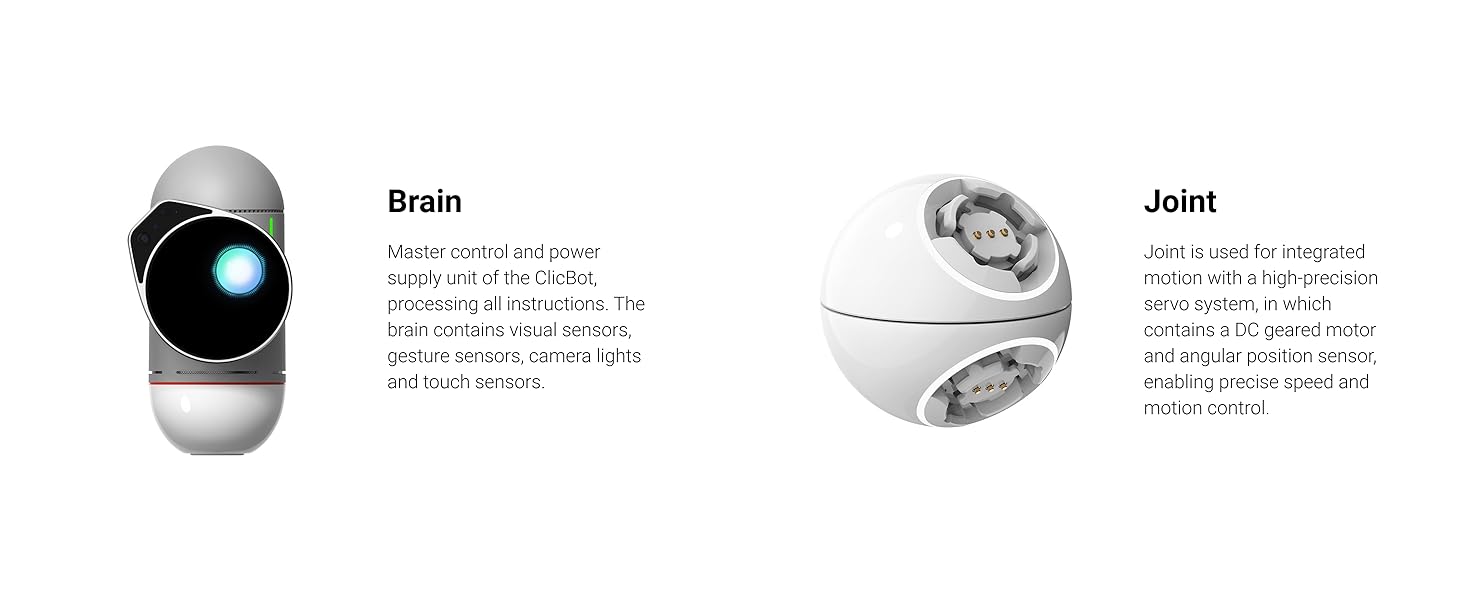
Image: Close-up view and description of the Brain and Joint modules.
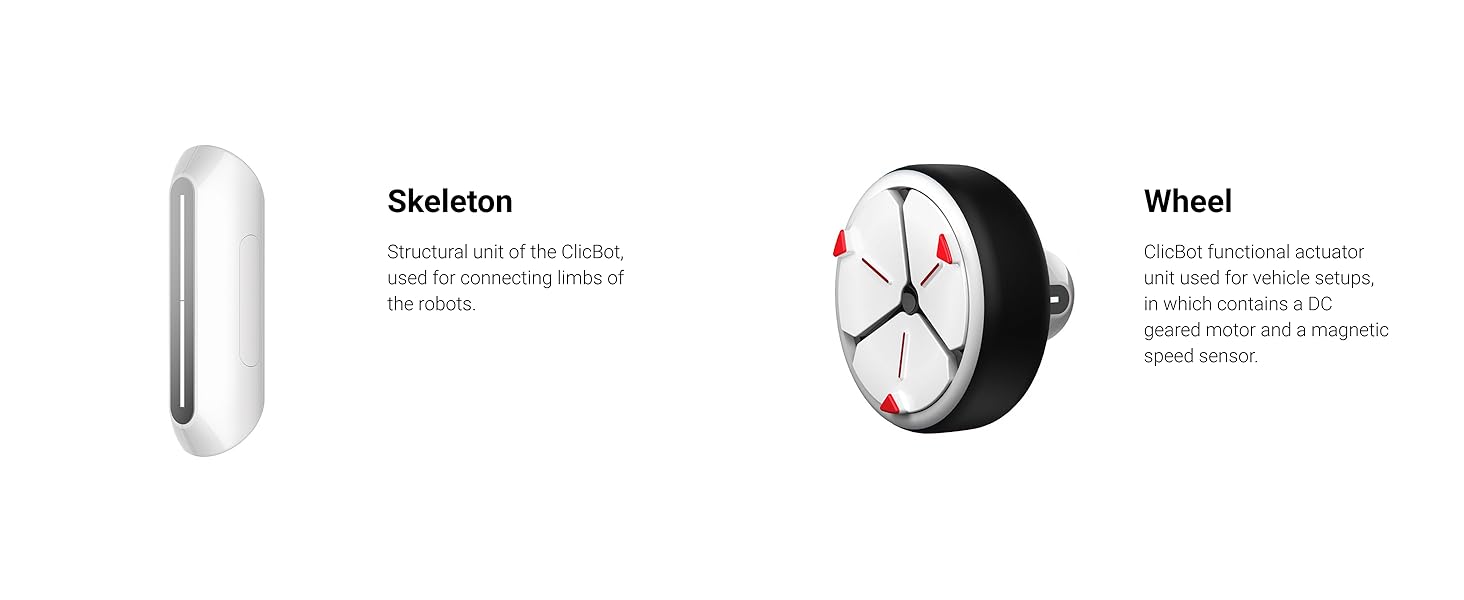
Image: Close-up view and description of the Skeleton and Wheel modules.
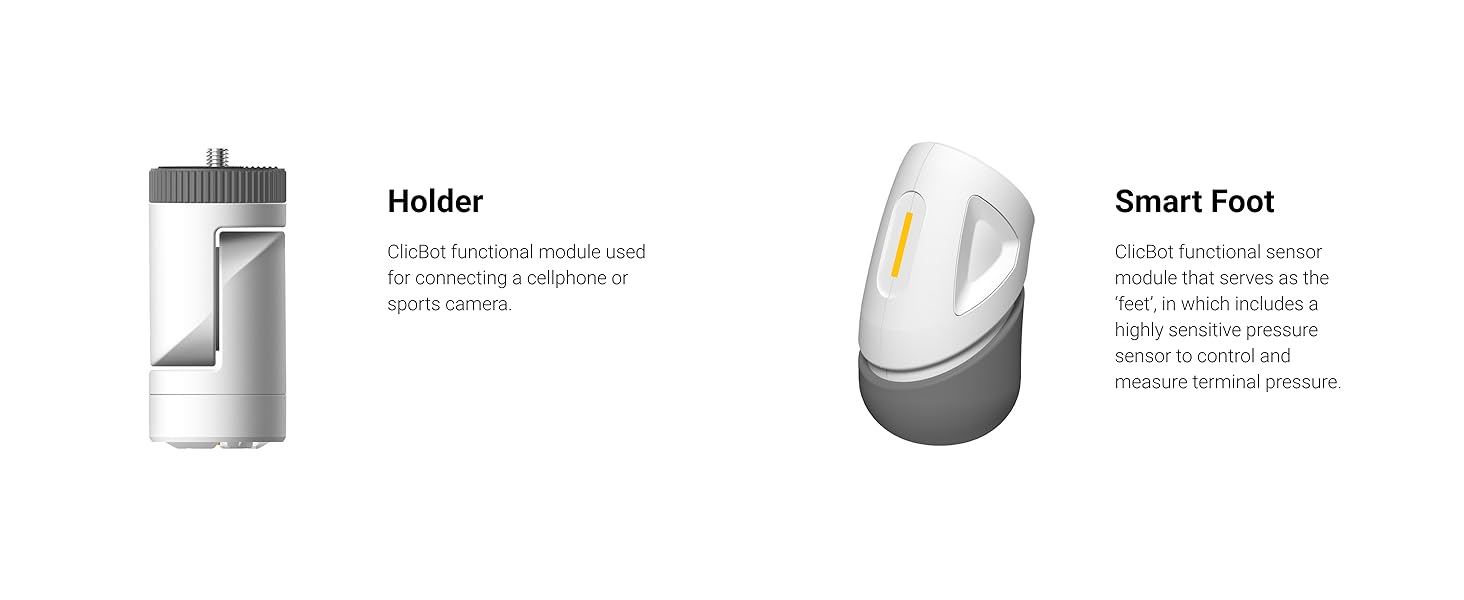
Image: Close-up view and description of the Holder and Smart Foot modules.
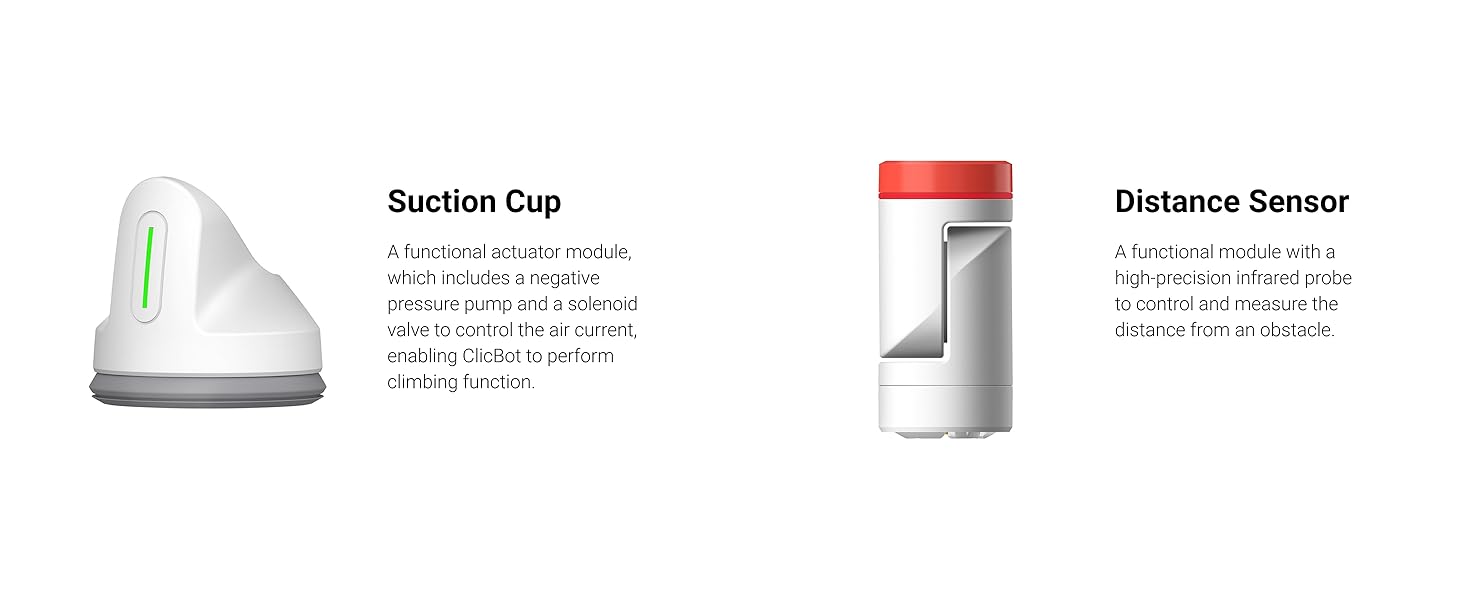
Image: Close-up view and description of the Suction Cup and Distance Sensor modules.
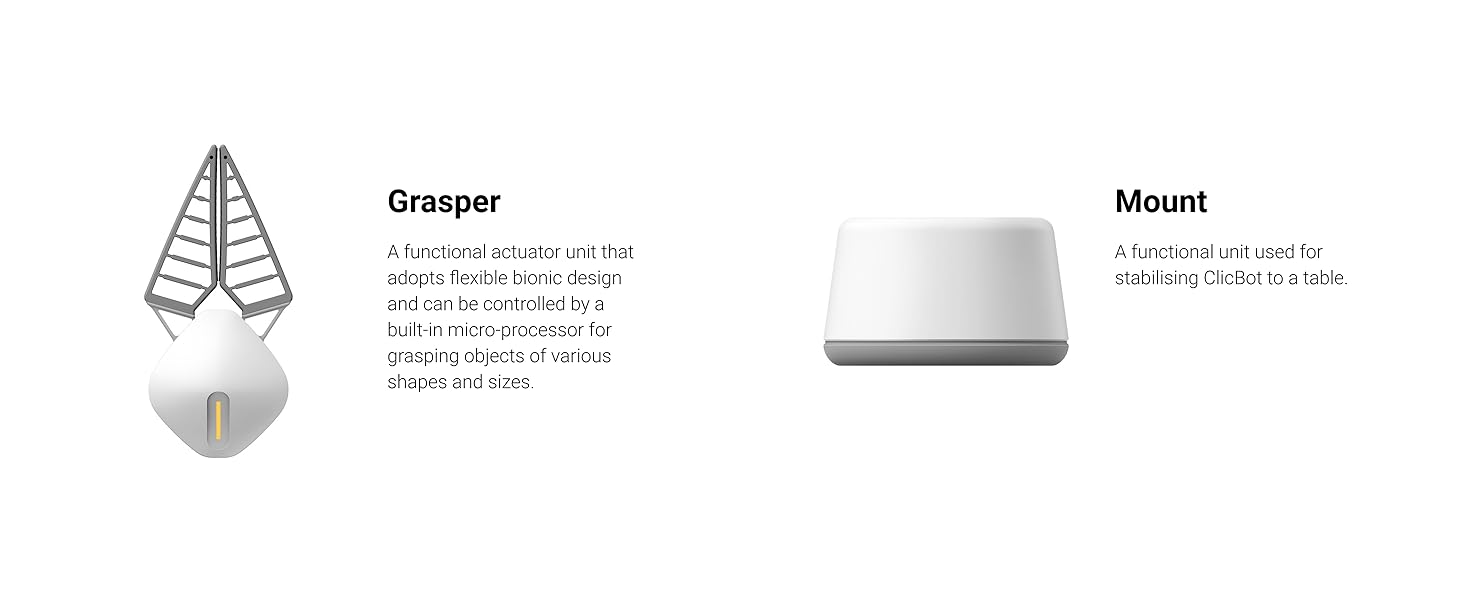
Image: Close-up view and description of the Grasper and Mount modules.
Setup Guide
- Charge the Brain Module: Before first use, connect the ClicBot Brain module to a power source using the provided Type C cable. Ensure it is fully charged for optimal performance.
- Download the ClicBot App: Search for "ClicBot" in your device's app store (iOS or Android) and download the official application.
- Initial Connection:
- Turn on the ClicBot Brain module.
- Open the ClicBot app on your device.
- Follow the on-screen instructions within the app to connect to your ClicBot via Bluetooth or Wi-Fi.
- The app will guide you through any necessary firmware updates for the modules. Ensure a stable internet connection during this process.
- Assemble Your First Robot: The app provides step-by-step instructions for building various robot configurations. Start with a simple design to familiarize yourself with the modular connections. Ensure modules click securely into place.

Image: The ClicBot app interface, which is essential for setup and operation.
Operating Your ClicBot
ClicBot offers diverse operational modes, from pre-programmed actions to custom coding. All operations are managed through the ClicBot app.
App Interface and Modes
The ClicBot app is your primary control center. It features various sections:
- Playground: Explore pre-designed robot behaviors and games.
- Academy: Access tutorials and lessons for coding and robotics.
- Community: Share your creations and discover designs from other users.
- Workshop: Create and program your own robot configurations.

Image: The ClicBot app's coding interface, demonstrating its block-based programming capabilities.
Building and Programming
ClicBot's modular design allows for thousands of unique robot configurations. The app provides visual guides for assembly and a drag-and-drop block-based coding interface for programming behaviors.

Image: A diverse array of ClicBot configurations, illustrating the robot's adaptability.

Image: Children engaging with a ClicBot robot, demonstrating interactive play.
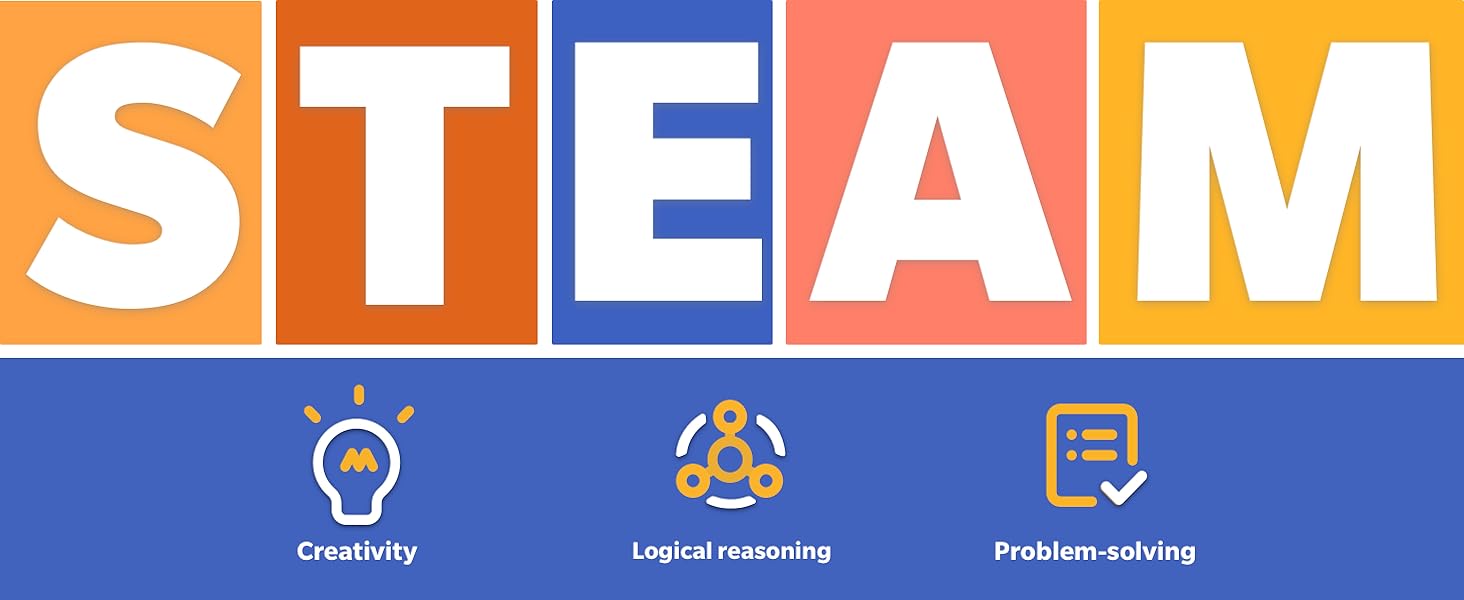
Image: ClicBot's alignment with STEAM education principles: Creativity, Logical Reasoning, and Problem-solving.
Maintenance
- Cleaning: Use a soft, dry cloth to clean the robot modules. Avoid using harsh chemicals or abrasive materials.
- Charging: Regularly charge the Brain module using the provided Type C cable. Do not overcharge.
- Storage: When not in use, store ClicBot and its components in a cool, dry place, away from direct sunlight and extreme temperatures.
- Firmware Updates: Periodically check the ClicBot app for firmware updates for your modules. Keeping the firmware updated ensures optimal performance and access to new features.
- Component Care: Handle all modules with care. Avoid forcing connections or applying excessive pressure when assembling or disassembling.
Troubleshooting
| Problem | Possible Cause | Solution |
|---|---|---|
| Robot does not turn on. | Low battery or power issue. | Ensure the Brain module is fully charged. Check the Type C cable and power adapter. |
| Cannot connect to the app. | Bluetooth/Wi-Fi issue, app not updated, or robot not in pairing mode. |
|
| Robot modules are not responding correctly. | Loose connection or outdated firmware. |
|
| App crashes or freezes. | Software bug or insufficient device resources. |
|
Specifications
- Model: 5G Full Kit
- ASIN: B09MVTGNH6
- Manufacturer: KEYi TECH
- Recommended Age: 8 - 17 years
- Item Weight: 11.43 pounds
- Package Dimensions: 16.7 x 14 x 8 inches
- Connectivity: App-controlled (Bluetooth/Wi-Fi)
- Key Features: Modular design, programmable, STEM educational, interactive.
Safety Information
For detailed safety guidelines and important warnings, please refer to the official Safety Information PDF document.
Support & Warranty
For technical support, warranty claims, or any inquiries regarding your ClicBot Coding Robot Kits, please contact ClicBot customer service.
Please refer to the product packaging or the official ClicBot website for the most current contact information and detailed warranty terms.
Manufacturer: KEYi TECH
Online Resources: Visit the official ClicBot website or the ClicBot store on Amazon for FAQs, tutorials, and community forums.
Ask a question about this manual
Ask about setup, troubleshooting, compatibility, parts, safety, or missing instructions. Manuals+ will review the question and use this page’s manual context to help answer it.