
1. Introduction
This manual provides instructions for the TIMBOOTECH 4K Wireless HDMI Transmitter and Receiver. This device facilitates wireless transmission of HDMI video and audio signals, supporting 4K input and 1080P output. It operates on dual-band 2.4G/5.8GHz wireless connectivity and offers features such as multi-transmitter support, dual-screen output (HDMI & VGA), and mirroring/extension modes.
2. What's in the Box
- 1x HDMI Wireless Transmitter (TX)
- 1x HDMI Wireless Receiver (RX)
- 1x Audio Cable
- 2x Type-C USB Cables
- 1x HDMI Cable
- 1x Micro HDMI Adapter
- 1x Mini HDMI Adapter
- 1x Manual Book

3. Product Overview
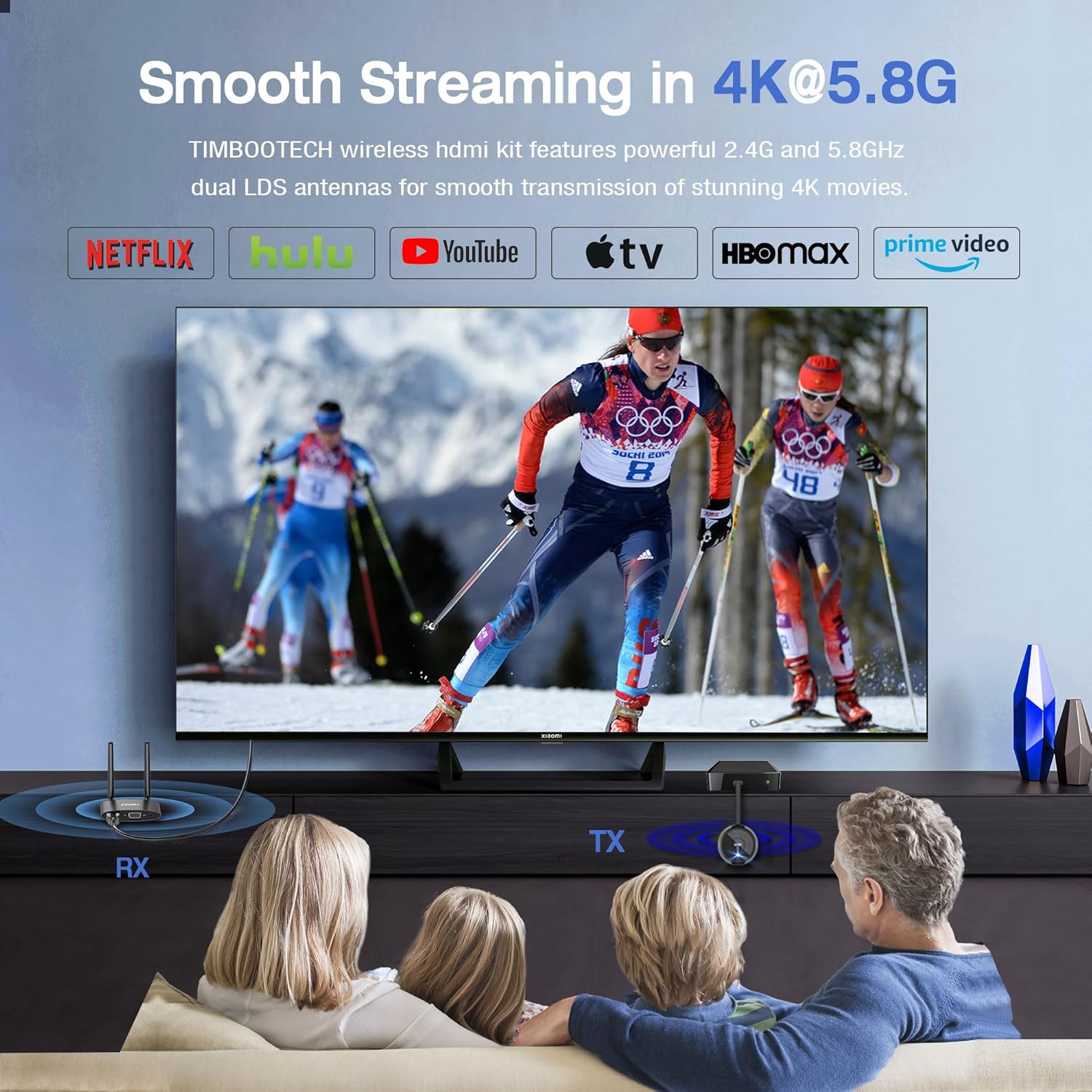
The TIMBOOTECH Wireless HDMI system consists of a Transmitter (TX) and a Receiver (RX) unit. The TX unit connects to your source device, and the RX unit connects to your display.
Transmitter (TX)
The Transmitter (TX) is a compact device with an integrated HDMI connector and a USB-C port for power. It sends the video and audio signal wirelessly to the Receiver.
Receiver (RX)
The Receiver (RX) unit features HDMI, VGA, and 3.5mm audio output ports, along with two external antennas for signal reception and a USB-C port for power. It receives the wireless signal from the TX and outputs it to your display.

4. Setup Instructions
Follow these steps to set up your TIMBOOTECH Wireless HDMI system:
- Connect the external antennas to the Receiver (RX) unit.
- Connect the RX unit to your display (TV, monitor, or projector) using an HDMI cable or a VGA cable (VGA cable not included).
- Connect the USB-C power cable to the RX unit and plug it into a power source (e.g., TV's USB port or a USB power adapter).
- Connect the Transmitter (TX) unit to your source device (laptop, PC, gaming console, etc.) via its HDMI connector.
- Connect the USB-C power cable to the TX unit and plug it into a power source. The TX unit requires external power for operation.

Video: This video demonstrates the physical connection process for the Wireless HDMI Transmitter and Receiver, showing how to plug in the components to a laptop and monitor.
Video: An unboxing and initial setup guide for the TIMBOOTECH 4K Wireless HDMI Kit, showing the components and basic assembly.
5. Operating Instructions
Pairing the Devices
The TX and RX units are pre-paired at the factory. If re-pairing is needed:
- Ensure both TX and RX are powered on and connected to their respective devices.
- Long press the button on the back of the RX unit for 3 to 5 seconds. The display will show "Ready to Pair".
- Then, long press the middle button on the TX unit for 5 to 8 seconds.
- When the indicator light on the TX is flashing, the display will show "Pairing OK". The indicator light will then become solid, indicating successful pairing.

Multi-TX Capability
The system supports connecting up to 8 Transmitters (TXs) to one Receiver (RX). To switch between different TX units, simply click the middle button on the desired TX unit.

Dual Screen Functionality (HDMI & VGA)
The Receiver (RX) unit features both HDMI and VGA output ports, allowing for simultaneous display on two monitors. This can enhance productivity for presentations or multimedia projects. An audio output port is also available for connecting external speakers.

Mirror & Extend Mode
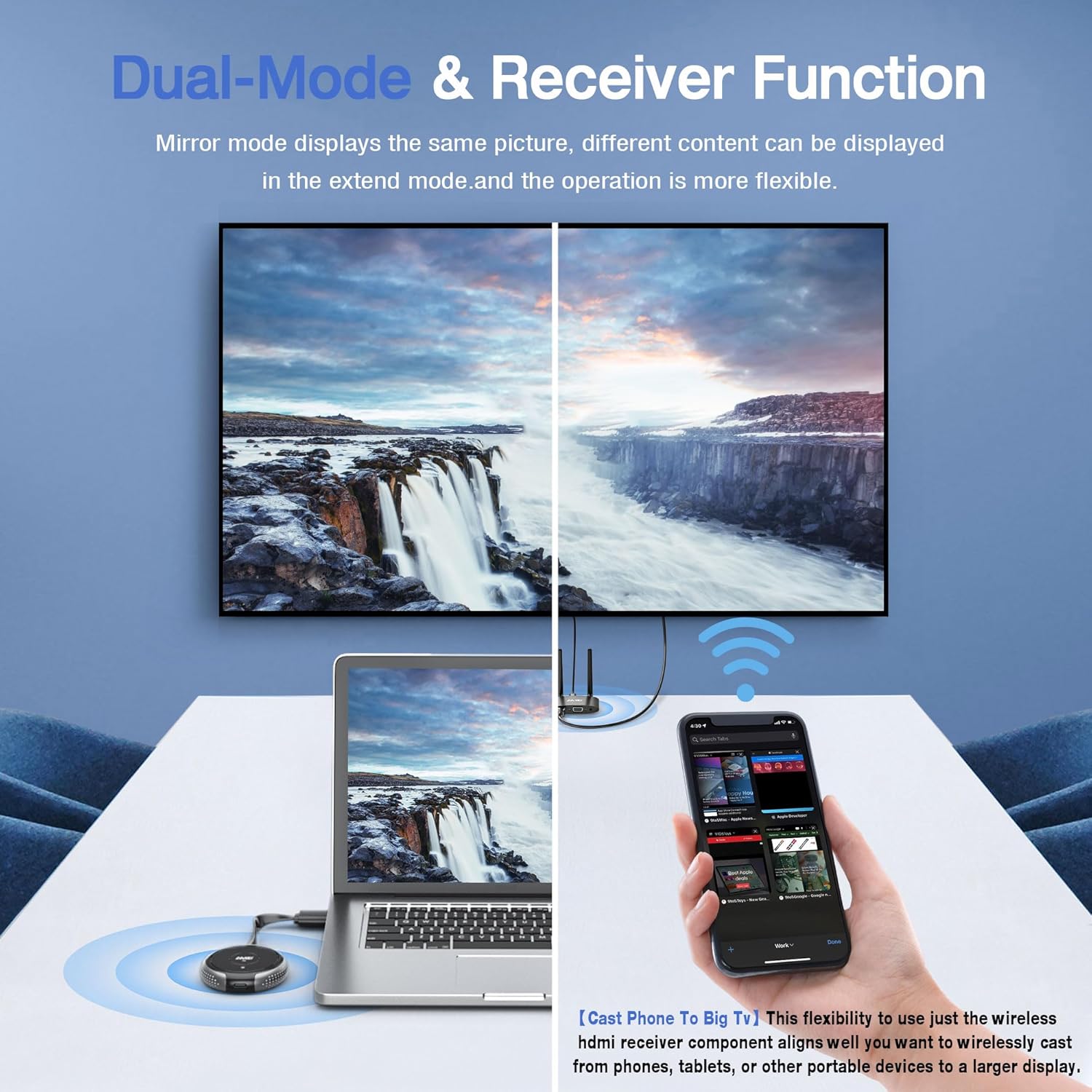
The system supports both mirroring and extending display modes, providing flexibility for various applications. In mirror mode, the same content is displayed on both screens. In extend mode, different content can be displayed, expanding your workspace.
Phone/Tablet Casting (Receiver Function)
The Receiver (RX) can function independently to cast content from phones, tablets, or other portable devices to a larger display. This feature supports 4K HDR movies via WiFi.
How to connect the Receiver from your phone to the TV:
- Plug the external antenna cables into the RX, and also plug the USB cable into a power adapter (5V/1A).
- Plug the RX into the TV. You will see a blue main screen.
For Android Devices: Find the "Screen Mirroring" function in your settings, select the RX device (e.g., "RX-BF3AB555") as the target, then enable mirroring.
For Windows Devices: Press "Win+P", click the mirror function, then it is done.
For iOS System:
- Go to your iPhone's WiFi setting, choose the RX device (e.g., "RX-BF3AE0BF").
- Click "Internet", access the IP address "192.168.203.1".
- Choose your home WiFi and password (12345678), and wait for the TV screen's icon in the upper right corner to show that the connection is successful.
- Then go back to your iPhone's WiFi setting, choose your home WiFi.
- Tap Airplay, choose "RX-BF3AE0BF", and it will auto stream.

Adjustable WiFi Channels
To optimize viewing experience and reduce interference, you can adjust the WiFi channels:
- Plug the receiver/RX to your TV and power it on.
- Go to your phone's WiFi settings and find the WiFi named "RX-xxxx", then enter the password: 12345678.
- Launch a browser on your phone and enter the IP address "192.168.203.1". Choose "Wireless channel", select the 5G as your WiFi mode.
- Choose your country, and select a WiFi channel. Select a Bandwidth. WiFi channel is between 36 and 165.

6. Audio Output
The TIMBOOTECH Wireless HDMI system supports 2.0 stereo sound output.
- If the output device is a laptop/computer, please modify the sound output source and select "RX-BXXXXXX" as the target.
- This product only supports 2.0 stereo sound and does not support 2.1 stereo sound, 5.1 stereo sound, 7.1 stereo sound, or Dolby Atmos sound.

7. Specifications
| Feature | Description |
|---|---|
| Brand | TIMBOOTECH |
| Model Number | BBUSTIMHDMIDONGLE |
| Connectivity Technology | Wireless, WiFi, HDMI, Mini HDMI, Micro HDMI, VGA |
| Special Features | Built-In Wi-Fi, Compact Design, Plug and Play, Wireless |
| Compatible Devices (TX) | Laptop, PC, gaming console, cable box, DVD, camera, recorder, DSLR, Blu-ray players, PS3/4/5/ Xbox, tablet, iPhone, iPad, smartphone |
| Compatible Devices (RX) | HDTV, Monitor, Projector |
| Total HDMI Ports | 2 (1 on TX, 1 on RX) |
| Audio Output Mode | Support 2.0 stereo sound |
| Video Encoding | MOV |
| Wireless Technology | Wi-Fi (2.4G/5.8GHz) |
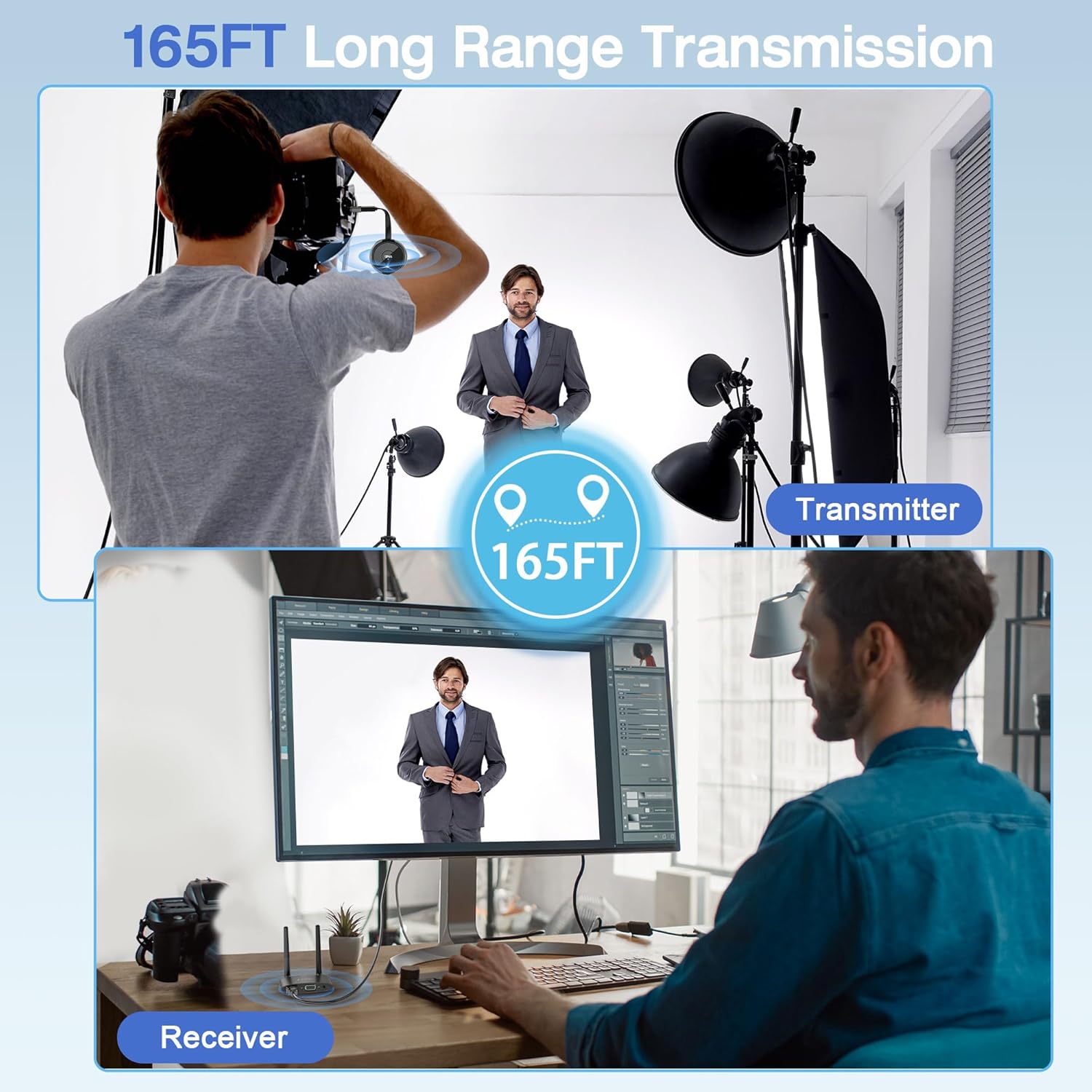
| Transmission Range | Up to 165FT/50M (line of sight) |
| Output Power | 10 Watts |
| Item Dimensions (D x W x H) | 5.6"D x 2.36"W x 3.46"H |
| Item Weight | 3.5 Ounces |
| Color | Grey |
8. Troubleshooting
- No Signal on Display:
1. Ensure both the Transmitter (TX) and Receiver (RX) are properly powered on and their indicator lights are solid blue.
2. Verify that all HDMI/VGA and power cables are securely connected.
3. Check if the display input source is correctly selected (e.g., HDMI 1, VGA).
4. Re-pair the TX and RX units as described in the 'Pairing the Devices' section.
5. Ensure the TX unit is receiving sufficient power. Some source devices may not provide enough power, requiring the use of the provided USB-C power cable. - Intermittent Signal or Poor Quality:
1. Reduce the distance between the TX and RX units. The maximum effective range is 165FT/50M in line of sight, but walls and obstacles can significantly reduce this.
2. Adjust the WiFi channels as described in the 'Adjustable WiFi Channels' section to avoid interference from other wireless devices.
3. Ensure there are no major obstructions (e.g., thick walls, large metal objects) directly between the TX and RX units. - TX/RX Unit Overheating:
It is normal for the units to become warm during extended use. If a unit becomes excessively hot and causes performance issues, ensure it has adequate ventilation and is not covered. Disconnect power and allow it to cool down if necessary. - Cannot Cast from Phone/Tablet:
1. Ensure your phone/tablet is connected to the RX unit's WiFi network.
2. Follow the specific instructions for Android, Windows, or iOS devices provided in the 'Phone/Tablet Casting' section.
3. Verify that your device's screen mirroring feature is enabled and correctly configured.
9. Maintenance
- Keep the devices clean and free from dust. Use a soft, dry cloth for cleaning.
- Avoid exposing the devices to extreme temperatures, humidity, or direct sunlight.
- Do not attempt to disassemble or repair the devices yourself. This may void the warranty.
10. Warranty and Support
This product comes with a 1-Year Manufacturer Warranty.
For further support or inquiries, please visit the official TIMBOOTECH store on Amazon: TIMBOOTECH Amazon Store.


