
1. Introduction
This manual provides detailed instructions for the proper use and maintenance of your Tera HW0001 2D QR Barcode Scanner. Please read this manual thoroughly before operating the device to ensure optimal performance and longevity.
2. Product Features
- Versatile Connectivity: Supports Bluetooth, 2.4GHz Wireless, and USB Wired connections for flexible integration with various systems.
- Dual Operating Modes: Features Instant Upload Mode for real-time data transfer and Storage Mode for offline data collection (up to 50,000 barcodes).
- Automatic Continuous Scanning: Configurable for hands-free, rapid scanning without repeated trigger presses.
- Broad Symbology Support: Decodes a wide range of 1D and 2D/QR barcodes.
- Multi-Language Keyboard Support: Compatible with various keyboard layouts including US, UK, German, French, Italian, Spanish, and Japanese.
- Durable Design: Equipped with IP54 anti-shock silicone, capable of withstanding drops from 1.5 meters (5 feet).
- Long Battery Life: 1800mAh battery provides extended standby time, up to 60 days on a full charge.
- Vibration Alert: Provides tactile feedback upon successful scans.

Image: The Tera HW0001 wireless barcode scanner, showcasing its versatile connectivity options and included stand.
3. Package Contents
Upon unpacking, please verify that all items are present:
- Tera HW0001 Barcode Scanner
- Adjustable Stand
- 2.4GHz Wireless USB Dongle
- USB Data Cable
- User Manual (this document)

Image: The Tera HW0001 barcode scanner, its adjustable stand, USB cable, and 2.4GHz wireless dongle, illustrating the complete package contents.
4. Setup and Connection
The Tera HW0001 scanner offers three connection methods: USB Wired, 2.4GHz Wireless, and Bluetooth. Choose the method that best suits your needs.
4.1. USB Wired Connection
- Connect the USB data cable to the scanner's port.
- Plug the other end of the USB cable into an available USB port on your computer.
- The scanner will be recognized as a keyboard device. No additional drivers are typically required.
- The scanner is ready for use.
4.2. 2.4GHz Wireless Connection
- Plug the 2.4GHz wireless USB dongle into an available USB port on your computer.
- Turn on the scanner. It should automatically pair with the dongle. A successful connection is usually indicated by a specific sound or LED indicator on the scanner.
- The scanner is ready for use.
4.3. Bluetooth Connection
- Ensure your host device (computer, tablet, smartphone) has Bluetooth enabled.
- Scan the "Enter Bluetooth Pairing Mode" barcode (refer to the quick start guide or a dedicated barcode in the full manual if available).
- On your host device, search for Bluetooth devices and select "Tera Barcode Scanner" (or similar name).
- Confirm the pairing. A successful connection is usually indicated by a specific sound or LED indicator on the scanner.

Image: The Tera HW0001 barcode scanner demonstrating compatibility with various operating systems including Windows, Android, and Linux, connected to a laptop.

Image: An illustration detailing the three available connection methods for the Tera HW0001 scanner: Bluetooth, 2.4GHz wireless via USB dongle, and wired USB connection.
5. Operating Modes
The scanner supports two primary operating modes:
5.1. Instant Upload Mode
In this mode, scanned barcodes are immediately transmitted to your connected device. This is suitable for real-time inventory updates or point-of-sale applications.
5.2. Storage Mode
When operating outside the range of your wireless signal, activate Storage Mode. All scanned barcodes are saved to the scanner's internal memory. You can then upload the stored data to your device later. The scanner can store up to 50,000 barcodes.

Image: A visual representation of the Instant Upload Mode and Storage Mode, showing how barcode data is handled in each operational setting.
6. Scanning Operations
6.1. Basic Scanning
To scan a barcode, aim the scanner's light beam at the barcode and press the trigger button. A successful scan will typically be indicated by an audible beep and/or vibration.

Image: The scanner in use, demonstrating the vibration alert feature upon a successful barcode scan.
6.2. Continuous Scan Mode
For high-volume scanning, you can configure the scanner for continuous scan mode. This allows the scanner to automatically scan barcodes without requiring a trigger press for each item. Refer to the quick start guide or the full manual for the specific barcode to scan to enable/disable this mode.
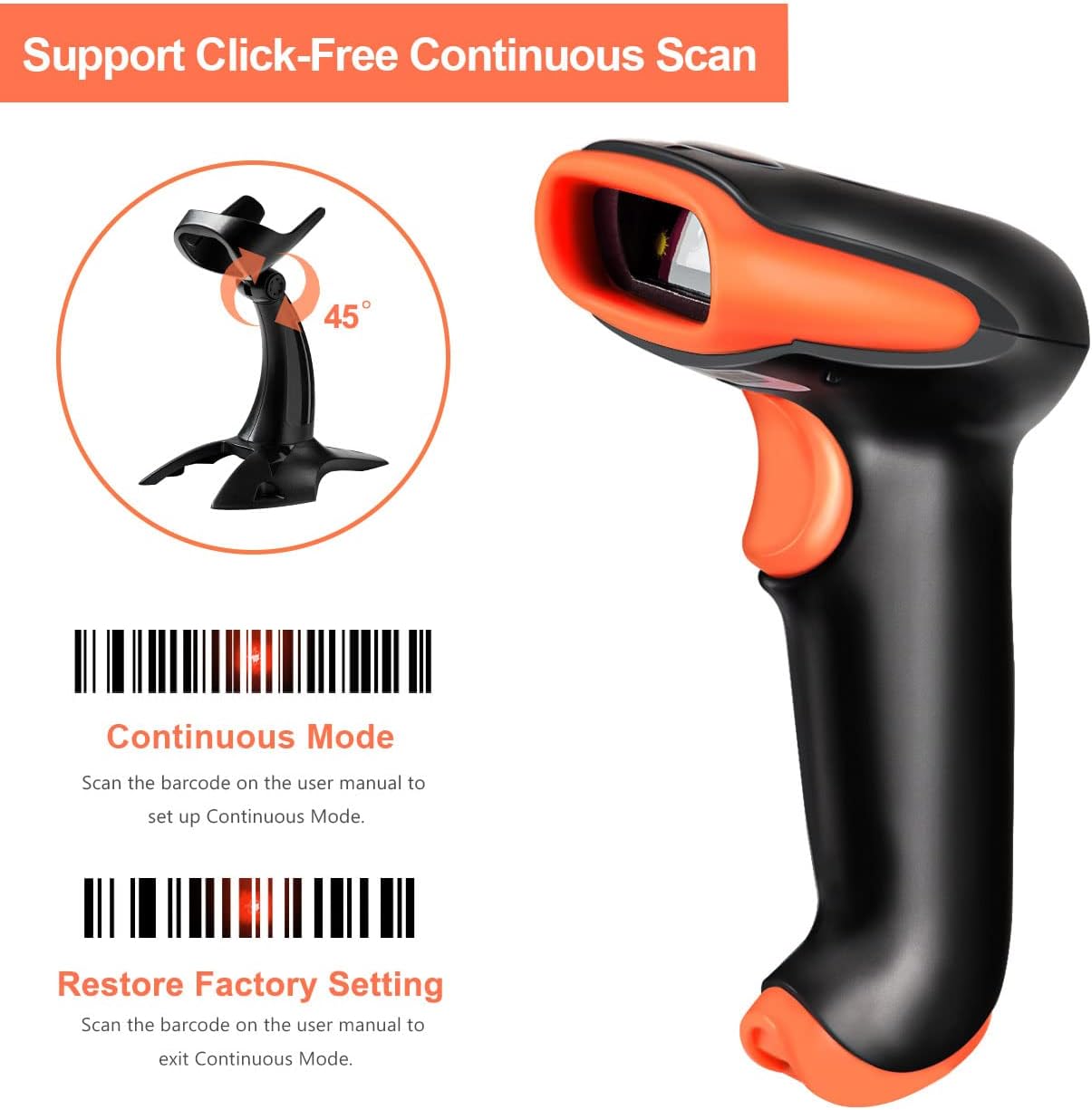
Image: The Tera HW0001 scanner on its stand, highlighting the continuous scan mode and the option to restore factory settings by scanning specific barcodes from the manual.
6.3. Supported Barcode Symbologies
The Tera HW0001 supports a wide array of 1D and 2D/QR barcode types:
- 1D Barcodes: Codabar, Code 11, Code 93, MSI, Code 128, UCC/EAN-128, Code 39, EAN-8, EAN-13, UPC-A, ISBN, Industrial 25, Interleaved 25, Standard 25, Matrix.
- 2D/QR Barcodes: QR, DataMatrix, PDF417, Aztec, Hanxin, Micro PDF417.
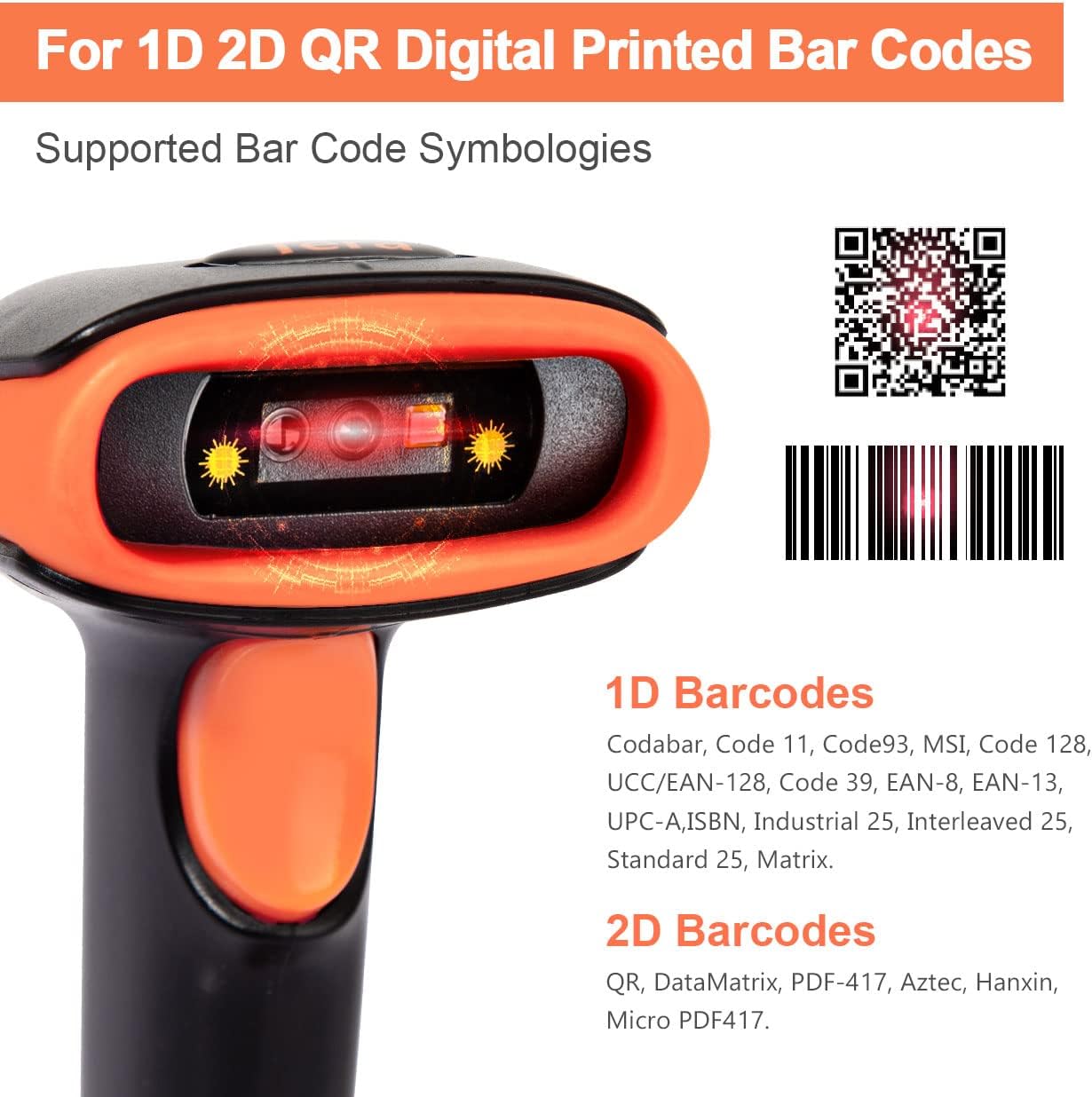
Image: A detailed view of the scanner's capabilities, listing the various 1D and 2D barcode types it can decode.

Image: The scanner demonstrating its functionality by reading a QR code from a smartphone screen, highlighting its support for both digital and printed 1D and 2D barcodes.
6.4. Keyboard Language Support
The scanner supports various keyboard layouts to ensure correct data input for different regions. To configure the scanner for your specific keyboard language (e.g., US, UK, German, French, Italian, Spanish, Japanese), scan the corresponding setup barcode found in the full user manual.

Image: An illustration showing the scanner's support for multiple keyboard languages, including English, German, Japanese, French, Italian, and Spanish.
For scanning special characters in different languages, refer to the specific configuration barcodes in the full manual. For example, for Italian characters like 'è', 'ì', 'ò', 'à', 'ù', or Spanish 'ñ', 'ó', 'á', 'í', 'ú', 'é', specific settings may be required.
External resource for special character configuration: Video Guide for Special Characters
7. Maintenance
To ensure the longevity and optimal performance of your Tera HW0001 barcode scanner, follow these maintenance guidelines:
- Cleaning: Use a soft, dry cloth to clean the scanner's exterior. For the scanning window, use a lint-free cloth lightly dampened with a non-abrasive cleaner. Avoid harsh chemicals or abrasive materials.
- Battery Care: Charge the scanner regularly. Avoid completely draining the battery frequently, as this can reduce its lifespan. If storing the scanner for an extended period, ensure it has a partial charge (around 50%) and recharge it every few months.
- Storage: Store the scanner in a cool, dry place away from direct sunlight and extreme temperatures.
- Handling: While the scanner is designed to be durable (IP54 anti-shock, 1.5m drop test), avoid unnecessary drops or impacts to prevent damage.

Image: The Tera HW0001 scanner highlighting its robust design with IP54 anti-shock silicone, capable of withstanding drops from 1.5 meters.

Image: An illustration emphasizing the scanner's 1800mAh large capacity battery, providing up to 60 days of standby time.
8. Troubleshooting
If you encounter issues with your Tera HW0001 scanner, refer to the following common problems and solutions:
| Problem | Possible Cause | Solution |
|---|---|---|
| Scanner does not power on. | Low battery. | Charge the scanner using the provided USB cable. |
| Scanner does not connect wirelessly. | Dongle not properly inserted, out of range, or Bluetooth not paired. | Ensure dongle is firmly inserted. Move closer to the receiver. Re-pair Bluetooth if necessary (refer to Section 4.3). |
| Scanned data appears incorrectly (e.g., wrong characters). | Incorrect keyboard language setting. | Scan the appropriate keyboard language setup barcode from the manual (refer to Section 6.4). |
| Scanner does not read certain barcodes. | Barcode type not enabled or damaged barcode. | Ensure the barcode symbology is enabled in the scanner's settings (refer to the full manual for configuration barcodes). Try scanning a different, known good barcode. |
| Scanner is slow or unresponsive. | Low battery or interference. | Charge the scanner. Reduce potential wireless interference. |
9. Specifications
| Feature | Detail |
|---|---|
| Brand | Tera |
| Model Number | HW0001 |
| Color | Orange |
| Connectivity Technology | Bluetooth, 2.4GHz Wireless, USB |
| Compatible Devices | Laptop, PC, Tablets, Smartphones |
| Scan Rate | 500 images per second |
| Real View Angle | 45 degrees |
| Product Dimensions | 9P x 7.5L x 16.5H centimeters |
| Power Source | Battery Powered |
| Durability | IP54 Anti-Shock Silicone, 1.5m Drop Test Passed |
10. Warranty and Support
Tera products typically come with a manufacturer's warranty. For specific warranty details, please refer to the documentation included with your purchase or visit the official Tera website. For technical support, troubleshooting assistance, or inquiries regarding parts and service, please contact Tera customer service.
Contact Information: Refer to the product packaging or the official Tera website for the most current customer support contact details.

Image: Customer service representatives available to assist with product inquiries and support.


