1. Introduction
This manual provides comprehensive instructions for the setup, operation, and maintenance of your Corsair HS80 RGB Wireless Premium Gaming Headset and Corsair MM700 RGB Extended Cloth Gaming Mouse Pad. Please read this manual thoroughly before using your products to ensure optimal performance and longevity.
2. Product Overview
2.1 Corsair HS80 RGB Wireless Premium Gaming Headset
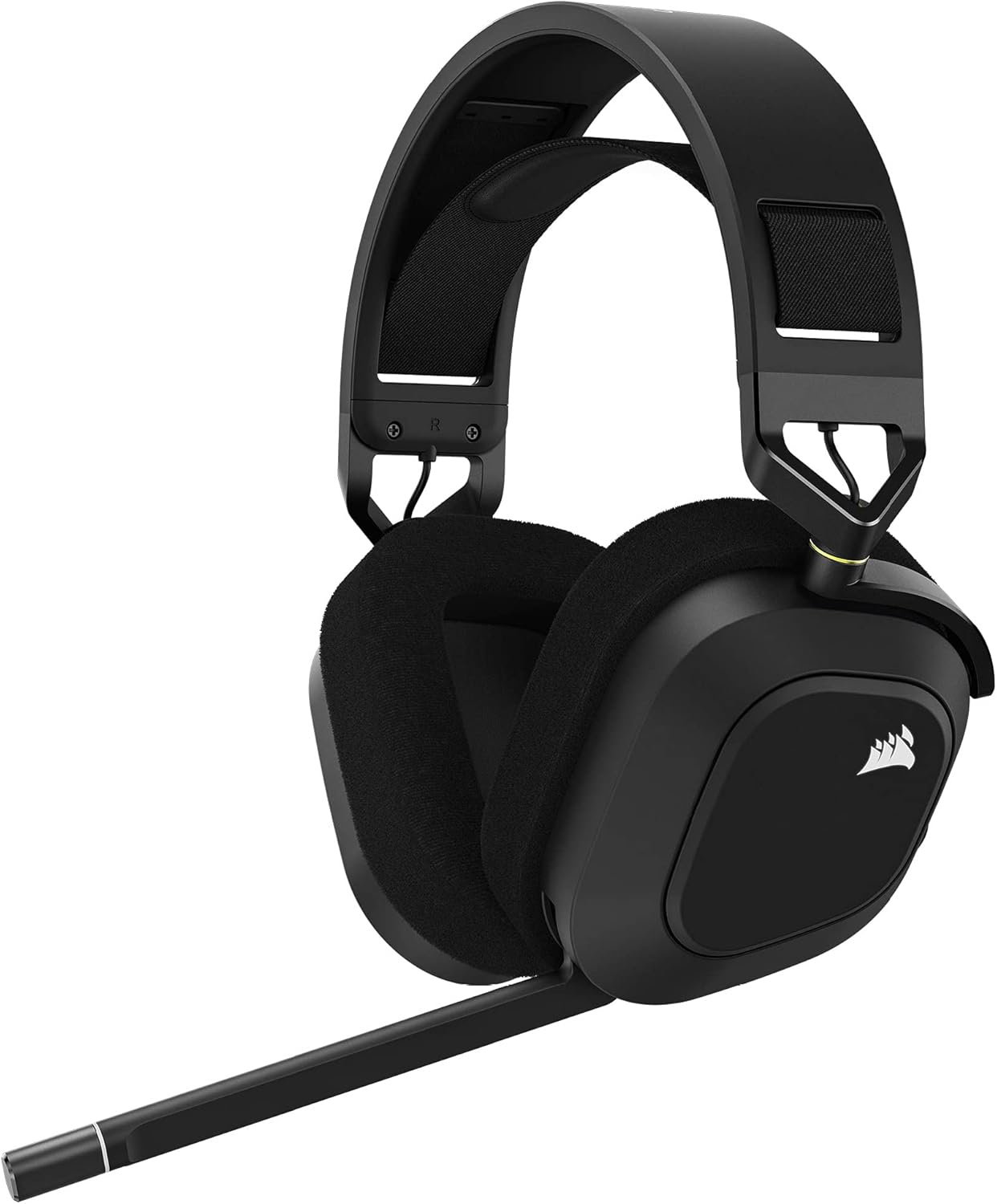
The Corsair HS80 RGB Wireless Premium Gaming Headset offers an immersive audio experience with its lightweight, breathable design and plush memory foam ear cups for extended comfort. It features custom-tuned 50mm high-density neodymium audio drivers, providing an expanded frequency range of 20Hz-40,000Hz. Connectivity options include hyper-fast SLIPSTREAM WIRELESS for low-latency audio and Bluetooth 5.1. The headset supports immersive Dolby Atmos on PC for three-dimensional precision audio. RGB lighting customization is available via Corsair's iCUE software.
- Audio Drivers: Custom-tuned 50mm high-density neodymium drivers.
- Frequency Response: 20Hz - 40,000Hz.
- Connectivity: SLIPSTREAM WIRELESS (USB dongle) and Bluetooth 5.1.
- Spatial Audio: Dolby Atmos support on PC.
- Comfort: Lightweight design with plush memory foam ear cups.
- Software Integration: Customizable RGB lighting and audio settings via Corsair iCUE software.
2.2 Corsair MM700 RGB Extended Cloth Gaming Mouse Pad

The Corsair MM700 RGB Extended Cloth Gaming Mouse Pad provides an expansive surface measuring 930mm x 400mm (36.6” x 15.8”), offering ample space for your keyboard, mouse, and other peripherals. It features dynamic three-zone RGB lighting that surrounds your gaming surface, controllable via onboard buttons or Corsair iCUE software. The mouse pad is constructed with 4mm-thick rubber, ensuring a stable and smooth surface while helping to smooth out uneven desktop areas. It also includes two conveniently located USB ports for connecting additional peripherals.
- Surface Dimensions: 930mm x 400mm (36.6” x 15.8”).
- Lighting: 360° dynamic three-zone RGB lighting.
- Control: Onboard push-button control or Corsair iCUE software.
- Construction: 4mm-thick rubber for durability and stability.
- Connectivity: Two integrated USB ports for peripheral connection.
3. Setup Instructions
3.1 Corsair HS80 RGB Wireless Headset Setup
- Charging: Before first use, fully charge the headset using the provided USB cable. Connect the USB cable to the headset's charging port and a powered USB port on your computer or a USB wall adapter.
- SLIPSTREAM WIRELESS Connection (PC/PS5/PS4):
- Insert the SLIPSTREAM WIRELESS USB receiver into an available USB port on your PC, PS5, or PS4.
- Power on the headset. The headset should automatically connect to the receiver. The LED indicator on the headset will turn solid white when connected.
- On PC, ensure the Corsair HS80 is selected as the default audio output and input device in your sound settings.
- Bluetooth Connection (PC/Mac/Mobile):
- With the headset powered on, press and hold the Bluetooth button until the LED indicator blinks blue rapidly, indicating pairing mode.
- On your device (PC, Mac, or mobile), go to Bluetooth settings and select "Corsair HS80" from the list of available devices.
- Once paired, the LED indicator will turn solid blue.
- iCUE Software Installation (PC Recommended):
- For full customization of RGB lighting, audio equalization, and Dolby Atmos settings, download and install the Corsair iCUE software from the official Corsair website (www.corsair.com/icue).
- Follow the on-screen instructions to complete the installation.
3.2 Corsair MM700 RGB Extended Cloth Gaming Mouse Pad Setup
- Placement: Unroll the mouse pad and place it on a flat, stable surface.
- Power Connection: Connect the USB cable from the MM700 RGB mouse pad to an available USB port on your PC or a powered USB hub. This powers the RGB lighting.
- Peripheral Connection: Utilize the two integrated USB ports on the mouse pad to connect your mouse, keyboard, or other low-power USB peripherals.
- iCUE Software Installation (PC Recommended):
- For advanced customization of RGB lighting effects and synchronization with other Corsair devices, download and install the Corsair iCUE software from the official Corsair website (www.corsair.com/icue).
- Follow the on-screen instructions to complete the installation.
4. Operating Instructions
4.1 Corsair HS80 RGB Wireless Headset Operation
- Power On/Off: Press and hold the power button located on the headset until the LED indicator illuminates/extinguishes.
- Volume Control: Use the volume wheel on the headset to adjust the audio output level.
- Microphone Mute/Unmute: Flip the microphone boom up to mute and down to unmute. The LED on the microphone tip will indicate its status (red for muted).
- Dolby Atmos (PC): Ensure Dolby Access app is installed on your PC and Dolby Atmos for Headphones is selected as the spatial sound format in Windows sound settings for immersive audio.
- iCUE Software Usage:
- Open iCUE to customize RGB lighting effects, create custom audio EQs, and manage device settings.
- Update headset firmware through iCUE for optimal performance.
4.2 Corsair MM700 RGB Extended Cloth Gaming Mouse Pad Operation
- Onboard Lighting Control: Use the dedicated button on the MM700's control module to cycle through preset RGB lighting effects and colors.
- iCUE Software Usage:
- Open iCUE to access a wider range of dynamic RGB lighting effects, create custom lighting profiles, and synchronize lighting with other Corsair iCUE-compatible devices.
- Adjust brightness and speed of lighting effects.
- USB Passthrough Ports: The two USB ports on the MM700 can be used to connect low-power USB devices such as a mouse, keyboard, or USB flash drive.
5. Maintenance
- Cleaning the Headset:
- Wipe the headset with a soft, dry, lint-free cloth.
- Do not use harsh chemicals, cleaning solvents, or strong detergents.
- Avoid getting moisture into any openings.
- Cleaning the Mouse Pad:
- For general cleaning, wipe the cloth surface with a damp cloth and mild soap. Allow to air dry completely before use.
- Do not machine wash or tumble dry.
- Avoid submerging the control module in water.
- Storage: Store both products in a cool, dry place away from direct sunlight and extreme temperatures.
6. Troubleshooting
| Problem | Possible Solution |
|---|---|
| Headset No Audio / Microphone Not Working |
|
| Bluetooth Pairing Issues |
|
| MM700 RGB Lighting Not Working |
|
| iCUE Software Not Detecting Devices |
|
7. Specifications
| Feature | Specification |
|---|---|
| Product Name | Corsair HS80 RGB Wireless Premium Gaming Headset & MM700 RGB Extended Cloth Gaming Mouse Pad |
| Model Numbers | HS80, MM700 |
| Brand | Corsair |
| Headset Connectivity | SLIPSTREAM WIRELESS (USB), Bluetooth 5.1 |
| Headset Audio Drivers | 50mm Neodymium |
| Headset Frequency Range | 20 Hz - 40 kHz |
| Headset Spatial Audio | Dolby Atmos (on PC) |
| Headset Compatibility | Mac, PC, PS5, PS4, Bluetooth-enabled devices |
| Mouse Pad Dimensions | 930mm x 400mm (36.6” x 15.8”) |
| Mouse Pad Material | Rubber (4mm thick) |
| Mouse Pad Lighting | 360° Dynamic Three-Zone RGB |
| Mouse Pad USB Ports | 2 x USB Passthrough |
| Control Method | Media Control (Headset), Remote (Headset), Onboard Button (Mouse Pad), iCUE Software (Both) |
8. Warranty and Support
Corsair products come with a limited warranty. For detailed warranty information, please refer to the warranty card included with your product or visit the official Corsair website's support section. You can find drivers, software, FAQs, and contact information for technical support at:
Please have your product model number (HS80, MM700) and serial number ready when contacting support.


