
Blackview BV6300
Blackview BV6300 Rugged Phone User Manual
Model: BV6300
Introduction
This manual provides essential information for the safe and effective use of your Blackview BV6300 Rugged Phone. Designed for durability, this device features IP68 shockproof and waterproof capabilities, making it suitable for various demanding environments. Please read this manual thoroughly before operating your device.
Device Overview
The Blackview BV6300 is a robust mobile phone equipped with a 5.7-inch HD+ display, an Octa-Core processor, 3GB RAM, 32GB internal storage, and a 4380mAh battery. It runs on Android 10 and features a 13MP Quad Rear HDR camera, NFC, and OTG capabilities.

Figure 1: Front and rear view of the Blackview BV6300 Rugged Phone.

Figure 2: The slim profile (11.6mm) and rugged design of the BV6300, highlighting its IP68 waterproof, drop-proof (up to 1.5m), and dust-proof capabilities.
Setup
1. Inserting SIM Cards and SD Card
The Blackview BV6300 supports dual Nano SIM cards and an expandable SD card up to 128GB.
- Locate the SIM card tray on the side of the phone.
- Use the provided SIM ejector tool to open the tray.
- Carefully place your Nano SIM cards and/or SD card into the designated slots. Ensure they are correctly oriented.
- Gently push the tray back into the phone until it clicks into place.

Figure 3: Illustration of dual SIM and TF card insertion.
2. Initial Power On and Setup Wizard
- Press and hold the Power button (located on the right side) until the Blackview logo appears.
- Follow the on-screen instructions to complete the initial setup, including language selection, Wi-Fi connection, Google account sign-in, and security settings.
Operating Your Blackview BV6300
1. Basic Navigation (Android 10)
Your BV6300 runs on Android 10, offering intuitive gesture navigation and a dark theme option for improved user experience and battery efficiency.
- Home Screen: Swipe left or right to access different home screen panels.
- App Drawer: Swipe up from the bottom of the screen to open the app drawer.
- Notifications & Quick Settings: Swipe down from the top of the screen to view notifications and quick settings toggles.
- Recent Apps: Swipe up from the bottom and hold to view recent applications.
- Back: Swipe from the left or right edge of the screen to go back.

Figure 4: Android 10 interface with Dark Theme enabled.
2. Security Features
The BV6300 offers multiple security options to protect your data.
- Fingerprint Unlock: Register your fingerprints for quick and secure unlocking. The fingerprint sensor is located on the rear of the device.
- Face Unlock: Use the front camera to unlock your phone with facial recognition.
- PIN/Pattern/Password: Standard Android security options.

Figure 5: Fingerprint and Face Unlock options for enhanced security.
3. Camera Operation
The BV6300 features a 13MP Quad Rear Camera and an 8MP Front Camera, supporting HDR and AI Color Portrait modes.
- Open the Camera application from your home screen or app drawer.
- Switch between front and rear cameras using the camera toggle icon.
- Tap the shutter button to take a photo.
- Explore modes like HDR, Night Mode, and AI Color Portrait for different shooting scenarios.
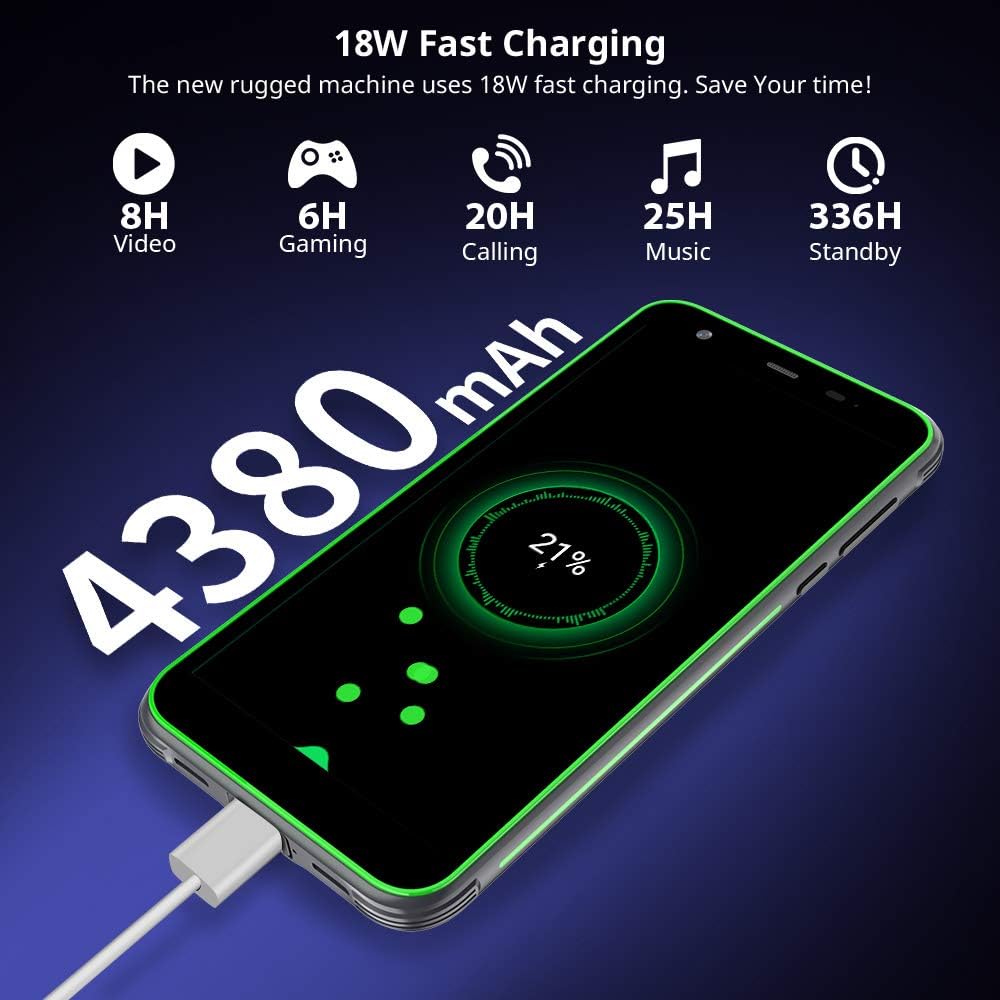
Figure 6: Examples of photos taken with the BV6300 camera, showcasing HDR and Night Mode capabilities.

Figure 7: AI Color Portrait feature, which keeps the subject in color while rendering the background in black and white.
4. Charging the Device
The BV6300 is equipped with a 4380mAh battery and supports 18W fast charging.
- Connect the USB Type-C cable to the phone's charging port (located at the bottom, protected by a flap).
- Connect the other end of the cable to a compatible 18W fast charger.
- A charging indicator will appear on the screen.
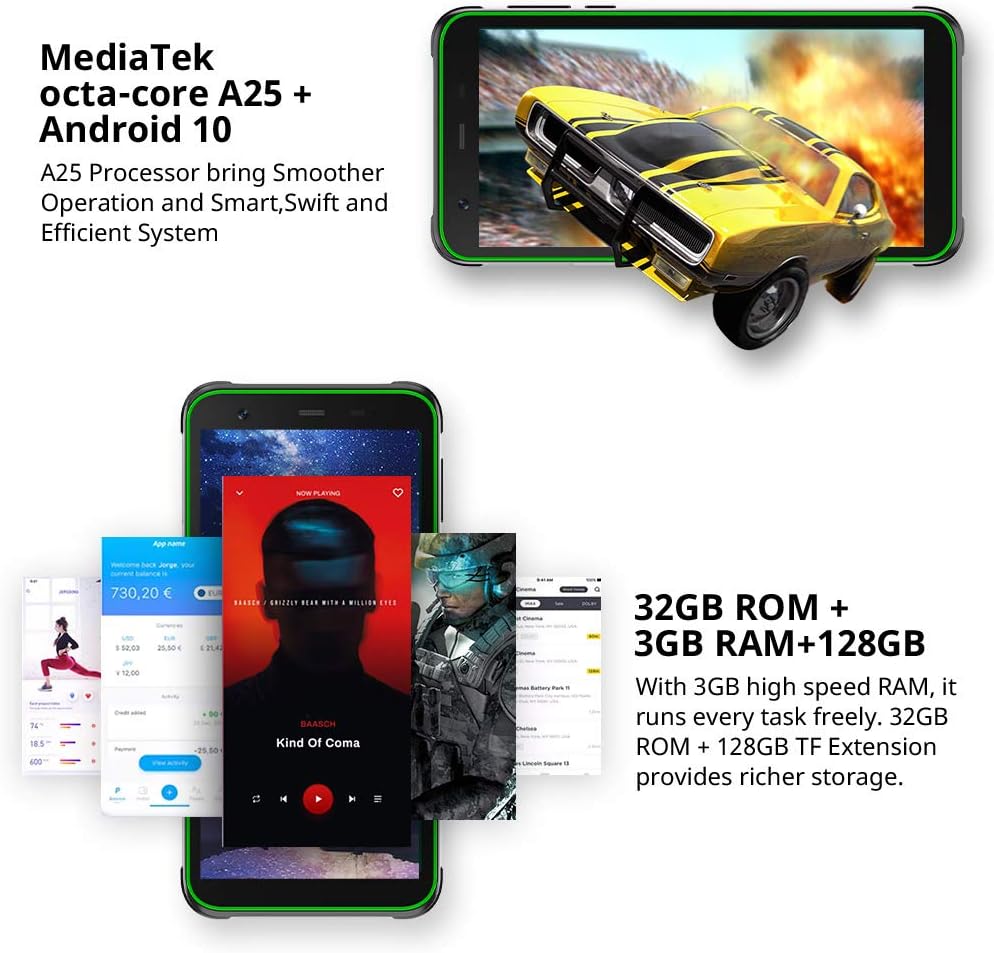
Figure 8: The BV6300 connected to a charger, illustrating its 4380mAh battery and 18W fast charging capability.
5. NFC and Other Connectivity
The phone supports NFC for contactless payments and data transfer, along with standard connectivity options.
- NFC: Enable NFC in Settings to use features like Google Pay or tap-to-share.
- OTG: Connect USB devices like flash drives or keyboards using an OTG adapter (sold separately).
- GPS/GLONASS/Beidou: For accurate navigation and location services.
- Bluetooth 5.0: For connecting wireless accessories.

Figure 9: Using NFC for contactless payments with Google Pay.

Figure 10: GPS and GLONASS functionality for outdoor navigation.
Maintenance
To ensure the longevity and optimal performance of your Blackview BV6300, follow these maintenance guidelines:
- Cleaning: Use a soft, lint-free cloth to clean the screen and body. For stubborn dirt, a slightly damp cloth can be used. Avoid harsh chemicals.
- Water Resistance: While IP68 rated, ensure all port covers (USB-C, SIM tray) are securely closed before exposing the phone to water. Do not intentionally submerge the phone in corrosive liquids or saltwater.
- Temperature: Avoid exposing the phone to extreme temperatures (very hot or very cold) as this can affect battery life and internal components.
- Software Updates: Regularly check for and install system updates to ensure your phone has the latest security patches and performance improvements.
- Storage Management: Periodically clear unnecessary files and apps to maintain optimal performance.
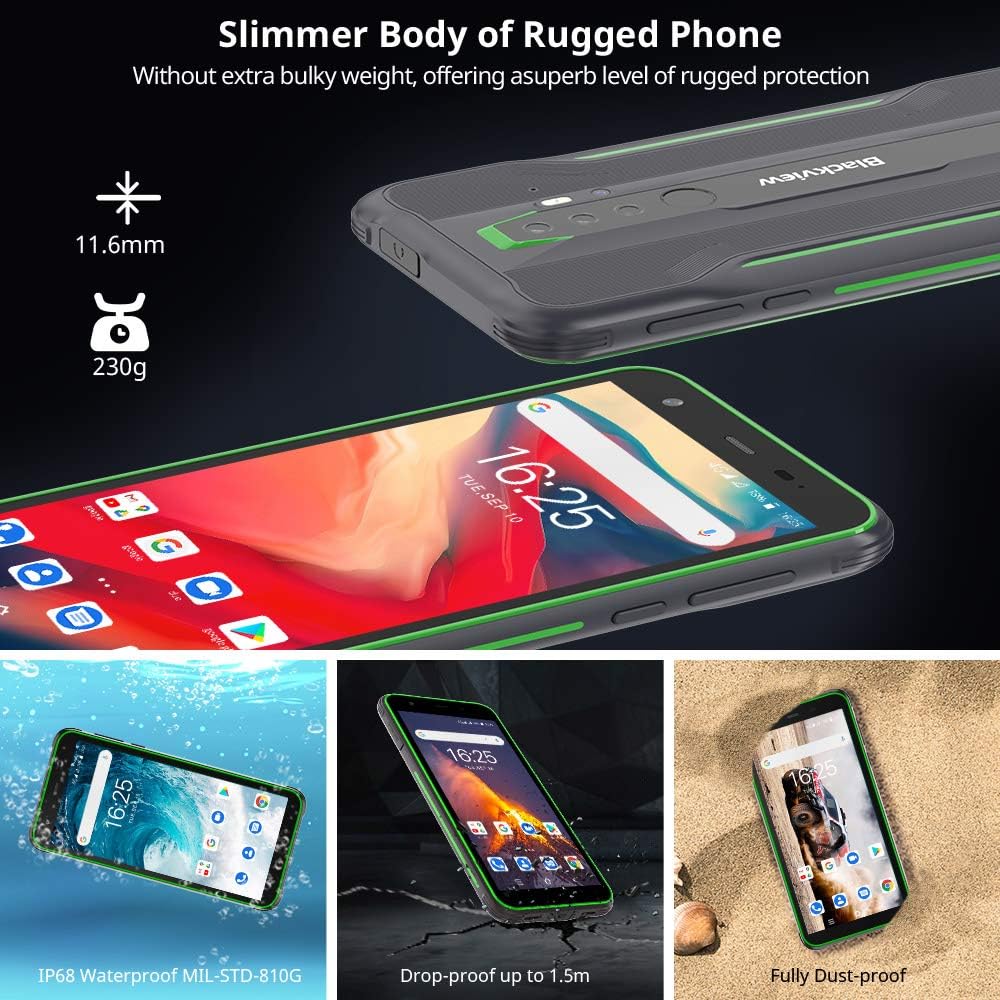
Figure 11: The BV6300's IP68 waterproof rating allows for submersion in fresh water up to 1.5 meters for 30 minutes.
Troubleshooting
This section addresses common issues you might encounter with your Blackview BV6300.
| Problem | Possible Solution |
|---|---|
| Phone not turning on | Ensure the battery is charged. Connect to charger for at least 30 minutes. If still unresponsive, perform a forced restart by holding the Power button for 10-15 seconds. |
| Battery drains quickly | Close background apps, reduce screen brightness, disable unused features (Wi-Fi, Bluetooth, GPS), and check for app updates. Consider a factory reset if the issue persists. |
| Cannot connect to Wi-Fi/Mobile Data | Toggle Wi-Fi/Mobile Data off and on. Restart the phone. Check router/network settings. Ensure SIM card is properly inserted and activated. |
| Apps crashing or freezing | Clear app cache/data (Settings > Apps > [App Name] > Storage). Update the app. If the issue persists, uninstall and reinstall the app. |
| Fingerprint sensor not working | Ensure your finger and the sensor are clean and dry. Re-register your fingerprints in Settings. |
Specifications
| Feature | Detail |
|---|---|
| Model Name | BV6300 |
| Operating System | Android 10.0 |
| Processor | Octa-Core (MediaTek A25) |
| RAM | 3 GB |
| Internal Storage | 32 GB |
| Expandable Storage | Up to 128 GB (SD card) |
| Screen Size | 5.7 Inches |
| Resolution | 1440 x 720 (HD+) |
| Rear Camera | 13MP Quad Rear HDR |
| Front Camera | 8MP |
| Battery Capacity | 4380mAh |
| Charging | 18W Fast Charging (Wired) |
| Connectivity | 4G, Dual SIM, NFC, OTG, Wi-Fi, Bluetooth 5.0, GPS, GLONASS, Beidou |
| Durability | IP68 Shockproof, Waterproof, Dustproof (MIL-STD-810G compliant) |
| Dimensions | 159.6 x 78.2 x 11.6 mm |
| Weight | 230g |

Figure 12: Physical dimensions of the Blackview BV6300.
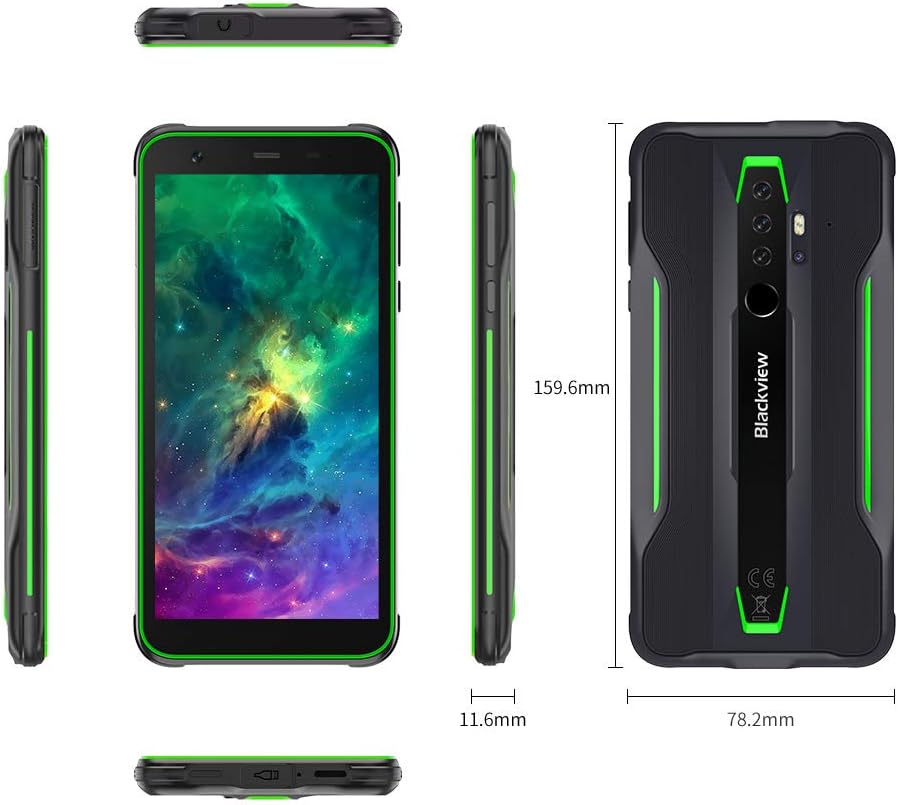
Figure 13: Detailed comparison of Blackview BV6300 and BV6300 Pro specifications.
Official Product Video
Video 1: Official product video for the Blackview BV6300 Tough Phone, showcasing its features and durability.
Warranty and Support
For warranty information and technical support, please refer to the official Blackview website or contact their customer service. Keep your proof of purchase for warranty claims.
Online Resources:
- Official Blackview Website: www.blackview.hk (Please note: URL is an example, actual URL may vary)
- Support Email: Refer to your product packaging or official website for contact details.
Related documentsBV6300


Ask a question about this manual
Ask about setup, troubleshooting, compatibility, parts, safety, or missing instructions. Manuals+ will review the question and use this page’s manual context to help answer it.