
Introduction
The LeadsaiL KF29 Wireless Keyboard and Mouse Combo provides a compact and silent solution for your computing needs. This set features a 2.4G wireless connection via a single USB receiver, ensuring a stable and responsive experience for both Windows and Mac OS systems. Its ergonomic design and energy-saving features make it ideal for extended use in various environments.
Package Contents
- 1 x LeadsaiL Wireless Keyboard
- 1 x LeadsaiL Wireless Mouse
- 1 x USB Receiver (stored inside the mouse battery compartment)
- 1 x User Manual
Note: 1 AA battery for the mouse and 2 AA batteries for the keyboard are not included in the package.

Image: LeadsaiL KF29 Wireless Keyboard and Mouse Combo showing the keyboard, mouse, and USB receiver.
Video: Official LeadsaiL video demonstrating the unboxing and package contents of the wireless keyboard and mouse combo.
Setup Instructions
- Install Batteries:
- For the mouse: Open the battery compartment on the underside of the mouse. Insert 1 AA battery, ensuring correct polarity. Close the compartment.
- For the keyboard: Open the battery compartment on the underside of the keyboard. Insert 2 AA batteries, ensuring correct polarity. Close the compartment.
- Locate USB Receiver: The 2-in-1 USB receiver is conveniently stored inside the mouse's battery compartment. Carefully remove it.
- Connect USB Receiver: Plug the USB receiver into an available USB port on your computer (laptop or desktop).
- Power On Devices: Turn on the mouse using the ON/OFF switch located on its underside. The keyboard does not have a separate power switch; it activates upon key press after battery installation.
- Automatic Connection: The keyboard and mouse will automatically connect to your computer. No additional drivers are typically required for installation.

Image: Illustration showing the USB receiver being plugged into a laptop, establishing a 2.4G wireless connection for the keyboard and mouse.
Operating Instructions
General Usage
Once connected, the keyboard and mouse function as standard input devices. The keyboard features a full-size layout with a numeric keypad, while the mouse offers left-click, right-click, and a scroll wheel.
FN+ Multimedia Shortcuts
The keyboard includes 12 FN+ multimedia shortcuts for quick access to various functions. Press and hold the FN key, then press the corresponding F-key (F1-F12) to activate:
- FN + F1: Media Player
- FN + F2: Volume Down
- FN + F3: Volume Up
- FN + F4: Mute
- FN + F5: Previous Track
- FN + F6: Next Track
- FN + F7: Play/Pause
- FN + F8: Stop
- FN + F9: Home Page
- FN + F10: Email
- FN + F11: My Computer
- FN + F12: Favorites

Image: Close-up of the keyboard highlighting the FN keys and their associated multimedia functions.
Mouse DPI Adjustment
The mouse features adjustable DPI settings to control cursor sensitivity. Press the DPI button located behind the scroll wheel to cycle through available DPI levels (e.g., 800, 1200, 1600 DPI) to suit your preference.

Image: Diagram illustrating the adjustable DPI settings of the LeadsaiL wireless mouse.
Compatibility
This wireless combo is compatible with a wide range of operating systems, including Windows XP/7/8/10/11 and Mac OS. It works seamlessly with various devices such as laptops, desktops, and PCs.

Image: The LeadsaiL keyboard and mouse combo shown with a laptop and tablet, indicating universal compatibility with Windows and Mac OS.
Features
- Silent Operation: The keyboard utilizes a scissor-structure button design, significantly reducing typing noise. The mouse also features silent clicks, ensuring a quiet working environment.
- Compact & Ergonomic Design: The keyboard's compact size with a number pad saves desk space, while its 9° typing angle provides comfortable use. The mouse is ambidextrous, fitting both left and right hands comfortably.
- Auto Sleep & Energy Saving: Both the keyboard and mouse enter a sleep mode after 3 minutes of inactivity to conserve battery life. Press any key or button to wake them up instantly.
- Indicator Lights: The keyboard features indicator lights for Num Lock, Caps Lock, and a low battery warning, providing clear status updates.

Image: Close-up of the keyboard demonstrating its ergonomic 9° angle and scissor-switch design for comfortable, quiet typing.

Image: Illustration showing the automatic energy-saving feature of the keyboard and mouse, with a battery icon and sleep automation.

Image: Close-up of the keyboard's top right corner, showing the Num Lock, Caps Lock, and low battery indicator lights.
Maintenance
- Battery Replacement: Replace batteries when the low battery indicator on the keyboard illuminates or when mouse responsiveness decreases. Use 1 AA battery for the mouse and 2 AA batteries for the keyboard.
- Cleaning: Use a soft, dry cloth to clean the surfaces of the keyboard and mouse. For stubborn dirt, a slightly damp cloth can be used, ensuring no moisture enters the device. Avoid harsh chemicals or abrasive materials.
- Storage: When not in use for extended periods, it is recommended to turn off the mouse to further conserve battery life. Store the USB receiver inside the mouse's battery compartment to prevent loss.
Troubleshooting
- No Connection/Unresponsive:
- Ensure the USB receiver is securely plugged into a working USB port on your computer.
- Check if the mouse is turned ON.
- Replace batteries in both the keyboard and mouse with fresh ones.
- Try plugging the USB receiver into a different USB port.
- Restart your computer.
- Lagging/Intermittent Connection:
- Ensure there are no large metallic objects or other wireless devices causing interference between the keyboard/mouse and the USB receiver.
- Move the keyboard and mouse closer to the USB receiver. The optimal range is up to 10 meters (33 ft).
- Keyboard Typing Incorrect Characters:
- Check your computer's language and keyboard layout settings to ensure they match your physical keyboard.
- Re-pair the devices by unplugging and re-plugging the USB receiver.
Specifications
| Brand | LeadsaiL |
| Model Number | KF29 |
| Connectivity Technology | 2.4G Wireless (USB Receiver) |
| Compatible Devices | Windows XP/7/8/10/11, Mac OS (Asus, Dell, HP, Lenovo, MacBook Air) |
| Keyboard Dimensions | 14.57 x 5.51 x 0.2 inches (37.0 x 14.0 x 0.5 cm) |
| Mouse Dimensions | 4.45 x 2.52 x 1.22 inches (11.3 x 6.4 x 3.1 cm) |
| Item Weight | 1.32 pounds (0.6 kg) |
| Keyboard Battery | 2 x AA batteries (not included) |
| Mouse Battery | 1 x AA battery (not included) |
| Special Features | Ergonomic, Portable, Silent Click, Adjustable DPI, Auto-Sleep |
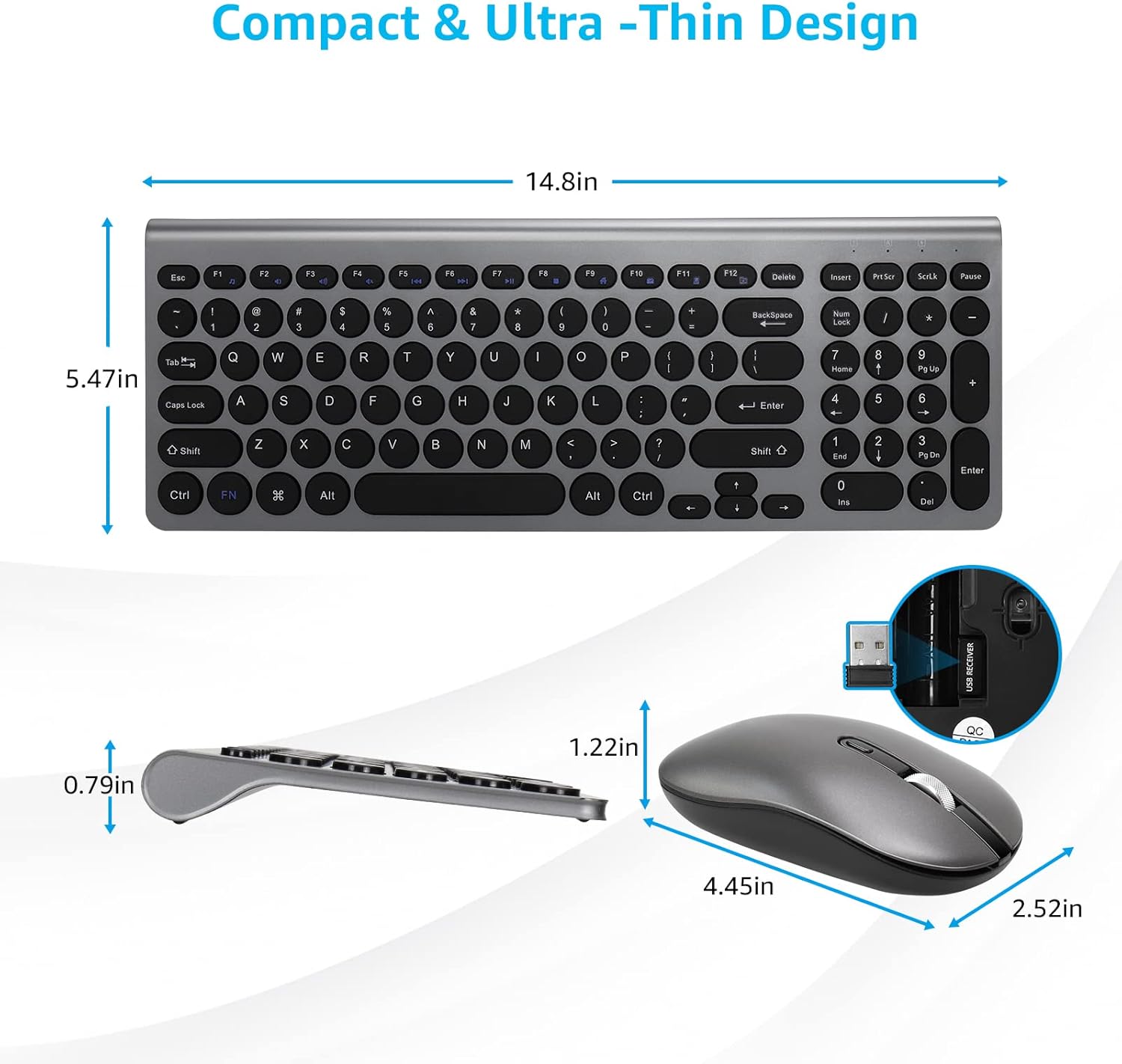
Image: Detailed diagram showing the dimensions of both the LeadsaiL wireless keyboard and mouse.
Warranty and Support
LeadsaiL products are designed for reliability and performance. For warranty information, technical support, or customer service inquiries, please refer to the contact information provided on the product packaging or visit the official LeadsaiL website. Please retain your proof of purchase for any warranty claims.
