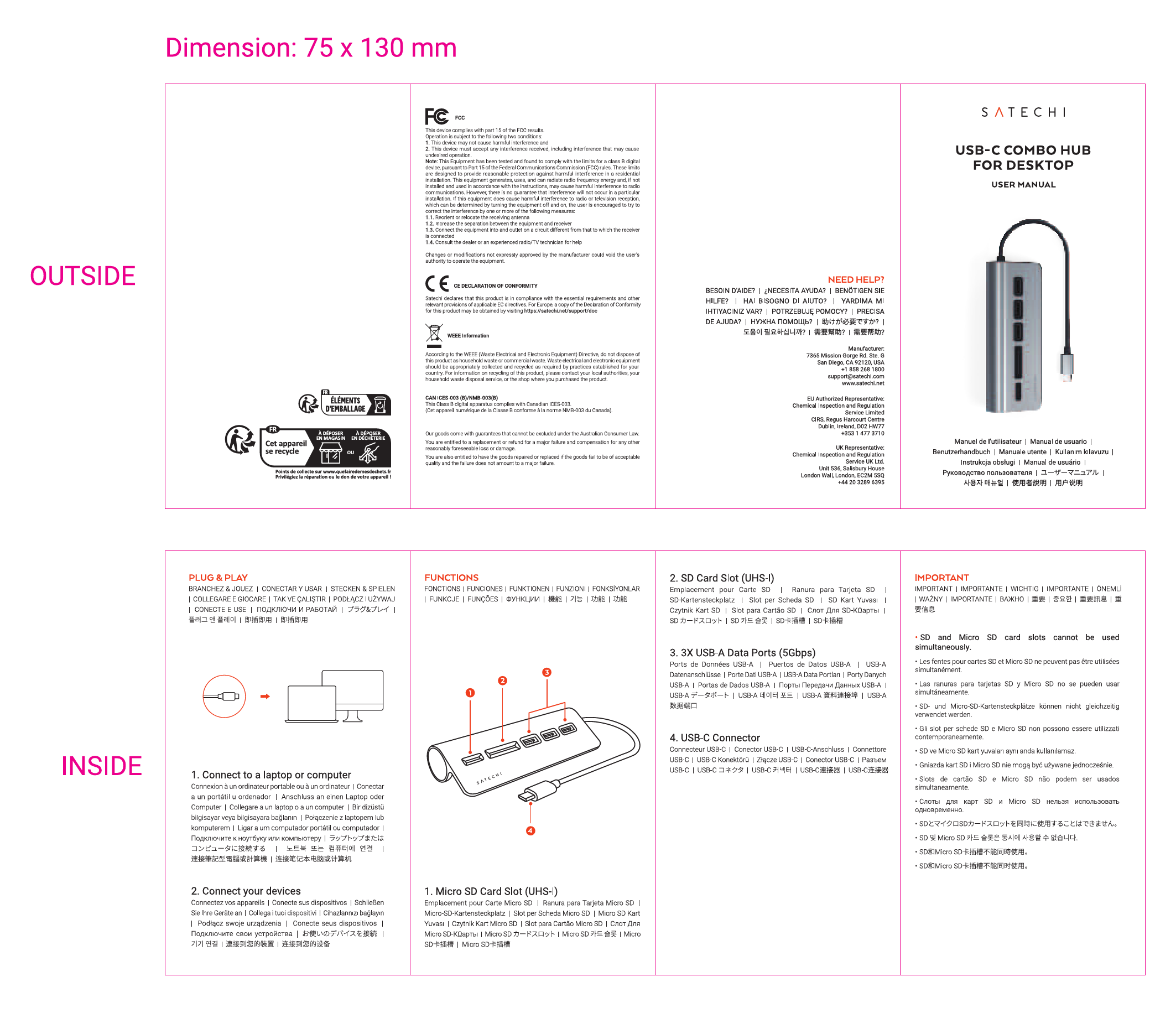
1. Product Overview
The Satechi USB-C Multiport MX Adapter is a versatile docking solution designed to expand the connectivity of your USB-C enabled devices, including MacBooks, Windows laptops, and iPads. It provides a comprehensive array of ports to enhance your productivity and multimedia experience.

Image: The Satechi USB-C Multiport MX Adapter, a compact and sleek device.
2. Setup Instructions
- Connect the Adapter: Plug the integrated USB-C cable from the Multiport MX Adapter into an available USB-C port on your host device (laptop, tablet, etc.).
- Power Connection (Optional but Recommended): For optimal performance and to charge your host device, connect your USB-C power adapter to the USB-C PD port on the Multiport MX Adapter. This port supports up to 100W Power Delivery.
- Dual HDMI Display Setup:
- Connect your HDMI-enabled monitors to the two HDMI ports on the adapter. One port supports 4K@60Hz, and the other supports 4K@30Hz.
- Important: For both HDMI ports to function simultaneously, installation of the SiliconMotion software is required. Please refer to the official Satechi website for the latest software and installation guide.
- Connect Peripherals: Plug in your USB-A devices, Ethernet cable, Micro/SD cards, and audio devices into their respective ports on the adapter.

Image: The Satechi USB-C Multiport MX Adapter connected to a laptop via its integrated USB-C cable.
3. Operating Instructions
The Satechi USB-C Multiport MX Adapter is designed for plug-and-play functionality, requiring no additional drivers for most basic operations (except for dual HDMI as noted above). Simply connect your devices to the corresponding ports.
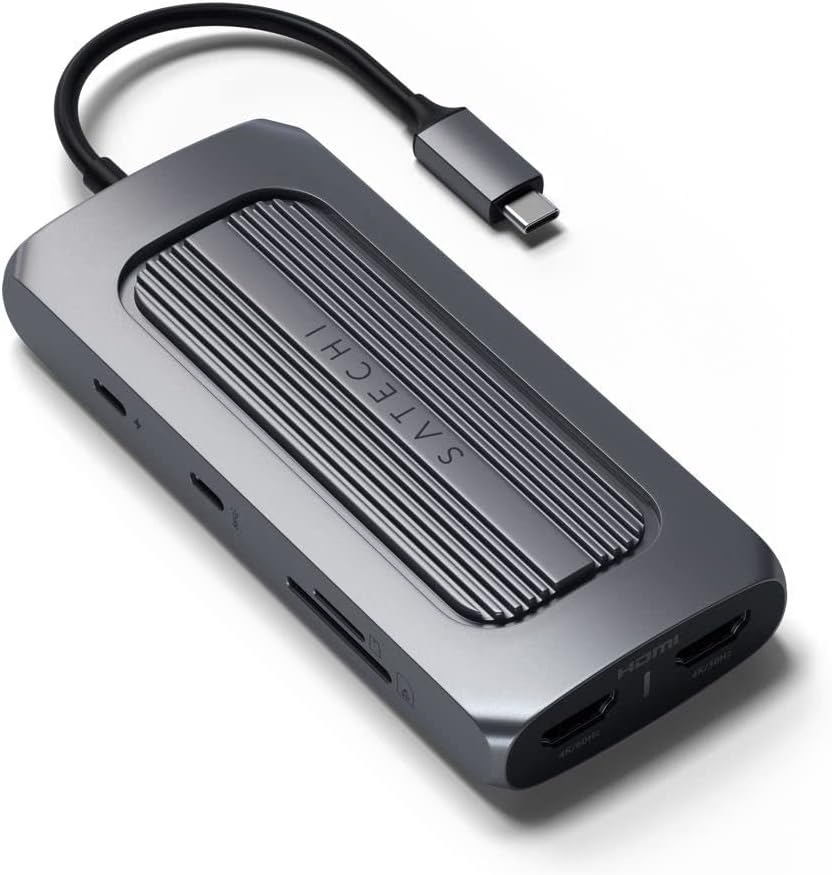
Image: Side view of the adapter highlighting USB-C PD, USB-C Data, SD, and MicroSD card slots.
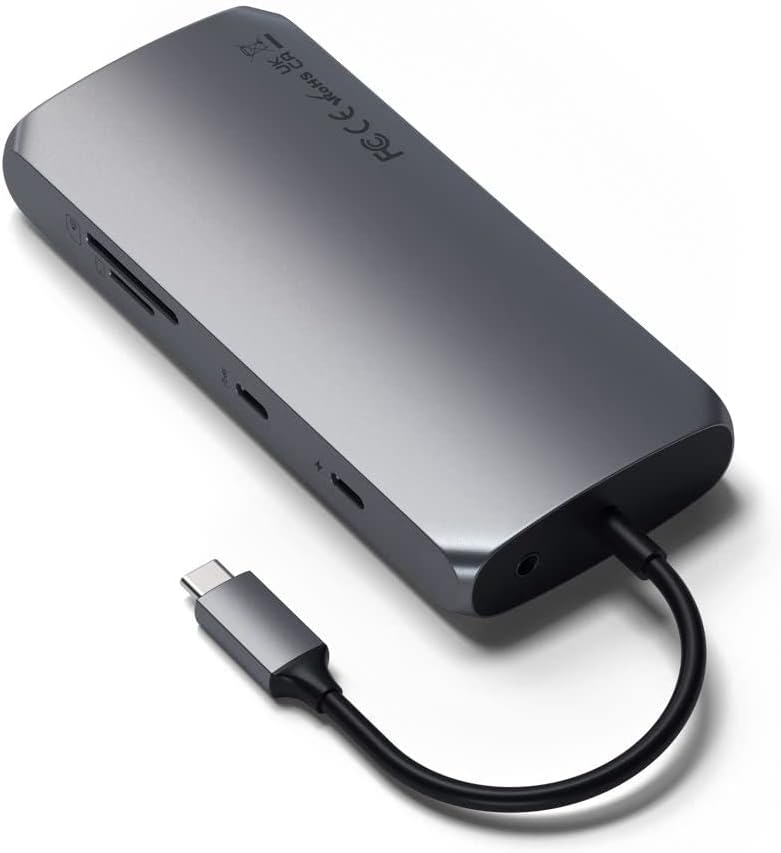
Image: Side view of the adapter highlighting Ethernet, USB-A 3.0 ports, and HDMI ports.
- USB-C Power Delivery (PD) Port: Use this port to power your host device and the adapter itself. It supports up to 100W input, with approximately 15W reserved for the adapter's operation.
- USB-C Data Port: Connect USB-C peripherals for data transfer speeds up to 5Gbps. This port is for data only and does not support video output.
- USB-A 3.0 Ports (x2): Connect traditional USB-A devices such as external hard drives, keyboards, mice, or flash drives. These ports offer data transfer speeds up to 5Gbps.
- Dual 4K HDMI Ports: Connect external monitors for extended or mirrored display. One port supports 4K resolution at 60Hz, and the other supports 4K resolution at 30Hz. Ensure SiliconMotion software is installed for dual display functionality.
- Ethernet Port: Provides a stable and fast wired network connection with Gigabit Ethernet speeds.
- Micro/SD Card Readers: Insert MicroSD and standard SD cards for quick data transfer (UHS-I speeds).
- Audio Jack: Connect headphones or speakers for audio output.
Video: Official Satechi overview of the USB-C Multiport MX Adapter, demonstrating its various ports and features.
4. Maintenance
- Cleaning: Use a soft, dry cloth to clean the adapter. Avoid using harsh chemicals or abrasive materials.
- Storage: Store the adapter in a cool, dry place away from direct sunlight and extreme temperatures.
- Temperature: The adapter is designed to operate within a temperature range of 30-50°C (86-122°F). Prolonged use outside this range may affect performance.
5. Troubleshooting
- No Display on External Monitors:
- Ensure your HDMI cables are securely connected to both the adapter and the monitors.
- Verify that the SiliconMotion software is correctly installed on your host device. This software is crucial for dual HDMI output.
- Check your display settings on your computer to ensure the external monitors are detected and configured correctly (extended or mirrored).
- Adapter Feels Warm: It is normal for the adapter to become warm during operation, especially when multiple ports are in use or when charging your device at high wattage. This is due to power conversion and data processing. If it becomes excessively hot, disconnect it and allow it to cool down.
- USB-C Port Not Functioning: Ensure your host device's USB-C port supports the necessary functions (Power Delivery, DisplayPort Alt Mode, data transfer) for the features you are trying to use. Not all USB-C ports have the same capabilities.
- Slow Data Transfer: Ensure you are using high-quality cables and that your connected devices support the advertised speeds (e.g., USB 3.0 for 5Gbps).
- Ethernet Connection Issues: Check the Ethernet cable connection. Ensure your network drivers are up to date on your host device.
6. Specifications
| Brand | Satechi |
| Model | USB-C Multiport MX Adapter |
| Hardware Interface | USB Type C |
| Compatible Devices | MacBook Pro 14/16-inch (2025 M5/M4/M3/M2/M1), MacBook Air 13/15-inch (2025 M4/M3/M2/M1), iPad Pro 11/13-inch (2025 M5/M4/M2/M1), iPad Air 11/13-inch (2025 M3/M2/M1), iPad Mini (2024 A17/6th Gen), Mac Mini (2024 M4/M2/M1), iMac (2024 M4/M3/M1), Mac Studio (2025 M4/M3/M2/M1), Lenovo ThinkPad, Microsoft Surface, Google Pixelbook |
| Total USB Ports | 4 (1x USB-C Data, 2x USB-A 3.0, 1x USB-C PD) |
| Number of Ports | 9 (including HDMI, Ethernet, Card Readers, Audio Jack) |
| Product Dimensions | 5.12"L x 2.28"W x 0.79"H |
| Item Weight | 171 Grams |
| Total HDMI Ports | 2 (4K@60Hz, 4K@30Hz) |
| Wattage | 100W Power Delivery |
| Color | Space Gray |
| UPC | 810086360130 |
7. Warranty and Support
Satechi products are covered by a 2-year limited warranty against defects in materials and workmanship under normal use. For customer support, technical assistance, or warranty claims, please visit the official Satechi website or contact their customer service department.
For further assistance, please refer to the Satechi support page or contact their customer service directly.