
1. Introduction
The Tenda 5G06 AX3000 Wi-Fi 6 5G NR Router provides high-speed 5G cellular network access and Wi-Fi 6 connectivity for your home or office. This manual will guide you through the installation, operation, and troubleshooting of your device, ensuring optimal performance and a stable internet connection.
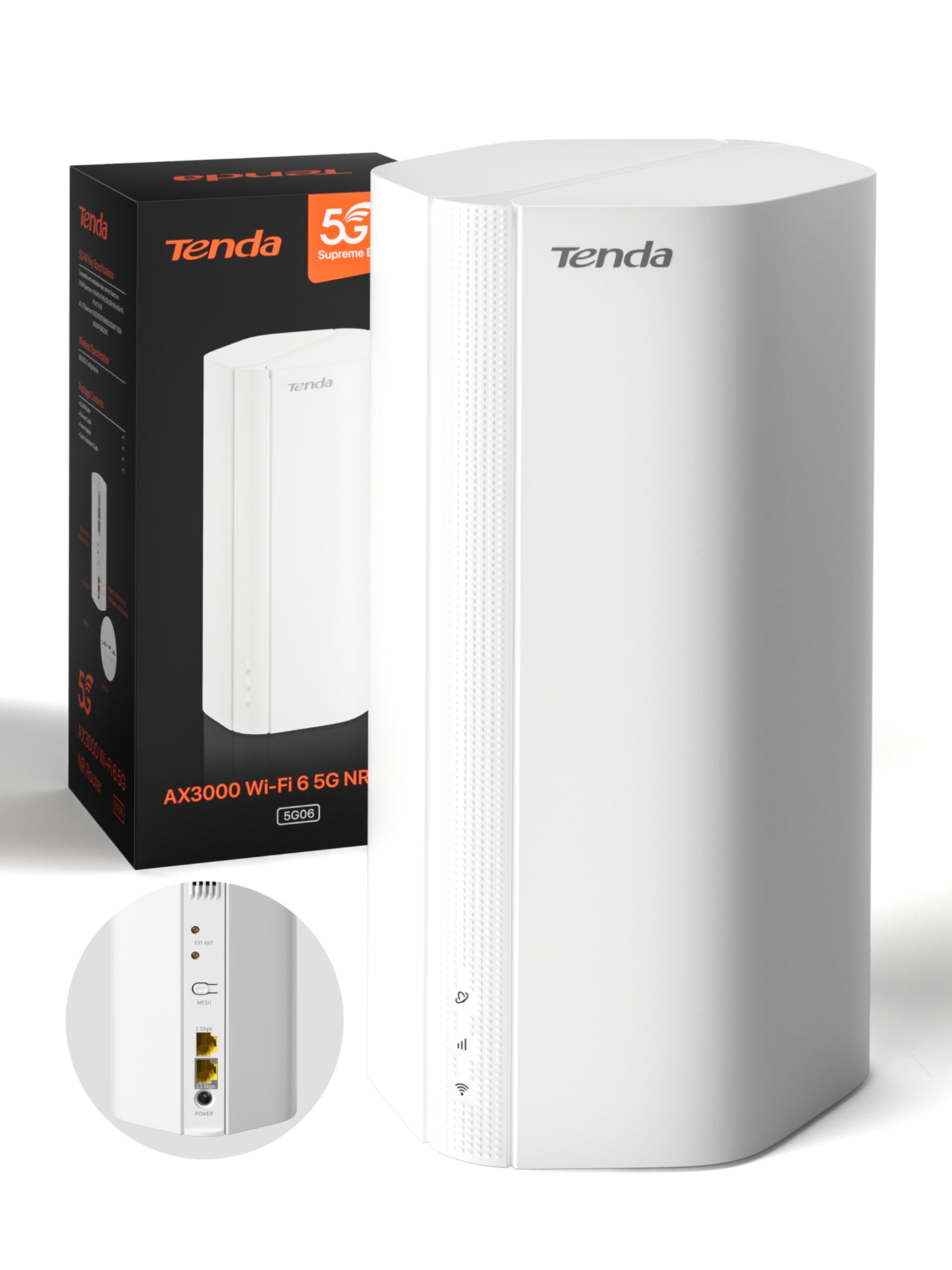
Image: Tenda 5G06 AX3000 Wi-Fi 6 5G NR Router, front view.
2. Package Contents
Please check the package contents carefully. If any item is missing or damaged, contact your retailer.
- 1 x Tenda 5G06 AX3000 Wi-Fi 6 5G NR Router
- 1 x Power Adapter
- 1 x Ethernet Cable
- 1 x User Guide

Image: Contents of the Tenda 5G06 package, including the router, power adapter, Ethernet cable, and user guide.
3. Product Overview
3.1. Ports and Buttons
Familiarize yourself with the ports and buttons on your Tenda 5G06 router.
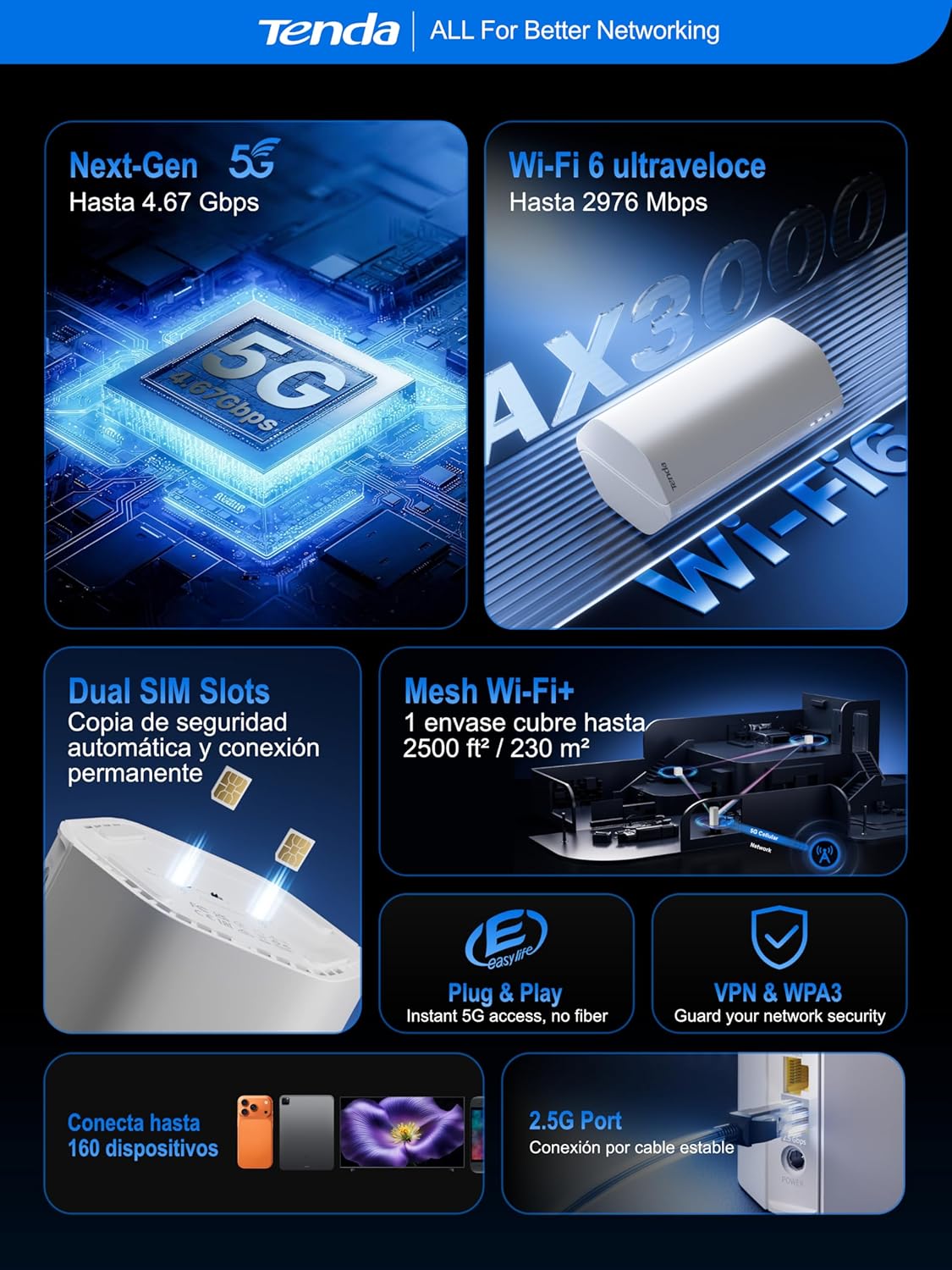
Image: Rear view of the Tenda 5G06 router, highlighting the EXT ANT ports, Mesh button, Gigabit Port, Advanced 2.5 Gbps Port, and Power input.
- EXT ANT (TS-9 Ports): Connect external 4G/5G antennas to enhance mobile signal reception.
- MESH Button: Used for setting up a Mesh WiFi+ network with other compatible Tenda devices.
- Gigabit Port: Standard Ethernet port for wired connections.
- Advanced 2.5 Gbps Port: High-speed Ethernet port for devices requiring faster wired connections, such as gaming consoles, NAS, or 8K TVs.
- Power: Connect the included power adapter here.
3.2. LED Indicators
The LED indicators on the front of the router provide status information:
- Power LED: Indicates power status.
- Internet LED: Indicates internet connection status.
- Wi-Fi LED: Indicates Wi-Fi network status.
- 5G/4G Signal Strength LEDs: Indicate the strength of the cellular signal.
4. Setup
4.1. SIM Card Installation
The Tenda 5G06 supports two Nano SIM cards for network redundancy. Ensure your SIM card is active and has sufficient balance. If your SIM has a PIN lock, deactivate it using a smartphone or enter the PIN in the router's web interface.
- Locate the SIM card slots on the bottom of the router.
- Insert your Nano SIM card into the slot with the chip facing down and the cut corner facing left. You will hear a click when the SIM is fully inserted.
- To remove the SIM, gently press it until it springs out.

Image: Diagram showing the correct orientation for inserting a Nano SIM card into the router's bottom slot.
4.2. Power On
Connect the included power adapter to the router's power port and then to a power outlet. Wait for a moment while the router starts up. Your router will be connected when the internet indicator LED remains steadily lit.
4.3. Connect to the Internet
You can connect your devices to the router via wired Ethernet or wirelessly via Wi-Fi.
Wired Connection:
Connect your computer or other wired devices to the router's Ethernet ports using an Ethernet cable.
Wireless Connection:
- On your smartphone or computer, go to Wi-Fi settings.
- Enable WLAN (Wi-Fi).
- Find and select your router's Wi-Fi network name (SSID). The Wi-Fi name is located on the bottom label of the router. By default, there is no Wi-Fi password.
- Once connected, you can enjoy your internet!
Video: Quick Installation Guide for Tenda 5G06 AX3000 Wi-Fi 6 5G NR Router. This video demonstrates SIM card insertion, powering on the device, and connecting to the Wi-Fi network.
5. Operating Instructions
5.1. Web Interface Access
To manage advanced settings, access the router's web interface:
- Connect your device to the router's Wi-Fi network or via an Ethernet cable.
- Open a web browser and enter the default IP address (usually
192.168.0.1ortendawifi.com) in the address bar. - Log in using the default username and password (found on the router's label or in the user guide).
5.2. Mesh WiFi+ Expansion
Connect your 5G06 router with other Tenda Mesh WiFi+ routers to create a unified network with strong and stable Wi-Fi coverage throughout your home or large office. Refer to the Mesh WiFi+ specific instructions for detailed setup.

Image: Diagram illustrating how Mesh WiFi+ extends network coverage across multiple floors or large areas.
5.3. WPA3 Security
The Tenda 5G06 supports WPA3 encryption, offering enhanced security for your network. It is recommended to enable WPA3 for stronger protection against unauthorized access and online threats. Configure this setting via the router's web interface.
6. Key Features
- Ultra-Fast 5G Speeds: Experience 5G speeds up to 4.67 Gbps (5G) and 2976 Mbps (Wi-Fi 6), significantly faster than 4G. Ideal for 4K/8K streaming, AR/VR gaming, and remote work with minimal lag.
- Extensive Coverage: Equipped with 11 internal antennas (8 x 5G/4G + 3 x Wi-Fi), the router provides Wi-Fi coverage up to 230m², ensuring a stable connection throughout your home. TS-9 interfaces support external 4G/5G antennas for improved mobile signal reception.
- Plug & Play: No complex configuration needed. Simply insert a 5G/4G Nano SIM card for instant internet access. Perfect for suburban areas, rentals, RVs, or quick home network setups.
- 2.5GE Port and Wi-Fi 6: The 2.5G port offers 2.5 times the speed of standard Gigabit Ethernet, suitable for high-bandwidth devices. Wi-Fi 6 supports up to 160 devices, ensuring a smooth experience for the entire family.
- Dual SIM for Reliability: Features dual SIM slots for network backup. If SIM1 loses connection, it automatically switches to SIM2, maintaining continuous internet access.
- Global 5G/4G Compatibility: Works with major operators worldwide, making it an ideal solution for international travelers and cross-border business users.

Image: Map illustrating global 5G/4G network compatibility with various operators.
7. Troubleshooting
If you encounter issues with your Tenda 5G06 router, consider the following:
- No Internet Connection:
- Check if the SIM card is correctly inserted and active.
- Verify that the Internet LED is steadily lit.
- Ensure your SIM plan has data available.
- Restart the router and your connected devices.
- Weak Wi-Fi Signal:
- Relocate the router to a central location, away from obstructions and interference sources.
- Consider using external TS-9 antennas for improved 5G/4G signal.
- If you have a large area, consider adding a Tenda Mesh WiFi+ device.
- Cannot Access Web Interface:
- Ensure your device is connected to the router's network.
- Verify the IP address or domain name entered in the browser is correct.
- Clear your browser's cache or try a different browser.
8. Specifications
| Feature | Description |
|---|---|
| Model Number | 5G06 |
| Dimensions (L x W x H) | 11.9 x 9.2 x 19.6 cm |
| Weight | 500 Grams |
| Wi-Fi Generation | Wi-Fi 6 (802.11a/b/n/ac/ax) |
| Data Transfer Rate | Up to 3000 Mbps (2402 Mbps on 5GHz, 574 Mbps on 2.4GHz) |
| 5G/4G Connectivity | 5G, LTE |
| SIM Card Slots | 2 x Nano SIM (Dual SIM) |
| Ethernet Ports | 1 x Gigabit, 1 x 2.5 Gigabit |
| Antenna Type | Internal (11 antennas: 8x 5G/4G, 3x Wi-Fi) |
| Wireless Security | WPA3 |
| Special Features | Remote Access, Beamforming, Parental Control, Guest Mode |
| Compatible Devices | PC, Gaming Console, Smartphone, Smart TV, AR/VR Device |
| Recommended Use | Home, Business, Gaming |
9. Warranty and Support
The Tenda 5G06 AX3000 Wi-Fi 6 5G NR Router comes with a 3-year warranty. For any technical issues or support inquiries, please contact our technical team via email at support.es@tenda.cn. We are committed to providing prompt and professional assistance.


