
Introduction
This manual provides detailed instructions for the setup, operation, and maintenance of your HUAKUA G50 Smart Watch. Please read this manual thoroughly to ensure proper use and to maximize the device's features.

Image: The HUAKUA G50 Smart Watch in black, displaying time, steps, heart rate, and calories on its screen.
Getting Started
1. Package Contents
- 1 x HUAKUA G50 Smart Watch
- 1 x Magnetic Charger Cable
- 1 x User Manual (this document)
2. Charging the Device
Before first use, fully charge your smart watch. Connect the magnetic charging cable to the charging contacts on the back of the watch and plug the USB end into a standard USB power adapter (not included).
- Charging Time: Approximately 2 hours for a full charge.
- Battery Life: Up to 7 days of normal use, 30 days standby time.

Image: The HUAKUA G50 Smart Watch connected to its magnetic charger, showing battery status and indicating charging time and battery life.
3. App Installation and Pairing
To unlock the full potential of your smart watch, download and install the companion application on your smartphone. The app is named InxFit.
- Scan the QR code in the manual or search for "InxFit" in your smartphone's app store (Google Play Store for Android, Apple App Store for iOS).
- Install the InxFit application.
- Ensure your phone's Bluetooth is enabled.
- Open the InxFit app, create an account or log in, and follow the on-screen instructions to pair your HUAKUA G50 Smart Watch. The watch is compatible with iOS 10.0/Android 6.0 or above and Bluetooth 5.0 or above smartphones.
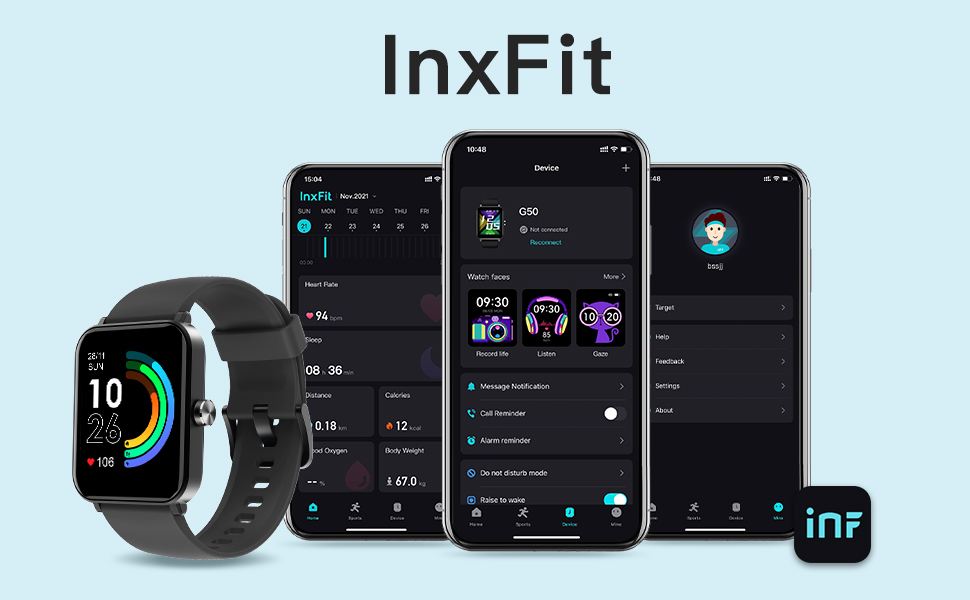
Image: A display of the InxFit mobile application interface, showing various tracking data and watch settings, alongside the HUAKUA G50 Smart Watch.
Operating the Smart Watch
1. Power On/Off
- Power On: Press and hold the side button for a few seconds until the screen lights up.
- Power Off: Navigate to the 'Settings' menu on the watch, select 'Power Off', and confirm.
2. Touchscreen Navigation
The HUAKUA G50 features a 1.69-inch HD full-color touchscreen for intuitive interaction.
- Swipe Up/Down: Scroll through menus and notifications.
- Swipe Left/Right: Access different widgets or quick settings.
- Tap: Select an item or confirm an action.
- Press Side Button: Return to the home screen or wake the device.

Image: The HUAKUA G50 Smart Watch showcasing its 1.69-inch HD color screen with multiple customizable watch face options.
3. Customizing Watch Faces
Personalize your watch by choosing from multiple pre-installed watch faces or uploading your own photos via the InxFit app.
- On the watch, press and hold the home screen to quickly change watch faces.
- For more options and custom photos, use the InxFit app's 'Watch Faces' section.
Features
1. Health Monitoring
- Heart Rate Monitor: Continuously tracks your heart rate throughout the day. View real-time data on the watch or detailed history in the InxFit app.
- Blood Oxygen Monitor: Measures your SpO2 levels. Access readings directly from the watch.
- Sleep Tracker: Automatically monitors your sleep patterns, including deep sleep, light sleep, REM, and awake times. Analyze your sleep quality in the InxFit app.

Image: The HUAKUA G50 Smart Watch displaying heart rate data with a graph, showing current, maximum, and resting heart rates.

Image: A person sleeping, with the HUAKUA G50 Smart Watch on their wrist, indicating its sleep monitoring capabilities for deep sleep, light sleep, REM, and awake states.
2. Activity Tracking
The watch accurately tracks your daily activities and supports various sports modes.
- All-day Activity Tracker: Records steps, calories burned, distance covered, and active duration.
- 10 Sports Modes: Includes Outdoor Run, Indoor Run, Indoor Walk, Yoga, Elliptical, Rower, Cycle, Outdoor Walk, Spinning, and 'Others'. Select a mode before starting your workout for accurate tracking.
- GPS: Utilizes your smartphone's GPS for route tracking during outdoor activities.

Image: A woman running, with an overlay showing the HUAKUA G50 Smart Watch tracking steps, calories, distance, and duration.

Image: The HUAKUA G50 Smart Watch displaying a list of 10 sports modes, including various indoor and outdoor activities.
3. Notifications
Receive alerts for calls, text messages, and social media notifications directly on your wrist. The watch will vibrate to notify you.
- Note: The watch cannot make/answer calls or reply to messages directly.
- Manage which app notifications you receive through the InxFit app settings.

Image: The HUAKUA G50 Smart Watch displaying notifications from various social media and messaging apps like Facebook and Line.
4. Other Smart Functions
- Music Control: Control music playback on your smartphone (play, pause, skip tracks) directly from the watch.
- Timer & Stopwatch: Built-in tools for timing activities.
- Breath Guide: Guided breathing exercises for relaxation.
- Alarm Clocks: Set alarms via the InxFit app to vibrate on your wrist.
- Sedentary Reminder: Alerts you to move after periods of inactivity.
- Weather Forecast: Displays current weather conditions and forecasts (requires app connection).
- Find Your Phone: Use the watch to locate your paired smartphone.
- Adjustable Brightness: Customize screen brightness for optimal visibility.
Water Resistance
The HUAKUA G50 Smart Watch is 5ATM Waterproof. This means it can withstand pressures equivalent to a depth of 50 meters. It is suitable for:
- Washing hands
- Running in the rain
- Showering (cold water only, avoid hot water and steam)
- Swimming in a pool (not suitable for diving or high-pressure water activities)
Avoid using the watch in hot water, saunas, or steam rooms, as steam can penetrate the seals and cause damage.
Maintenance
- Cleaning: Regularly clean the watch screen and strap with a soft, dry cloth. If necessary, use a slightly damp cloth and dry thoroughly.
- Charging Contacts: Ensure the charging contacts on the back of the watch are clean and free of debris to maintain efficient charging.
- Storage: Store the watch in a cool, dry place when not in use.
- Avoid Chemicals: Do not expose the watch to strong chemicals, detergents, or solvents, as these can damage the materials.
Specifications
| Feature | Detail |
|---|---|
| Model Number | G50 |
| Screen Size | 1.69 inches (HD Touch Screen) |
| Product Dimensions | 10.63 x 3.54 x 0.79 inches (27 x 9 x 2 cm) |
| Item Weight | 1.34 ounces (38 Grams) |
| Battery Type | 1 Lithium Polymer battery (included) |
| Battery Life | Up to 7 days (normal use), 30 days (standby) |
| Charging Time | Approx. 2 hours |
| Water Resistance | 5ATM |
| Connectivity | Bluetooth 5.0 |
| Compatibility | iOS 10.0/Android 6.0 or above |
| GPS | Via Smartphone |
| Memory Storage Capacity | 128 MB |
| Manufacturer | HUAKUA |

Image: A diagram illustrating the dimensions of the HUAKUA G50 Smart Watch, including screen size, watch body, and strap length.
Troubleshooting
1. Watch Not Turning On
- Ensure the watch is fully charged. Connect it to the charger for at least 10-15 minutes.
- Press and hold the side button for an extended period (10-15 seconds) to force a restart.
2. Unable to Pair with Phone
- Make sure Bluetooth is enabled on your smartphone.
- Ensure the InxFit app is installed and open.
- Check that the watch is within Bluetooth range of your phone.
- Restart both your phone and the smart watch.
- Forget the device in your phone's Bluetooth settings and try pairing again through the InxFit app.
3. Inaccurate Health Data
- Ensure the watch is worn snugly on your wrist, about one finger's width from your wrist bone.
- Keep the sensor on the back of the watch clean.
- Avoid excessive movement during measurements for best accuracy.
4. Notifications Not Appearing
- Verify that the watch is successfully paired with your phone.
- Check notification settings within the InxFit app to ensure desired apps are enabled.
- Ensure your phone's notification permissions are granted to the InxFit app.
- Confirm that 'Do Not Disturb' mode is not active on either your watch or phone.
Support
For further assistance or inquiries not covered in this manual, please refer to the official HUAKUA support channels or visit the HUAKUA store page on Amazon for additional resources.
Official User Guide (PDF): Download PDF


