
Introduction
This manual provides detailed instructions for the setup, operation, maintenance, and troubleshooting of your Macally UCZKEYHUBACSG Premium Wired USB C Keyboard. This full-size keyboard is designed for seamless compatibility across Mac, PC, and Chrome OS, featuring an integrated USB hub for enhanced connectivity.
Setup
Connecting the Keyboard
The Macally UCZKEYHUBACSG keyboard utilizes a simple plug-and-play USB-C wired connection. To connect your keyboard:
- Locate an available USB-C port on your computer (Mac, PC, or Chrome OS device).
- Insert the USB-C connector from the keyboard's cable firmly into the computer's USB-C port.
- The keyboard will be automatically recognized by your operating system, and no additional drivers are typically required.

Operating Instructions
Key Layout and Functions
The keyboard features a full-size 107-key layout, including a numeric keypad and 16 convenient shortcut/media keys. These keys provide quick access to various functions such as volume control, playback, and screen brightness, enhancing workflow efficiency.

Integrated USB Hub
The keyboard includes a built-in USB hub for connecting additional peripherals directly. This hub consists of:
- 2x USB-A Ports: For connecting standard USB devices like a mouse, flash drive, or webcam.
- 1x USB-C Port: For connecting newer USB-C compatible devices.

Compatibility
The Macally UCZKEYHUBACSG keyboard is designed for broad compatibility with various operating systems, ensuring functionality across different computing environments:
- Mac OS: Compatible with Mac OS X 10.6 (Snow Leopard) through 10.15 (Catalina) and above.
- Windows: Compatible with Windows 7, Windows 8, Windows 10, and above.
- Chrome OS: Fully functional with Chrome OS devices.
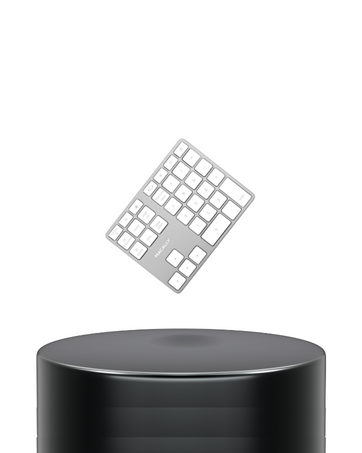
Scissor Switch Keys
The keyboard features quiet scissor switch keys, providing a responsive and tactile typing experience. This design contributes to a comfortable and efficient typing environment.

Maintenance
Cleaning Your Keyboard
To ensure the longevity and optimal performance of your keyboard, regular cleaning is recommended:
- Disconnect the keyboard from your computer before cleaning.
- Use a soft, lint-free cloth lightly dampened with water or a mild cleaning solution to wipe the keycaps and surface.
- Avoid spraying liquids directly onto the keyboard or allowing moisture to seep between the keys.
- For debris between keys, use compressed air to dislodge particles.
Troubleshooting
Common Issues and Solutions
- Keyboard not responding:
Ensure the USB-C cable is securely connected to both the keyboard and the computer. Try connecting to a different USB-C port or a different computer to rule out port issues. - USB hub ports not working:
Verify that the keyboard itself is properly connected and functioning. Ensure the devices connected to the hub are compatible and powered if necessary. Try connecting devices directly to the computer to confirm their functionality. - Keys not registering or sticky:
Perform a thorough cleaning of the affected keys as described in the Maintenance section. If the issue persists, it may indicate a hardware problem. - Shortcut keys not functioning:
Ensure your operating system is up-to-date. Some shortcut keys may require specific software or system settings to be enabled. Refer to your operating system's documentation for media key functionality.
Specifications
| Feature | Detail |
|---|---|
| Model Number | UCZKEYHUBACSG |
| Connectivity Technology | Wired (USB-C) |
| USB Hub Ports | 2x USB-A, 1x USB-C |
| Key Type | Scissor Switch |
| Number of Keys | 107 (Full-size) |
| Shortcut/Media Keys | 16 |
| Operating System Compatibility | Mac OS X 10.6+, Windows 7/8/10+, Chrome OS |
| Color | Space Gray |
| Item Weight | 1 pound |
| Product Dimensions (LxWxH) | 17.5 x 6 x 1.4 inches (44.45 x 15.24 x 3.56 cm) |

Warranty and Support
Macally values customer satisfaction. The UCZKEYHUBACSG keyboard comes with:
- Up to 2 years of warranty.
- Lifetime support.
- Easy returns.
For technical assistance or warranty claims, please refer to the contact information provided with your product packaging or visit the official Macally support website.
What's in the Box
- Macally UCZKEYHUBACSG Wired USB C Keyboard
- User Manual
