
1. Product Overview
The Apple iPhone 13 Pro Max, released in September 2021, is a high-performance smartphone designed for advanced users. This device combines a powerful processor with an exceptional camera system and a vibrant display, all encased in a durable design.
Key Features:
- Display: 6.7-inch Super Retina XDR display with ProMotion, offering superfast downloads and high-quality streaming.
- Processor: A15 Bionic chip with a new 6-core CPU (2 performance, 4 efficiency cores), new 5-core GPU, and new 16-core Neural Engine.
- Camera System: Advanced triple-camera system with Cinematic mode for professional video, Dolby Vision HDR video recording up to 4K at 60 fps, and 6X optical zoom range.
- Battery: Up to 28 hours of video playback.
- Durability: Ceramic Shield front cover and surgical-grade stainless steel frame, with IP68 water and dust resistance.
- Security: Face ID for secure authentication.
Physical Description:
The iPhone 13 Pro Max features a sleek design with flat edges and a textured matte glass back. The device weighs approximately 7 ounces (200 grams) and has dimensions of 5.78 x 2.81 x 0.3 inches. It is available in various colors, including Gold, Graphite, Silver, and Sierra Blue.
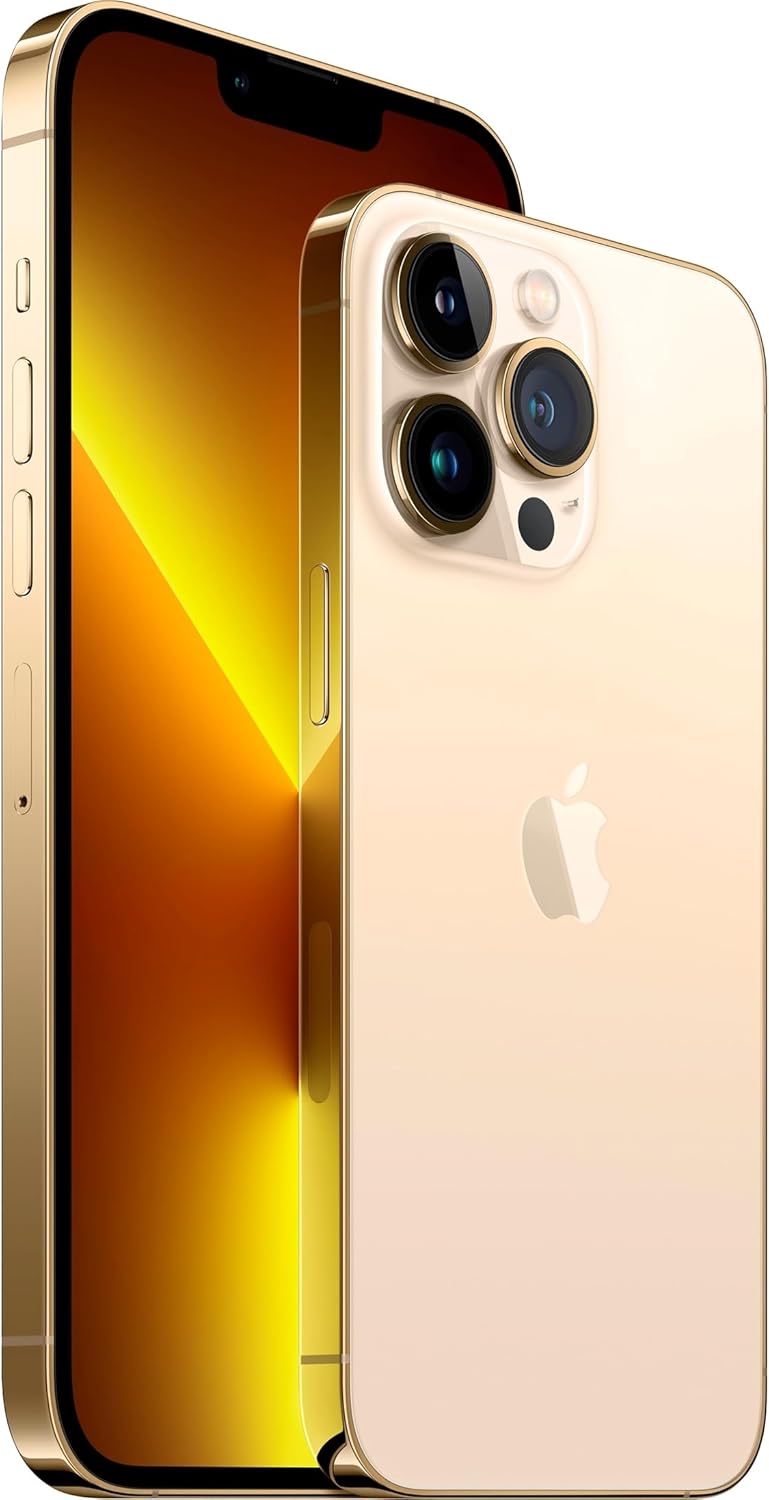
Image: Front and back view of the Apple iPhone 13 Pro Max in Gold, showcasing its triple camera system and display.
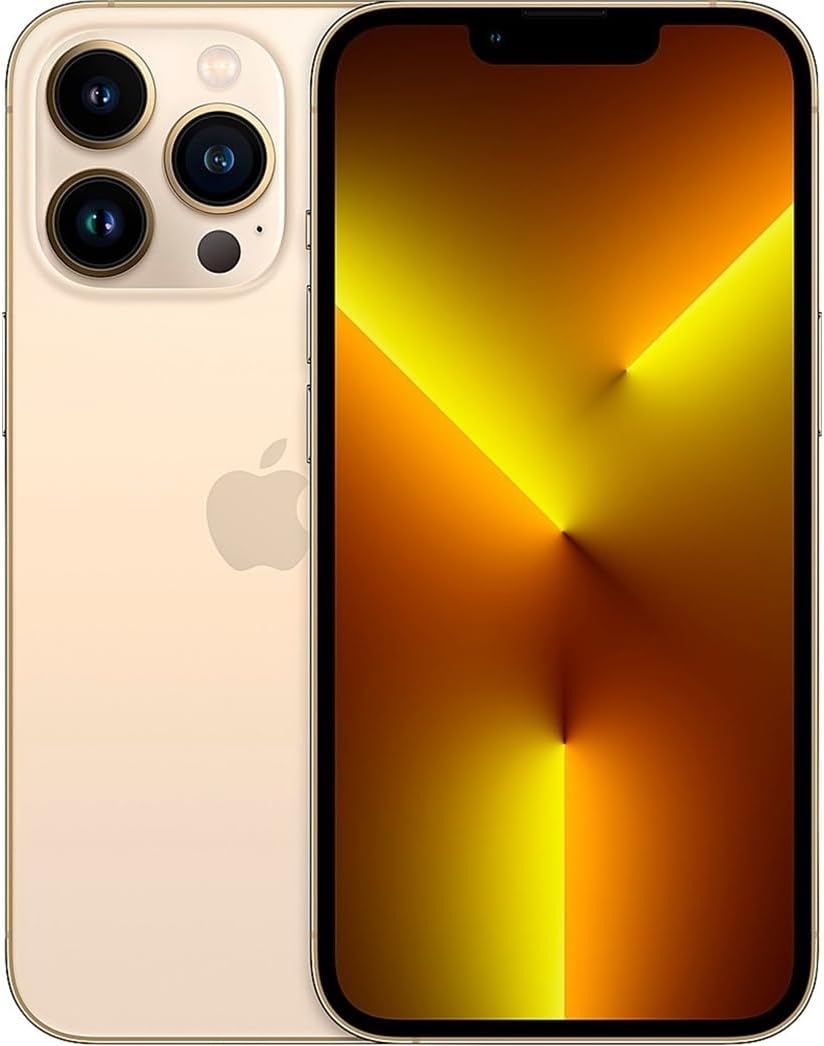
Image: Front view of the Apple iPhone 13 Pro Max in Gold, displaying the screen.
2. What's in the Box
Upon unboxing your Apple iPhone 13 Pro Max, you should find the following items:
- Apple iPhone 13 Pro Max device
- Charging Cable (USB-C to Lightning)
- SIM Removal Tool
Note: Power adapter and headphones are sold separately.
3. Setup Guide
3.1 Initial Power On
- Press and hold the Side button on the right side of the device until the Apple logo appears.
- Follow the on-screen instructions to select your language and region.
3.2 Insert SIM Card
- Locate the SIM tray on the left side of the iPhone.
- Insert the SIM removal tool into the small hole on the SIM tray and press firmly until the tray ejects.
- Place your nano-SIM card into the tray with the gold contacts facing down.
- Carefully reinsert the SIM tray into the iPhone.
3.3 Basic Setup
After inserting the SIM card, continue with the on-screen setup process:
- Connect to a Wi-Fi network.
- Set up Face ID (facial recognition) for secure unlocking and purchases.
- Create a passcode for additional security.
- Restore data from a previous iPhone backup (iCloud or computer) or set up as a new iPhone.
- Sign in with your Apple ID or create a new one.
- Configure location services, Siri, and other settings as prompted.
4. Operating Instructions
4.1 Navigation and Gestures
- Home Screen: Swipe up from the bottom edge of the screen to go to the Home Screen.
- App Switcher: Swipe up from the bottom edge and pause in the middle of the screen to view open apps. Swipe left or right to switch between them, or swipe up on an app to close it.
- Control Center: Swipe down from the top-right corner of the screen to access quick settings like Wi-Fi, Bluetooth, brightness, and volume.
- Notifications: Swipe down from the top-center of the screen to view your notifications.
4.2 Camera Usage
The iPhone 13 Pro Max features a versatile camera system:
- Open the Camera app.
- Swipe left or right to switch between modes (Photo, Video, Cinematic, Portrait, Pano, Slo-Mo, Time-Lapse).
- Tap the shutter button to take a photo or start/stop video recording.
- Use the zoom options (0.5x, 1x, 3x) or pinch the screen to adjust zoom.
- For Cinematic mode, tap the icon to enable depth-of-field effects in videos.
4.3 Battery Management
To optimize battery life:
- Enable Low Power Mode via Control Center or Settings > Battery.
- Adjust screen brightness (lower brightness consumes less power).
- Turn off Wi-Fi or Bluetooth when not in use.
- Check Battery Health in Settings > Battery > Battery Health & Charging.
5. Maintenance
5.1 Cleaning Your iPhone
- Unplug all cables and turn off your iPhone.
- Use a soft, lint-free cloth (e.g., a lens cloth) to gently wipe the screen and exterior.
- Avoid using abrasive materials, aerosols, solvents, or ammonia-based cleaners.
- Do not spray cleaners directly onto the iPhone.
5.2 Software Updates
Regularly update your iPhone's software to ensure optimal performance, security, and access to new features:
- Go to Settings > General > Software Update.
- If an update is available, tap Download and Install. Ensure your iPhone is connected to Wi-Fi and has sufficient battery charge or is connected to power.
5.3 Water and Dust Resistance
The iPhone 13 Pro Max is rated IP68, meaning it can withstand submersion in water up to 6 meters for up to 30 minutes. However, water and dust resistance are not permanent conditions and may decrease over time with normal wear. To prevent liquid damage:
- Avoid swimming or bathing with your iPhone.
- Avoid exposing your iPhone to pressurized water or high-velocity water.
- Avoid using your iPhone in a sauna or steam room.
- Avoid intentionally submerging your iPhone in water.
- If your iPhone gets wet, wipe it with a soft, lint-free cloth. Do not charge it until it is completely dry.
6. Troubleshooting
6.1 Common Issues and Solutions
- Device unresponsive: Press and quickly release the Volume Up button. Press and quickly release the Volume Down button. Then, press and hold the Side button until you see the Apple logo.
- Battery draining quickly: Check battery usage in Settings > Battery to identify apps consuming the most power. Enable Low Power Mode.
- Wi-Fi/Bluetooth connectivity issues: Try toggling Wi-Fi/Bluetooth off and on in Control Center or Settings. Restart your iPhone and/or your router.
- Apps crashing: Ensure apps are updated to their latest versions. Restart the app or your iPhone.
6.2 Factory Reset
A factory reset erases all data and settings from your iPhone and restores it to its original state. This should be considered a last resort for persistent software issues.
- Go to Settings > General > Transfer or Reset iPhone > Erase All Content and Settings.
- Follow the on-screen prompts. You may need to enter your Apple ID password.
7. Specifications
| Feature | Detail |
|---|---|
| Model Name | iPhone 13 Pro Max |
| Screen Size | 6.7 Inches |
| Memory Storage Capacity | 128 GB |
| Product Dimensions | 5.78 x 2.81 x 0.3 inches |
| Item Weight | 7 ounces |
| Batteries | 1 Lithium Ion batteries required (included) |
| Wireless Carrier | T-Mobile |
| Cellular Technology | 5G |
| Connectivity Technology | Wi-Fi, CDMA, GSM, LTE |
| SIM card slot count | Dual SIM |
| Color | Gold |
| Manufacturer | Apple Computer |
| Date First Available | November 11, 2021 |
8. Warranty and Support
8.1 Amazon Renewed Guarantee
This Apple iPhone 13 Pro Max is an Amazon Renewed product. It comes with the Amazon Renewed Guarantee, which provides a replacement or refund within 90 days of receipt if the product does not work as expected.
8.2 Apple Support
For technical assistance, software issues, or further product information, you can visit the official Apple Support website or contact Apple customer service.


