
1. Introduction
This manual provides detailed instructions for the installation, operation, and maintenance of your Kolink Stronghold Barricade EATX Gaming PC Case. Please read this manual carefully before beginning assembly to ensure proper setup and to prevent damage to the components or the case itself. Keep this manual for future reference.
The Kolink Stronghold Barricade is a Midi Tower EATX case designed for gaming PCs, featuring a removable hood, a hinged tempered glass door, and support for various components including EATX motherboards, long graphics cards, and extensive cooling solutions.
2. Safety Information
- Always disconnect the power supply from the wall outlet before installing or removing any components to prevent electric shock.
- Handle all components with care. Static electricity can damage electronic parts. Consider using an anti-static wrist strap.
- The tempered glass panel is fragile. Handle it with extreme care to avoid breakage and injury.
- Keep small parts and screws away from children.
- Ensure proper ventilation around the PC case to prevent overheating.
3. Package Contents
Verify that all components are present in the package:
- Kolink Stronghold Barricade PC Case
- Accessory box (containing screws, standoffs, cable ties, and other small parts)
- User Manual (this document)
If any items are missing or damaged, please contact your retailer or Kolink support.
4. Setup and Component Installation
Follow these steps for assembling your PC within the Kolink Stronghold Barricade case. The case features a user-friendly, screwless design for many components.
4.1 Preparing the Case
- Place the case on a stable, flat surface.
- Open the hinged tempered glass side panel. This panel can be swung open for easy access to the interior.
- Remove the solid right side panel to access the cable management area.

Image: Interior view of the Kolink Stronghold Barricade case with the tempered glass side panel open, showing the spacious internal layout.
4.2 Motherboard Installation
- The case supports motherboards from mITX to EATX form factors.
- Install the necessary standoffs for your motherboard size. The case typically comes with pre-installed standoffs for ATX.
- Carefully place your motherboard onto the standoffs, aligning the screw holes.
- Secure the motherboard with the provided screws.
4.3 Power Supply Unit (PSU) Installation
- The case supports ATX power supplies up to 190 mm in length.
- Install the PSU into the dedicated bottom mount compartment.
- Secure the PSU with screws from the rear of the case.
4.4 Storage Drive Installation
- The case provides space for up to 4 HDDs: 2 x 2.5 inch SSDs and 2 x 3.5 inch or 2.5 inch HDDs.
- Locate the drive bays/mounts and secure your SSDs and HDDs using the provided screws or tool-less mechanisms.
4.5 Graphics Card (GPU) Installation
- The case accommodates graphics cards up to 330 mm in length.
- Remove the necessary expansion slot covers from the rear of the case.
- Insert your graphics card into the PCIe slot on the motherboard and secure it with the retention clip and a screw.
4.6 CPU Cooler Installation
- The case supports CPU coolers up to 165 mm in height.
- Install your CPU cooler according to its manufacturer's instructions. The motherboard tray features a cutout for easy access to the CPU cooler backplate.
4.7 Fan and Water Cooling Installation
- The case supports up to 6 x 120 mm fans.
- For water cooling, the case supports radiators up to 360 mm at the front, 240 mm at the top, and 120 mm at the back.
- Install fans or radiators in desired locations, ensuring proper airflow direction.

Image: Side view of the Kolink Stronghold Barricade PC case, showing the solid right side panel and ventilation on the front edge.
4.8 Connecting Front Panel I/O
The I/O panel on the top of the case includes:
- 1 x USB 3.1 port
- 2 x USB 2.0 ports
- 3.5 mm jack ports for headphones and microphone
Connect the corresponding cables from the front panel to the appropriate headers on your motherboard. Refer to your motherboard manual for header locations.

Image: Close-up view of the top I/O panel, showing the USB 3.0, USB 2.0, audio jacks, and power/reset buttons.
4.9 Cable Management
Utilize the space behind the motherboard tray and the provided cable ties to route and secure cables. This improves airflow and aesthetics.
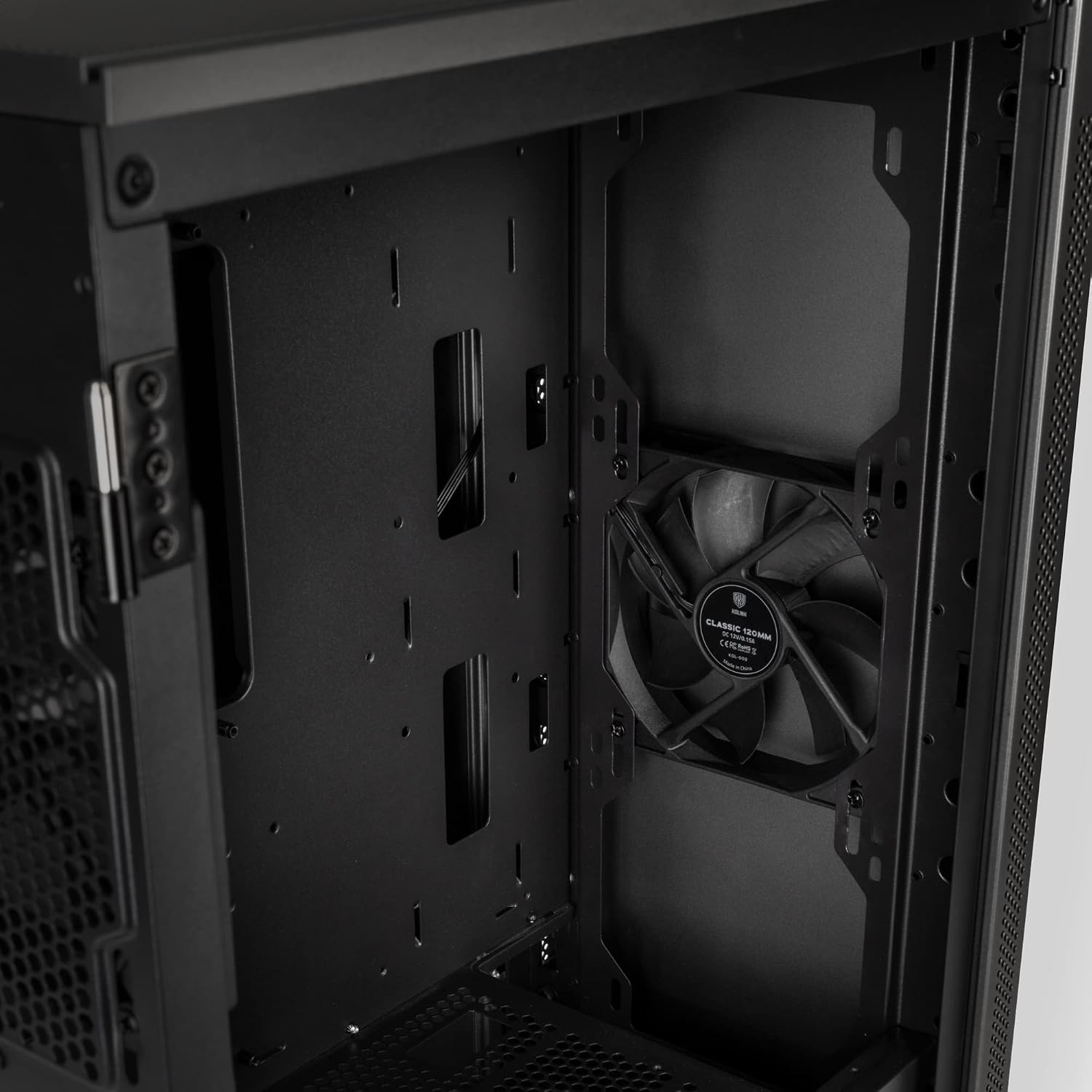
Image: Rear interior view of the Kolink Stronghold Barricade case, highlighting the cable management routes and the CPU cooler cutout.
5. Operating Instructions
5.1 Powering On/Off
- After all components are installed and cables connected, close both side panels.
- Connect the power cable to your PSU and a wall outlet.
- Press the power button on the top I/O panel to turn on your PC.
- To turn off, use the operating system's shutdown function or press and hold the power button for several seconds.
5.2 RGB Lighting (if applicable)
The Kolink Stronghold Barricade supports RGB lighting. If you have installed additional ARGB PC fans and LED strips, connect them to your motherboard's RGB headers or a dedicated controller. Control the lighting effects using your motherboard's software or the controller's buttons.
6. Maintenance
Regular maintenance helps ensure optimal performance and longevity of your PC components.
6.1 Cleaning Dust Filters
- The case features dust filters on the top and bottom.
- Periodically remove and clean these filters to prevent dust buildup, which can restrict airflow and cause overheating.
- Clean filters using compressed air or by rinsing with water (ensure they are completely dry before reinstallation).
6.2 General Cleaning
- Use a soft, damp cloth to wipe down the exterior surfaces of the case. Avoid abrasive cleaners.
- For the tempered glass panel, use a glass cleaner and a microfiber cloth to avoid streaks.
- Use compressed air to clear dust from internal components and fan blades. Ensure fans are held stationary when using compressed air to prevent damage.
7. Troubleshooting
This section addresses common issues you might encounter.
7.1 PC Does Not Power On
- Check if the power cable is securely connected to both the PSU and the wall outlet.
- Ensure the power switch on the PSU itself is in the 'ON' position.
- Verify that the front panel power button cable is correctly connected to the motherboard's power header.
- Confirm all internal power connections (24-pin ATX, 8-pin CPU, PCIe power for GPU) are secure.
7.2 Fans Not Spinning
- Check if the fan cables are properly connected to the motherboard fan headers or a fan controller.
- Ensure fan headers are enabled in the motherboard's BIOS/UEFI settings.
7.3 No Display Output
- Ensure your monitor is connected to the graphics card's output, not the motherboard's integrated graphics output (unless you are using integrated graphics).
- Verify the graphics card is fully seated in its PCIe slot and any necessary power cables are connected.
- Check monitor input selection.
8. Specifications
Detailed specifications for the Kolink Stronghold Barricade PC Case:
| Feature | Specification |
|---|---|
| Brand | KOLINK |
| Model Name | Stronghold Barricade |
| Case Type | Midi Tower |
| Motherboard Compatibility | mITX, mATX, ATX, EATX |
| Material | Glass, Steel |
| Color | Gunmetal Grey |
| Cooling Method | Air |
| Fan Size (Included) | 120 Millimeters (2 x 120mm fans included) |
| Max Fan Support | Up to 6 x 120 mm |
| Water Cooling Support | Front: up to 360 mm, Top: up to 240 mm, Rear: up to 120 mm |
| Expansion Slots | 8 |
| Internal Drive Bays | 2 x 2.5" SSD, 2 x 3.5"/2.5" HDD |
| Max GPU Length | 330 mm |
| Max CPU Cooler Height | 165 mm |
| Max PSU Length | 190 mm |
| Front I/O Ports | 1 x USB 3.1, 2 x USB 2.0, 3.5mm Audio (Headphone/Mic) |
| Item Weight | 7200 Grams |
| Special Features | Hinged Tempered Glass Door, Removable Hood, RGB Lighting Support |
9. Warranty Information
This Kolink Stronghold Barricade PC Case is covered by a Manufacturer Guarantee. For specific terms, conditions, and duration of the warranty, please refer to the documentation provided with your purchase or contact your retailer.
10. Support
If you require further assistance or encounter issues not covered in this manual, please contact your retailer or visit the official KOLINK website for support resources and contact information.