
1. Introduction
Thank you for purchasing the BUFFBEE Digital Alarm Clock FM Radio with Wireless Charging. This device combines a digital alarm clock, FM radio, 10W fast wireless charger, and a USB charging port into a single unit. It features five distinct wake-up sounds, adjustable volume control, and a full brightness dimmer for optimal comfort in your bedroom environment. Please read this manual carefully to ensure proper setup and operation.

Figure 1.1: BUFFBEE Digital Alarm Clock with a smartphone wirelessly charging on top.
2. Setup
2.1 Power Connection
- Connect the provided power adapter to the DC 9V port on the back of the alarm clock.
- Plug the power adapter into a standard electrical outlet. The clock display will illuminate.
- Note: The internal battery backup is for saving time and alarm settings only. The device requires a continuous power connection to function.
2.2 Setting the Time
- Press and hold the TIME button located on the top panel. The hour digits will begin to flash.
- Use the UP (▲) or DOWN (▼) buttons to adjust the hour.
- Press the TIME button again to confirm the hour and proceed to set the minutes. The minute digits will flash.
- Use the UP (▲) or DOWN (▼) buttons to adjust the minutes.
- Press the TIME button one more time to save the time setting.
2.3 Setting the Alarm
- Press and hold the ALARM button. The alarm hour digits will begin to flash.
- Use the UP (▲) or DOWN (▼) buttons to adjust the alarm hour.
- Press the ALARM button again to confirm the hour and proceed to set the alarm minutes. The minute digits will flash.
- Use the UP (▲) or DOWN (▼) buttons to adjust the alarm minutes.
- Press the ALARM button one more time to save the alarm time.
- To activate or deactivate the alarm, briefly press the ALARM button. An alarm icon will appear on the display when activated.

Figure 2.1: Rear panel with power and USB connections.
3. Operating Instructions
3.1 Wireless Charging
The top surface of the alarm clock features a 10W fast wireless charging pad. This is compatible with 5W, 7.5W, and 10W wireless-enabled phones.
- Place your wireless-enabled smartphone directly on the charging pad located on the top of the clock.
- Ensure the phone is centered on the charging pad for optimal connection.
- A lightning icon will appear on the clock's display to indicate that your phone is charging.

Figure 3.1: Wireless charging in progress.
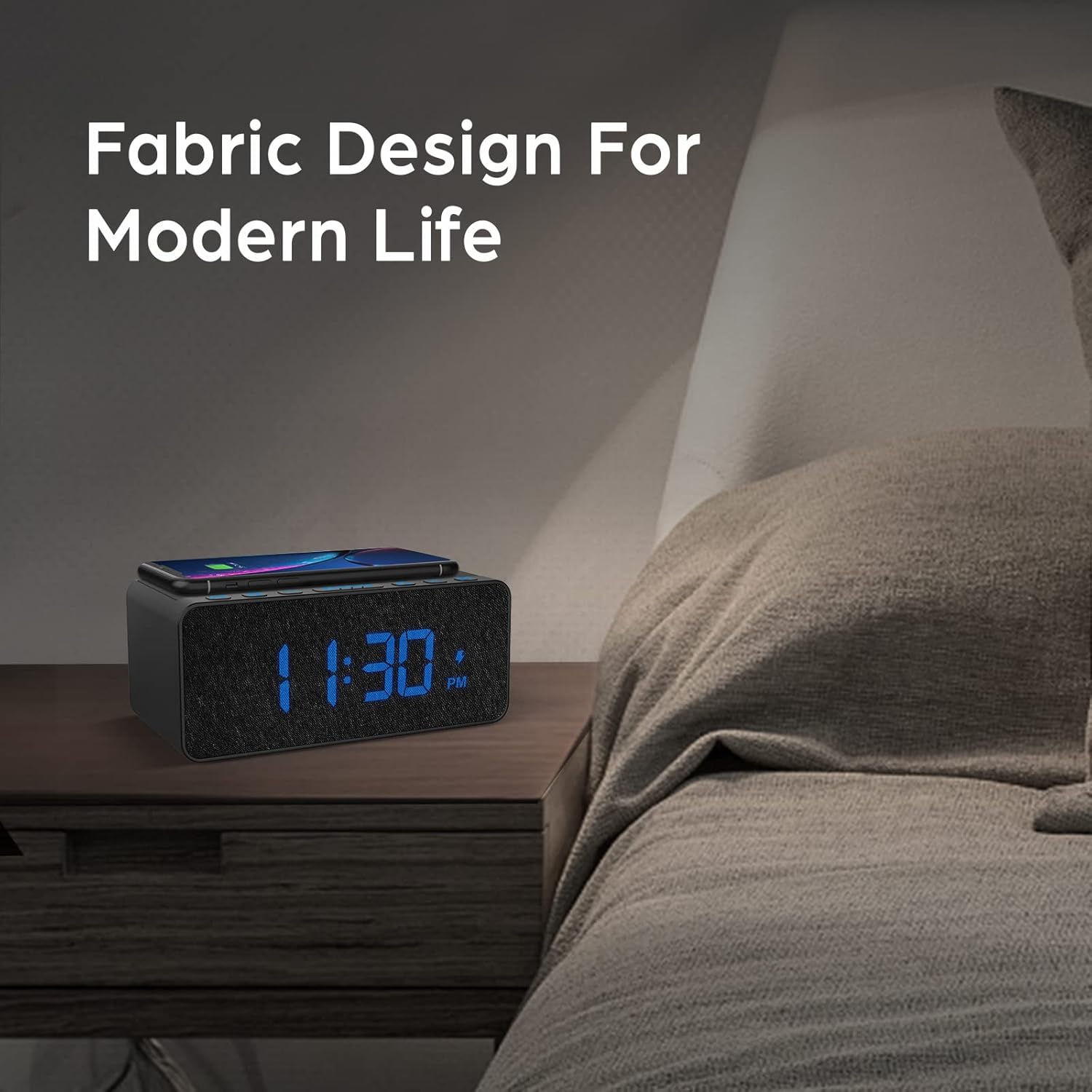
Figure 3.2: Wireless charging compatibility.
3.2 USB Charging Port
An additional USB port is located on the back of the unit for charging other devices, such as smartwatches or non-wireless charging phones.
- Connect your device's USB charging cable to the USB port on the back of the alarm clock.
- Connect the other end of the cable to your device.

Figure 3.3: Simultaneous wireless and USB charging.
3.3 FM Radio Operation
The alarm clock includes an FM radio with a frequency range of 87.5-108.0 MHz.
- To turn on the FM radio, press the RADIO button.
- To scan for stations, press and hold the UP (▲) or DOWN (▼) buttons. The radio will automatically tune to the next available station.
- To manually tune, briefly press the UP (▲) or DOWN (▼) buttons.
- To save a preset station, press and hold the RADIO button until the preset number flashes, then use the UP (▲) or DOWN (▼) buttons to select a preset slot. Press RADIO again to confirm.
- To recall a preset station, briefly press the RADIO button to cycle through saved presets.
- Adjust the radio volume using the volume control dial or buttons (if present, otherwise use general volume controls).
- To improve FM reception, ensure the radio antenna on the back of the unit is fully extended.
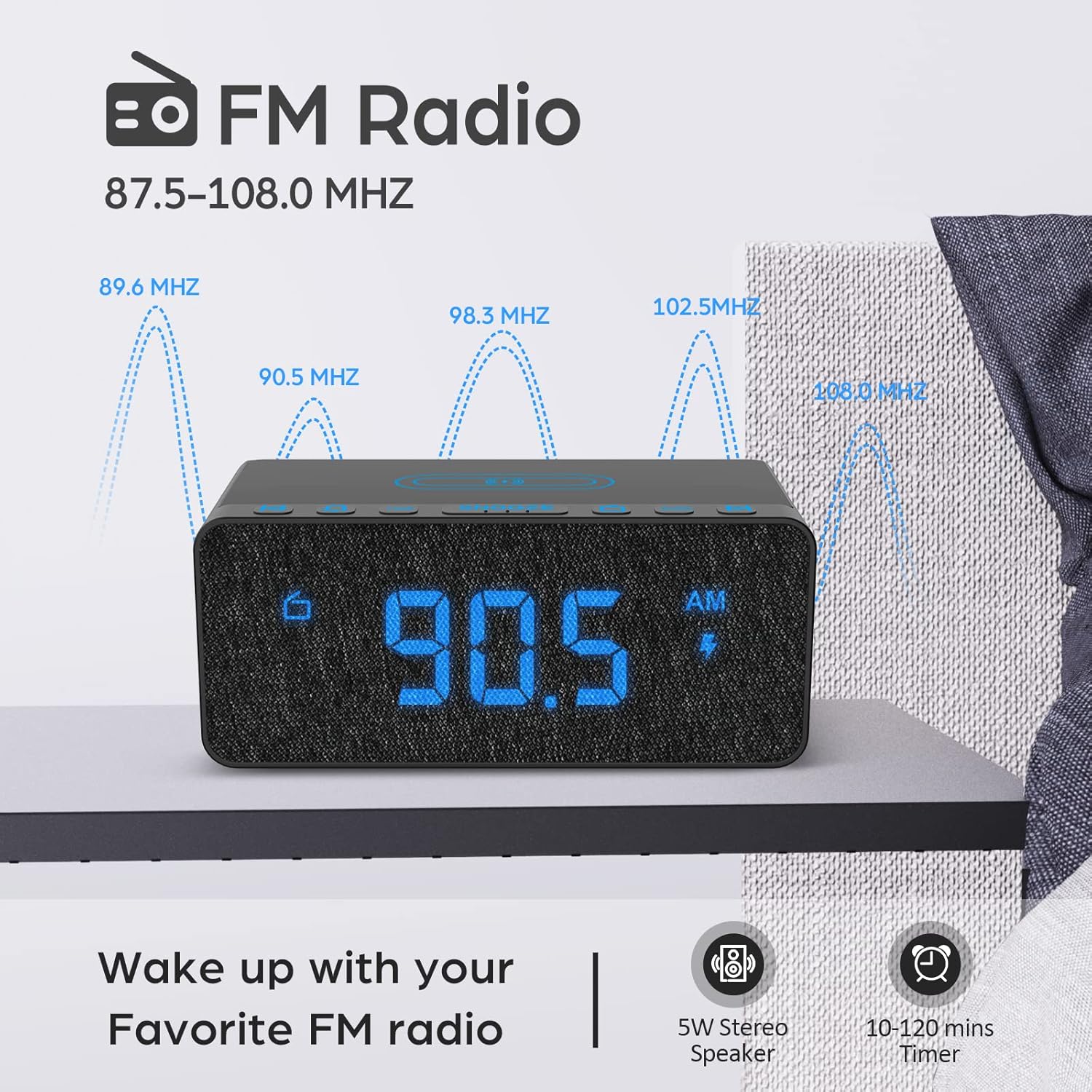
Figure 3.4: FM Radio display.
3.4 Alarm Sounds and Volume
The alarm clock offers 5 distinct wake-up sounds and adjustable alarm volume (0-15 levels).
- When setting the alarm, after setting the time, you can select the alarm sound.
- Press the ALARM SOUNDS button to cycle through the available sounds: Beep, Bird Sound, Bells, Piano Sound, or FM Radio.
- To adjust the alarm volume, use the dedicated volume buttons or dial on the unit.

Figure 3.5: Available alarm sounds.
3.5 Display Dimmer
The display brightness can be adjusted from 0% to 100% to suit your preference.
- Locate the DISPLAY DIMMER switch or dial, typically on the back or side of the unit.
- Adjust the switch/dial to increase or decrease the display brightness.

Figure 3.6: Display brightness adjustment.
3.6 Controls Overview
For a visual guide to the top panel controls, please refer to the video below.
Video 3.1: Overview of BUFFBEE Digital Alarm Clock features and top panel controls, including time setting, alarm, radio, and snooze functions.
4. Maintenance
4.1 Cleaning
- To clean the device, use a soft, dry cloth.
- Do not use liquid cleaners, abrasive cleaners, or chemical sprays, as these may damage the surface or internal components.
- Ensure the device is unplugged before cleaning.
4.2 General Care
- Avoid exposing the device to extreme temperatures, direct sunlight, or high humidity.
- Do not disassemble the unit. Any repairs should be performed by qualified personnel.
- Keep the device away from water or other liquids.
5. Troubleshooting
- Q: Why is the display blank after plugging in?
- A: Please check if the DISPLAY DIMMER switch on the back of the unit is set to the HIGH position. If it is set to a very low position, the display may appear blank in bright environments.
- Q: How can I tell if my phone is wirelessly charging?
- A: A lightning icon will appear on the alarm clock's display when a compatible phone is correctly placed on the wireless charging pad and is actively charging.
- Q: Does the battery backup allow the clock to work without a power cord?
- A: No, the battery backup is solely for saving the time and alarm settings during a power outage. The device requires the power cord to be plugged in for full functionality (display, radio, charging, alarm sound).
- Q: Which phones are supported by wireless charging?
- A: The wireless charger is compatible with most Qi-enabled smartphones, including but not limited to: iPhone 13/13 Pro/13 Pro Max/13 Mini/12/12 Pro/12 Pro Max/12 Mini/11/11 Pro/11 Pro Max/X/XS/XS Max/XR/8/8+/SE; Samsung S21/S21+/21 Ultra/S20/S20+/S20 Ultra/S10/S10+/S10E/S9/S9+/S8/S8+/S7/S7+/S6/S6E; Note 20/20 Ultra/Note 10/10 Pro/Note 9/8/5; Google Nexus 4/5/6, and other wireless-enabled phones.
6. Specifications
| Brand | BUFFBEE |
| Model | B09LCCJZ3H |
| Display Type | Digital |
| Style | Modern |
| Special Features | Adjustable Brightness, Charging Port, Music |
| Product Dimensions | 6.9"W x 2.8"H |
| Power Source | Corded Electric |
| Room Type | Bedroom |
| Indoor/Outdoor Usage | Indoor |
| Frame Material | Acrylonitrile Butadiene Styrene |
| Batteries Included | No (for operation, backup only) |
| Alarm Clock | Yes |
| Number of Items | 1 |
| Operation Mode | Electrical |
| Item Weight | 14.9 ounces |
| UPC | 766891334623 |
7. Warranty Information
BUFFBEE products are designed and manufactured to the highest quality standards. This product is covered by a limited warranty against defects in materials and workmanship for a period of one (1) year from the original date of purchase. This warranty does not cover damage caused by accident, misuse, abuse, improper installation or operation, or unauthorized repairs. Please retain your proof of purchase for warranty claims.
8. Customer Support
If you have any questions, concerns, or require assistance with your BUFFBEE Digital Alarm Clock, please contact our customer support team. For the most up-to-date contact information, please visit the official BUFFBEE website or refer to the packaging of your product.
Online Support: Visit the BUFFBEE Store on Amazon