
Ring Ring Chime 1
Ring Chime 1 User Manual
Model: Ring Chime 1
1. Introduction
The Ring Chime 1 is an indoor Wi-Fi enabled speaker designed to work with your Ring Video Doorbells and Security Cameras. It provides audible alerts when motion is detected or when someone presses your Ring Doorbell, ensuring you hear notifications throughout your home. This manual provides instructions for setting up, operating, and maintaining your Ring Chime 1.
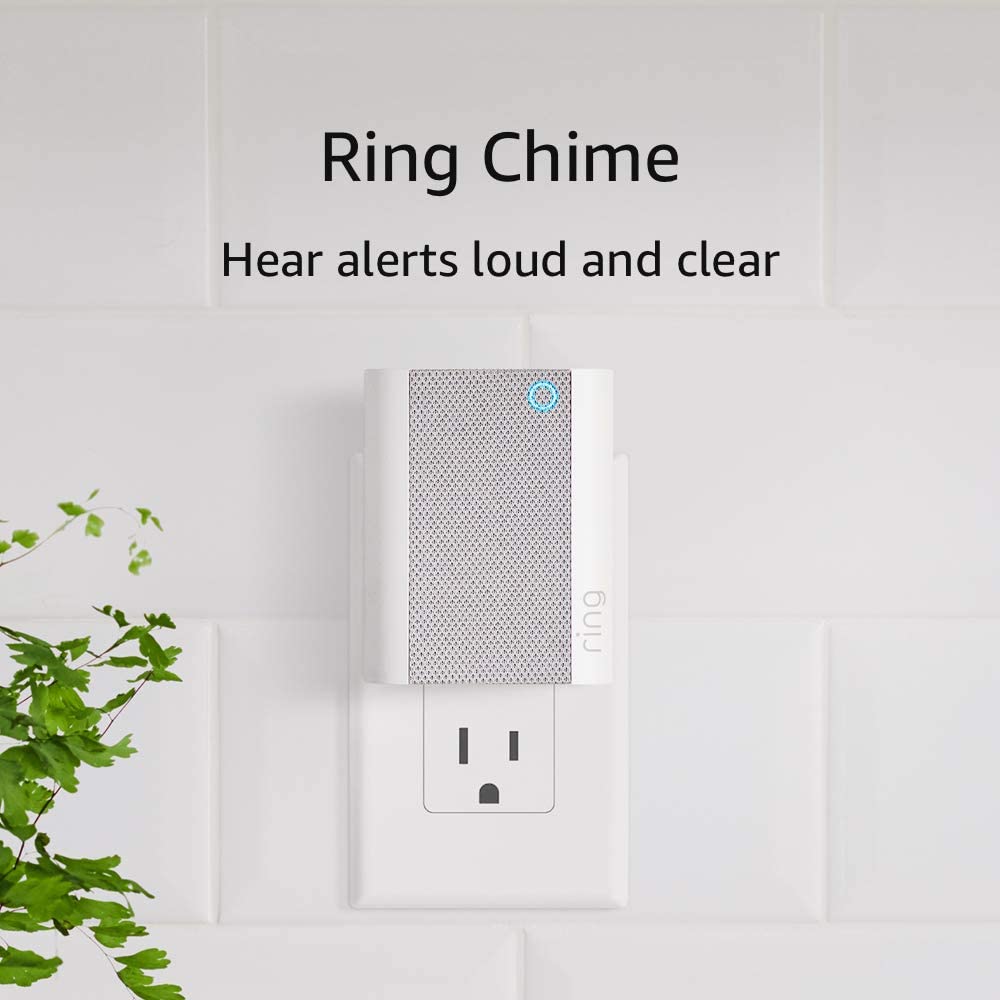
Image: The Ring Chime 1, a compact white device, is shown plugged into a standard electrical wall outlet. The device features a speaker grille on its front with a blue LED indicator light at the top, signifying its operational status. This image illustrates the simple plug-and-play nature of the device for easy installation.
2. Safety Information
Please read and follow all safety instructions before using your Ring Chime 1 to prevent injury or damage. Keep this manual for future reference.
- Indoor Use Only: This device is designed for indoor use in dry locations. Do not expose it to water or moisture.
- Power Source: Plug the device directly into a standard wall outlet. Do not use extension cords or power strips unless absolutely necessary and ensure they are rated for the device's power requirements.
- Ventilation: Ensure adequate ventilation around the device. Do not cover the Chime or place it in an enclosed space that could restrict airflow.
- Cleaning: Disconnect the device from the power outlet before cleaning. Use a soft, dry cloth. Do not use liquid cleaners or aerosol sprays.
- Children: Keep the device out of reach of children and pets.
3. Package Contents
Verify that all items are present in your package:
- Ring Chime 1 Device
- Quick Start Guide (this manual)
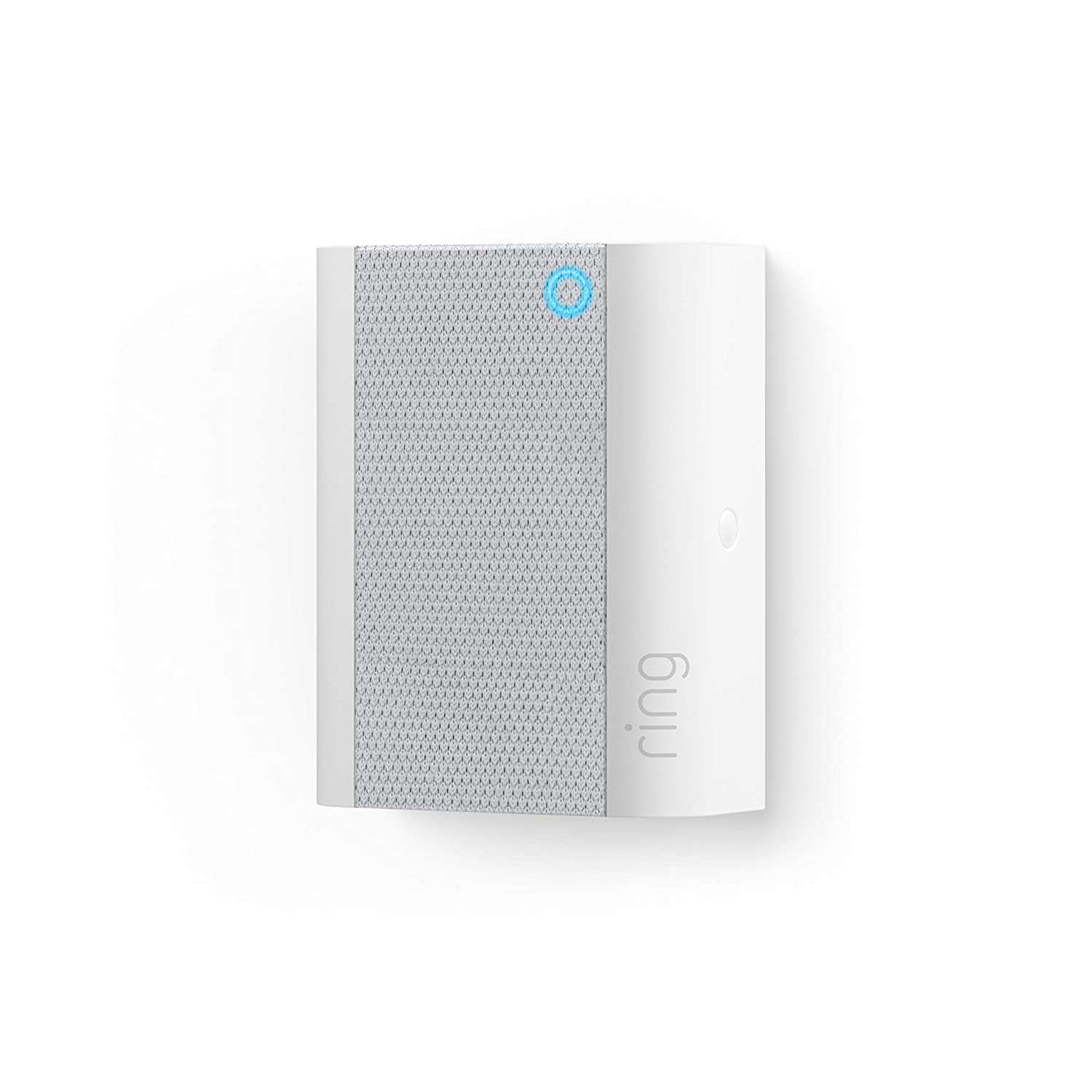
Image: A top-down view of the Ring Chime 1, showcasing its rectangular shape and the textured speaker grille on its front surface. The Ring logo is subtly visible on the side. This perspective highlights the device's compact and minimalist design.
4. Setup
Follow these steps to set up your Ring Chime 1 and connect it to your Ring account:
- Download the Ring App: If you haven't already, download the Ring app from the App Store (for iOS devices) or Google Play Store (for Android devices).
- Create or Log In to Your Account: Open the Ring app and either create a new account or log in with your existing Ring credentials.
- Plug In Your Chime: Plug your Ring Chime 1 into a standard electrical outlet in a central location within your home, ensuring it is within Wi-Fi range of your router.
- Set Up a Device: In the Ring app, tap the three lines (menu icon) in the top left corner, then select 'Set Up a Device'.
- Scan the QR Code: The app will prompt you to scan the QR code located on the back of your Ring Chime 1. If you cannot scan the code, you can select 'Set Up Without Scanning' and follow the on-screen instructions.
- Follow In-App Instructions: The Ring app will guide you through the remaining steps, including connecting your Chime to your home Wi-Fi network and linking it to your existing Ring Doorbells or Cameras.
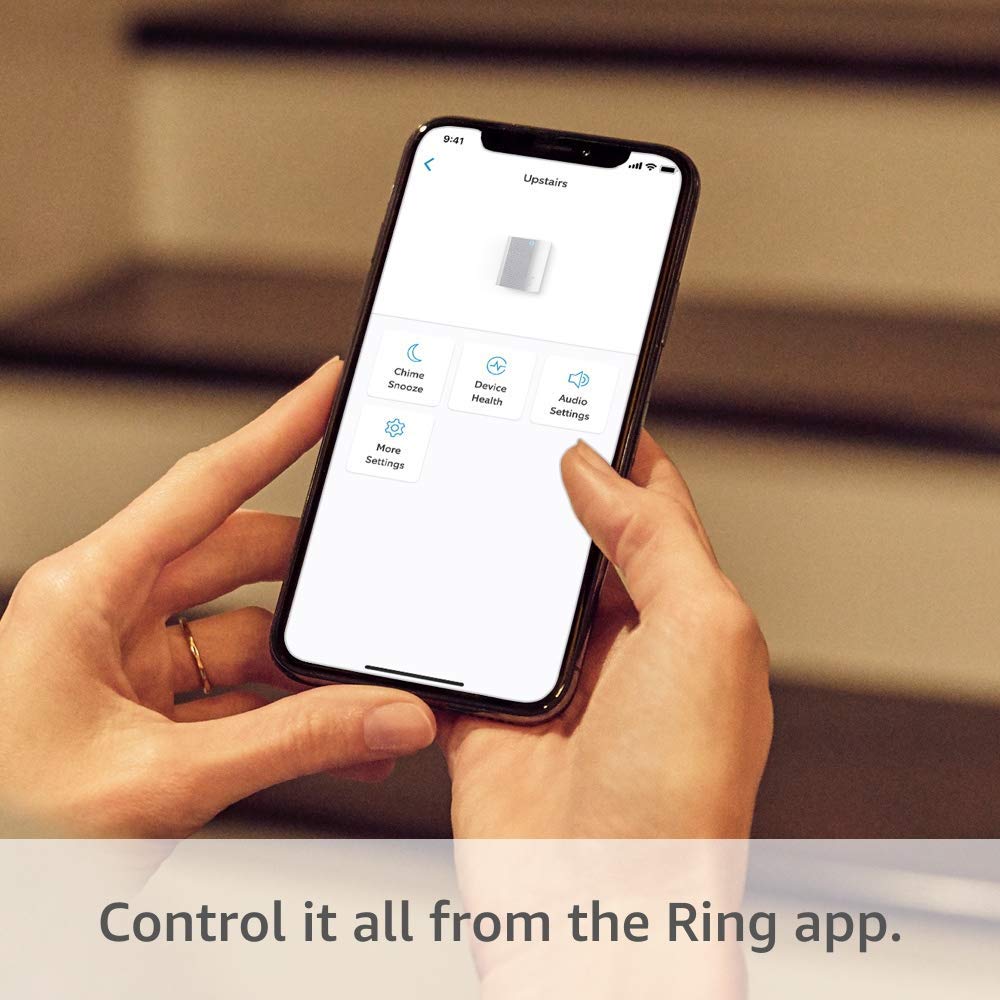
Image: A person's hands are shown holding a smartphone, which displays the Ring application interface. The screen shows various settings for a Ring device, including 'Chime Snooze', 'Device Health', 'Audio Settings', and 'More Settings'. This image demonstrates how users interact with the Ring app to control their Chime.
5. Operating Your Ring Chime 1
Once set up, your Ring Chime 1 will automatically play an alert sound when your linked Ring devices detect activity. You can customize its behavior using the Ring app.
5.1. Customizing Chime Tones
The Ring app allows you to choose from a variety of chime tones for different events (e.g., doorbell press, motion detection). Navigate to your Chime's settings in the app and select 'Chime Tones' to browse and select your preferred sounds.
5.2. Adjusting Volume
You can adjust the volume of your Ring Chime 1 directly from the Ring app. Go to your Chime's settings and find the 'Volume' control to set it to your desired level.
5.3. Snoozing Alerts
If you need temporary silence, the 'Chime Snooze' feature in the Ring app allows you to temporarily disable alerts from your Chime for a set period without disconnecting it.
5.4. Real-time Notifications
The Ring Chime provides real-time audible notifications for events detected by your connected Ring cameras and doorbells. This ensures you are aware of activity even if your phone is not nearby.
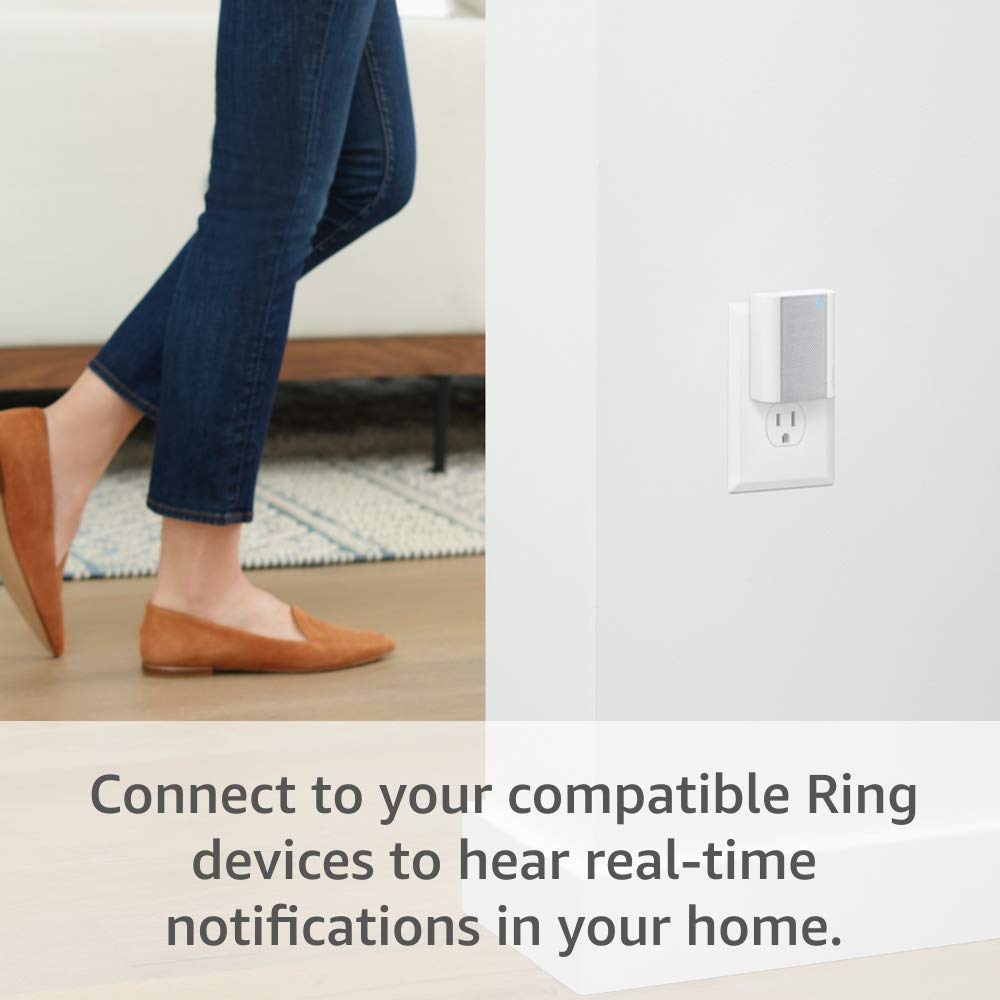
Image: A person's lower body, wearing jeans and brown shoes, is visible as they walk past a white wall where a Ring Chime 1 is plugged into an electrical outlet. This image illustrates the device's discreet presence in a home environment, providing real-time notifications as people move about.
6. Maintenance
The Ring Chime 1 requires minimal maintenance to ensure optimal performance.
- Cleaning: Periodically wipe the device with a soft, dry, lint-free cloth to remove dust. Do not use abrasive cleaners, waxes, or solvents.
- Firmware Updates: Ensure your Ring app is up to date, as it will automatically push firmware updates to your Chime to improve performance and add new features.
7. Troubleshooting
If you encounter issues with your Ring Chime 1, try the following troubleshooting steps:
| Problem | Possible Solution |
|---|---|
| Chime is not sounding alerts. |
|
| Chime is offline in the Ring app. |
|
| Cannot connect Chime to Wi-Fi during setup. |
|
For further assistance, visit the Ring support website or contact customer service.
8. Specifications
- Model: Ring Chime 1
- Power: Plugs into standard wall outlet (110-240V AC)
- Connectivity: 802.11 b/g/n Wi-Fi connection @ 2.4 GHz
- Operating Temperature: 32°F to 104°F (0°C to 40°C)
- Dimensions: Approximately 3.06 in. x 2.44 in. x 1.5 in. (77.8 mm x 62 mm x 38.2 mm)
9. Warranty and Support
Your Ring Chime 1 comes with a limited warranty. For detailed warranty information, please refer to the warranty card included with your product or visit the official Ring website.
For technical support, troubleshooting guides, FAQs, and community forums, please visit the Ring Support Center at support.ring.com. You can also contact Ring customer service directly through the website or the Ring app.
Related documentsRing Chime 1


Ask a question about this manual
Ask about setup, troubleshooting, compatibility, parts, safety, or missing instructions. Manuals+ will review the question and use this page’s manual context to help answer it.