
idinio 140193
idinio® Smart WiFi Cord Dimmer User Manual
Model: 140193 | Brand: idinio
1. Introduction
The idinio® Smart WiFi Cord Dimmer offers a seamless blend of traditional control comfort and smart functionalities. This dimmer utilizes phase-cut technology and allows for adjustable minimum brightness, making it suitable for various lighting types. It integrates with your existing Wi-Fi network and can be controlled via a dedicated app or voice assistants like Alexa and Google Assistant.
This manual provides essential information for the safe and efficient use of your idinio® Smart WiFi Cord Dimmer. Please read it thoroughly before installation and operation.
2. Features
- Transforms any conventional lamp into a dimmable smart lamp.
- Integrates into an existing Wi-Fi router for smart control.
- Functions as a conventional cord dimmer/switch for daily use.
- Includes both black and white interchangeable housings to match your decor.
- Features phase-cut technology, ideal for dimmable LED lamps up to 50W and halogen lamps up to 100W.
- Adjustable minimum brightness setting.
- Supports central control, dimming, scenarios, and time programs via a compatible app.
- Compatible with voice control via Amazon Alexa and Google Assistant.
- Easy installation or replacement of existing cord switches.
- Integrated strain relief ensures reliable and durable operation.
3. Safety Information
Always adhere to the following safety guidelines to prevent injury or damage:
- Ensure the power supply is disconnected before installation or maintenance.
- Installation should only be performed by a qualified electrician if you are unsure.
- Do not expose the device to moisture or extreme temperatures.
- Do not exceed the maximum load ratings (50W for LED, 100W for Halogen).
- This device is designed for indoor use only (IP20 protection class).
- Keep out of reach of children.
4. Package Contents
Upon opening the package, verify that all components are present and undamaged:
- idinio® Smart WiFi Cord Dimmer (pre-assembled with black housing)
- White interchangeable housing
- User Manual (this document)

Figure 1: idinio® Smart WiFi Cord Dimmer with its packaging and a smartphone displaying the control app.
5. Setup and Installation
The idinio® Smart WiFi Cord Dimmer is designed for easy installation, replacing an existing cord switch or being integrated into a new lamp cord.
5.1. Physical Installation
- Disconnect Power: Ensure the lamp is unplugged from the mains power supply before beginning installation.
- Open Housing: Carefully open the dimmer housing. The dimmer comes pre-assembled with the black housing. If you wish to use the white housing, gently separate the two halves of the black housing and replace them with the white ones.
- Wire Connection: Connect the lamp's power cord to the dimmer's terminals according to the wiring diagram provided inside the dimmer or on the product label. Ensure proper polarity (Live and Neutral). The integrated strain relief should be used to secure the cable.
- Close Housing: Securely close the dimmer housing, ensuring all wires are properly seated and not pinched.
- Plug In: Plug the lamp back into the mains power supply.

Figure 2: The idinio® Smart WiFi Cord Dimmer showing both black and white housing options.

Figure 3: Disassembled white housing, showing internal structure for wiring.
5.2. Wi-Fi and App Setup
- Download App: Download the compatible smart home app (e.g., Tuya Smart or Smart Life) from your smartphone's app store.
- Register/Login: Open the app and register a new account or log in with an existing one.
- Add Device: Follow the in-app instructions to add a new device. Typically, you will select 'Lighting' or 'Dimmer' and then 'Wi-Fi Device'.
- Pairing Mode: Put the dimmer into pairing mode. This usually involves pressing and holding the reset button on the dimmer until the indicator light flashes rapidly. Refer to the specific app's instructions for exact pairing procedures.
- Connect to Wi-Fi: Enter your 2.4GHz Wi-Fi network name and password in the app. The dimmer will connect to your network.
- Rename Device: Once connected, you can rename the dimmer within the app for easier identification (e.g., 'Living Room Lamp').
5.3. Adjusting Minimum Brightness
The dimmer allows you to set a minimum brightness level to prevent flickering or ensure stable operation with certain LED lamps. This adjustment is typically done via a small screw or button on the dimmer itself, often labeled 'Min.' or similar. Use a small screwdriver to carefully adjust this setting while the lamp is on, until stable dimming is achieved at the lowest desired level.
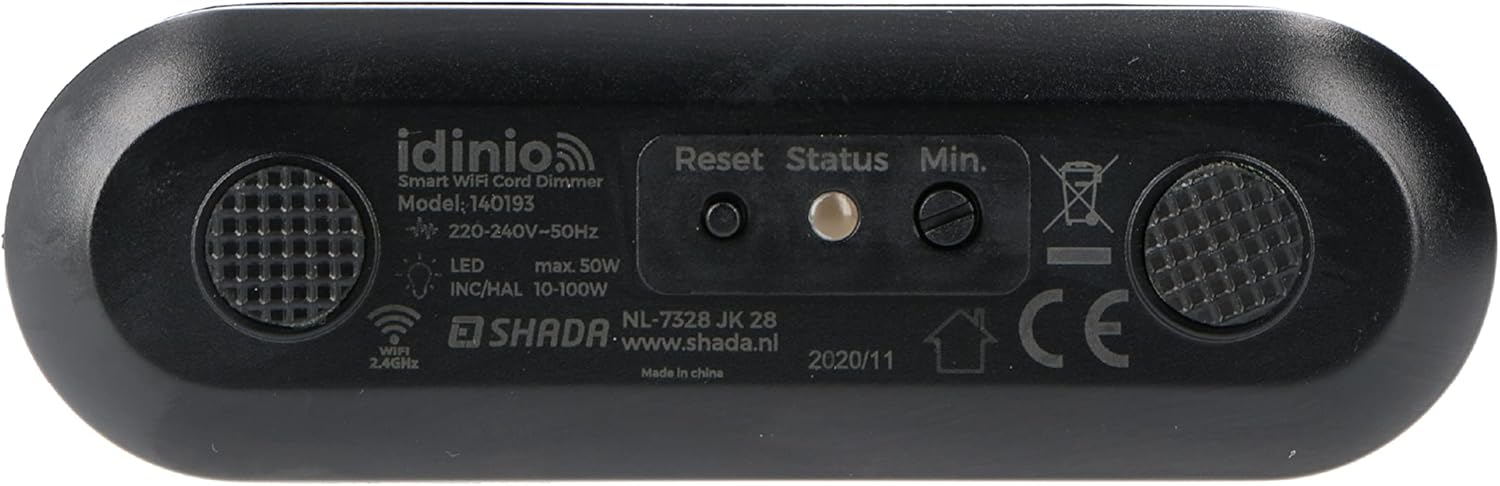
Figure 4: Bottom view of the dimmer, showing the 'Min.' adjustment point and other labels.
6. Operating Instructions
The idinio® Smart WiFi Cord Dimmer offers multiple ways to control your lighting.
6.1. Manual Control
The dimmer features a rotary knob for traditional manual control:
- Turn On/Off: Press the rotary knob to toggle the light on or off.
- Dimming: Rotate the knob clockwise to increase brightness and counter-clockwise to decrease brightness.

Figure 5: Close-up of the dimmer's control knob.
6.2. App Control
Using the compatible smart home app, you can control your dimmer from anywhere with an internet connection:
- Remote On/Off: Toggle the light on or off from your smartphone or tablet.
- Remote Dimming: Adjust the brightness level using a slider in the app.
- Scheduling: Set schedules for the light to turn on/off or dim at specific times.
- Scenes/Scenarios: Create custom scenes (e.g., 'Movie Night', 'Reading') that adjust the light to predefined settings.
- Group Control: Group multiple idinio dimmers or other smart devices together for simultaneous control.
6.3. Voice Control
Integrate your idinio® Smart WiFi Cord Dimmer with Amazon Alexa or Google Assistant for hands-free control:
- Link Account: In the Alexa or Google Home app, enable the skill for your smart home app (e.g., Tuya Smart or Smart Life) and link your accounts.
- Discover Devices: Ask your voice assistant to discover new devices.
- Voice Commands: Use commands such as:
- "Alexa, turn on Living Room Lamp."
- "Hey Google, dim Living Room Lamp to 50%."
- "Alexa, turn off Living Room Lamp."
7. Technical Specifications
| Parameter | Value |
|---|---|
| Model Number | 140193 |
| Voltage/Frequency | 230-240 V~ / 50Hz |
| Maximum Load (LED) | 50 W |
| Maximum Load (Halogen) | 10-100 W |
| Operating Temperature | 0°C to 40°C |
| Protection Class | IP20 |
| Dimensions (L x W x D) | 97 x 31 x 40 mm |
| Wireless Connectivity | Wi-Fi 2.4GHz |
| Voice Assistant Compatibility | Amazon Alexa, Google Assistant |
8. Troubleshooting
If you encounter issues with your idinio® Smart WiFi Cord Dimmer, refer to the following common problems and solutions:
- Light does not turn on:
- Check if the lamp is properly plugged in and the power outlet is active.
- Verify the wiring connections inside the dimmer.
- Ensure the lamp bulb is functional.
- Light does not dim or flickers:
- Ensure you are using dimmable LED or halogen bulbs.
- Adjust the minimum brightness setting on the dimmer (refer to Section 5.3).
- Check if the total wattage of the bulbs exceeds the dimmer's maximum load.
- Cannot connect to Wi-Fi/App:
- Ensure your Wi-Fi network is 2.4GHz. This dimmer does not support 5GHz networks.
- Check your Wi-Fi password and network stability.
- Ensure the dimmer is in pairing mode (indicator light flashing rapidly).
- Move the dimmer closer to your Wi-Fi router during setup.
- Restart your Wi-Fi router and try pairing again.
- Voice control not working:
- Ensure your smart home app account is correctly linked to Alexa or Google Assistant.
- Verify the device name in the voice assistant app matches the one in your smart home app.
- Try rediscovering devices in your voice assistant app.
9. Maintenance
The idinio® Smart WiFi Cord Dimmer requires minimal maintenance:
- Cleaning: Disconnect power before cleaning. Wipe the surface with a soft, dry cloth. Do not use abrasive cleaners or solvents.
- Storage: If storing the dimmer for an extended period, keep it in a cool, dry place away from direct sunlight and moisture.
10. Warranty and Support
For warranty information and technical support, please refer to the documentation provided with your purchase or contact idinio customer service through their official website or the retailer where you purchased the product. Keep your proof of purchase for warranty claims.
Related documents140193


Ask a question about this manual
Ask about setup, troubleshooting, compatibility, parts, safety, or missing instructions. Manuals+ will review the question and use this page’s manual context to help answer it.