
1. Introduction and Overview
This manual provides detailed instructions for the setup, operation, and maintenance of your OBZ Mini 2D Bluetooth Barcode Scanner. This portable and versatile scanner is designed for efficient and accurate scanning of both 1D and 2D barcodes across various platforms and environments.
The OBZ Mini 2D Barcode Scanner (Model M60) offers flexible connectivity options, including Bluetooth and 2.4G wireless, ensuring seamless integration with a wide range of devices such as PCs, laptops, POS systems, smartphones, and tablets. Its compact design and advanced decoding capabilities make it an ideal tool for inventory management, retail, logistics, and library applications.

Figure 1: OBZ Mini 2D Bluetooth Barcode Scanner and USB Dongle
2. Package Contents
Please verify that all items are present in your package:
- OBZ Mini 2D Bluetooth Barcode Scanner
- 2.4G USB Wireless Dongle
- USB Charging Cable
- Wrist Lanyard
- Quick Start Guide / User Manual
3. Product Features
The OBZ Mini 2D Barcode Scanner is equipped with several features designed for optimal performance and user convenience:
- Ultra-Mini Pocket Design: Measuring 3.5x1.18x0.78 inches and weighing only 1.6 oz, this scanner is highly portable and easy to carry for extended periods. A wrist lanyard is included for added convenience.
- Long-Lasting Rechargeable Battery: Features an 800mAh high-capacity rechargeable battery, providing up to 6 hours of continuous operation after a 2.5-hour full charge, and a 100-day super long standby time. The scanner automatically shuts down after 5 minutes of inactivity to conserve power, a setting that can be adjusted.
- Advanced 2D Scan Technology: Equipped with a high-accuracy CMOS sensor, capable of reading both 1D and 2D barcodes (QR, PDF417, MicroPDF417, DataMatrix, Aztec, Maxicode) from both paper and electronic screens. It can effectively scan damaged, distorted, colorful, reflective, and reverse barcodes.
- Versatile Connectivity: Supports both Bluetooth and 2.4Ghz Wireless connections. Easily switch between modes to connect with laptops, PCs, POS systems, mobile phones, tablets, iPhones, and iPads.
- High Compatibility: Works with iOS, Android, Windows, and Linux operating systems. Mac OS only supports Bluetooth connection; 2.4G connection is not supported on Mac.
- Multiple Data Upload Modes: Choose from Instant Upload Mode, Automatic Storage Mode, or Inventory Storage Mode. The offline storage mode can store up to 512,000 characters.
- Three Scanning Modes: Key trigger, Auto-sensing, and Continuous Mode.
- Customization Options: Supports barcode conversion, additional code, adding suffix and prefix, adjusting volume, transmission speed, multi-language keyboard layouts, and end characters like CR&LF and TAB.

Figure 2: Compact Size and Portability

Figure 3: Enhanced Battery Life
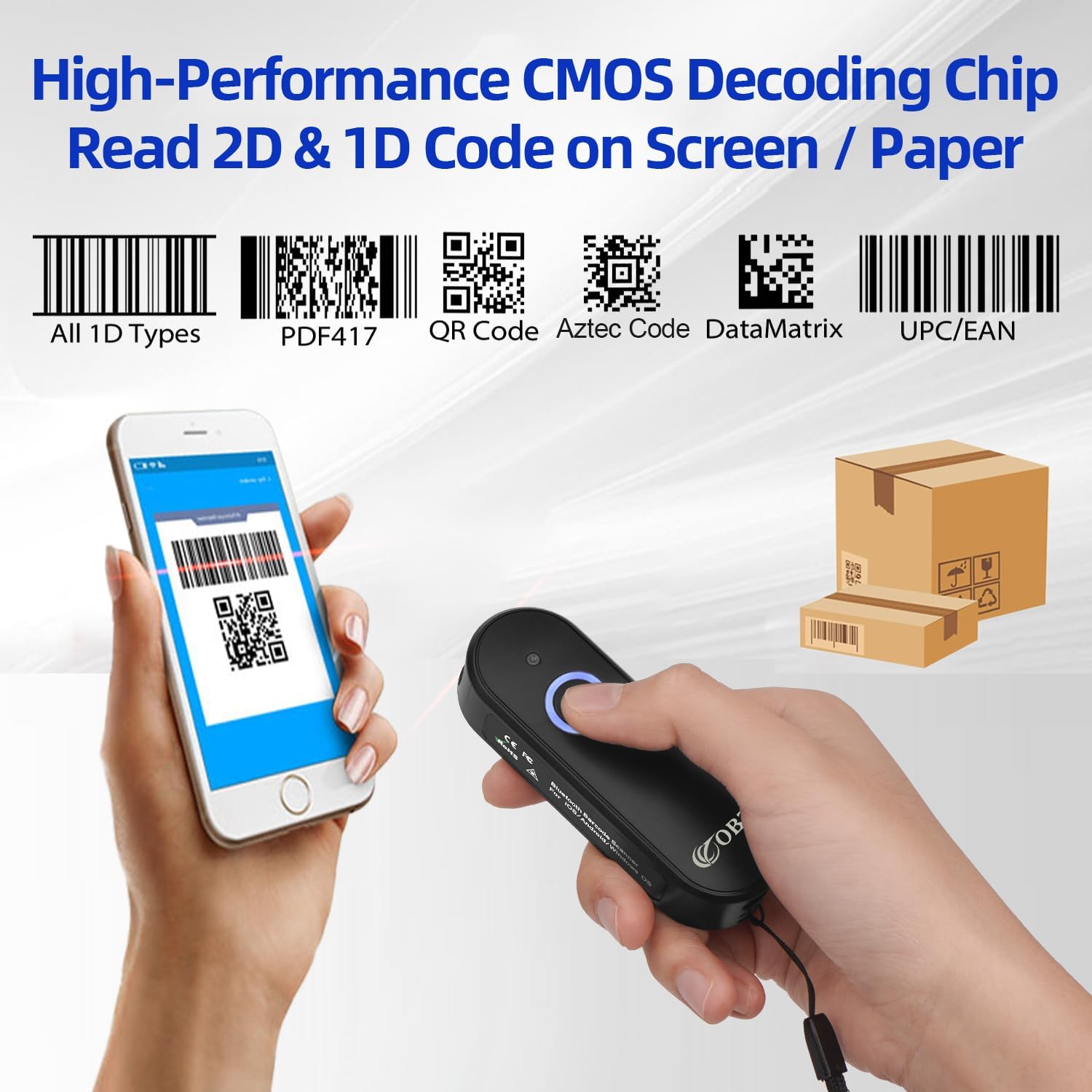
Figure 4: Advanced Scanning Capabilities

Figure 5: Dual Wireless Connection Modes

Figure 6: Broad Device Compatibility

Figure 7: Data Upload Modes
4. Setup
Before first use, ensure the scanner is fully charged. The LED1 indicator (Bluetooth Light) will turn blue when charging is complete.
4.1. Bluetooth Wireless Connection
- Long press the scan button for 8 seconds to enter pairing mode. The scanner's LED1 indicator will become blue and flashing.
- On your device (smartphone, tablet, PC), open Bluetooth settings and search for the barcode scanner named "R&B40". Select it and click connect.
- Once connected, the LED1 indicator will stop flashing and remain solid blue. You can now begin scanning.
4.2. 2.4G Wireless Connection
- Long press the scan button for 8 seconds to enter pairing mode. The scanner's LED1 indicator will become blue and flashing.
- Insert the 2.4G USB wireless dongle into an available USB port on your host device.
- The LED1 indicator on both the barcode scanner and the USB dongle will turn solid blue after successful pairing. You can now begin scanning.
Video: OBZ Mini 2D Wireless Barcode Scanner Model M60. This video demonstrates the setup process for both Bluetooth and 2.4G wireless connections, as well as the different scanning modes and data upload functionalities of the scanner.
5. Operating Modes
The scanner supports three primary data upload modes:
5.1. Instant Upload Mode (Normal Mode)
In this mode, scanned barcode data is immediately transmitted to your connected device. This is the default and most common mode for real-time data entry.
5.2. Automatic Storage Mode (Default)
If the scanner is within range of your device, data will be uploaded directly after scanning. If the scanner moves out of range, the data will be temporarily saved in the scanner's memory chip and uploaded automatically once the connection is re-established.
5.3. Inventory Mode
In Inventory Mode, all scanned data is stored in the scanner's internal memory. To upload the stored data to your device, you must scan a specific "set code" (usually found in the full user manual or quick start guide). This mode is ideal for batch scanning and later data transfer.
To switch between these modes, refer to the specific set codes provided in your scanner's quick start guide or full user manual. Scanning the corresponding set code will activate the desired mode.
6. Maintenance
To ensure the longevity and optimal performance of your OBZ Mini 2D Barcode Scanner, follow these maintenance guidelines:
- Cleaning: Regularly wipe the scanner's exterior and scan lens with a soft, dry, lint-free cloth. Avoid using abrasive cleaners, solvents, or excessive moisture, as these can damage the device.
- Storage: Store the scanner in a cool, dry place away from direct sunlight, extreme temperatures, and corrosive materials.
- Battery Care: For long-term storage, ensure the battery is charged to approximately 50%. Recharge the battery every 3-6 months to prevent deep discharge and maintain battery health.
- Handling: Handle the scanner with care to avoid drops or impacts, which can damage internal components.
7. Troubleshooting
If you encounter issues with your OBZ Mini 2D Barcode Scanner, please refer to the following common troubleshooting steps:
| Problem | Possible Cause | Solution |
|---|---|---|
| Scanner does not power on. | Low battery. | Charge the scanner for at least 2.5 hours. |
| Cannot connect via Bluetooth. | Not in pairing mode; device Bluetooth off; interference. | Long press scan button for 8s to enter pairing mode (flashing blue LED). Ensure device Bluetooth is on. Move closer to the device. Try re-pairing. |
| Cannot connect via 2.4G wireless. | Dongle not properly inserted; not in pairing mode. | Ensure USB dongle is fully inserted. Long press scan button for 8s to enter pairing mode. Check if both scanner and dongle LEDs are solid blue after pairing attempt. |
| Scanner does not read barcodes. | Barcode type not supported; barcode damaged/poor quality; scan distance incorrect. | Verify barcode type is supported (1D/2D). Ensure barcode is clean and clear. Adjust scanning distance. Try scanning a known good barcode. |
| Scanned data is incorrect or incomplete. | Incorrect keyboard layout; data format settings. | Ensure the scanner's keyboard layout matches your device's keyboard layout. Review data format settings in the full user manual for customization. |
| Scanner is unresponsive. | System crash; low battery. | Perform a factory reset (refer to full manual for specific barcode). Charge the device. |
For more advanced troubleshooting or specific configuration needs, please refer to the comprehensive user manual available as a PDF document or contact OBZ customer support.
8. Specifications
| Feature | Detail |
|---|---|
| Product Dimensions | 3.54 x 1.18 x 0.79 inches |
| Item Weight | 5 ounces |
| Model Number | M60 |
| Batteries | 1 Lithium Polymer battery (included) |
| Connectivity Technology | Bluetooth, 2.4G Wireless, USB Cable |
| Compatible Devices | iPhone, iPad, smart phone, tablet, laptop, PC, POS, iOS, Android, Windows, Linux |
| Power Source | Battery-Powered, Corded Electric |
| Manufacturer | OBZ |
| Date First Available | November 3, 2021 |
9. Warranty and Support
Your OBZ Mini 2D Bluetooth Barcode Scanner is covered by a manufacturer's warranty. For detailed warranty information, product support, or to contact customer service, please visit the official OBZ Store on Amazon or refer to the contact information provided in your product packaging.
OBZ Store Link: https://www.amazon.com/stores/OBZ/page/49572FEB-2943-436D-B84C-734D805ADE3D
For additional resources, including the full user manual in PDF format, please check the product page on Amazon or the OBZ website.


