
MEDION P20 SW
MEDION P20 SW Robot Vacuum Cleaner and Mop User Manual
Model: P20 SW | Brand: MEDION
1. Product Overview
The MEDION P20 SW is a versatile 2-in-1 robot vacuum cleaner and mop designed to efficiently clean your floors. It features systematic navigation, powerful 2000 Pa suction, and multiple cleaning modes to ensure thorough cleaning, even tackling pet hair effectively.

Image: The MEDION P20 SW robot vacuum cleaner and mop, shown with its remote control and a blue mop pad. The robot is white and circular, designed for efficient floor cleaning.
Key Features:
- 2-in-1 Vacuuming and Mopping: Combines dry vacuuming with wet mopping for comprehensive floor cleaning.
- Systematic Navigation: Cleans floors more efficiently and thoroughly by following systematic paths.
- Powerful Suction: Equipped with 2000 Pa suction power and three cleaning brushes (two side brushes and one main brush) to handle stubborn dirt.
- Multiple Cleaning Modes: Offers various modes including Automatic, Spot Cleaning, Edge Cleaning, Random, Systematic, Max Suction, and Timer functions.
- Remote Control: Conveniently control the robot's functions and modes using the included remote.
- Compact Design: With a height of 8 cm, it can easily clean under most furniture.
2. Setup and Initial Use
2.1 Unboxing and Package Contents
Carefully unpack all components from the box. Ensure all items listed below are present:
- MEDION P20 SW Robot Vacuum Cleaner (MD 19731)
- Remote Control (includes 2x AAA batteries)
- 2x Side Brushes (pre-installed) and 2x Replacement Side Brushes
- Water Tank & Dustbin Combination
- 2x Cleaning Mop Pads
- Filter & Replacement Filter
- Cleaning Brush Tool
- Charging Station
2.2 Charging the Robot
Before first use, fully charge the robot. Place the charging station against a wall in an open area, ensuring no obstacles are within 1 meter to the sides and 2 meters in front. Connect the power adapter to the charging station and a power outlet. Place the robot onto the charging station, aligning its charging contacts. The indicator light on the robot will show charging status.

Image: The MEDION P20 SW robot vacuum cleaner docked at its charging station, connected to a wall outlet. The robot is white and circular, indicating it is receiving power.
2.3 Preparing the Cleaning Area
For optimal performance, prepare the area to be cleaned:
- Remove loose cables, small rugs, toys, and other obstacles that could entangle the robot.
- Ensure doors to rooms you want cleaned are open.
- If using the mopping function, fill the water tank with clean water.
3. Operation
3.1 Powering On/Off
To power on the robot, press and hold the power button on the robot or the remote control until the indicator light illuminates. To power off, press and hold the power button again.
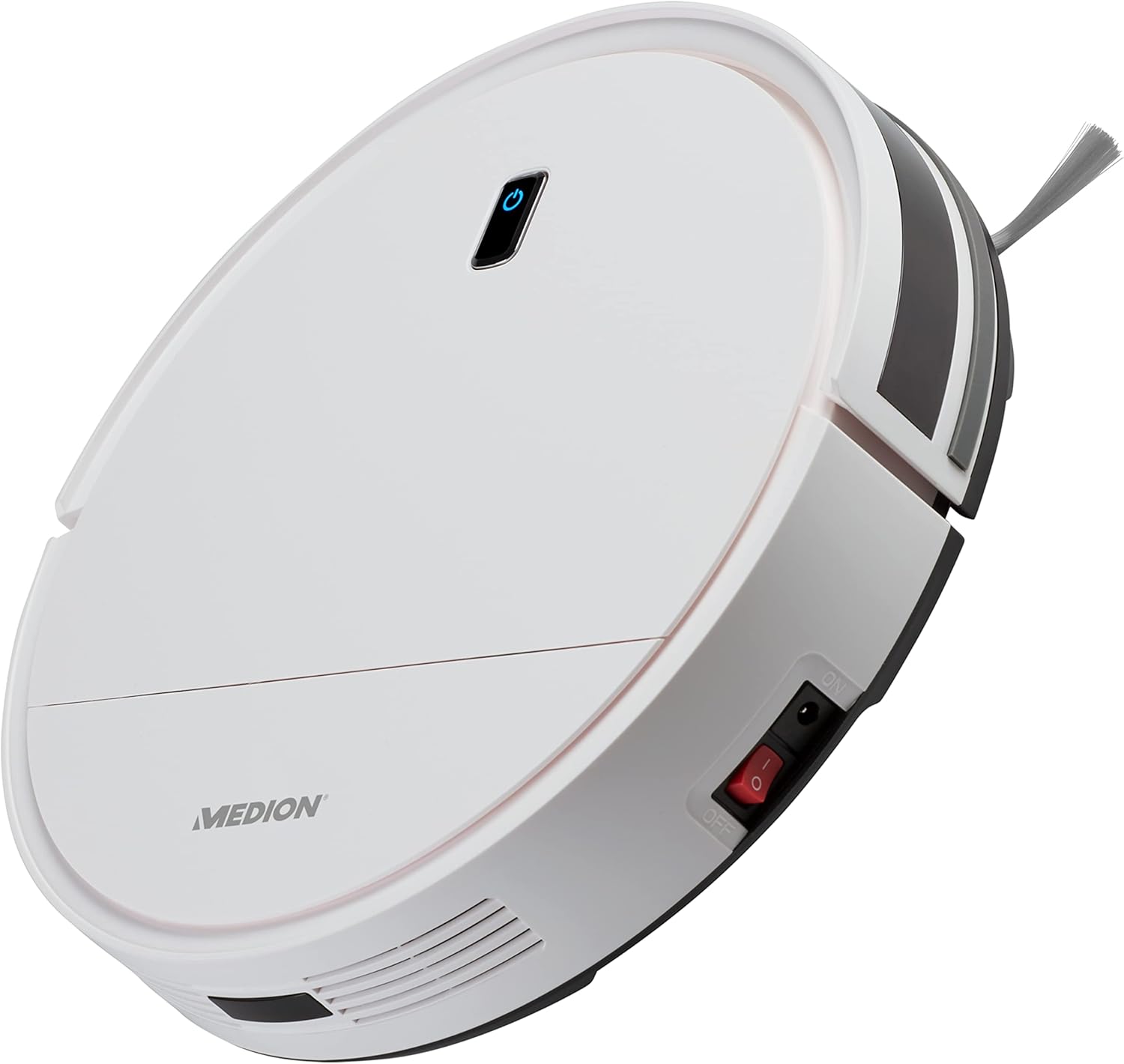
Image: A side view of the MEDION P20 SW robot vacuum cleaner, highlighting the red power switch located on its side. The robot is white with black accents.
3.2 Cleaning Modes
The MEDION P20 SW offers several cleaning modes, selectable via the remote control:
- Automatic Cleaning: The robot intelligently navigates and cleans the entire accessible area.
- Systematic Cleaning: The robot cleans in a methodical, back-and-forth pattern for thorough coverage.
- Spot Cleaning: Focuses on a specific dirty area, cleaning in a spiral pattern.
- Edge Cleaning: Cleans along walls and furniture edges.
- Max Suction Cleaning: Increases suction power for deeper cleaning on heavily soiled areas.
- Timer Function: Schedule cleaning times for automated operation.
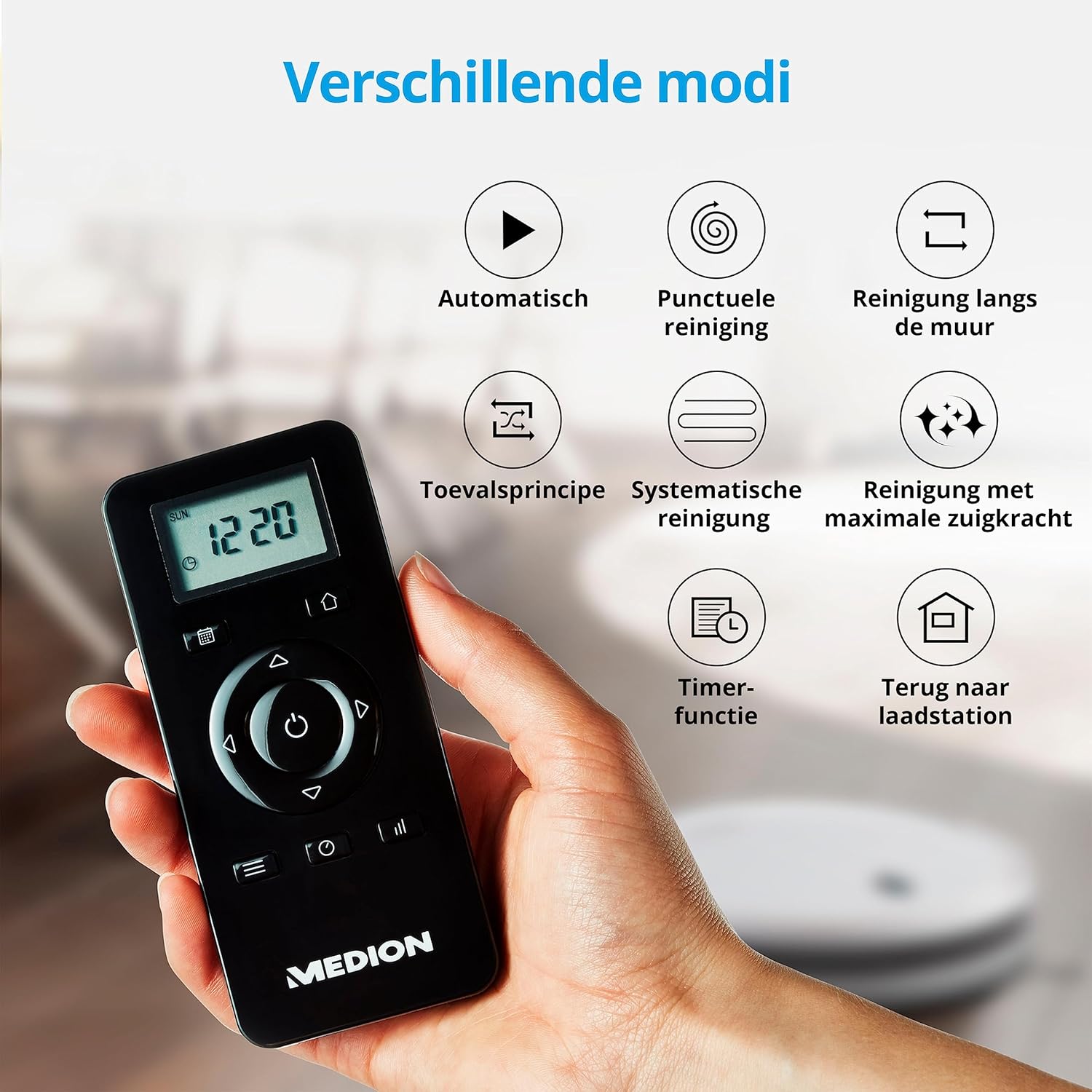
Image: A hand holding the black remote control for the MEDION P20 SW robot vacuum cleaner. The remote displays icons for different cleaning modes, including automatic, spot, edge, systematic, and max suction, along with timer and return-to-base functions.
3.3 Using the Mopping Function
To use the mopping function, ensure the water tank is filled and the mop pad is attached. The robot will vacuum and mop simultaneously. For best results, use on hard floors.
4. Maintenance
Regular maintenance ensures optimal performance and extends the lifespan of your MEDION P20 SW robot vacuum cleaner.
4.1 Emptying the Dustbin
The dustbin should be emptied after each cleaning cycle or when full. Press the release button to remove the dustbin, open it, and discard the collected debris. Close the dustbin securely and reinsert it into the robot.
4.2 Cleaning Filters
The filter should be cleaned regularly, ideally after every few uses. Tap the filter gently to remove dust. For a more thorough clean, you may rinse the filter with water, but ensure it is completely dry before reinserting to prevent damage to the robot.
4.3 Cleaning Brushes
Inspect and clean the main brush and side brushes regularly. Remove any tangled hair or debris using the provided cleaning tool or scissors. Ensure the brushes spin freely after cleaning.

Image: The underside of the MEDION P20 SW robot vacuum cleaner, showing its main roller brush and two rotating side brushes. This view illustrates the cleaning mechanism.
4.4 Cleaning Mop Pads
After each mopping session, remove the mop pad and rinse it thoroughly with water. Allow it to air dry completely before reattaching or storing.
4.5 Cleaning Sensors
Wipe the robot's sensors (cliff sensors, bumper sensors) with a clean, dry cloth to ensure they are free of dust and debris. Clean charging contacts on both the robot and the charging station.
5. Troubleshooting
If you encounter issues with your MEDION P20 SW, refer to the following common solutions:
| Problem | Possible Cause | Solution |
|---|---|---|
| Robot does not start or respond. | Low battery; Power switch off; Remote control batteries dead. | Charge the robot; Ensure power switch is ON; Replace remote control batteries. |
| Robot gets stuck frequently. | Obstacles (cables, rugs); Uneven surfaces; Cliff sensors dirty. | Clear the cleaning area; Clean cliff sensors. |
| Poor cleaning performance. | Full dustbin; Dirty filter; Tangled brushes. | Empty dustbin; Clean/replace filter; Clean main and side brushes. |
| Robot does not return to charging station. | Charging station blocked; Robot too far from station; Charging contacts dirty. | Ensure clear path to station; Manually place robot on station; Clean charging contacts. |
| Robot behaves erratically (e.g., circles). | Sensor malfunction; Software glitch. | Perform a reset (power off, wait 10 seconds, power on). If issue persists, contact support. |
For persistent issues not covered here, please contact MEDION customer support.
6. Specifications
| Attribute | Value |
|---|---|
| Brand | MEDION |
| Model Number | P20 SW (MD 19731) |
| Color | White |
| Product Dimensions (L x W x H) | 32 x 32 x 8 cm |
| Item Weight | 2.22 Kilograms |
| Voltage | 10.8 Volts |
| Noise Level | 72 dB |
| Special Feature | Bagless |
| Battery Composition | Lithium-ion (1 included) |
| Controller Type | Remote Control |
| Surface Recommendation | Carpet (and hard floors for mopping) |
7. Warranty and Support
For warranty information, please refer to the documentation included with your product or visit the official MEDION website. MEDION provides customer support for product assistance and service inquiries.
Spare Parts Availability: Please note that information regarding the availability of spare parts for this model is currently unavailable. For specific part inquiries, it is recommended to contact MEDION support directly.
Contact MEDION Support: For technical assistance, troubleshooting not covered in this manual, or warranty claims, please contact MEDION customer service through their official channels.
Ask a question about this manual
Ask about setup, troubleshooting, compatibility, parts, safety, or missing instructions. Manuals+ will review the question and use this page’s manual context to help answer it.