
1. Introduction
Thank you for choosing the WPH QW13 Smartwatch. This manual provides essential information for setting up, operating, and maintaining your device. The QW13 Smartwatch is designed to help you monitor your health and fitness, receive notifications, and enhance your daily life with its smart features.
Key features include a 1.3-inch TFT color touch screen, IP67 water resistance, heart rate monitoring, sleep tracking, activity tracking (steps, distance, calories), and notification support for calls and SMS.

Figure 1.1: The QW13 Smartwatch with its vibrant display showing current time, heart rate (BPM), and steps taken. The watch features a round dial and a blue silicone strap.

Figure 1.2: A side view of the QW13 Smartwatch emphasizing its thin and lightweight body, measuring only 9.0mm in thickness, designed for comfortable wear.
2. Package Contents
Upon opening the package, please ensure all items are present:
- 1 x QW13 Smartwatch
- 1 x Charging Cable (2-pin thimble compatible)
- 1 x User Manual (this document)
3. Setup Guide
3.1. Charging the Smartwatch
Before first use, fully charge your QW13 Smartwatch. Connect the provided 2-pin thimble charging cable to the charging contacts on the back of the watch and plug the USB end into a standard USB power adapter (not included) or a computer's USB port.
- Charging Method: 2-pin thimble compatible charging
- Charging Time: Approximately 1.5 - 2 hours
- Usage Time: Approximately 5 days
- Standby Time: Approximately 15 days

Figure 3.1: The QW13 Smartwatch demonstrating its IP67 waterproof design. While resistant to splashes and daily activities, it is not suitable for deep-sea diving, saunas, or hot baths.
3.2. App Installation
To unlock the full potential of your QW13 Smartwatch, download and install the companion application on your smartphone. The app is named "Youth and Health".
- For iOS devices: Requires iOS 10.0 or higher. Search for "Youth and Health" in the Apple App Store.
- For Android devices: Requires Android 5.0 or higher. Search for "Youth and Health" in the Google Play Store.
Alternatively, you may find a QR code in the quick start guide (if provided) or on the watch screen itself to directly download the app.
3.3. Pairing with Your Smartphone
- Ensure your smartwatch is charged and powered on.
- Enable Bluetooth on your smartphone.
- Open the "Youth and Health" app.
- Follow the on-screen instructions within the app to search for and connect to your QW13 Smartwatch. The watch should appear as "QW13" or a similar device name.
- Confirm the pairing request on both your phone and the smartwatch if prompted.
Once paired, the watch will synchronize data and settings with your phone.
4. Operating Instructions
4.1. Basic Navigation
- Touch Screen: The 1.3-inch IPS color screen is fully touch-sensitive. Swipe left/right, up/down, and tap to navigate menus and select options.
- Side Button: The single side button typically serves as a power on/off button (long press) and a back/home button (short press).
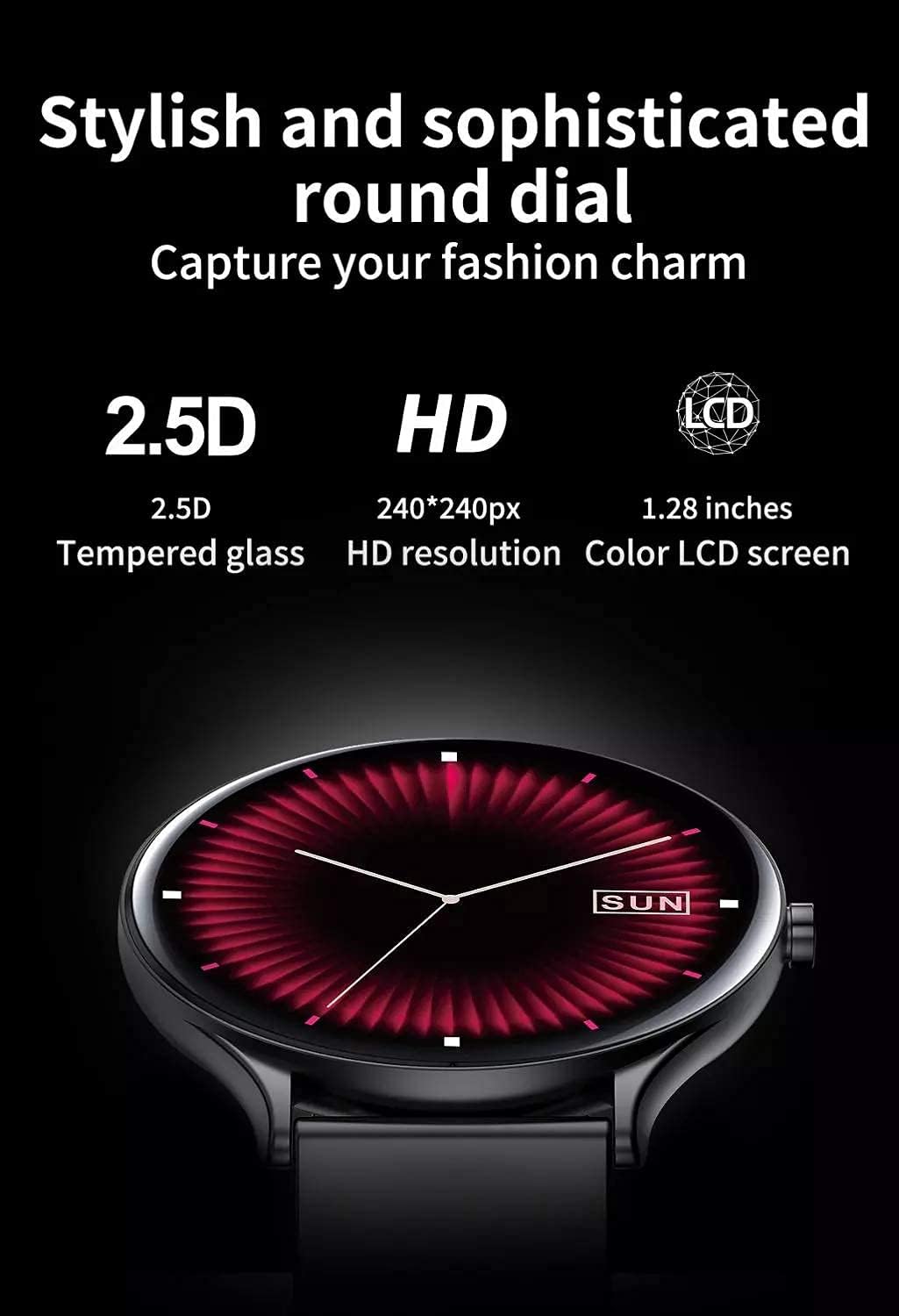
Figure 4.1: The QW13 Smartwatch features a stylish round dial with 2.5D tempered glass and an HD 240x240 pixel color LCD screen, providing a clear and vibrant display.
4.2. Key Features and Functions
- Activity Tracking: The watch continuously records your daily walking steps, distance covered, and calories burned. This data can be viewed on the watch and in the "Youth and Health" app.
- Heart Rate Monitoring: Equipped with a professional heart rate sensor, the QW13 monitors your heart rate throughout the day. Access heart rate data on the watch or in the app for detailed insights.
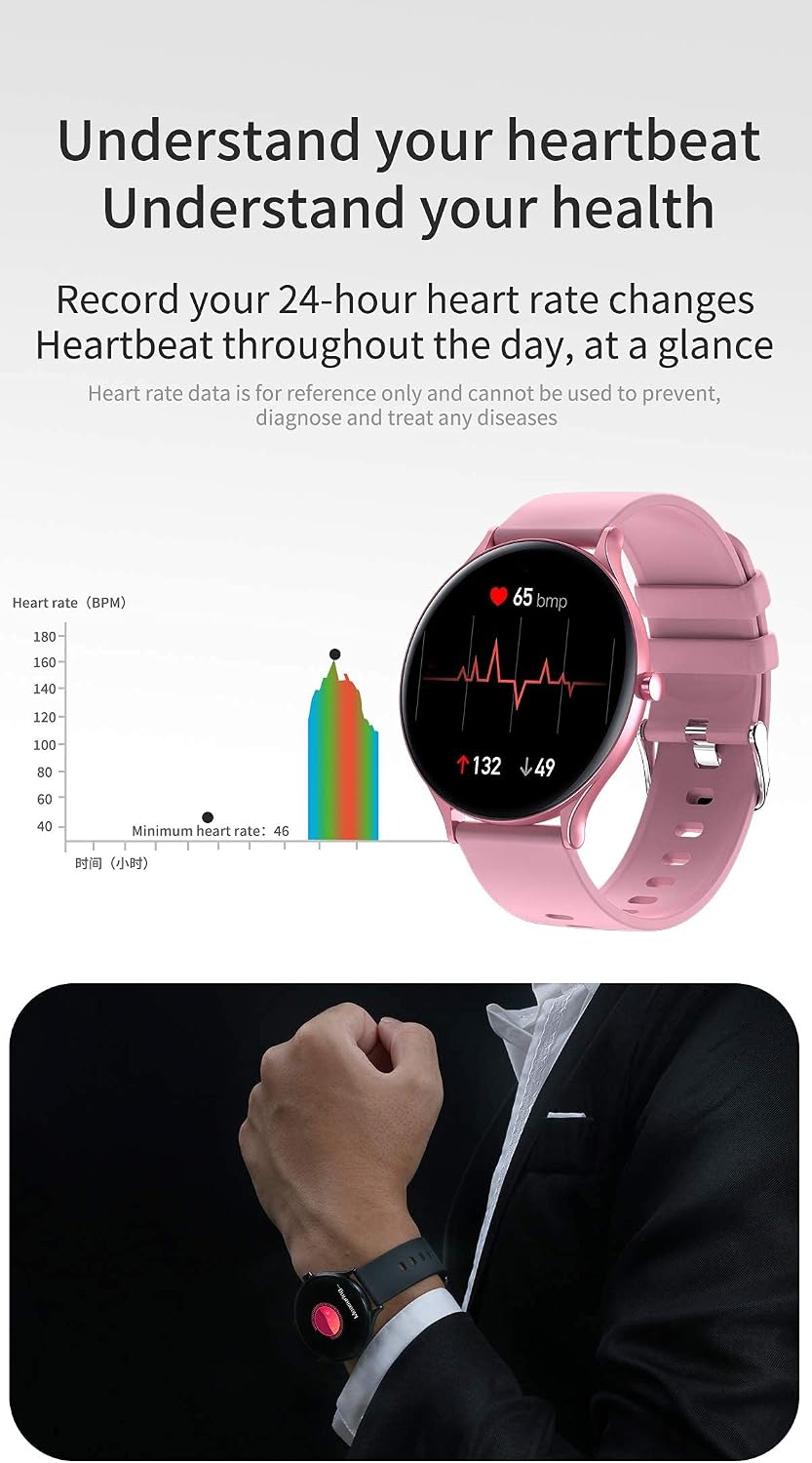
Figure 4.2: The QW13 Smartwatch displaying real-time heart rate (BPM) and a graph illustrating 24-hour heart rate changes. This data is for reference only and not for medical diagnosis.
- Sleep Monitoring: When you wear the watch to sleep, it automatically monitors your sleep quality, including deep sleep, light sleep, and wake-up times. Sleep data is recorded and analyzed in the app.
- Notifications: Receive alerts for incoming calls and SMS messages directly on your wrist. Ensure the app is running in the background and notification permissions are granted on your phone.
- Weather Forecast: View real-time weather updates directly on your smartwatch. This feature requires the watch to be connected to your smartphone and the app to have location permissions.

Figure 4.3: The QW13 Smartwatch displaying the current weather (sunny, 23°C) and a multi-day forecast with high/low temperatures and sunrise/sunset times.
- Custom Watch Faces: Personalize your smartwatch with custom watch faces. The "Youth and Health" app allows you to choose from various designs or even use your own photos as the watch background.

Figure 4.4: The QW13 Smartwatch demonstrating the ability to support custom watch faces, allowing users to personalize the display with their own images or selected designs from the app.
5. Maintenance and Care
- Cleaning: Regularly clean your smartwatch and wristband with a soft, dry cloth. If necessary, use a slightly damp cloth and then dry thoroughly. Avoid harsh chemicals or abrasive materials.
- Water Resistance: The QW13 Smartwatch is IP67 waterproof, meaning it can withstand daily life particles, dust, sweat, and splashes. It supports daily hand washing and sports waterproofing. It is not suitable for deep-sea diving, saunas, or hot baths.
- Charging: Always use the provided charging cable. Avoid exposing the charging contacts to water or corrosive liquids.
- Storage: Store the smartwatch in a cool, dry place when not in use. Avoid extreme temperatures.
6. Troubleshooting
- Watch not turning on: Ensure the watch is fully charged. Connect it to the charger for at least 30 minutes.
- Cannot pair with phone:
- Ensure Bluetooth is enabled on your phone.
- Make sure the "Youth and Health" app is open and running.
- Restart both the watch and your phone.
- Try unpairing and re-pairing the device through the app.
- Notifications not received:
- Check if the watch is successfully paired with the app.
- Ensure notification permissions are granted for the "Youth and Health" app in your phone's settings.
- Verify that notification alerts are enabled within the app's settings for the specific apps you wish to receive alerts from.
- Inaccurate heart rate/sleep data: Ensure the watch is worn snugly on your wrist, about one finger's width above your wrist bone. Avoid excessive movement during measurements.
- Screen unresponsive: Try restarting the watch by long-pressing the side button. If unresponsive, allow the battery to drain completely and then recharge it.
7. Specifications

Figure 7.1: The QW13 Smartwatch shown in multiple colors (white, black, pink, blue) and illustrating its dimensions: 9.0mm thickness, 42mm dial diameter, and 233mm full perimeter of the strap.
| Feature | Detail |
|---|---|
| Product Model | QW13 |
| Dimensions (Dial) | Diameter 43.8 mm, Thickness 9.0 mm |
| Wristband Material | Silicone |
| Wristband Range | 14-20 CM |
| Weight | 42.5g |
| Waterproof Rating | IP67 |
| CPU | HS6620D |
| RAM + ROM | 128Kb + 256Kb 8Mb |
| Flash Memory | 32Mb |
| G-sensor | Supported |
| Heart Rate Sensor | Supported |
| Bluetooth | BT 4.2 |
| Main Screen | LCD 1.3" round IPS, 240 * 240 resolution |
| Touch Panel (TP) | COB capacitive multi-touch |
| Side Button | 1 |
| Battery Capacity | 150mAh |
| Charging Time | 1.5-2 hours |
| Usage Time | Approx. 5 days |
| Standby Time | Approx. 15 days |
| APP System Compatibility | iOS 10.0 or higher, Android 5.0 or higher |
| APP Name | Youth and Health |
| APP Languages | Russian, Turkish, Hebrew, German, Italian, Czech, Japanese, French, Polish, Thai, Chinese, Traditional Chinese, Finnish, English, Portuguese, Spanish, Arabic |
8. Warranty and Support
Information regarding specific warranty terms and customer support contact details for the WPH QW13 Smartwatch was not available in the provided product data. Please refer to the product packaging or the seller's website for warranty information and support contacts.
For general inquiries or troubleshooting assistance, you may also refer to the "Youth and Health" application's help section or online resources related to the QW13 model.