1. Introduction
The FreedConn R1 Plus is an advanced motorcycle intercom system integrating Bluetooth communication, a 1080P HD camera, and WiFi connectivity. Designed for motorcyclists, it offers real-time group intercom, high-definition video recording, and seamless smartphone integration for music, calls, and navigation. This manual provides detailed instructions for setup, operation, and maintenance to ensure optimal performance and safety.
2. Product Features
- Bluetooth 5.1 Intercom: Supports real-time group communication for up to 6 riders with a range of 100-1000m.
- 1080P HD Camera: Features a 120° wide-angle lens with automatic light adjustment and zoom for clear video recording.
- Loop Recording & Snapshot: Records video in a loop, automatically overwriting old files when the memory is full. Supports snapshots during recording.
- Up to 64GB Memory Card Support: Compatible with Class 10 or higher microSD cards for ample storage.
- Long Battery Life: Built-in 1500mAh battery provides 4.5 hours of continuous recording, 30 hours of talk time, 30 hours of intercom, and 12 days of standby time. Supports charging while in use.
- WiFi Functionality: Connects to a smartphone app for convenient viewing and downloading of videos and photos.
- Waterproof Design: IP65 waterproof rating ensures reliable performance in various weather conditions.
3. Package Contents
The FreedConn R1 Plus package includes the following items:
- FreedConn R1 Plus Main Unit
- Headset with Microphone (Hard Slot and Soft Wire options)
- USB Charging Cable
- Mounting Bracket (Velcro and Screw-type clips)
- User Manual
- Velcro Pads for Speakers
- Hex Wrench

Image: Detailed view of the FreedConn R1 Plus package contents, showing the main unit, various cables, microphones, mounting clips, and the user manual.
4. Product Overview
Familiarize yourself with the main components and controls of the FreedConn R1 Plus unit:
Image: Diagram illustrating the various parts of the FreedConn R1 Plus, including the speaker, microphone, card slot, charging port, multi-function button, WiFi button, Bluetooth indicator, and recorder indicator.
- Recorder Indicator: Shows the status of video recording.
- Bluetooth Indicator: Shows Bluetooth connection status.
- WiFi Button: Activates/deactivates WiFi for app connection.
- Antenna: For improved signal reception.
- Jog Wheel: Used for volume adjustment and track selection.
- Multi-function Bluetooth Button: Controls power, pairing, calls, and music playback.
- Recorder On/Off/Pause Button: Controls video recording.
- Noise Canceling Microphone: Ensures clear voice transmission.
- Hard Slot Microphone: Suitable for half-face and open-face helmets.
- Flexible Microphone: Suitable for full-face helmets.
- Card Slot: For inserting a microSD card.
- Reset Button: To reset the device.
- Charging Port/Intercom Connection Socket: For charging and connecting to other devices.
5. Installation
The FreedConn R1 Plus is designed to be compatible with various helmet types. Choose the appropriate microphone and mounting clip for your helmet.
5.1 Microphone Selection
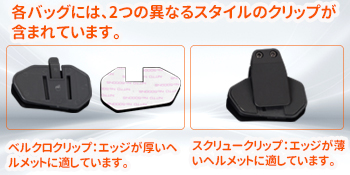
Image: Illustration showing the hard tube microphone suitable for half-face and open-face helmets, and the hose microphone for full-face helmets. Note to attach the microphone to the helmet lining.
- Hard Tube Microphone: Ideal for half-face and open-face helmets.
- Hose Microphone: Recommended for full-face helmets. Ensure the microphone is securely attached to the helmet's inner lining.
5.2 Mounting Clips

Image: Two different styles of mounting clips. The Velcro clip is suitable for helmets with thicker edges, while the screw clip is for helmets with thinner edges.
- Velcro Clip: Best for helmets with thicker edges.
- Screw Clip: Best for helmets with thinner edges.
6. Basic Operations
6.1 Power On/Off and Bluetooth Pairing
To clear Bluetooth pairing history:
- With the power on, press and hold the On/Off button for 10 seconds.
- The red light will flash 3 times quickly, indicating that the pairing history has been cleared.
To pair with your smartphone:
- Press and hold the multi-function button for 6 seconds until the LED flashes red and blue alternately, indicating pairing mode.
- Open your smartphone's Bluetooth settings, select "R1 Plus" from the list, and pair.
Video: Demonstrates clearing Bluetooth pairing history, pairing with a smartphone, music playback controls (play/pause, next/previous track, volume adjustment), automatic call answering, ending/rejecting calls, activating voice assistant, and FM radio functions.
6.2 Music Playback and Call Management
- Play/Pause Music: Press the multi-function button once.
- Next Track: Rotate the jog wheel clockwise.
- Previous Track: Rotate the jog wheel counter-clockwise.
- Adjust Volume: Rotate and hold the jog wheel clockwise to increase volume, counter-clockwise to decrease volume.
- Automatic Call Answering: Incoming calls will be automatically answered after 10 seconds if no action is taken.
- End Call: Press the multi-function button once during a call.
- Reject Call: Press and hold the multi-function button for 2 seconds when a call comes in.
- Activate Voice Assistant: With the headset paired to your smartphone, press and hold the multi-function button for 2 seconds.
6.3 FM Radio
- Turn On/Off FM Radio: With the headset powered on, double-press the multi-function button.
- Tune Stations: Rotate the jog wheel clockwise or counter-clockwise to change stations.
- Adjust FM Volume: Rotate and hold the jog wheel clockwise to increase volume, counter-clockwise to decrease volume.
6.4 Recording and Photography
To insert a memory card:
- Open the TF card slot.
- Insert the memory card.
- Close the TF card slot.
To start/stop recording:
- Press and hold the recording/camera power button for 3 seconds until the LED flashes green slowly.
- Press the recording/camera power button once. Video recording will start with a voice prompt "WiFi is on".
- Press the recording/camera power button again to stop recording.
To take a snapshot during recording:
- During video recording, press the WiFi button once to take a still photo.

Image: The FreedConn R1 Plus unit highlighting its WiFi feature, showing a smartphone connected to the device via the RoadCam app to view live footage.

Image: Visual representation of the FreedConn R1 Plus camera features, including Bluetooth 5.0, HD 1080P recording, 120° wide-angle lens, and snapshot capability, with a motorcycle rider in the background.
7. Intercom Pairing (Group Intercom)
The R1 Plus supports group intercom for up to 6 units. Follow these steps to pair multiple headsets:
- Ensure all headsets are powered off.
- Press and hold the On/Off button of two headsets (e.g., A and B) for 8 seconds until the red and blue lights flash alternately.
- Once paired, the lights on both units will flash blue only.
- Power off headset B.
- Repeat the pairing process with headset A and C (press and hold On/Off for 8 seconds on A and C).
- Once A and C are paired, power off C.
- Continue this process for all desired headsets (D, E, F).
- After all pairings are complete, power on all headsets. Press the multi-function button once on each unit (A, B, C, D, E, F) to connect them in sequence.
- Once all units are successfully paired and connected, the lights will flash blue, and group intercom will be active.
Video: Demonstrates the step-by-step process of pairing multiple FreedConn R1 Plus headsets for group intercom communication.

Image: An aerial view showing six motorcycle riders on a snowy road, illustrating the 1000m range for group intercom communication between FreedConn R1 Plus units.
8. App Usage
8.1 App Download
- For Apple iOS: Search for "Goplus Cam" in the App Store and download.
- For Android: Open your browser, scan the QR code provided in the manual, and download/install the app. HUAWEI HarmonyOS users should exit pure mode, then open the browser, scan the QR code, download, and install the app.
Video: Instructions on how to download the companion app for both iOS and Android devices, including scanning a QR code for Android users.
8.2 WiFi Activation and Connection
- Press and hold the recording/camera power button for 3 seconds to activate WiFi. A voice prompt "WiFi is on" will sound.
- On your smartphone, open the WiFi settings, select "FreedConn" from the list of available networks.
- Enter the password "12345678" to connect.
8.3 Viewing Recorded Files and Syncing Time
- Open the app and click the icon on the top page or the file icon on the top left.
- Click and download the desired video to view it, or view photos.
- To synchronize the time between the device and your smartphone, open the app, click the version number bar at the bottom left, then click "WiFi sport Cam time" and "Enable" to complete the time setting.
8.4 Formatting Memory Card
- Open the app, click "Settings" at the top right.
- Click "Format" at the bottom.
- Click "Confirm" to complete the formatting.
9. Specifications
| Feature | Specification |
|---|---|
| Screen Size | 2 inches |
| Compatible Devices | Smartphones |
| Battery Included | Yes |
| Battery Usage | Yes |
| Manufacturer | FreedConn |
| Included Accessories | User Manual |
| Other Features | Built-in WiFi |
| Connectivity Technology | Bluetooth |
| Display Type | LCD |
| Mounting Method | Adhesive |
| Package Dimensions | 14.6 x 11.4 x 6.7 cm |
| Item Weight | 420 g |
| Manufacturer Reference | JPR164 |
| Video Capture Resolution | 1080p |
| Control Method | App, Touch, Voice |
10. Troubleshooting
- Difficulty with Bluetooth Pairing: Ensure the device is in pairing mode (red and blue flashing LED). Clear previous pairing history if necessary (refer to section 6.1). Check your smartphone's Bluetooth settings.
- Intercom Connection Issues: Verify that all headsets are powered on and have been paired correctly in sequence (refer to section 7). Ensure no other Bluetooth devices are interfering.
- Recording Problems: Check if a Class 10 or higher microSD card is inserted correctly and has sufficient free space. Format the memory card via the app if issues persist (refer to section 8.4).
- WiFi Connection Failure: Ensure WiFi is activated on the R1 Plus (refer to section 8.2). Double-check the WiFi password "12345678".
- Short Battery Life: Ensure the device is fully charged before use. Continuous recording and intercom use will consume battery faster. The device supports charging while in use.
- Poor Audio Quality: Check microphone and speaker connections. Ensure the microphone is positioned correctly to minimize wind noise.
11. Warranty and Support
FreedConn R1 Plus comes with a 1-year warranty and lifetime after-sales service. If you have any questions about the product or service, please contact us. We will respond promptly within 24 hours.


