
1. Introduction
Thank you for choosing the AKIYO Smart Projector O7. This manual provides essential information for setting up, operating, and maintaining your projector. Please read it thoroughly before use to ensure optimal performance and longevity of your device. The AKIYO O7 is designed to deliver a high-quality viewing experience with its native 1080P resolution, 4K support, and smart features like built-in streaming apps, auto-focus, and keystone correction.
2. Product Overview
The AKIYO Smart Projector O7 is a versatile and portable projection device featuring:
- Officially Licensed Apps: Pre-installed Netflix, Prime Video, YouTube, Hulu, and over 1000 other applications for direct streaming without an external TV stick.
- AI Autofocus & Auto Keystone Correction: Automatic focus within 5 seconds of power-on and ±45° horizontal/vertical keystone correction for a perfectly rectangular image. Includes 4-point correction.
- 5G WiFi & Two-way Bluetooth: Supports 2.4G/5GHz dual-band WiFi for fast screen mirroring and Bluetooth 5.2 for connecting external speakers or using the projector as a standalone Bluetooth speaker.
- High Resolution & Brightness: Native 1080P resolution with 4K support, 600 ANSI lumens brightness, and a 20000:1 contrast ratio for clear and vibrant images. Features a German 6-layer highly refractive glass lens.
- Large Screen & Zoom Function: Projects screen sizes from 30 to 300 inches (1m to 5m distance). Digital zoom function reduces image size to 50% without moving the projector.

Image: Front view of the AKIYO Smart Projector O7, showcasing its compact design and illuminated lens.
3. Setup
3.1 Unboxing and Initial Inspection
Carefully remove all components from the packaging. Verify that all accessories are present and that the projector is free from any visible damage.
3.2 Power Connection
- Connect the power adapter to the projector's power input port.
- Plug the power adapter into a suitable electrical outlet.
- Press the power button on the projector or remote control to turn on the device.
3.3 Placement and Screen Size
Position the projector on a stable, flat surface. For optimal viewing, ensure the projection surface (wall or screen) is clean and smooth. The projector can display a screen size from 30 to 300 inches at a distance of 1 to 5 meters.
3.4 Automatic Focus and Keystone Correction
The AKIYO O7 features AI autofocus and automatic keystone correction. Upon powering on or moving the projector, it will automatically adjust the focus and correct the image shape within approximately 5 seconds. If further adjustments are needed, navigate to the settings menu.

Image: The projector automatically adjusting its focus to achieve a clear image on the screen.
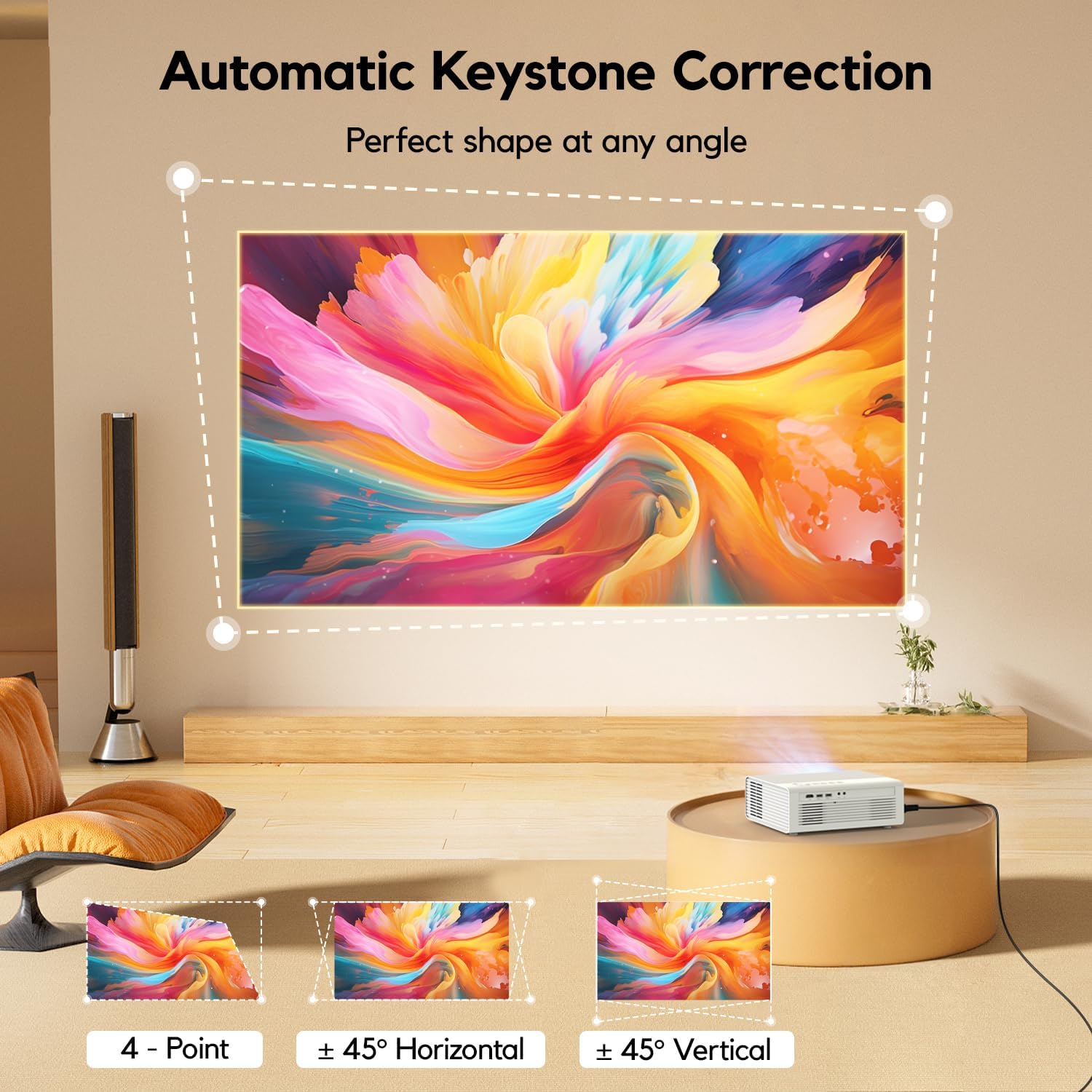
Image: The projector demonstrating automatic keystone correction, ensuring a perfect rectangular image from various angles, with options for manual fine-tuning.
3.5 Connectivity Options
The projector supports multiple input sources:
- HDMI: Connect devices like laptops, gaming consoles, or Blu-ray players using an HDMI cable.
- USB: Plug in USB drives to play media files directly.
- WiFi: Connect to your home network for streaming and screen mirroring.
- Bluetooth: Pair with external audio devices or use the projector as a Bluetooth speaker.
4. Operating Instructions
4.1 Power On/Off
Press the power button on the projector or the remote control to turn the device on or off.
4.2 Navigating the Smart System
The AKIYO O7 comes with a built-in smart system and officially licensed apps. Use the remote control to navigate the interface:
- Use the directional buttons to move between apps and menu options.
- Press the 'OK' button to select.
- Dedicated buttons for Netflix, Prime Video, and YouTube provide quick access.
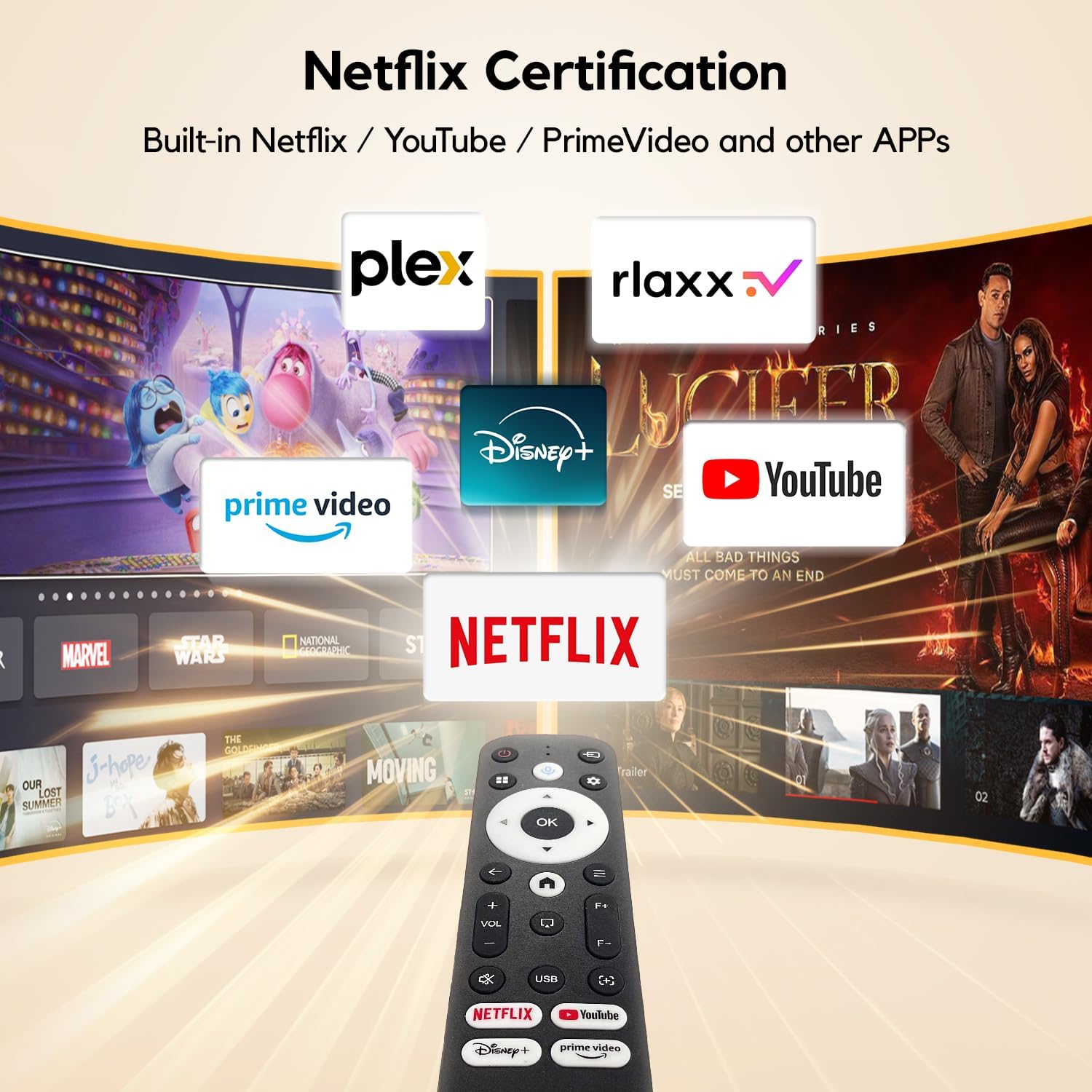
Image: The remote control for the AKIYO O7, highlighting its quick-access buttons for popular streaming services like Netflix, YouTube, and Prime Video.
4.3 Screen Mirroring (5G WiFi)
To mirror your smartphone or tablet screen to the projector:
- Ensure both your device and the projector are connected to the same 5GHz WiFi network.
- Select the 'Screen Mirroring' or 'Wireless Projection' option on the projector's main menu.
- On your smartphone/tablet, activate its screen mirroring feature (e.g., 'Smart View' for Android, 'Screen Mirroring' for iOS).
- Select the AKIYO O7 from the list of available devices.

Image: A user wirelessly mirroring content from their smartphone to the AKIYO O7 projector via 5G WiFi, showcasing a racing game.
4.4 Bluetooth Connectivity
The projector supports two-way Bluetooth 5.2:
- Connecting to External Speakers: Go to Bluetooth settings on the projector, scan for devices, and pair with your Bluetooth speaker or headphones.
- Using as a Bluetooth Speaker: Switch the projector to Bluetooth speaker mode. You can then connect your smartphone or other mobile device to the projector to play audio through its internal speakers.

Image: The AKIYO O7 demonstrating its two-way Bluetooth capability, connecting to both a smartphone for audio playback and external audio devices.
4.5 Zoom Function
To adjust the image size without moving the projector, use the digital zoom function in the settings menu. This allows you to reduce the image to 50% of its original size.
5. Maintenance
5.1 Lens Care
The projector lens is a critical component. Use a soft, lint-free cloth specifically designed for optical lenses to gently wipe away dust or smudges. Avoid using abrasive cleaners or excessive force, which can scratch the lens.
5.2 Cleaning the Projector Body
Wipe the exterior of the projector with a soft, dry cloth. Do not use liquid cleaners or solvents, as they may damage the finish.
5.3 Ventilation
Ensure the projector's ventilation ports are clear and unobstructed to prevent overheating. Do not place the projector on soft surfaces that may block airflow. Regular cleaning of dust from the vents can help maintain optimal performance.
6. Troubleshooting
If you encounter issues with your AKIYO O7 projector, please refer to the following common problems and solutions:
- No Power:
- Check if the power cable is securely connected to both the projector and the power outlet.
- Ensure the power outlet is functional.
- Try pressing the power button on both the projector and the remote control.
- No Image / Blurry Image:
- Verify the projector is powered on and the lens cap is removed.
- Allow the automatic focus to complete. If still blurry, manually adjust focus in the settings.
- Check keystone correction settings if the image is distorted.
- Ensure the input source is correctly selected (e.g., HDMI, USB, Screen Mirroring).
- No Sound:
- Adjust the volume on the projector and the connected source device.
- If using external Bluetooth speakers, ensure they are properly paired and connected.
- If using an HDMI source, check the audio output settings on the source device.
- WiFi/Screen Mirroring Issues:
- Ensure both devices are on the same 2.4G or 5G WiFi network.
- Restart both the projector and the mirroring device.
- Check for any firewall or network restrictions that might block the connection.
- Fan Noise:
- Some fan noise is normal during operation to dissipate heat.
- Ensure ventilation ports are not blocked.
- If the noise is excessive or unusual, contact customer support.
7. Specifications
| Feature | Specification |
|---|---|
| Model Number | O7 |
| Display Resolution | 1920 x 1080 (Native 1080P, 4K Supported) |
| Brightness | 600 ANSI Lumens |
| Contrast Ratio | 20000:1 |
| Connectivity Technology | HDMI, USB, 5G WiFi, Bluetooth 5.2 |
| Special Features | Auto Focus-Keystone, Built-in System, Netflix Licensed, WiFi-6 |
| Recommended Uses | Gaming, Home Theater, Outdoor Movies |
| Product Dimensions | 8.46 x 3.78 x 7.09 inches |
| Item Weight | 2.09 pounds |
| Visible Screen Diagonal | 300 inches / 762 cm |
8. Warranty and Support
AKIYO is committed to providing excellent customer service and product support:
- Quick Reply: Customer inquiries are typically responded to within 24 hours.
- Return Policy: Enjoy a 30-day return period for any reason.
- Warranty: The product includes 3 years of returns and exchanges.
- Technical Support: Lifetime technical and customer support is provided for your AKIYO projector.
For any questions, technical assistance, or warranty claims, please contact AKIYO customer support through the official channels provided at the time of purchase or on the AKIYO website.


