
Introduction
Welcome to the user manual for your Apple AirPods Pro (1st Generation) with MagSafe Charging Case. This guide provides essential information for setting up, operating, maintaining, and troubleshooting your device to ensure optimal performance and user experience.
AirPods Pro are advanced wireless earbuds designed to deliver immersive sound with Active Noise Cancellation, Transparency mode, and Spatial Audio. The included MagSafe Charging Case offers convenient wireless charging and extended battery life.
Setup
1. Charging Your AirPods Pro and Case
Before first use, ensure your AirPods Pro and MagSafe Charging Case are fully charged. Place the AirPods Pro into the charging case. Connect the Lightning to USB-C Cable to the charging port on the case and then to a USB power adapter or computer. Alternatively, place the MagSafe Charging Case on a MagSafe charger or Qi-certified wireless charging mat with the status light facing up.
The status light on the front of the case indicates the charging status:
- Green light: Fully charged.
- Amber light: Less than one full charge remaining.

Image: AirPods Pro inside the open MagSafe Charging Case, showing the green charging indicator light.
2. Pairing with Your Device
For iPhone, iPad, or iPod touch:
- Ensure your device is running the latest iOS/iPadOS.
- Unlock your device and keep it on the Home screen.
- Open the lid of your AirPods Pro case with the AirPods inside, and hold it next to your device.
- A setup animation will appear on your device's screen. Tap Connect.
- Follow any on-screen instructions.
For Mac:
- Ensure your Mac is running the latest macOS.
- Open the lid of your AirPods Pro case with the AirPods inside.
- On your Mac, go to System Settings (or System Preferences) > Bluetooth.
- Select your AirPods Pro from the list of devices and click Connect.
For Other Bluetooth Devices:
- With AirPods Pro in their charging case, open the lid.
- Press and hold the setup button on the back of the case until the status light flashes white.
- On your non-Apple device, go to Bluetooth settings and select your AirPods Pro from the list of available devices.
3. Choosing the Right Ear Tips
Proper ear tip fit is crucial for optimal sound quality and Active Noise Cancellation. AirPods Pro come with three sizes of soft, tapered silicone tips (Small, Medium, Large).
- Try each size to find the ones that provide the best seal and comfort.
- To change an ear tip, pull firmly to remove it from the AirPod, then press the new ear tip onto the AirPod until you hear a click.
- On an iPhone or iPad, you can use the Ear Tip Fit Test (Settings > Bluetooth > your AirPods Pro > Ear Tip Fit Test) to verify your fit.
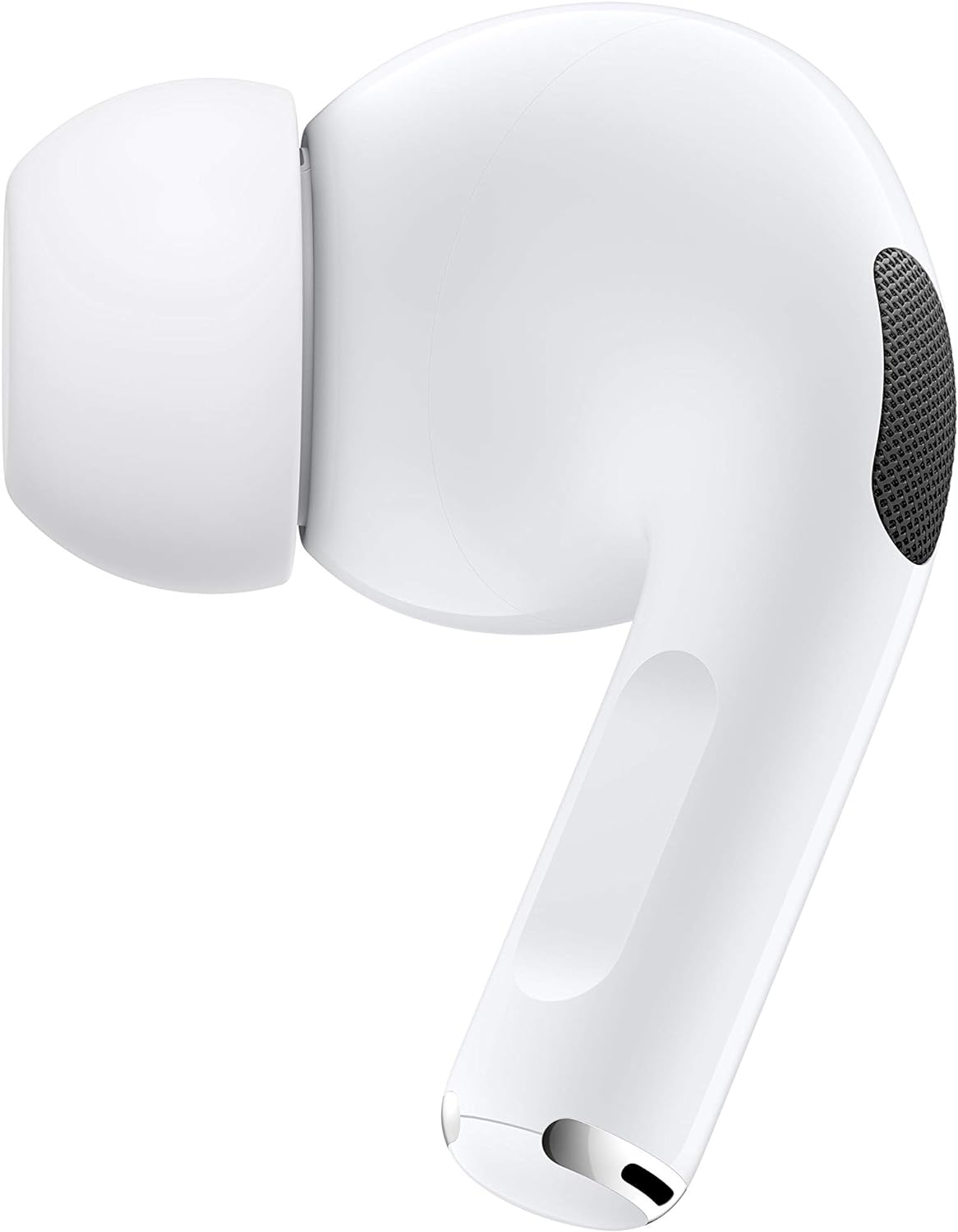
Image: A close-up view of a single AirPod Pro, highlighting the silicone ear tip and speaker mesh.
Operating Your AirPods Pro
1. Active Noise Cancellation and Transparency Mode
AirPods Pro offer two primary listening modes:
- Active Noise Cancellation (ANC): Blocks out external sound, allowing for an immersive audio experience.
- Transparency Mode: Allows you to hear your surroundings while still listening to your audio, useful for awareness in busy environments.
To switch between modes:
- On AirPods Pro: Press and hold the force sensor on the stem of either AirPod.
- On iPhone/iPad: Open Control Center, press and hold the volume slider, then tap the Noise Control icon.
2. Force Sensor Controls
The force sensor on the stem of each AirPod Pro allows for various controls:
- Press once: Play, pause, or answer a phone call.
- Press twice: Skip forward.
- Press three times: Skip back.
- Press and hold: Switch between Active Noise Cancellation and Transparency mode (customizable in Settings).
3. Spatial Audio
Spatial Audio with dynamic head tracking provides a theater-like experience by placing sounds all around you. This feature is available with supported content and devices.
- To enable/disable: On your iPhone/iPad, go to Control Center, press and hold the volume slider, then tap the Spatial Audio icon.
4. Checking Battery Status
You can check the battery status of your AirPods Pro and charging case:
- On iPhone/iPad: Open the case lid near your device, or add the Batteries widget to your Home screen.
- On Mac: Click the Bluetooth icon in the menu bar and hover over your AirPods Pro.
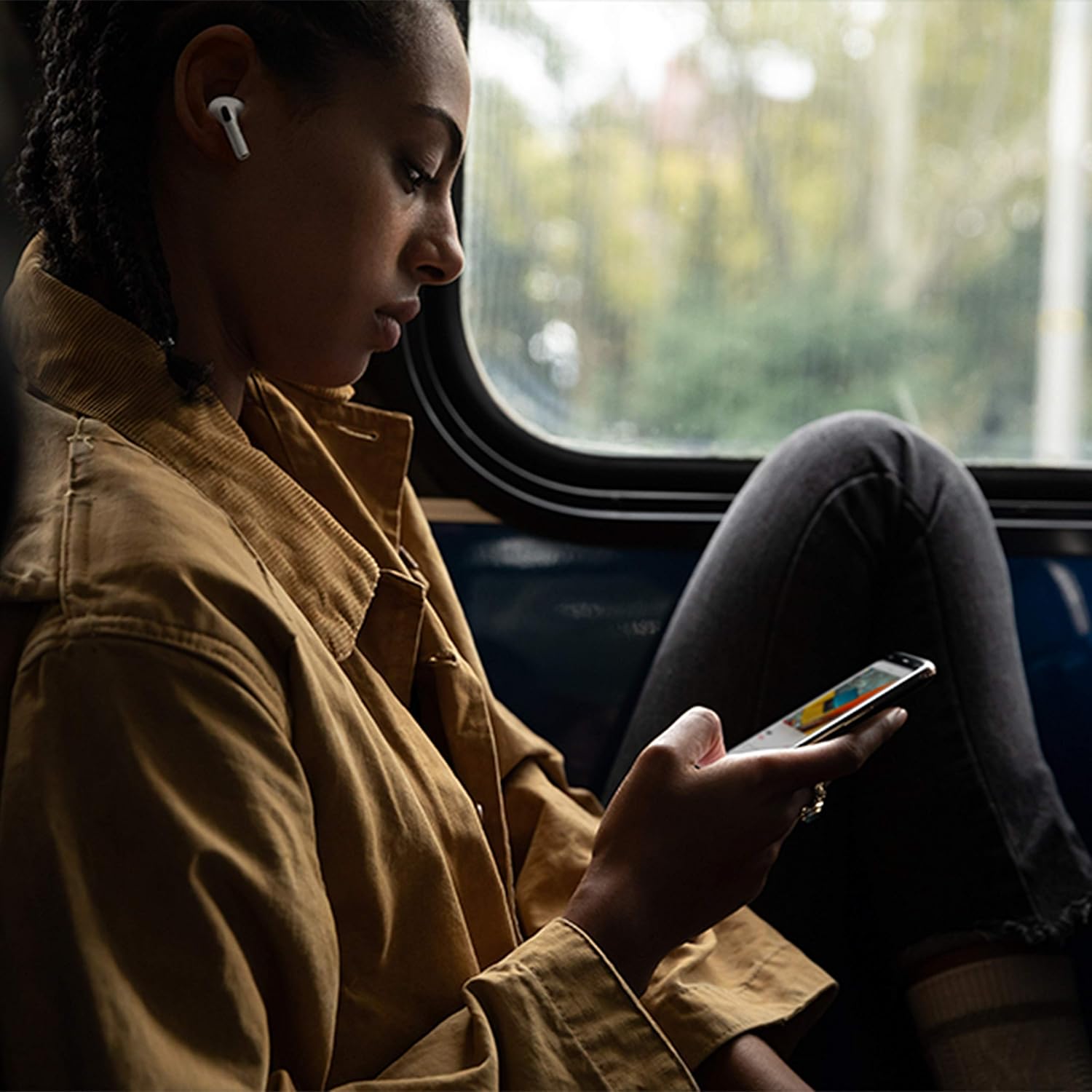
Image: A user wearing AirPods Pro, demonstrating typical usage in a public setting.
Maintenance
1. Cleaning Your AirPods Pro and Case
Regular cleaning helps maintain sound quality and hygiene.
- AirPods: Wipe with a soft, dry, lint-free cloth. Do not use abrasive materials or submerge in liquids. Clean the microphone and speaker meshes with a dry cotton swab.
- Ear Tips: Remove the ear tips from the AirPods. Rinse the ear tips with water and wipe them with a soft, dry, lint-free cloth. Ensure they are completely dry before reattaching.
- Charging Case: Wipe with a soft, dry, lint-free cloth. You can slightly dampen the cloth with isopropyl alcohol if needed. Avoid getting moisture into the charging ports.
2. Storage
Always store your AirPods Pro in their charging case when not in use to protect them and keep them charged.
Troubleshooting
Common Issues and Solutions:
- AirPods not connecting: Ensure Bluetooth is enabled on your device. Place AirPods in the case, close the lid, wait 15 seconds, then open the lid. If still not connecting, try resetting.
- Sound quality issues or poor noise cancellation: Ensure ear tips provide a good seal. Try different ear tip sizes. Clean AirPods and ear tips.
- Charging problems: Ensure the charging cable is securely connected or the wireless charger is properly aligned. Clean the charging port on the case.
- One AirPod not working: Place both AirPods in the case, close the lid, then open it. Check battery levels.
Resetting Your AirPods Pro:
If you experience persistent issues, you may need to reset your AirPods Pro:
- Place your AirPods Pro in their charging case and close the lid.
- Wait 30 seconds, then open the lid.
- On your iOS device, go to Settings > Bluetooth, tap the "i" icon next to your AirPods Pro, then tap Forget This Device. Confirm your action.
- With the case lid open, press and hold the setup button on the back of the case for about 15 seconds, until the status light flashes amber, then white.
- Reconnect your AirPods Pro by following the pairing instructions in the Setup section.
Specifications
| Feature | Detail |
|---|---|
| Model Name | AirPods Pro |
| Item Model Number | MLWK3AM/A |
| Noise Control | Active Noise Cancellation |
| Connectivity Technology | Bluetooth 5.0, USB |
| Wireless Communication Technology | Apple H1 Chip, Bluetooth, NFC |
| Included Components | AirPods Pro, Documentation, Eartip, Lightning to USB-C Cable, MagSafe Charging Case |
| Water Resistance Level | Water Resistant |
| Battery Life (AirPods) | Up to 4.5 hours listening time (up to 5 hours with ANC/Transparency off) |
| Battery Life (with Case) | More than 24 hours listening time |
| Charging Time | 5 minutes in case provides ~1 hour listening/talk time |
| AirPods Dimensions (each) | 0.94 x 0.86 x 1.22 inches (24.0 x 21.8 x 30.9 mm) |
| Charging Case Dimensions | 1.78 x 0.85 x 2.39 inches (45.2 x 21.7 x 60.6 mm) |
| AirPods Weight (each) | 0.19 ounce (5.4 g) |
| Charging Case Weight | 1.61 ounces (45.6 g) |
| UPC | 194252721247 |
Warranty and Support
Your Apple AirPods Pro are covered by Apple's standard limited warranty. This warranty covers manufacturing defects for a specified period from the date of purchase. For detailed warranty terms and conditions, please refer to the documentation included with your product or visit the official Apple support website.
For technical assistance, service, or additional support resources, please visit support.apple.com/airpods or contact Apple Support directly.


