
Plantronics 2200-49735-019
Poly CCX 505 Teams Edition Phone User Manual
Model: 2200-49735-019
Introduction
This manual provides comprehensive instructions for the setup, operation, and maintenance of your Poly CCX 505 Teams Edition Phone with Handset. Designed for seamless integration with Microsoft Teams, this phone offers advanced audio technologies and a user-friendly interface for enhanced communication.
What's in the Box
Verify that all items are present in the package:
- Poly CCX 505 Teams Edition Phone
- Handset
- Handset Cord
- Ethernet Cable
- Desk Stand
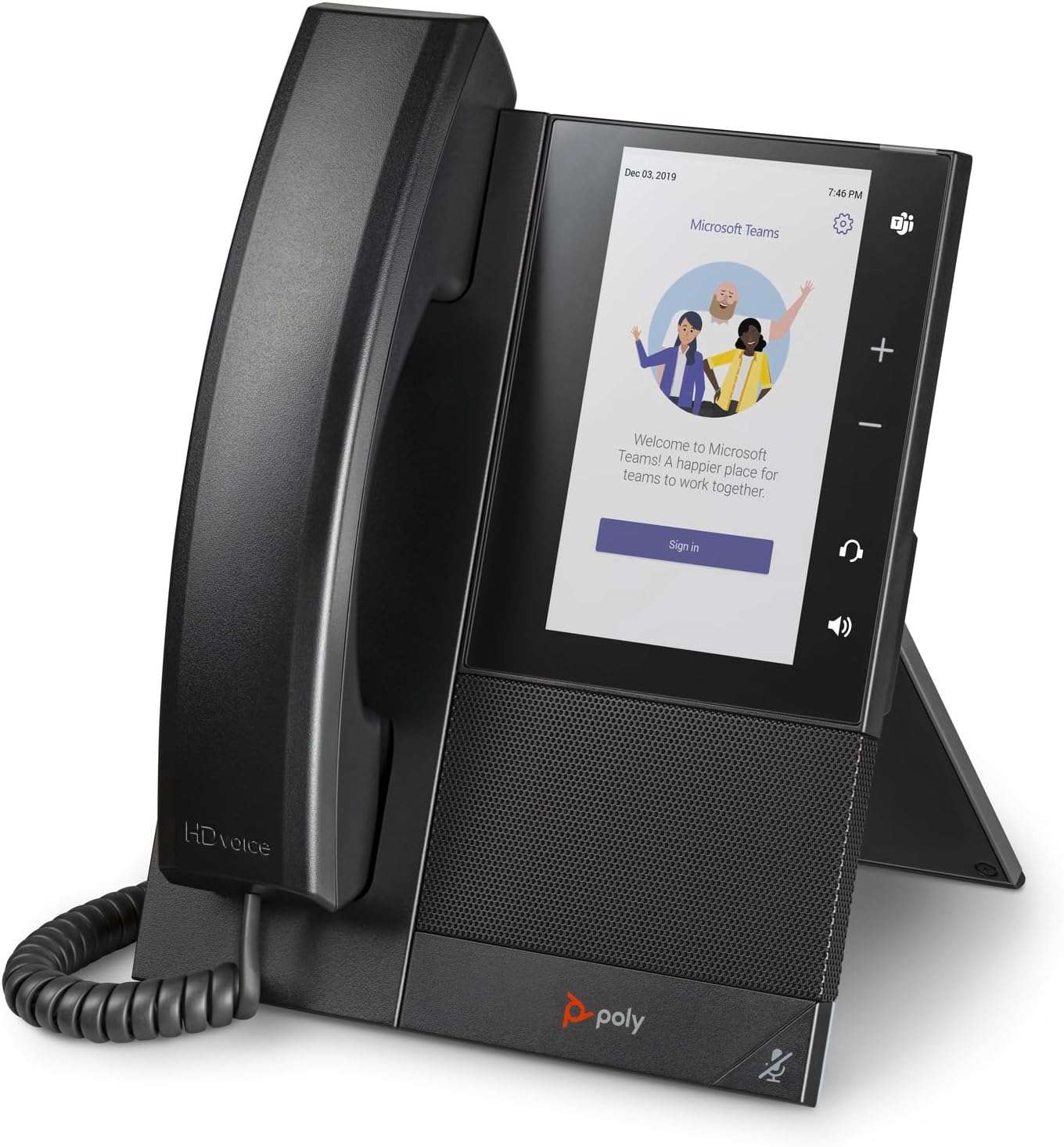
Image: The Poly CCX 505 Teams Edition Phone, showing the main unit with its 5-inch LCD display, handset, and base. This image represents the primary components included in the box.
Setup
1. Assembling the Phone
- Attach the desk stand to the back of the phone unit. Ensure it clicks securely into place.
- Connect the coiled handset cord to the handset and the designated RJ9 port on the phone base.
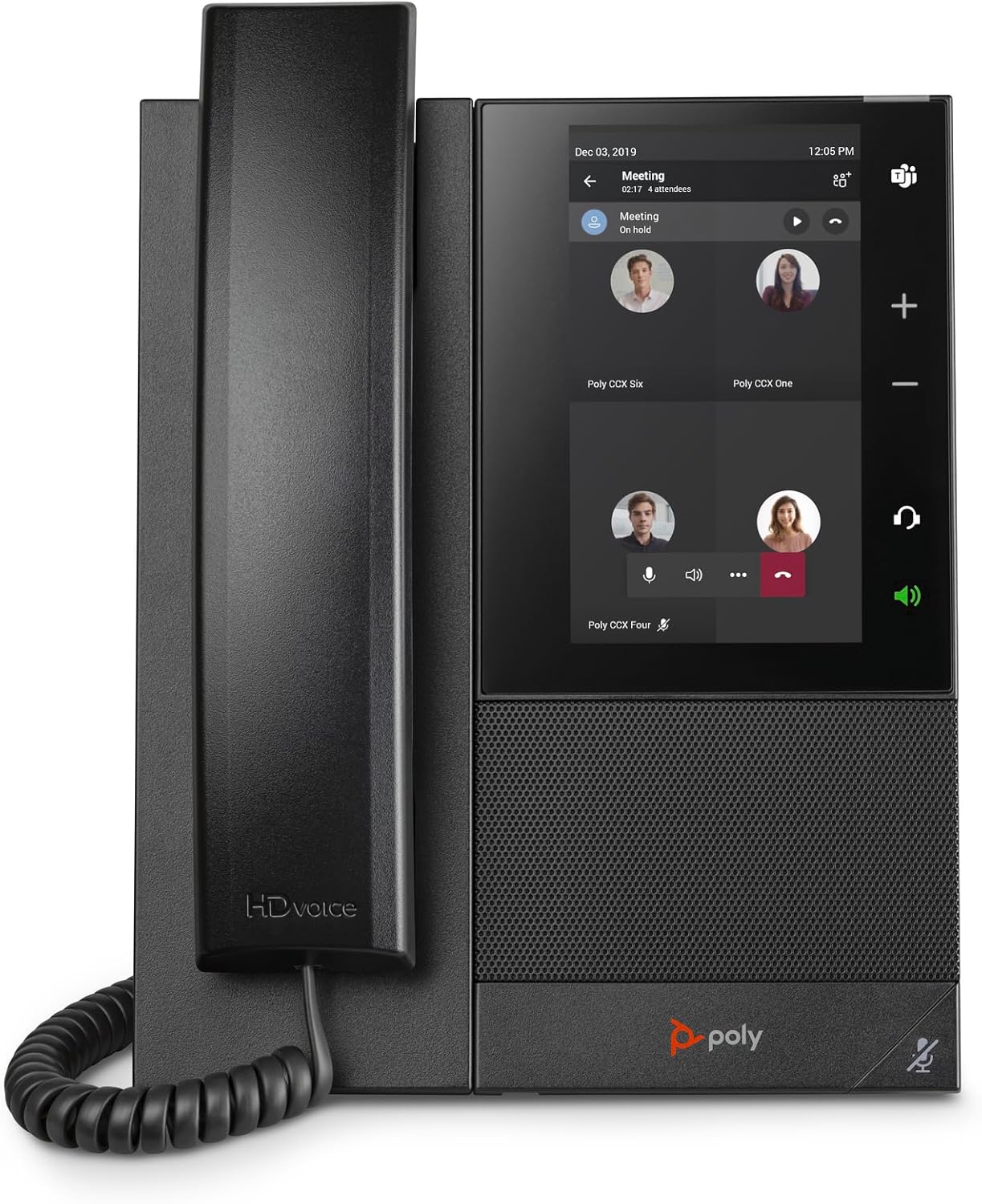
Image: Rear view of the Poly CCX 505 phone, highlighting the various ports for power (48V), Ethernet (LAN), PC, headset, and the handset connection. This view is crucial for understanding cable connections during setup.
2. Connecting to Network and Power
The Poly CCX 505 supports both Ethernet (PoE or external power adapter) and Wi-Fi connectivity.
- Ethernet Connection (Recommended for wired networks):
- Connect one end of the Ethernet cable to the LAN port on the phone.
- Connect the other end to a network switch or router that provides Power over Ethernet (PoE). If PoE is not available, connect an optional 48V power adapter (sold separately) to the power port.
- Wi-Fi Connection:
- Ensure the phone is powered on (via PoE or external adapter).
- On the phone's display, navigate to Settings > Wi-Fi.
- Select your desired Wi-Fi network and enter the password.
3. Initial Configuration
Upon first boot, the phone will guide you through initial setup, including language selection and network configuration if not using PoE. For Microsoft Teams integration, you will be prompted to sign in with your Teams credentials.

Image: The Poly CCX 505 phone display showing the Microsoft Teams login screen. This indicates the phone is ready for user authentication to integrate with Teams services.
Operating the Phone
Basic Call Functions
- Making a Call: Lift the handset or press the speakerphone button, then dial the number using the on-screen keypad or select a contact.
- Answering a Call: Lift the handset or press the flashing answer button on the screen.
- Ending a Call: Replace the handset or press the hang-up button on the screen.
- Mute: Press the mute button on the phone or on the screen during a call.
- Volume Control: Use the volume buttons (+/-) on the side of the phone.
Microsoft Teams Integration
The Poly CCX 505 is optimized for Microsoft Teams, providing a dedicated Teams button for quick access to calls, meetings, and contacts.
- Accessing Calls: Tap the "Calls" icon on the touchscreen or the dedicated Teams button.
- Joining Meetings: Scheduled meetings will appear on the display. Tap "Join" to enter a meeting.
- Voicemail: Access your voicemail messages directly from the phone's interface.

Image: The Poly CCX 505 phone display showing a list of recent calls within the Microsoft Teams interface. This demonstrates the phone's ability to display call history and manage communications.

Image: The Poly CCX 505 phone display showing an active Microsoft Teams meeting with multiple participants. This illustrates the phone's capability to manage and display meeting participants and controls.
Headset and Bluetooth Connectivity
The phone supports various headset options for hands-free communication.
- Wired Headsets: Connect a wired headset to the dedicated headset port (RJ9) or USB-A/USB-C ports.
- Bluetooth Headsets:
- Navigate to Settings > Bluetooth on the phone.
- Enable Bluetooth and put your headset into pairing mode.
- Select your headset from the list of available devices to pair.
Maintenance
Cleaning the Phone
- Use a soft, lint-free cloth to clean the display and phone surface.
- Do not use abrasive cleaners, solvents, or aerosol sprays.
- For stubborn marks, lightly dampen the cloth with water.
Software Updates
The phone may receive software updates automatically through your network or Microsoft Teams. Ensure the phone remains connected to power and the network during updates.
Troubleshooting
| Problem | Possible Cause | Solution |
|---|---|---|
| Phone does not power on. | No power from Ethernet (PoE) or power adapter. | Verify Ethernet cable is securely connected to a PoE-enabled port, or ensure the optional power adapter is correctly plugged in and receiving power. |
| Cannot connect to network. | Incorrect network settings or Wi-Fi password. | Check network cable connection. For Wi-Fi, re-enter the password carefully. Consult your network administrator if issues persist. |
| No dial tone or audio during calls. | Handset/headset not properly connected; volume too low. | Ensure handset cord is fully inserted. Check headset connection. Increase volume using the side buttons. |
| Microsoft Teams sign-in issues. | Incorrect credentials; network connectivity issues. | Double-check your Microsoft Teams username and password. Ensure the phone has a stable internet connection. |
Specifications
- Model: Poly CCX 505 Teams Edition Phone
- Part Number: 2200-49735-019
- Display: 5-inch multi-touch LCD display
- Audio Technologies: Poly HD Voice, Acoustic Fence, NoiseBlockAI
- Connectivity: Wi-Fi, Bluetooth, 2x USB ports (Type A, Type C), RJ9 headset port, EHS port, Ethernet (LAN, PC)
- Compatibility: Microsoft Teams Certified
- Dimensions (L x W x H): Approximately 7 x 8.5 inches (dimensions for the phone itself, not packaging)
- Weight: 2.86 pounds
- Power Source: Power over Ethernet (PoE) or optional 48V DC power adapter (sold separately)
Warranty and Support
For warranty information and technical support, please refer to the official Plantronics (Poly) website or contact their customer service. Keep your purchase receipt and product serial number handy for any warranty claims.
Manufacturer: Plantronics
Website: www.poly.com (Note: Plantronics is now Poly)
Related documents2200-49735-019


Ask a question about this manual
Ask about setup, troubleshooting, compatibility, parts, safety, or missing instructions. Manuals+ will review the question and use this page’s manual context to help answer it.