
Introduction
This manual provides essential information for setting up, operating, maintaining, and troubleshooting your Apple iPhone 12 Mini (PRODUCT)RED 64GB. This device is a renewed premium product, ensuring full functionality and a high standard of quality.
Key features of your iPhone 12 Mini include:
- Unlocked for compatibility with any GSM and CDMA network carrier (e.g., AT&T, T-Mobile, Sprint, Verizon).
- Guaranteed battery health exceeding 90% of original capacity.
- Minimal cosmetic damage, not noticeable at arm's length.
- Includes a certified MFi charging cable and a UL certified wall plug.
- Backed by a one-year satisfaction guarantee.
1. Setup and First Use
1.1 What's in the Box
Your renewed iPhone 12 Mini package includes the following items:
- Apple iPhone 12 Mini (PRODUCT)RED 64GB
- USB-C to Lightning Cable (generic, MFi certified)
- Wall Plug (generic, UL certified)
- SIM Tray Removal Tool
Note: Headphones and a SIM card are not included.

Image: The iPhone 12 Mini and its included USB-C to Lightning charging cable.
1.2 Inserting the SIM Card
- Locate the SIM tray on the side of your iPhone.
- Insert the SIM tray removal tool into the small hole next to the tray and press firmly until the tray ejects.
- Place your Nano-SIM card into the tray with the gold contacts facing down.
- Carefully reinsert the SIM tray into the iPhone.
1.3 Powering On and Initial Setup
- Press and hold the Side button until the Apple logo appears.
- Follow the on-screen instructions to select your language and region.
- Connect to a Wi-Fi network.
- Set up Face ID for secure authentication.
- Create a passcode.
- Restore data from a backup (iCloud or computer) or set up as a new iPhone.
- Sign in with your Apple ID or create a new one.
- Complete the remaining setup steps, including location services and Siri.
2. Operating Your iPhone 12 Mini
2.1 Basic Navigation
Your iPhone 12 Mini operates on iOS 16, providing an intuitive touchscreen interface.
- Home Screen: Swipe up from the bottom edge to go to the Home screen.
- App Switcher: Swipe up from the bottom edge and pause in the middle of the screen to view open apps.
- Control Center: Swipe down from the top-right corner to access quick settings.
- Notifications: Swipe down from the top-left corner to view notifications.
2.2 Power On/Off
- To Power On: Press and hold the Side button until the Apple logo appears.
- To Power Off: Press and hold the Side button and either Volume button simultaneously until the power off slider appears. Drag the slider to power off.
2.3 Face ID
Face ID uses facial recognition for secure unlocking, purchases, and app authentication. Ensure your face is clear and directly facing the screen for optimal performance.

Image: Detail of the iPhone 12 Mini's front display and notch, housing the Face ID system.
2.4 Camera Usage
Your iPhone 12 Mini features a dual-camera system on the rear and a single front camera. Open the Camera app to capture photos and videos. Tap on the screen to focus, and use the zoom options for different perspectives.

Image: Detail of the iPhone 12 Mini's dual rear camera system.
3. Maintenance and Care
3.1 Battery Care
Your renewed iPhone 12 Mini is guaranteed to have a battery capacity exceeding 90% of its original. To maximize battery lifespan:
- Avoid extreme ambient temperatures (below 0°C/32°F or above 35°C/95°F).
- Charge your iPhone using the provided MFi certified cable and UL certified wall plug.
- Enable Optimized Battery Charging in Settings > Battery > Battery Health.
- Avoid fully discharging the battery frequently.
3.2 Cleaning Your iPhone
To clean your iPhone, use a soft, lint-free cloth. Avoid abrasive materials, aerosols, solvents, or ammonia-based cleaners. Do not submerge your iPhone in water.
3.3 Software Updates
Regularly update your iPhone's software to the latest iOS version to ensure optimal performance, security, and access to new features. Go to Settings > General > Software Update.
4. Troubleshooting Common Issues
4.1 Device Not Responding
If your iPhone becomes unresponsive, perform a force restart:
- Press and quickly release the Volume Up button.
- Press and quickly release the Volume Down button.
- Press and hold the Side button until the Apple logo appears.
4.2 Network Connectivity Issues
- No Service/Poor Signal: Check your SIM card insertion. Go to Settings > Cellular and ensure Cellular Data is enabled. Try toggling Airplane Mode on and off.
- Wi-Fi Connection Problems: Go to Settings > Wi-Fi. Ensure Wi-Fi is on and you are connected to the correct network. Try forgetting the network and rejoining.
4.3 Battery Draining Quickly
While your renewed iPhone has a healthy battery, usage patterns can affect battery life. If you experience rapid battery drain:
- Check Battery Usage in Settings > Battery to identify apps consuming the most power.
- Reduce screen brightness.
- Disable Background App Refresh for non-essential apps (Settings > General > Background App Refresh).
- Limit location services for apps (Settings > Privacy > Location Services).
5. Product Specifications
| Feature | Specification |
|---|---|
| Brand | Apple |
| Model Name | iPhone 12 mini |
| Operating System | iOS 16 |
| Memory Storage Capacity | 64 GB |
| CPU Model | Apple A14 Bionic |
| CPU Speed | 3 GHz |
| Screen Size | 6.1 Inches |
| Display Type | OLED |
| Resolution | 2340 x 1080 |
| Refresh Rate | 60 Hz |
| Color | (PRODUCT) RED |
| Wireless Provider | Unlocked for All Carriers |
| Cellular Technology | 5G, 4G LTE |
| Connectivity Technology | Wi-Fi |
| Biometric Security Feature | Face Recognition |
| Connector Type | Lightning |
| Battery Description | Lithium-Ion |
| Battery Average Life | 14 Hours |
| Item Weight | 1.5 Grams |
| Model Year | 2020 |
6. Warranty Information
Your Apple iPhone 12 Mini (Renewed Premium) is backed by a one-year satisfaction guarantee. This warranty covers any functional defects and ensures the device meets the described renewed premium condition.
For specific details regarding coverage and claims, please refer to the documentation provided with your purchase or contact the seller directly.
7. Customer Support
If you encounter any issues or have questions not covered in this manual, please contact the seller, Hybrid IT, through your Amazon order details. For general Apple support resources, visit support.apple.com/iphone.
For information regarding Amazon Renewed Premium products and their conditions, please refer to the Amazon Renewed program details.
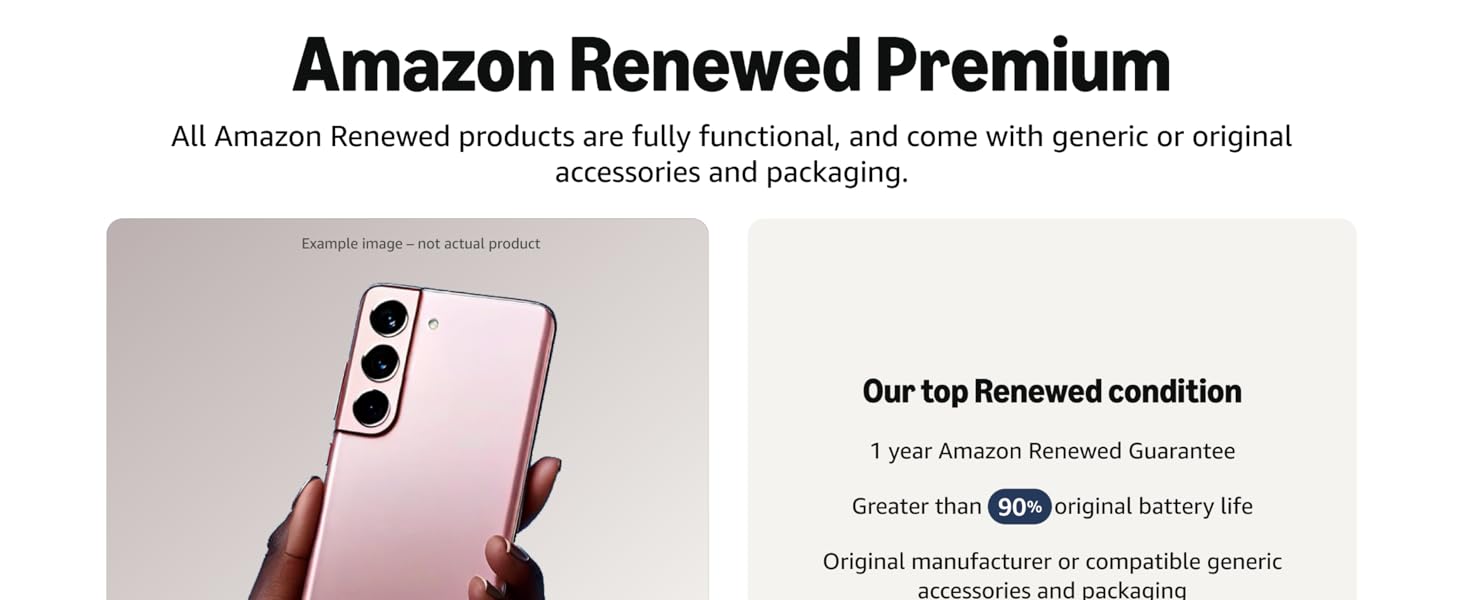
Image: Overview of Amazon Renewed Premium standards.
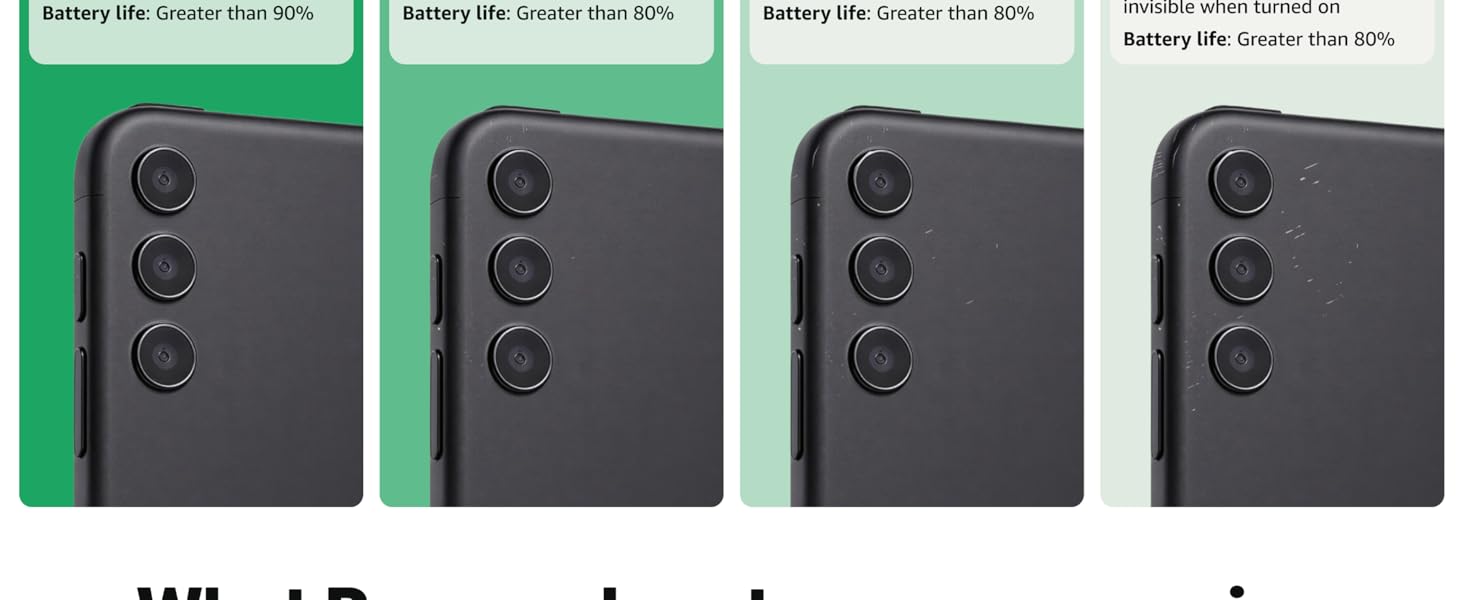
Image: Detailed comparison of Amazon Renewed product conditions.