
1. Product Overview
The Leadfan Dual Din Car Stereo is a versatile in-car entertainment system featuring a 6.7-inch touchscreen. It supports Apple CarPlay and Android Auto for seamless smartphone integration, along with Bluetooth for hands-free calling and audio streaming. This unit also includes support for a backup camera and a dash camera, enhancing both convenience and safety.

Image 1.1: Leadfan Dual Din Car Stereo with included accessories, highlighting Apple CarPlay and Android Auto compatibility, along with the backup and dash cameras.
2. Package Contents
Please verify that all items listed below are included in your package. If any items are missing or damaged, please contact customer support.
- Leadfan Dual Din Car Stereo Unit
- HD Backup Camera
- Camera Cables
- Frame (attached to the radio)
- Dash Cam
- Wiring Harnesses
- 2 Brackets + 4 Screws
- Remote Control
- English Manual

Image 2.1: Visual representation of all components included in the Leadfan Dual Din Car Stereo package, including the main unit, cameras, cables, and mounting hardware.
3. Setup and Installation
Before installation, ensure the car stereo model is suitable for your car. The unit's dimensions are approximately 173mm x 98mm (6.81 x 3.86 inches). Professional installation is highly recommended for optimal performance and safety. Some vehicles may require additional accessories such as a wire harness adapter or a radio antenna adapter.
3.1 Pre-Installation Checks
- Verify dashboard opening size matches the stereo dimensions.
- Ensure all necessary wiring harnesses and adapters are available.
- Disconnect the vehicle's battery before beginning installation.
3.2 Wiring Connections
Connect the provided wiring harnesses to your vehicle's corresponding wiring. Refer to your vehicle's specific wiring diagram for accurate connections. Ensure all connections are secure to prevent electrical issues.
3.3 Camera Installation
Backup Camera: Install the 170° waterproof HD night vision backup camera at the rear of your vehicle. Connect its video output to the designated input on the car stereo. The display will automatically switch to the camera view when the vehicle is in reverse gear.
Dash Camera: Install the 140° wide-angle dash camera at the front of your vehicle. Note that a MicroSD card (Class 10 or higher, max 32GB with FAT32 file system) is required for recording and is not included. Connect the dash cam to the stereo unit.

Image 3.1: Detailed view of the dash camera and backup camera features, including wide-angle view, high definition, waterproofing, and night vision capabilities.
4. Operating Instructions
4.1 Power On/Off
Press the power button (usually marked with a power symbol) to turn the unit on or off. The unit will typically power on automatically with the vehicle's ignition.
4.2 Apple CarPlay & Android Auto
Connect your compatible Apple or Android smartphone to the stereo via a USB data cable. The system will automatically launch Apple CarPlay or Android Auto, allowing access to navigation, calls, messages, and music directly from the stereo's touchscreen. Voice control (Siri/Google Assistant) is supported for hands-free operation.

Image 4.1: Demonstrates the seamless integration of Apple CarPlay, Android Auto, and MirrorLink, showing how smartphones connect to the car stereo for enhanced functionality.
4.3 MirrorLink Function
The MirrorLink feature allows you to display your mobile phone's screen on the stereo's HD capacitive touchscreen. This provides control of your phone's apps directly from the car stereo. Connect your phone via USB and follow the on-screen prompts for activation.
4.4 Bluetooth 5.1 Connectivity
Pair your smartphone with the stereo via Bluetooth for wireless audio streaming and hands-free calling. Access your phone's contacts, make and receive calls, and stream music with stable connectivity. The built-in microphone ensures clear call quality.
4.5 FM Radio Receiver
Tune into your favorite FM radio stations. The high-quality FM receiver allows you to listen to music, news, and traffic information. Use the touchscreen controls to scan for stations, save presets, and adjust equalizer settings.

Image 4.2: Illustrates the Bluetooth hands-free calling interface and the FM radio receiver screen, showing call management and station tuning options.
4.6 Media Playback (USB/TF/AUX)
The stereo supports various media inputs:
- USB: Connect USB drives for audio and video playback.
- TF Card: Insert a TF (MicroSD) card for media playback.
- AUX Input: Use the 3.5mm AUX input for connecting external audio devices.
Supported video formats include AVI, MP4, FLV, PMP, RM, RMVB, MPG. Supported audio formats include DIS, MP3, WMA, ACC, OXL, WAV, RA, AC3, MP2, AMR.
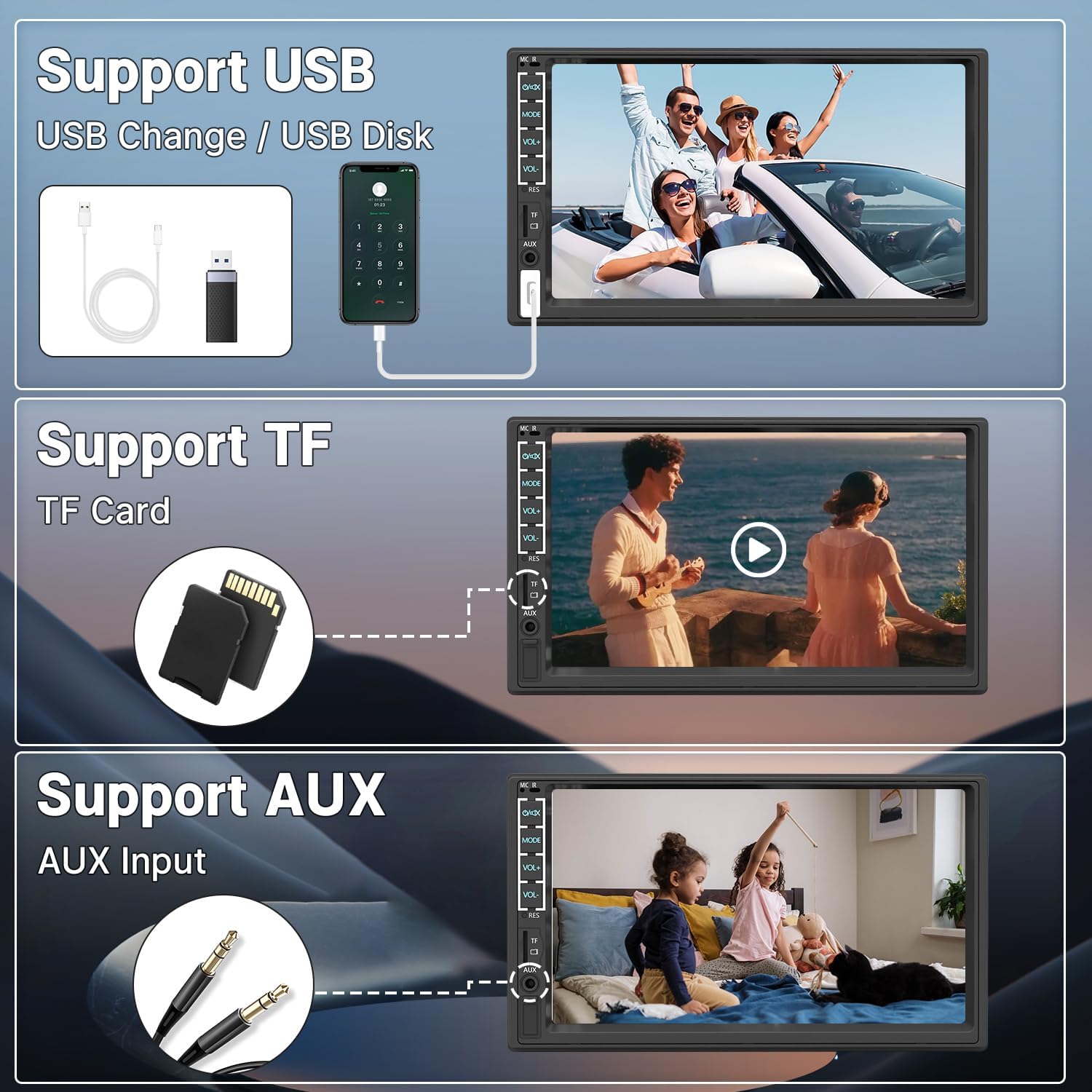
Image 4.3: Shows the various media input options available on the car stereo, including USB, TF card slot, and AUX input, for versatile audio and video playback.
5. Maintenance
Proper maintenance ensures the longevity and optimal performance of your car stereo.
5.1 Screen Cleaning
Use a soft, lint-free cloth to gently wipe the touchscreen. For stubborn smudges, slightly dampen the cloth with water or a screen-safe cleaner. Avoid abrasive materials or harsh chemicals that could damage the screen.
5.2 General Care
- Keep the unit free from dust and debris.
- Avoid exposing the unit to extreme temperatures or direct sunlight for prolonged periods.
- Ensure all cables are securely connected and not pinched.
6. Troubleshooting
If you encounter issues with your Leadfan car stereo, refer to the following common problems and solutions:
| Problem | Possible Cause | Solution |
|---|---|---|
| Unit does not power on. | Incorrect wiring, blown fuse, power supply issue. | Check all power connections and fuses. Ensure proper grounding. Consult a professional installer. |
| No sound output. | Speaker wiring incorrect, volume too low, mute activated. | Verify speaker connections. Increase volume. Check if mute function is active. |
| Backup camera not displaying. | Camera cable disconnected, camera faulty, reverse trigger not connected. | Ensure camera video cable is securely connected. Check the reverse trigger wire connection. Test camera functionality. |
| Apple CarPlay/Android Auto not connecting. | Faulty USB cable, phone not compatible, software issue. | Use a high-quality, original USB data cable. Ensure your phone's OS is updated. Restart both phone and stereo. |
| Bluetooth connection issues. | Pairing mode not active, interference, device too far. | Ensure Bluetooth is enabled on both devices and the stereo is in pairing mode. Delete previous pairings and re-pair. |
| MirrorLink not working. | Phone compatibility, app issues, USB debugging not enabled. | Verify phone compatibility with MirrorLink. Ensure necessary phone settings (e.g., USB debugging for Android) are enabled. |
If the problem persists after attempting these solutions, please contact Leadfan customer support for further assistance.
7. Specifications
| Feature | Specification |
|---|---|
| Brand | Leadfan |
| Model Number | N7DVR |
| Product Dimensions | 6.48 x 9.98 x 6.48 cm (approx. 173 x 98 x 65 mm) |
| Item Weight | 962 g |
| Connectivity Technology | Auxiliary, Bluetooth, USB |
| Special Features | Equalizer, Touchscreen, Apple CarPlay, Android Auto, MirrorLink, Backup Camera Support, Dash Camera Support |
| Compatible Devices | Smartphone, Speaker |
| Audio Output Mode | Stereo |
| Surround Sound Channel Configuration | 4.0 |
| Supported Video Formats | AVI, MJPEG, DivX, XVID, H.264, H.265, FLV, RM, RMVB, MPG |
| Supported Audio Formats | DIS, MP3, WMA, ACC, OXL, WAV, RA, AC3, MP2, AMR |
| System Language Support | English, German, French, Italian, Spanish, Portuguese, Russian, Japanese, Chinese, Indonesian, Thai, Arabic, Ukrainian, Czech |
8. Warranty and Support
For warranty information and customer support, please refer to the official Leadfan website or contact the seller directly. Keep your purchase receipt as proof of purchase for any warranty claims.
For technical assistance or further inquiries, please reach out to Leadfan customer service through the contact information provided with your product or on the manufacturer's official channels.
