
Razer RZ03-04110200-R3U1
Razer Pro Type Ultra Wireless Mechanical Keyboard User Manual
Model: RZ03-04110200-R3U1
Introduction
This manual provides comprehensive instructions for the setup, operation, and maintenance of your Razer Pro Type Ultra Wireless Mechanical Keyboard. Designed for maximum productivity and comfort, this keyboard offers a quiet, luxurious typing experience with advanced features for multi-device connectivity and customization.
Product Overview
The Razer Pro Type Ultra is an ergonomic wireless mechanical keyboard featuring silent linear switches, a soft-touch coating on keycaps, and a plush leatherette wrist rest for superior comfort. It supports connectivity with up to 4 devices and offers fully programmable keys for enhanced workflow efficiency.
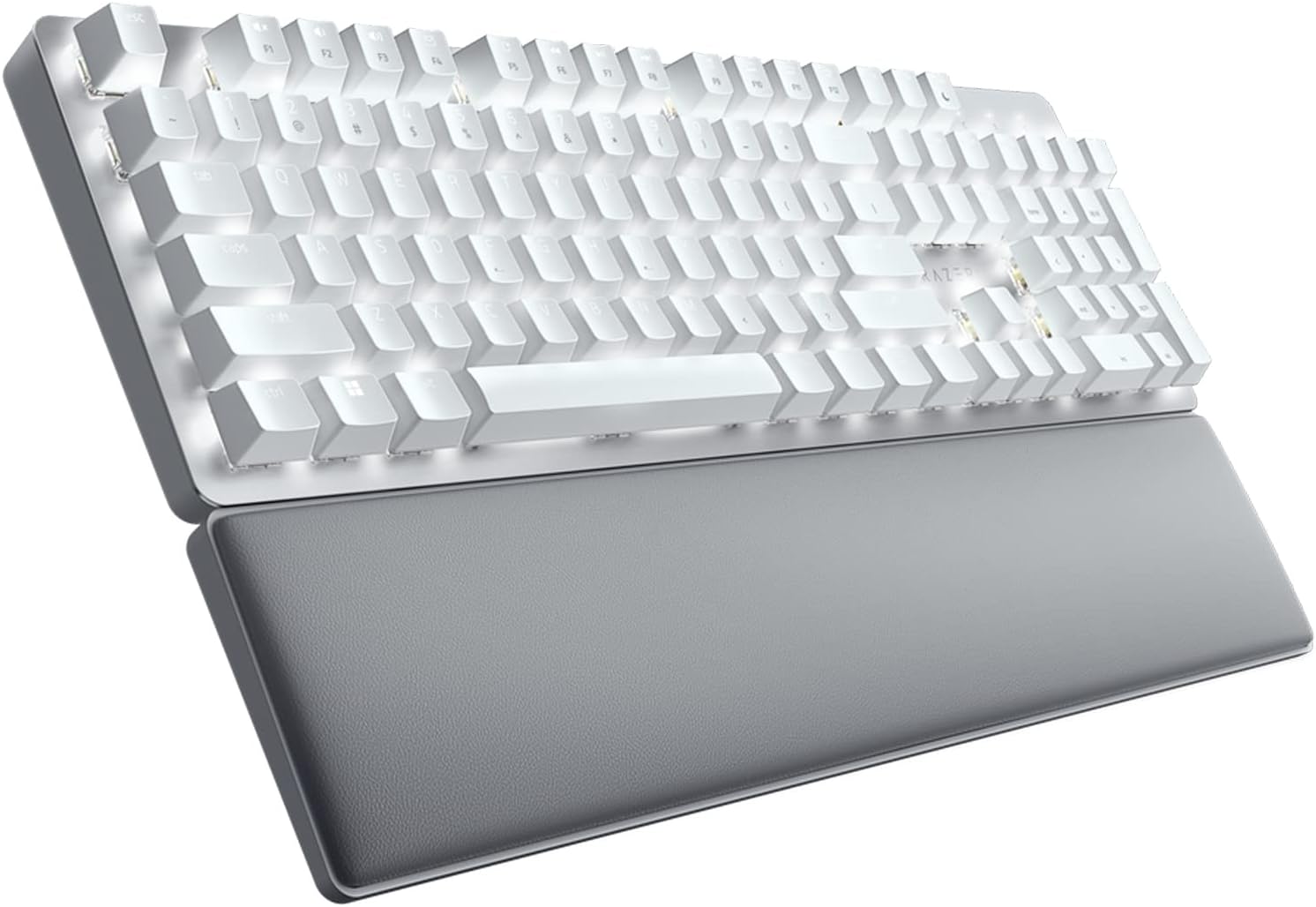
Figure 1: Razer Pro Type Ultra Wireless Mechanical Keyboard with included wrist rest. This image shows the full keyboard and its ergonomic design.
Setup
Package Contents
- Razer Pro Type Ultra Wireless Mechanical Keyboard
- Plush Leatherette Wrist Rest
- USB-C to USB-A Cable
- Razer Productivity Dongle (USB-A)
- Important Product Information Guide
Initial Charging
Before first use, it is recommended to fully charge the keyboard. Connect the USB-C end of the provided cable to the keyboard's USB-C port and the USB-A end to a powered USB port on your computer or a wall adapter. The LED indicator will show charging status.
Connecting the Keyboard
The Razer Pro Type Ultra supports three connection modes: Razer HyperSpeed Wireless (2.4 GHz), Bluetooth, and Wired (USB-C).
Razer HyperSpeed Wireless (2.4 GHz)
- Locate the Razer Productivity Dongle. It is typically stored in a compartment on the underside of the keyboard.
- Plug the dongle into an available USB-A port on your computer.
- On the keyboard, slide the mode switch to the 2.4 GHz position. The keyboard will automatically connect to the dongle.

Figure 2: The Razer Pro Type Ultra keyboard demonstrating its multi-device connectivity feature. This image highlights the ability to connect to up to four devices.
Bluetooth Connection
The keyboard can connect to up to three Bluetooth devices.
- Slide the mode switch on the keyboard to the Bluetooth position.
- Press and hold one of the Bluetooth pairing keys (BT1, BT2, or BT3, usually located on F9-F11) for 3 seconds until the LED indicator blinks rapidly.
- On your device (computer, tablet, smartphone), go to Bluetooth settings and select "Razer Pro Type Ultra" from the list of available devices to pair.
- Repeat for additional Bluetooth devices, using a different BT key for each.
Wired Connection
Connect the USB-C to USB-A cable from the keyboard to your computer's USB-A port. The keyboard will automatically switch to wired mode and begin charging.
Operating the Keyboard
Key Features and Functions
- Silent Linear Switches: Designed for quiet operation, ideal for office environments.

Figure 3: A close-up view of the silent linear keyboard switches, emphasizing their design for minimal sound during typing.
- Ergonomic Design: Features a comfortable layout and soft-touch keycaps.

Figure 4: The Razer Pro Type Ultra keyboard showcasing its ergonomic design and soft-touch keycap coating for enhanced typing comfort.
- Plush Leatherette Wrist Rest: Provides superior support and reduces strain during extended use.

Figure 5: A detailed view of the plush leatherette wrist rest, designed to provide superior ergonomic support and comfort.
- Multi-Device Connectivity: Seamlessly switch between up to 4 connected devices (1 HyperSpeed, 3 Bluetooth).
- Fully Programmable Keys: Customize key assignments, create macros, and set shortcuts using Razer Synapse software.

Figure 6: The Razer Pro Type Ultra keyboard highlighting its fully programmable keys and smart controls for customized workflow.
- Backlighting: Adjustable white LED backlighting for visibility in various lighting conditions.
Razer Synapse Software
For advanced customization, including key remapping, macro recording, and lighting effects, download and install the Razer Synapse software from the official Razer website. This software allows you to personalize your keyboard settings to optimize your workflow.
Note: Some users have reported that function keys (F1-F12) may require Synapse software to function as standard F-keys rather than multimedia keys by default. Within Synapse, you can configure the Fn key behavior or use Fn + Esc to toggle between Function and Media key modes.
Battery Life and Indicators
The keyboard is powered by a rechargeable Lithium Ion battery. Battery life varies based on usage and backlighting settings. A low battery indicator will typically flash on the keyboard when charging is required. Connect the keyboard via USB-C cable to charge.
Maintenance
Cleaning the Keyboard
- Disconnect the keyboard from all power sources and devices before cleaning.
- Use a soft, lint-free cloth lightly dampened with water or a mild cleaning solution to wipe down the keycaps and chassis.
- Avoid excessive moisture and do not spray cleaners directly onto the keyboard.
- For dust and debris between keys, use compressed air.
- The keycaps are removable and washable for thorough cleaning, but exercise caution when removing them to avoid damage to the switches.
Wrist Rest Care
The plush leatherette wrist rest can be wiped clean with a damp cloth. Avoid harsh chemicals that may damage the material.
Troubleshooting
| Problem | Possible Cause / Solution |
|---|---|
| Keyboard not responding (Wireless) |
|
| Keys are too sensitive / Accidental presses |
|
| Function keys (F1-F12) not working as expected |
|
| Keyboard backlight issues |
|
| Double typing or missed keystrokes |
|
Specifications
| Feature | Detail |
|---|---|
| Brand | Razer |
| Model Name | Pro Type Ultra |
| Model Number | RZ03-04110200-R3U1 |
| Connectivity | Razer HyperSpeed Wireless (2.4 GHz), Bluetooth, USB-C Wired |
| Switches | Silent Linear Mechanical Switches |
| Keycaps | ABS plastic with soft-touch coating |
| Backlighting | White LED Backlit |
| Wrist Rest | Plush Leatherette |
| Battery | 1 Lithium Ion battery (included) |
| Item Weight | 3.59 pounds (approx. 1.63 kg) |
| Product Dimensions (LxWxH) | 17.28 x 5.16 x 1.57 inches (approx. 43.89 x 13.11 x 3.99 cm) |
| Compatible Operating Systems | Windows, Mac OS |
Warranty and Support
Razer products come with a limited warranty. Please refer to the "Important Product Information Guide" included in your package for specific warranty terms and conditions. For technical support, driver downloads, and additional resources, visit the official Razer Support website:
You can also find the official User Manual (PDF) here.
Related documentsRZ03-04110200-R3U1


Ask a question about this manual
Ask about setup, troubleshooting, compatibility, parts, safety, or missing instructions. Manuals+ will review the question and use this page’s manual context to help answer it.