
Renkforce RF-4718832
Renkforce External Graphics Card User Manual
Model: RF-4718832
1. Product Overview
The Renkforce External Graphics Card (Model RF-4718832) is designed to expand your computer's display capabilities by adding two HDMI ports via a single USB-A or USB-C connection. This device is ideal for users who need to connect multiple external monitors to their PC or Mac, including MacBook Air models with M2 chips, allowing for extended or mirrored display configurations.
It features a combined USB-A/USB-C socket for versatile connectivity and an SM768 graphics processor, ensuring efficient external graphics processing with low power consumption (approximately 2 watts). This design minimizes the load on your computer's internal CPU and GPU, maintaining system productivity.
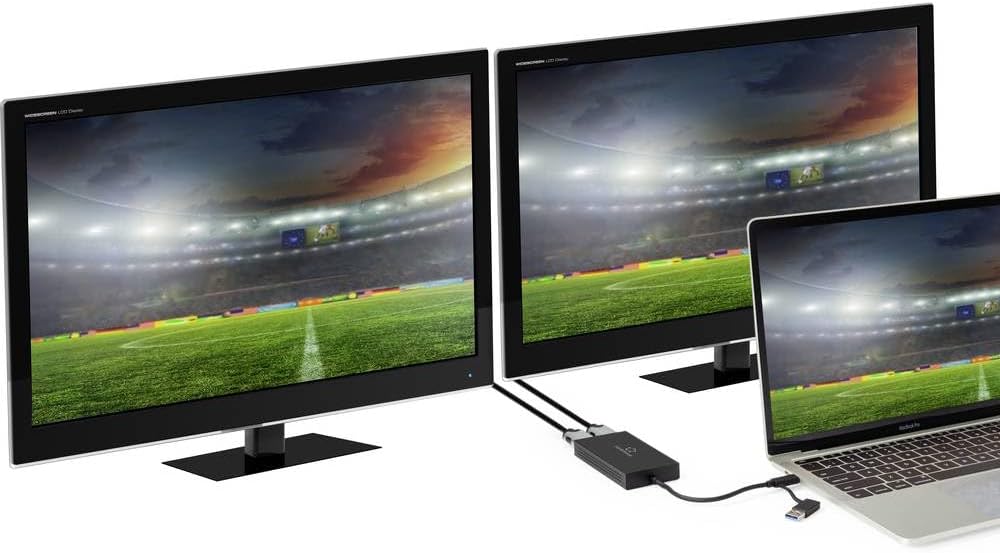
Figure 1: Renkforce External Graphics Card in a multi-monitor setup.
This image shows the Renkforce External Graphics Card connected to a laptop, extending the display across two external monitors. The setup demonstrates the product's primary function of enabling a multi-display workstation.
2. Package Contents
Please verify that all components are present in the package:
- Renkforce External Graphics Card (RF-4718832)
- Integrated USB-A/USB-C cable
- User Manual (this document)

Figure 2: Renkforce External Graphics Card unit.
This image provides a clear view of the external graphics card unit, highlighting its compact design, the two HDMI output ports, and the integrated USB cable with its dual USB-A/USB-C connector.
3. Setup and Installation
Follow these steps to set up your Renkforce External Graphics Card:
- Connect to Computer: Identify an available USB-A or USB-C port on your computer. The integrated cable on the graphics card features a unique connector that can be used with either port type. Insert the connector firmly into the chosen USB port.

Figure 3: Dual-compatible USB connector.
This image focuses on the innovative USB connector of the Renkforce External Graphics Card, illustrating how it can adapt to both USB-A and USB-C ports on a computer.
- Connect Displays: Connect your HDMI monitors to the two HDMI output ports on the Renkforce External Graphics Card using standard HDMI cables. Ensure the cables are securely plugged into both the graphics card and your monitors.

Figure 4: Connecting HDMI cables.
This image shows the Renkforce External Graphics Card connected to a MacBook Pro, with two HDMI cables inserted into its output ports, ready to connect to external displays.
- Driver Installation (Automatic): The device typically installs necessary drivers automatically upon first connection. If prompted, allow the installation to proceed. For Windows users, drivers are usually installed via Windows Update. For macOS, the necessary components are often built-in or automatically downloaded.
- Power: The external graphics card draws power directly from the USB port, requiring no external power adapter.
4. Operating Instructions
4.1 Display Configuration
Once connected, your operating system should detect the new displays. You can configure them as follows:
- Windows: Right-click on the desktop and select "Display settings" or "Screen resolution". Here you can arrange your monitors, set their resolution (one 4K/30Hz, one 1080P/60Hz), and choose between "Extend these displays" or "Duplicate these displays".
- macOS: Go to "System Settings" (or "System Preferences") > "Displays". You can drag and drop the display icons to arrange them, adjust resolutions, and select mirroring or extended desktop modes.
4.2 Resolution and Refresh Rates
The external graphics card supports the following maximum resolutions and refresh rates:
- HDMI Port 1: Up to 4K (3840x2160) at 30Hz
- HDMI Port 2: Up to 1080P (1920x1080) at 60Hz
Ensure your monitors and HDMI cables support these resolutions and refresh rates for optimal performance.
5. Maintenance and Care
To ensure the longevity and optimal performance of your Renkforce External Graphics Card, follow these guidelines:
- Cleaning: Use a soft, dry cloth to clean the device. Do not use liquid cleaners or aerosols.
- Storage: Store the device in a cool, dry place away from direct sunlight and extreme temperatures.
- Handling: Avoid dropping the device or subjecting it to strong impacts. Do not attempt to disassemble the unit.
- Ventilation: Ensure the ventilation holes on the device are not obstructed to prevent overheating.
6. Troubleshooting
| Problem | Possible Cause | Solution |
|---|---|---|
| No display on external monitor. | Loose cable connection; Incorrect display settings; Driver issue. | Ensure all HDMI and USB cables are securely connected. Check your computer's display settings to ensure the monitor is detected and configured correctly (extended/duplicated). Restart your computer. If issues persist, try updating or reinstalling display drivers. |
| Display flickering or distorted. | Faulty HDMI cable; Resolution/refresh rate mismatch; Driver issue. | Try a different HDMI cable. Verify that the display resolution and refresh rate are supported by both the monitor and the external graphics card. Update display drivers. |
| Device not recognized by computer. | Loose USB connection; USB port issue; Driver not installed. | Ensure the USB connector is fully inserted. Try a different USB port on your computer. Check Device Manager (Windows) or System Information (macOS) to see if the device is listed. If not, try manually installing drivers if available from Renkforce support, or restart your computer. |
7. Specifications
| Model Number | RF-4718832 |
| Brand | Renkforce |
| Input Interface | USB-A / USB-C (combined connector) |
| Output Interface | 2 x HDMI |
| Max Resolution (HDMI 1) | 3840 x 2160 @ 30Hz (4K) |
| Max Resolution (HDMI 2) | 1920 x 1080 @ 60Hz (1080P) |
| Chipset | SM768 Graphics Processor |
| Power Consumption | Approx. 2 Watts |
| Dimensions (L x W x H) | 5.12 x 3.94 x 0.79 inches (13 x 10 x 2 cm approx.) |
| Weight | 5 ounces (142 g approx.) |
| Operating System Compatibility | Windows, macOS |
8. Warranty Information
Renkforce products are designed and manufactured to the highest quality standards. For specific warranty terms and conditions, please refer to the warranty card included with your purchase or visit the official Renkforce website. Keep your proof of purchase for warranty claims.
9. Support and Contact
If you encounter any issues or have questions regarding your Renkforce External Graphics Card, please contact Renkforce customer support. Support contact details can typically be found on the Renkforce official website or on the product packaging.
For the latest drivers and FAQs, please visit the Renkforce support page.
Related documentsRF-4718832

Ask a question about this manual
Ask about setup, troubleshooting, compatibility, parts, safety, or missing instructions. Manuals+ will review the question and use this page’s manual context to help answer it.