
iClever BK10 Bluetooth Keyboard
iClever BK10 Bluetooth Keyboard User Manual
Model: BK10 Bluetooth Keyboard
Product Overview
The iClever BK10 Bluetooth Keyboard is a versatile and ultra-slim wireless keyboard designed for seamless connectivity across multiple devices. Featuring Bluetooth 5.1 technology, it allows you to pair and switch between up to three devices effortlessly. Its ergonomic design and low-profile keys provide a comfortable and quiet typing experience, while the long-lasting rechargeable battery ensures extended use. The keyboard is compatible with a wide range of operating systems, including Windows, Mac, iOS, and Android.

Figure 1: Full view of the iClever BK10 Bluetooth Keyboard, showcasing its sleek silver design and AZERTY layout.
Setup Guide
1. Charging the Keyboard
Before initial use, fully charge the keyboard. The iClever BK10 keyboard is equipped with a rechargeable battery that provides up to 90 hours of continuous typing on a single charge. A full charge typically takes approximately 2 hours.
- Connect the provided charging cable to the micro USB port on the keyboard.
- Connect the other end of the cable to a USB power source (e.g., computer USB port, USB wall adapter).
- The charging indicator light will illuminate during charging and turn off when fully charged.

Figure 2: Illustration of the keyboard's micro USB charging port and details on its fast charging capability and extended battery life.
2. Pairing with Devices
The iClever BK10 keyboard can connect to up to three devices simultaneously via Bluetooth 5.1, allowing for seamless switching between them.
- Ensure the keyboard is charged and the power switch (located on the side) is in the "ON" position.
- Press and hold one of the Bluetooth channel keys (BT1, BT2, or BT3) for 3-5 seconds until the corresponding indicator light flashes, indicating pairing mode.
- On your device (computer, tablet, smartphone), enable Bluetooth and search for available devices.
- Select "iClever Keyboard" or a similar name from the list of found devices.
- Follow any on-screen prompts to complete the pairing process. Some devices may require you to enter a code displayed on the screen using the keyboard.
- Once paired, the indicator light for the selected channel will stop flashing and remain solid.
- Repeat these steps for up to two additional devices using the other BT channels.

Figure 3: Diagram illustrating how the keyboard connects to multiple devices (tablet, laptop, smartphone) via different Bluetooth channels.

Figure 4: Visual representation of connecting the keyboard to three different devices at the same time.
The keyboard automatically recognizes your device's operating system (Windows, iOS, Mac OS, Android) and maps the keys accordingly. It will also automatically reconnect to previously paired devices upon activation.
Operating Instructions
1. Switching Between Devices
To switch between paired devices, simply press the corresponding Bluetooth channel key (BT1, BT2, or BT3) once. The keyboard will quickly connect to the selected device.
2. Keyboard Layout and Ergonomics
The iClever BK10 features an AZERTY layout with low-profile keys that offer a remarkably tactile feel and sufficient travel distance for comfortable and quiet typing. The keyboard is designed with an optimal inclination to prevent wrist strain during extended typing sessions.
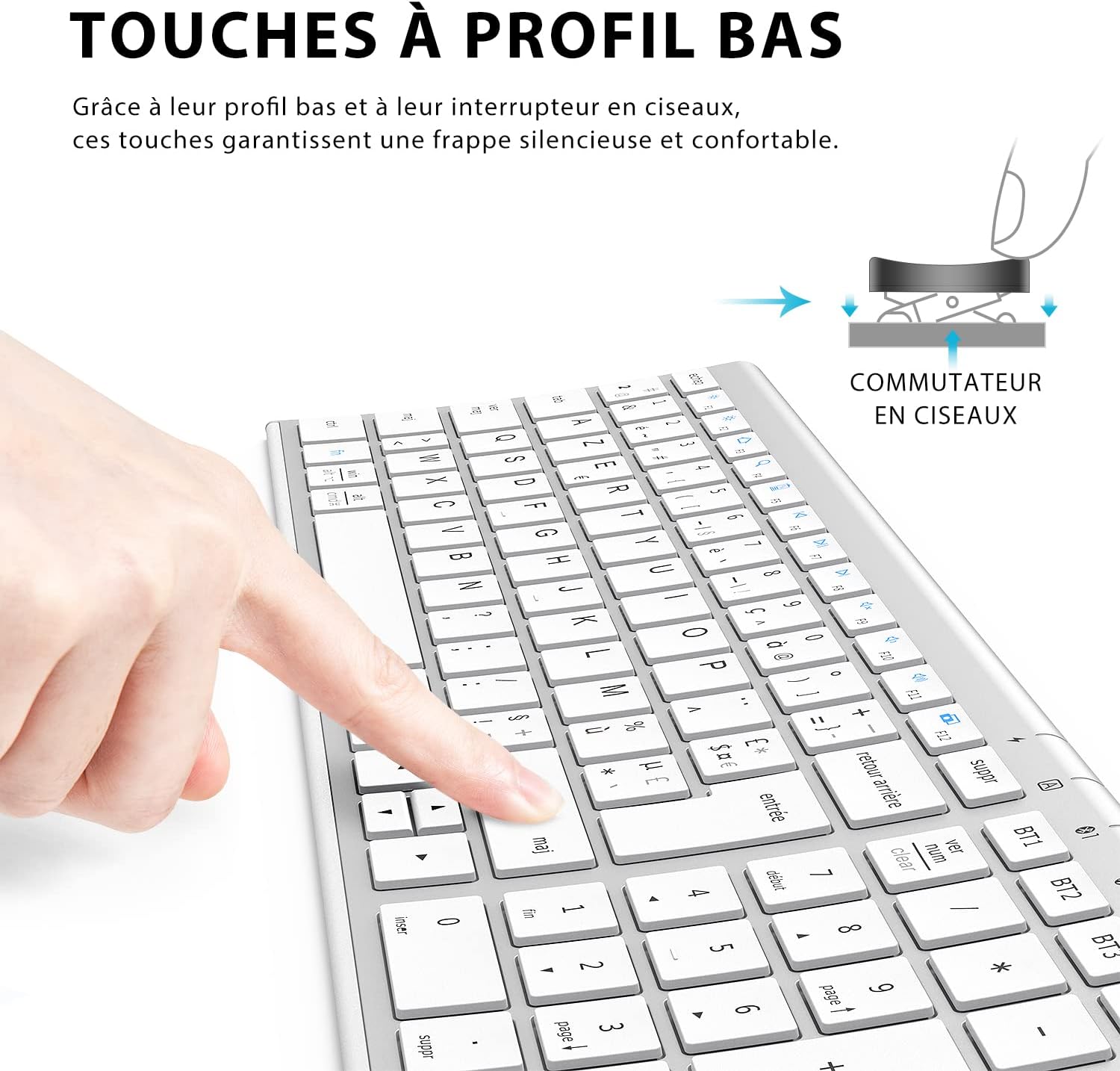
Figure 5: Detailed view of the low-profile keys and their scissor switch mechanism, ensuring silent and comfortable typing.

Figure 6: Side profile of the keyboard highlighting its ergonomic design and optimal typing angle.
3. Function Keys and Shortcuts
The keyboard includes a row of function keys (F1-F12) that can be used for various shortcuts. To activate these functions, press the Fn key simultaneously with the desired function key.
- Fn + F1: Brightness Down
- Fn + F2: Brightness Up
- Fn + F3: Home
- Fn + F4: App Switcher
- Fn + F5: Search
- Fn + F6: Mute
- Fn + F7: Volume Down
- Fn + F8: Volume Up
- Fn + F9: Previous Track
- Fn + F10: Play/Pause
- Fn + F11: Next Track
- Fn + F12: Screenshot

Figure 7: Diagram detailing the function key shortcuts available on the iClever BK10 keyboard.
Maintenance
1. Cleaning the Keyboard
The iClever BK10 keyboard features a matte finish and is designed to resist spills, helping to protect it from grease and accidental liquid spills. To maintain its appearance and functionality:
- Use a soft, lint-free cloth slightly dampened with water or a mild cleaning solution to wipe down the keys and surface.
- Avoid using harsh chemicals, abrasive cleaners, or excessive moisture.
- Ensure the keyboard is powered off before cleaning.
2. Battery Care and Power Saving
To maximize battery life and ensure optimal performance:
- Fully charge the keyboard when the battery is low.
- The keyboard features an environmentally friendly power-saving function that puts it into sleep mode after 30 minutes of inactivity to reduce unnecessary power consumption. Press any key to wake it up.
- If storing the keyboard for an extended period, ensure it is fully charged and then power it off.
Troubleshooting
If you encounter issues with your iClever BK10 keyboard, please refer to the following common troubleshooting steps:
Q: OS Compatibility?
- Windows computer/laptop/tablet: Windows 8 or later
- Android smartphone: Android 6.0 or later
- iPhone/iPad: iOS 9.0 or later
- Mac: Mac OS X 10.8 or later
NOTE: Not compatible with Mac mini, Mac studio, XBOX, Samsung Smart TV, Nokia mobile phones, and Bluetooth adapters.
Q: The keyboard is not working.
- Charge the keyboard for 2 hours.
- Do not use your wireless keyboard on metallic surfaces.
- Keep it away from radio frequency (RF) interference from other wireless devices, such as wireless speakers, computer power supplies, monitors, mobile phones, and garage door remote controls.
- On your device, delete all Bluetooth connection records.
- On your device, disable Bluetooth and re-enable it to refresh.
- Reconnect the keyboard again.
Q: Typing delay.
- Restart your devices.
- Verify that the product is connected directly to the computer and not to a Bluetooth adapter.
- Move the keyboard closer to the computer or tablet.
- Keep other electronic devices at least 20 cm (8 inches) away from the keyboard.
- Check if any background updates are running that might cause the delay.
- Ensure your operating system (OS) is up to date.
- Try on a different application and device.
Specifications
| Brand | iClever |
| Model Number | BK10 Bluetooth Keyboard |
| Color | Silver |
| Connectivity Technology | Bluetooth 5.1 |
| Compatible Devices | PC, Laptop, Tablet, Smartphone (Windows, iOS, Mac OS, Android) |
| Special Features | Rechargeable, Multi-device Pairing (up to 3), Ultra-slim, Ergonomic Design, Low-profile Keys |
| Battery Composition | Lithium-ion |
| Number of Keys | 105 |
| Keyboard Description | Wireless |
| Recommended Uses | Daily Use, Professional |
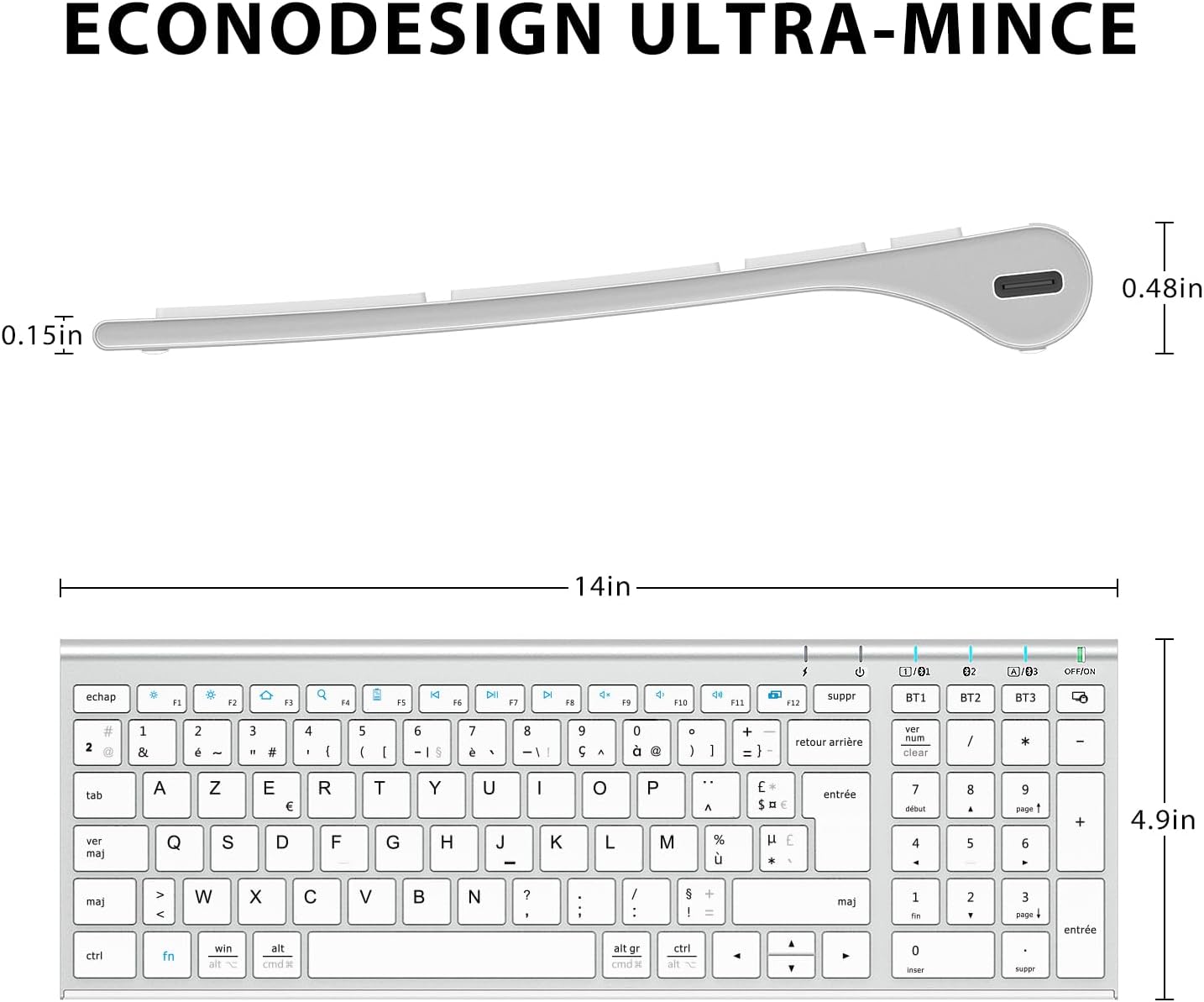
Figure 8: Dimensions of the iClever BK10 keyboard, highlighting its ultra-slim profile.
Warranty and Support
For detailed warranty information and customer support, please refer to the official iClever website or contact their customer service directly. Keep your purchase receipt as proof of purchase.
iClever is dedicated to manufacturing innovative, reliable, and ergonomic keyboards and mice that enhance productivity, foster creativity, and provide unparalleled comfort.
Related documentsBK10 Bluetooth Keyboard


Ask a question about this manual
Ask about setup, troubleshooting, compatibility, parts, safety, or missing instructions. Manuals+ will review the question and use this page’s manual context to help answer it.