
1. Introduction
The Xtrem Bots Robbie is a remote-controlled, programmable robot toy designed to introduce children aged 5 and above to basic robotics and programming concepts. This manual provides detailed instructions for setting up, operating, and maintaining your Robbie robot.
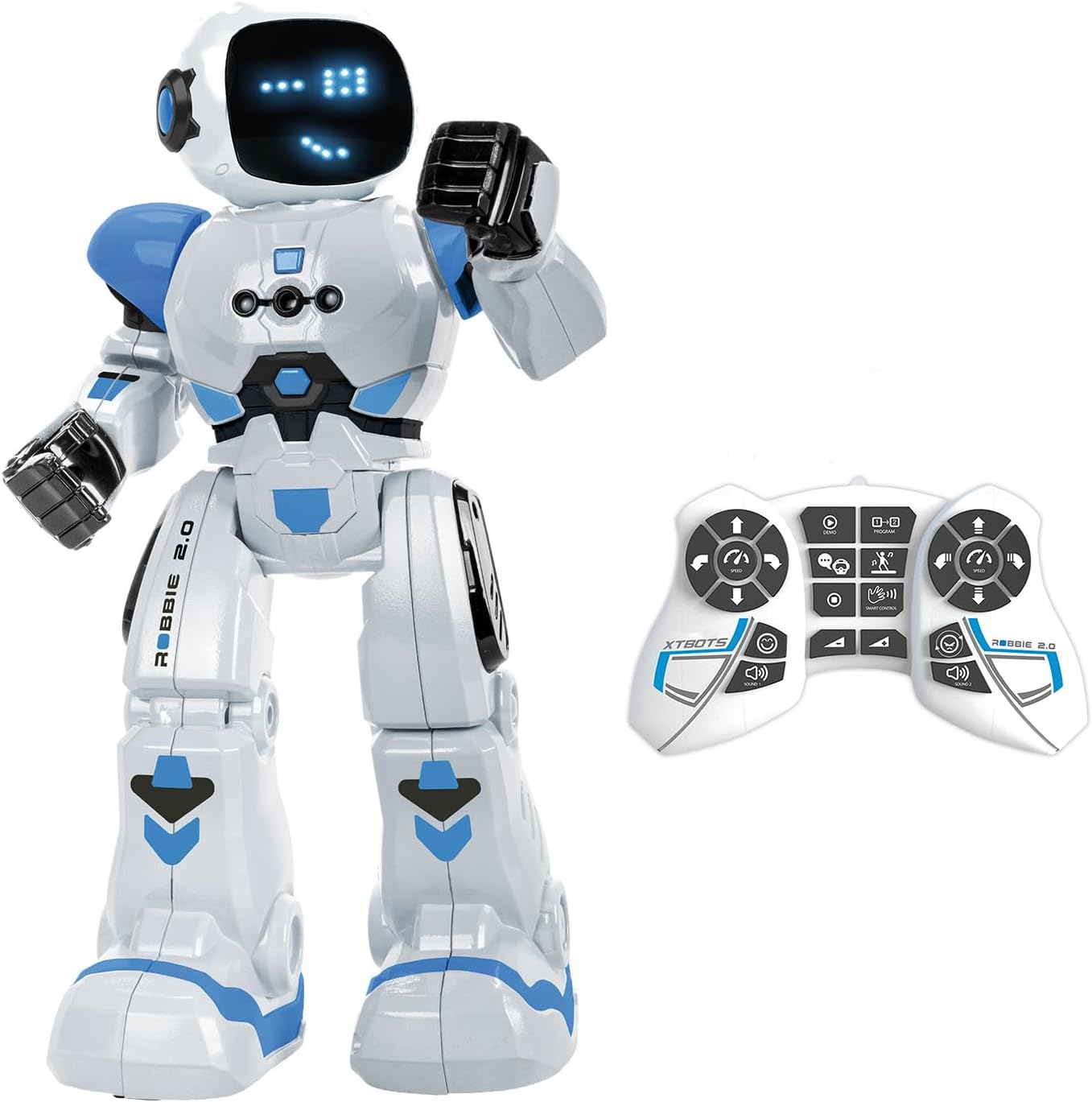
Image 1.1: The Xtrem Bots Robbie robot with its remote control.
2. Package Contents
Please ensure all items are present in the package:
- 1 x Xtrem Bots Robbie Robot
- 1 x Remote Control
- 1 x USB Charging Cable (for robot)
- 1 x Instruction Manual (this document)

Image 2.1: The Robbie robot packaging, showing included items.
3. Setup
3.1 Battery Installation and Charging
The Robbie robot uses a rechargeable battery, which is included. The remote control requires two batteries, which are not included for safety reasons during transport.
Robot Charging:
- Locate the charging port on the robot.
- Connect the small end of the USB charging cable to the robot's charging port.
- Connect the larger end of the USB charging cable to a standard USB power source (e.g., computer USB port, USB wall adapter).
- The robot's indicator light will show charging status (refer to robot's specific light behavior for full/charging status).
- Allow sufficient time for a full charge before first use.

Image 3.1: Robbie robot being charged via USB.
Remote Control Battery Installation:
- Locate the battery compartment on the back of the remote control.
- Open the battery compartment cover.
- Insert two new batteries, ensuring correct polarity (+/-).
- Close the battery compartment cover securely.
3.2 Powering On/Off
- Robot: Locate the power switch on the robot (usually on the back or bottom). Slide it to the 'ON' position to power on. Slide to 'OFF' to power off.
- Remote Control: The remote control typically powers on automatically when a button is pressed after battery installation. It may have an 'ON/OFF' switch or enter standby mode after a period of inactivity.
4. Operating Instructions
Robbie can be controlled via the remote control or through gesture commands.
4.1 Remote Control Functions
The remote control allows for various actions and modes:
- Directional Movement: Use the directional buttons to move Robbie forward, backward, left, and right.
- Speed Control: Adjust Robbie's movement speed.
- Volume Adjustment: Control the robot's sound output level.
- Dance Mode: Activate a pre-programmed dance sequence.
- Programmable Mode: Enter programming mode to create custom action sequences.
- Sounds and Lights: Robbie features robotic sounds and 26 blue LED lights that display up to 20 different facial expressions.

Image 4.1: Robbie robot and its remote control, highlighting various functions.
4.2 Gesture Control
Robbie can respond to hand gestures. Ensure the robot is in gesture control mode (refer to remote control instructions for activation) and perform the specified gestures within the robot's sensor range.

Image 4.2: Demonstrating gesture control for the Robbie robot.
4.3 Programming Mode
Robbie allows you to program up to 50 sequential movements. To enter programming mode:
- Press the 'Program' button on the remote control.
- Input your desired sequence of movements using the directional and action buttons.
- Press the 'Play' or 'Execute' button to make Robbie perform the programmed sequence.

Image 4.3: Visualizing the programming sequence for Robbie.
4.4 Dance Mode
Activate Dance Mode to watch Robbie perform various dance routines accompanied by music and light effects.

Image 4.4: Robbie robot dancing, entertaining a family.
5. Maintenance
5.1 Cleaning
To clean your Robbie robot, gently wipe its surface with a dry, soft cloth. Do not use water or cleaning solutions, as this may damage the electronic components. Avoid exposing the robot to excessive dust or dirt.
5.2 Battery Care
- Always ensure the robot's rechargeable battery is fully charged before extended play.
- If the robot will not be used for a long period, fully charge its battery and store it in a cool, dry place.
- For the remote control, remove batteries if not in use for an extended period to prevent leakage.
6. Troubleshooting
| Problem | Possible Cause | Solution |
|---|---|---|
| Robot does not turn on. | Low or depleted battery. | Charge the robot's battery using the USB cable. |
| Remote control not working. | Remote control batteries are low or incorrectly installed. | Replace remote control batteries, ensuring correct polarity. |
| Robot not responding to commands. | Robot and remote control are out of range or not paired. | Ensure robot and remote are within operating range. Power cycle both devices. |
| Robot's movements are erratic. | Interference or low robot battery. | Move to an area with less interference. Charge the robot's battery. |
7. Specifications
- Model: Robbie
- Brand: Xtrem Bots
- Product Dimensions: 12.8 x 25.7 x 31.7 cm
- Weight: 830 grams
- Recommended Age: 5 years and up
- Educational Value: Programming and robotics learning
- Material: Plastic
- Robot Battery: Rechargeable (included)
- Remote Control Batteries: 2 x (not included)
- Programmable Actions: Up to 50
- Facial Expressions: 20 (via 26 blue LEDs)

Image 7.1: Robbie robot with its height measurement.
8. Warranty and Support
For warranty information and customer support, please refer to the official Xtrem Bots website or contact the retailer where the product was purchased. Keep your proof of purchase for warranty claims.
9. Official Product Videos
No official product videos from the seller were provided in the product data. Please refer to the manufacturer's official channels for any available video content.


