
FOREVER KW-60
FOREVER Smartwatch Kids Call Me 2 KW-60 User Manual
Model: KW-60
1. Introduction
The FOREVER Smartwatch Kids Call Me 2 KW-60 is designed to provide safety and communication for children. This manual will guide you through the setup, operation, and maintenance of your new smartwatch, ensuring a safe and enjoyable experience for your child.

Image: The FOREVER Smartwatch Kids Call Me 2 KW-60 in blue, shown from an angled perspective, highlighting its screen and side buttons.
2. Package Contents
Please check the package for the following items:
- FOREVER Smartwatch Kids Call Me 2 KW-60
- USB Charging Cable
- User Manual (this document)

Image: The FOREVER Smartwatch KW-60 displayed next to its green retail packaging, illustrating the product as it appears in its box.
3. Setup Guide
3.1 Initial Charging
Before first use, fully charge the smartwatch. Connect the USB charging cable to the watch's charging port and plug the other end into a USB power adapter (not included) or a computer's USB port. The charging indicator will show the progress.
3.2 SIM Card Installation
The KW-60 requires a 2G Micro SIM card for call and data functions. Ensure the SIM card is active and has sufficient credit/data. Turn off the watch before inserting the SIM card.
- Locate the SIM card slot on the side or back of the watch.
- Carefully open the SIM card tray cover.
- Insert the Micro SIM card with the gold contacts facing up and the notched corner aligned correctly.
- Close the SIM card tray cover securely.
3.3 App Installation and Pairing
To manage the smartwatch and access all its features, download the Forever KidsCare application on your smartphone. The app is compatible with Android 5.0 or later and iOS 10.0 or later.
- Scan the QR code provided in the watch's packaging or search for "Forever KidsCare" in your smartphone's app store.
- Install and open the application.
- Register a new account or log in if you already have one.
- In the app, select "Add Device" and scan the QR code displayed on the smartwatch screen (or enter the device ID manually).
- Follow the on-screen instructions to complete the pairing process.
4. Operating Instructions
4.1 Basic Navigation
The KW-60 features a touch screen for easy navigation. Swipe left/right or up/down to browse through menus and tap to select options.
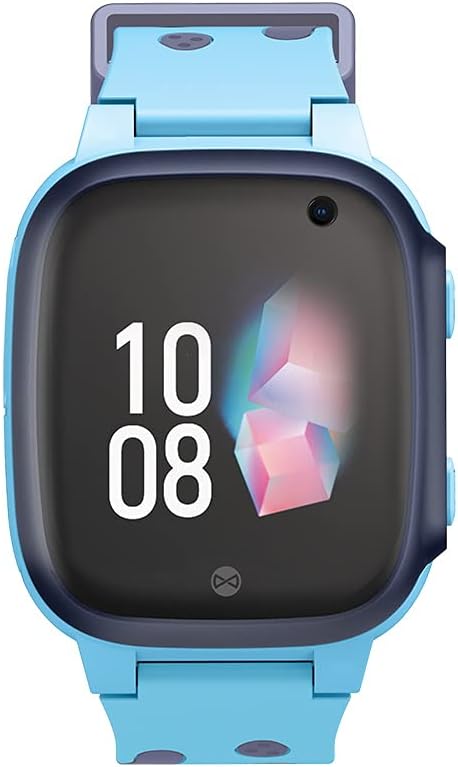
Image: A direct front view of the FOREVER Smartwatch KW-60, showing its display with time and date, and the integrated camera lens.
4.2 Making and Receiving Calls
The watch allows calls to and from up to 10 registered numbers. These numbers must be set up by the parent/guardian through the Forever KidsCare app.
- Making a Call: From the watch's phonebook, select a contact and tap to dial.
- Receiving a Call: When a call comes in, tap the green answer icon on the screen.
4.3 SOS Function
In case of emergency, the child can press and hold the SOS button on the side of the watch. This will automatically dial pre-set emergency contacts until one answers, and send a location alert to the parent's app.
4.4 Location Tracking (GPS/LBS)
The smartwatch uses GPS and LBS (Location Based Service) to track the child's location, which can be viewed in real-time on the Forever KidsCare app. You can also define safe zones on the map; an alert will be sent to your phone if the child enters or leaves these zones.

Image: The FOREVER Smartwatch KW-60 positioned over a stylized map with various colored location pins, illustrating its tracking capabilities.
4.5 Camera and Photo Sharing
The watch is equipped with a camera. Children can take photos directly from the watch. Parents can also remotely activate the camera via the app to check the child's surroundings.

Image: A hand interacting with the FOREVER Smartwatch KW-60, with chat bubbles displaying "Hi!", "OK", and "Yes!", indicating communication features.
4.6 Messaging (SMS)
The watch supports text messaging. Children can send and receive messages from approved contacts.
4.7 Alarm Clock, Flashlight, and Games
- Alarm Clock: Set alarms via the app for reminders like wake-up times or study breaks.
- Flashlight: A built-in flashlight can be activated from the watch's menu.
- Games: The watch includes pre-installed games for entertainment.
5. Maintenance
5.1 Cleaning
Wipe the watch regularly with a soft, dry cloth. For stubborn dirt, slightly dampen the cloth with water. Do not use harsh chemicals or abrasive cleaners.
5.2 Battery Care
- Avoid extreme temperatures, as they can affect battery life.
- Charge the watch regularly, but avoid leaving it fully discharged for extended periods.
- Use only the provided charging cable.
5.3 Storage
When not in use for a long time, store the watch in a cool, dry place, away from direct sunlight. Ensure it has some charge to prevent deep discharge.
6. Troubleshooting
| Problem | Possible Cause | Solution |
|---|---|---|
| Watch not turning on | Low battery; Power button not pressed long enough; System crash. | Charge the watch; Press and hold the power button for 5-10 seconds; Perform a soft reset (if applicable, check device specific instructions). |
| No network signal / Cannot make calls | SIM card not inserted correctly; SIM card inactive/no credit; Poor network coverage. | Reinsert SIM card; Check SIM card status with provider; Move to an area with better signal. |
| GPS location inaccurate | Weak GPS signal (indoors/dense areas); LBS used instead of GPS. | Move to an open outdoor area; Ensure watch has clear sky view. |
| Cannot pair with app | Incorrect device ID/QR code; Watch not powered on; App issues. | Verify ID/QR code; Ensure watch is on; Restart app and watch; Check app permissions. |
| Battery drains quickly | Frequent GPS updates; High screen brightness; Excessive usage. | Adjust GPS update frequency in app; Lower screen brightness; Reduce continuous usage. |
7. Specifications
- Brand: FOREVER
- Model Name: KW-60
- Operating System: Android Wear 2.6
- Screen Size: 3.66 Centimeters
- Connectivity: Bluetooth
- Special Features: Camera, GPS, Alarm Clock
- Compatible Devices: Smartphone
- Battery Composition: Lithium-ion
- Rechargeable Battery: Yes
- ASIN: B09HHNTT8B
- Date of Availability: June 5, 2022
8. Warranty and Support
For detailed warranty information and technical support, please refer to the warranty card included with your product or visit the official FOREVER website. Keep your purchase receipt as proof of purchase for warranty claims.
For further assistance, you may contact FOREVER customer service through their official channels.
Related documentsKW-60


Ask a question about this manual
Ask about setup, troubleshooting, compatibility, parts, safety, or missing instructions. Manuals+ will review the question and use this page’s manual context to help answer it.