
Apple Apple Watch Series 7 GPS 41mm
Apple Watch Series 7 GPS 41mm User Manual
Model: MKN03LL/A
1. Introduction
This manual provides comprehensive instructions for the Apple Watch Series 7 GPS 41mm. It covers device setup, operational procedures, maintenance guidelines, troubleshooting common issues, and detailed product specifications. Familiarize yourself with this guide to ensure optimal use and longevity of your device.
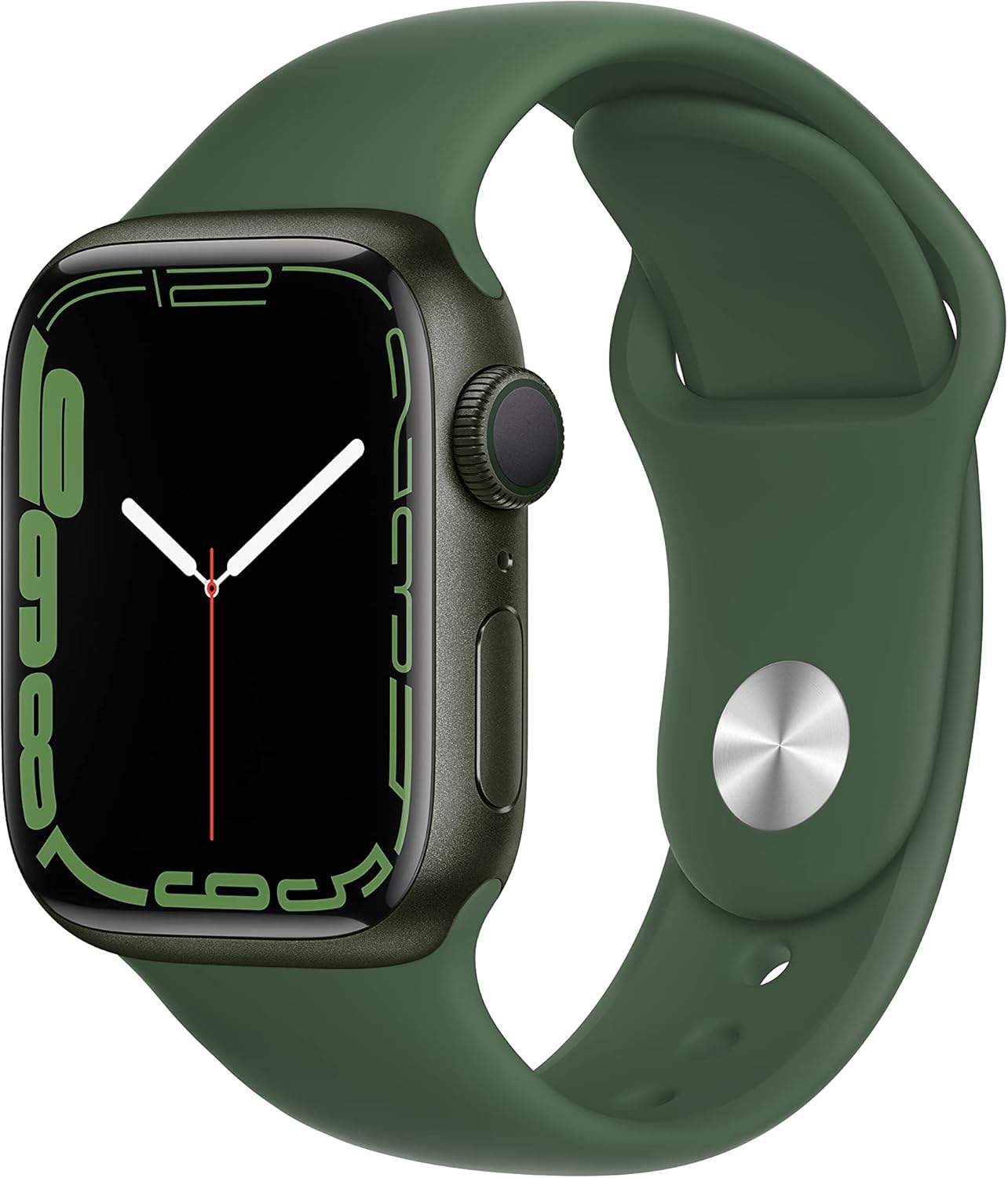
Image 1.1: The Apple Watch Series 7 GPS 41mm, featuring a green aluminum case and a clover sport band. The display shows a digital watch face.
2. What's in the Box
Upon unboxing your Apple Watch Series 7, verify that all components are present:
- Apple Watch Series 7 (Case)
- Sport Band (Clover)
- 1m Magnetic Charging Cable
Note: A power adapter is not included and must be purchased separately.

Image 2.1: Depiction of the Apple Watch Series 7 components included in the retail packaging: the watch case, the sport band, and the USB-C magnetic fast charging cable.
3. Setup
3.1 Initial Charging
Before first use, fully charge your Apple Watch. Connect the magnetic charging cable to the back of the watch and plug the USB-C end into a compatible power adapter (sold separately). The watch will display a charging indicator.
3.2 Pairing with iPhone
- Ensure your iPhone is updated to the latest iOS version and has Bluetooth enabled.
- Power on your Apple Watch by pressing and holding the side button until the Apple logo appears.
- Place your iPhone near your Apple Watch. A pairing screen will appear on your iPhone. Tap "Continue."
- Position your iPhone so the Apple Watch appears in the viewfinder. This will pair the devices.
- Follow the on-screen instructions on both your iPhone and Apple Watch to complete the setup, including setting a passcode, installing apps, and configuring health features.
4. Operating Your Apple Watch
4.1 Navigation and Controls
- Digital Crown: Rotate to scroll, zoom, or adjust values. Press once to go to the watch face or app list. Double-press to switch between recently used apps. Press and hold for Siri.
- Side Button: Press once to open the Dock (recently used apps). Press and hold to access Emergency SOS, Medical ID, and power options. Double-press for Apple Pay.
- Touch Display: Tap to select, swipe to navigate, force touch for additional options (on supported apps).
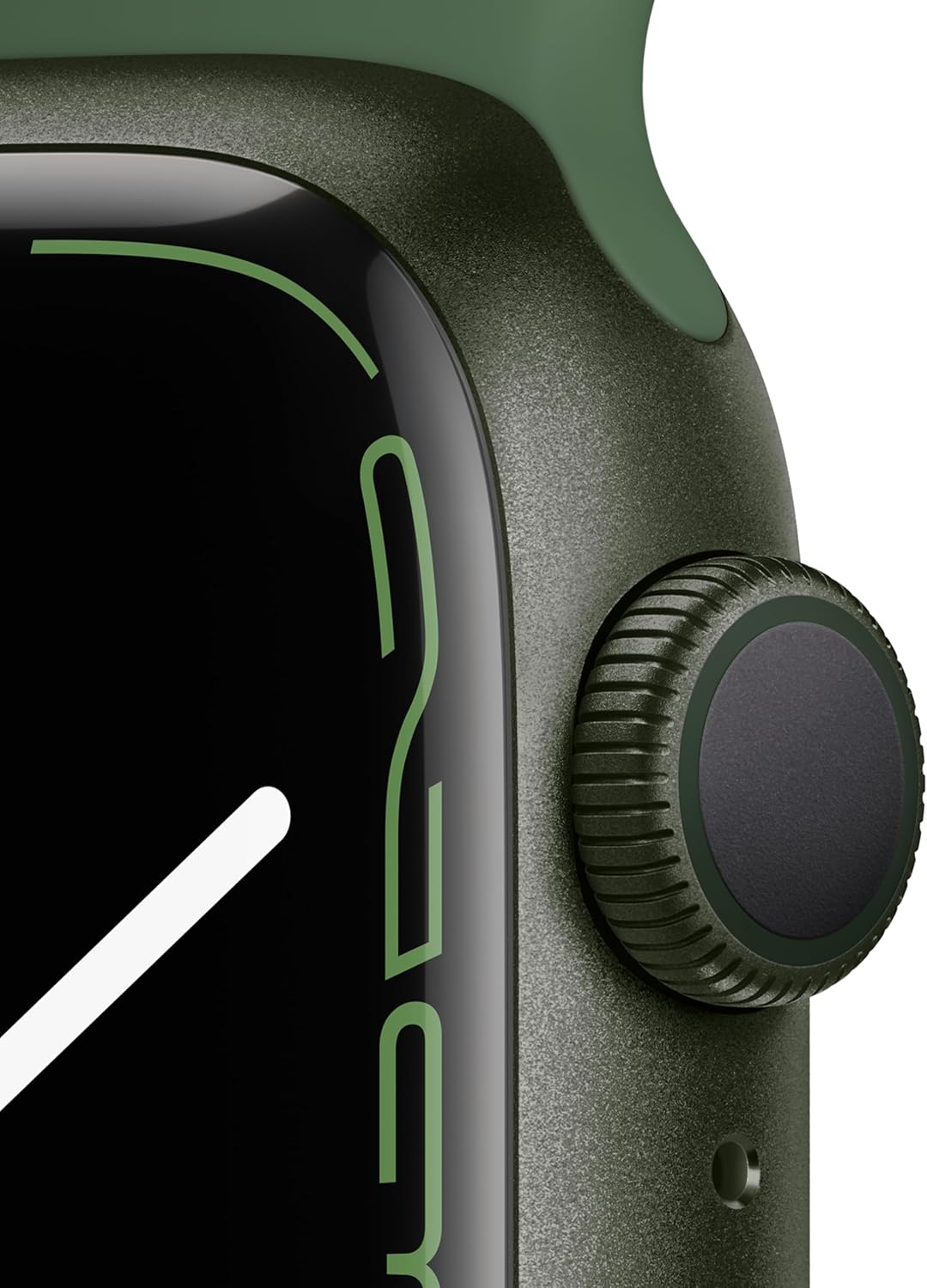
Image 4.1: A detailed view of the Apple Watch Series 7's Digital Crown and side button, key components for device interaction.
4.2 Always-On Retina Display
The Apple Watch Series 7 features an Always-On Retina display, allowing you to see the time and complications without raising your wrist or tapping the screen. The display dims when your wrist is down and brightens when raised.
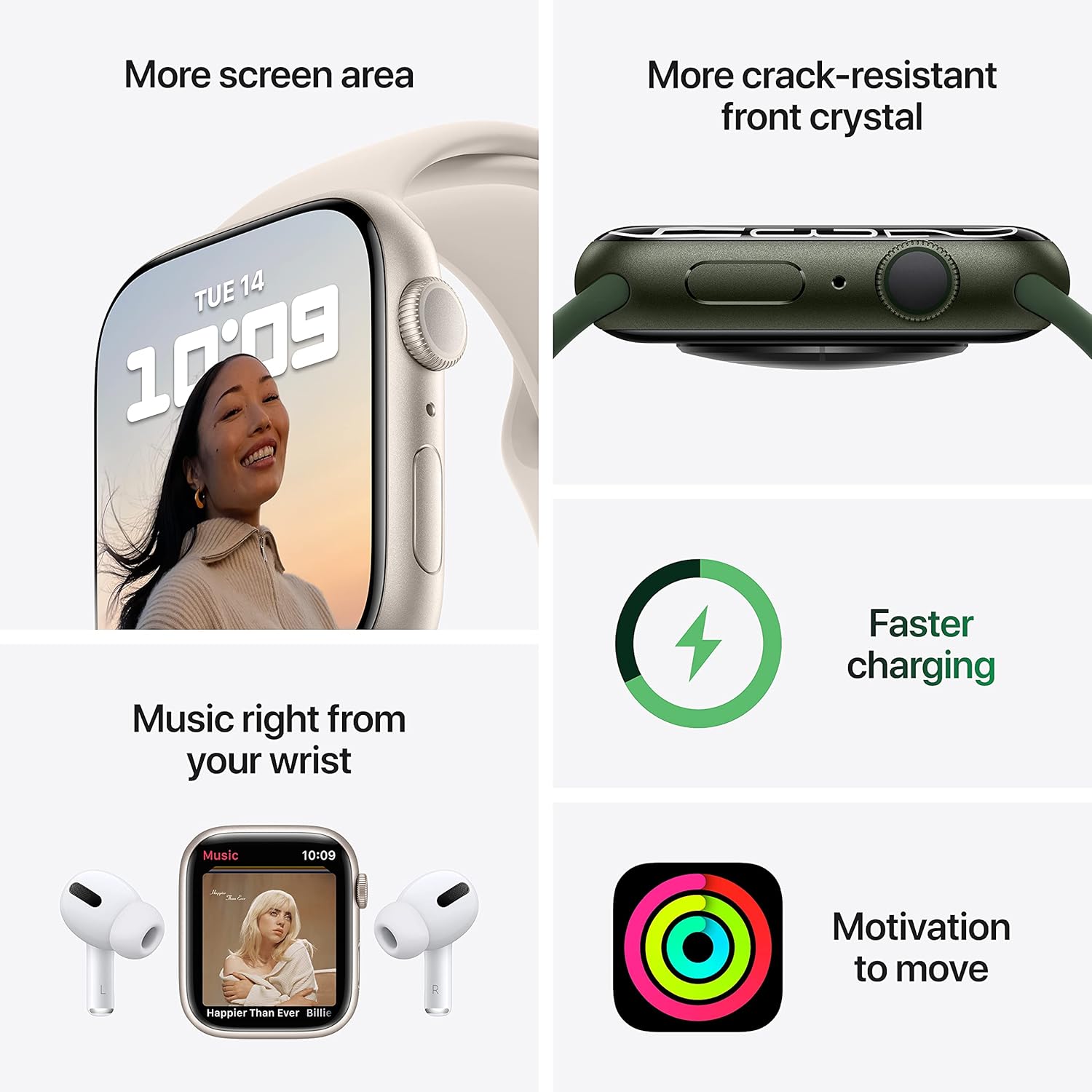
Image 4.2: This image highlights the expanded screen area of the Apple Watch Series 7 and indicates its faster charging capability. It also shows music playback and activity rings.
4.3 Health and Wellness Features
- Blood Oxygen App: Measure your blood oxygen saturation directly from your wrist. Open the Blood Oxygen app and follow the instructions.
- ECG App: Take an electrocardiogram to record your heart's electrical activity. Open the ECG app and place your finger on the Digital Crown.
- Heart Rate Monitoring: The watch continuously monitors your heart rate and can provide notifications for unusually high or low heart rates, or irregular heart rhythms.
- Sleep Tracking: Track your sleep patterns and trends by wearing your watch to bed.
- Fall Detection: If a hard fall is detected, your watch can initiate an Emergency SOS call if you are unresponsive.

Image 4.3: Screenshots from the Apple Watch Series 7 demonstrating its health monitoring capabilities, including taking an ECG, measuring blood oxygen levels, and checking heart rate.
4.4 Fitness Tracking
The Activity app tracks your daily movement, exercise, and stand goals through three rings: Move, Exercise, and Stand. Close your rings daily to achieve your fitness goals. The Workout app allows you to track various exercises with detailed metrics.

Image 4.4: The Apple Watch Series 7 displaying workout statistics, including duration, heart rate, and calories burned, alongside the Activity app's rings.
4.5 Connectivity
With GPS functionality, your Apple Watch can track your location and provide navigation. When connected to your iPhone or a Wi-Fi network, you can send messages, make calls, listen to music, use Siri, and access Emergency SOS features.
5. Maintenance
5.1 Charging
For optimal battery health, charge your Apple Watch regularly. The Series 7 supports faster charging, allowing for quicker power replenishment. Use the provided magnetic charging cable and a compatible USB-C power adapter.
5.2 Cleaning Your Apple Watch
- Turn off your Apple Watch and disconnect it from the charger.
- Wipe the watch with a non-abrasive, lint-free cloth. If necessary, lightly dampen the cloth with fresh water.
- Dry the watch thoroughly with a soft, lint-free cloth.
- For the band, follow specific cleaning instructions based on its material (e.g., silicone bands can be wiped with a damp cloth).
5.3 Water Resistance
The Apple Watch Series 7 is water resistant up to 50 meters. It can be used for shallow-water activities like swimming in a pool or ocean. It should not be used for scuba diving, waterskiing, or other activities involving high-velocity water or submersion below shallow depths. Water resistance is not a permanent condition and may diminish over time.
6. Troubleshooting
6.1 Common Issues and Solutions
- Watch not pairing: Ensure your iPhone's Bluetooth is on, both devices are charged, and your iPhone is running the latest iOS. Try restarting both devices.
- Battery draining quickly: Check for background app refresh, reduce screen brightness, disable unnecessary notifications, and ensure your watchOS is up to date.
- Apps not responding: Force quit the app by pressing the side button, then the Digital Crown to return to the app list, swipe left on the app, and tap the 'X' to close. Reopen the app.
- Watch not turning on: Ensure the watch is charged. If it still doesn't turn on, try a force restart (press and hold both the side button and Digital Crown for at least 10 seconds until you see the Apple logo).
6.2 Resetting Your Apple Watch
If issues persist, you may need to reset your Apple Watch. This will erase all content and settings. On your Apple Watch, go to Settings > General > Reset > Erase All Content and Settings. You will need to re-pair it with your iPhone after a reset.
7. Specifications
| Feature | Detail |
|---|---|
| Model Name | Apple Watch Series 7 |
| Model Number | MKN03LL/A |
| Case Size | 41mm |
| Connectivity | GPS, Wi-Fi (802.11bgn), Bluetooth, USB |
| Operating System | WatchOS |
| Display | Always-On Retina Display |
| Sensors | Blood Oxygen Sensor, Electrical Heart Sensor (ECG), Optical Heart Sensor, Altimeter, Accelerometer, Gyroscope, Ambient Light Sensor |
| Water Resistance | 50 meters |
| Battery Type | Lithium Ion (1 included) |
| Dimensions (Product) | 11.65 x 2.99 x 1.42 inches |
| Item Weight | 13.4 ounces |
| Date First Available | September 28, 2021 |
8. Warranty and Support
8.1 Limited Warranty
Your Apple Watch Series 7 comes with a one-year limited hardware warranty provided by Apple. This warranty covers manufacturing defects and issues under normal use conditions. For full details, refer to the warranty documentation included with your product or visit Apple's official website.
8.2 AppleCare+
AppleCare+ is an optional extended service plan that provides additional hardware coverage and technical support beyond the standard limited warranty. It may also include coverage for accidental damage incidents. For more information on AppleCare+ plans and pricing, visit the Apple website or an authorized Apple retailer.
8.3 Technical Support
For technical assistance, troubleshooting, or service inquiries, you can contact Apple Support. Support options include online resources, chat, and phone support. Ensure you have your device's serial number ready when contacting support.
Online Support: support.apple.com/watch
Related documentsApple Watch Series 7 GPS 41mm


Ask a question about this manual
Ask about setup, troubleshooting, compatibility, parts, safety, or missing instructions. Manuals+ will review the question and use this page’s manual context to help answer it.