
1. Introduction
The iCubeSmart 3D8P LED Cube is a do-it-yourself electronic kit designed for enthusiasts to assemble a stunning 3D LED display. This kit requires soldering and basic electronics knowledge. Once assembled, the cube can display a variety of pre-programmed dynamic animation effects, offering an engaging visual experience.
The main board is pre-tested and comes with over 20 built-in animation effects. Users will primarily focus on soldering the LED components and assembling the cube structure.
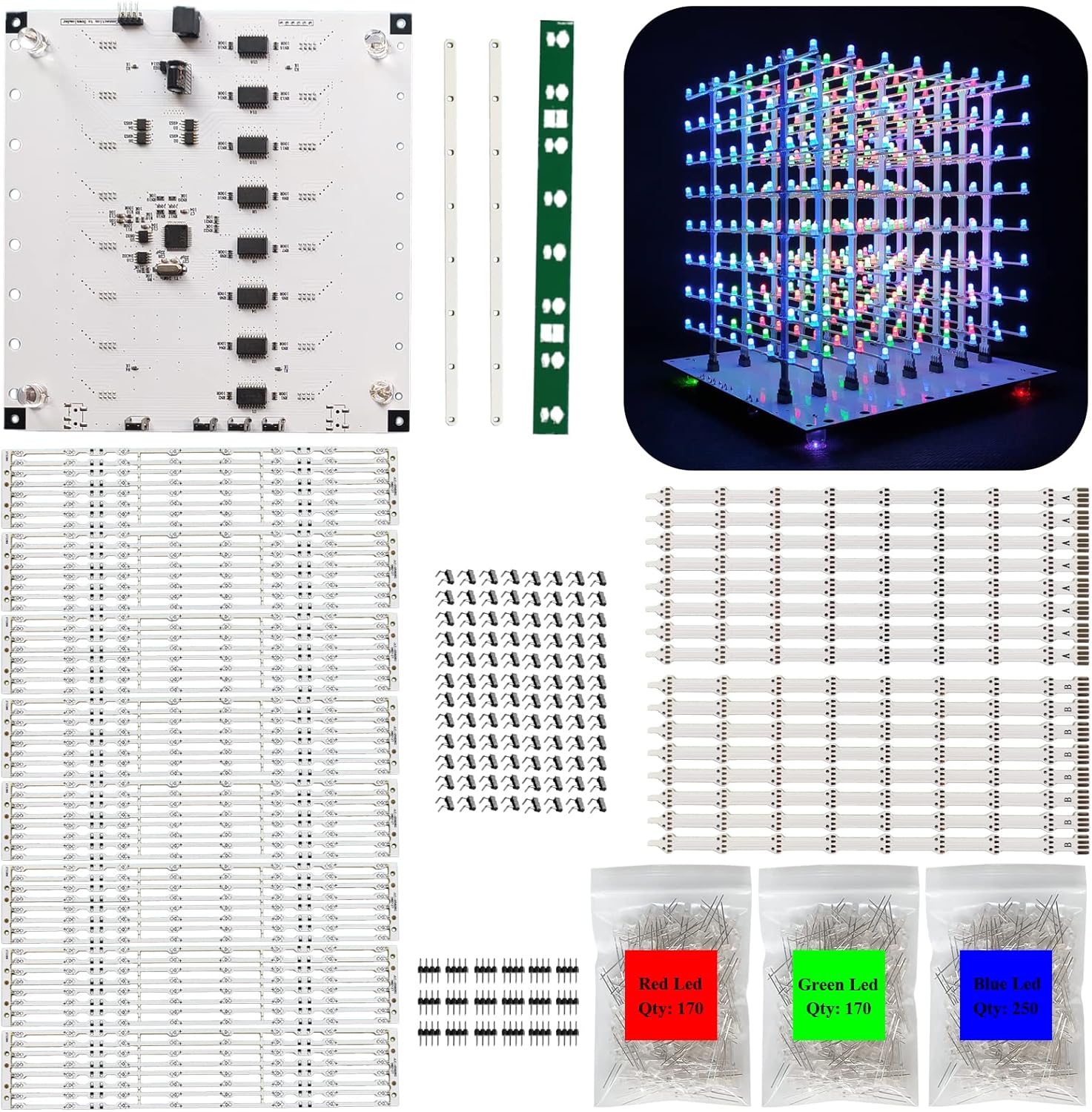
Image: Overview of the iCubeSmart 3D8P LED Cube kit, showing the main board, LED strips, individual LEDs, and the fully assembled cube displaying colorful patterns.
2. Package Contents
Please verify that all the following components are included in your package before beginning assembly:
- 1 x Tested Main Board (pre-soldered)
- 64 x LED Lamp Bead PCBs
- 16 x Corresponding PCBs
- 128 x 2P Pin Headers
- 16 x 8P Pin Headers
- 1 x LED Soldering Bracket
- 2 x Lamp Anchor Brackets
- 250 x Blue LEDs (224 used, spares included)
- 170 x Green LEDs (144 used, spares included)
- 250 x Red LEDs (224 used, spares included)
- 1 x Program Downloader + DuPont Line
- 1 x Power Cord (USB)
- 1 x Instruction Manual (paper)

Image: All individual components of the iCubeSmart 3D8P LED Cube kit, including the main board, various PCBs, pin headers, and bags of red, green, and blue LEDs.

Image: A closer view of some of the smaller components, including different types of PCBs and bags of pin headers, essential for the cube's construction.
3. Specifications
| Component | Specification |
|---|---|
| Microcontroller | STC12C5A60S2 |
| Driver Chip | 74HC573 + APM4953 |
| LED Configuration | 8x8x8 LED Matrix (144 Red, 144 Green, 224 Blue LEDs used) |
| Power Supply | 5V USB |
| Finished Product Dimensions | 18 cm (L) x 18.5 cm (W) x 19 cm (H) |

Image: Visual representation of the assembled LED cube with its dimensions clearly marked: 18 cm in length, 18.5 cm in width, and 19 cm in height.
4. Assembly Instructions (Setup)
This kit requires users to perform soldering. It is essential to have basic electronics knowledge and soldering skills, along with necessary tools such as a soldering iron, solder wire, and other soldering accessories. The main board is pre-soldered and tested, so your primary task will be soldering the LEDs and PCB brackets.
General Soldering Tips:
- Ensure your soldering iron tip is clean and properly tinned.
- Apply heat to both the component lead and the PCB pad simultaneously.
- Apply a small amount of solder to the heated joint, allowing it to flow smoothly.
- Remove the solder and then the iron. A good solder joint should be shiny and cone-shaped.
- Avoid overheating components.
Assembly Steps Overview:
Refer to the detailed paper instruction manual included in your kit for comprehensive, step-by-step guidance. The following images provide a visual overview of key assembly stages:

Image: A comprehensive diagram illustrating the detailed assembly process, from soldering individual LEDs onto strips to connecting layers and mounting them onto the main board.

Image: A close-up view demonstrating the soldering process of LED components onto a PCB strip, highlighting the precision required for proper connections.
Key Steps:
- Prepare LED Strips: Solder the individual LEDs onto the narrow PCB strips. Pay attention to LED polarity (long pin is positive, short pin is negative).
- Assemble Layers: Connect the horizontal LED strips with the vertical PCB boards to form 8x8 LED layers.
- Create the Cube Structure: Stack and solder the completed LED layers together to form the 3D cube.
- Mount to Main Board: Carefully align and solder the completed LED cube structure onto the pre-tested main board.
- Final Connections: Ensure all connections are secure and free of solder bridges.
5. Operating Instructions
Once assembly is complete, connect the provided USB power cord to the main board and a 5V USB power source. The LED cube will automatically power on and begin displaying its pre-programmed animation effects.
Controlling Animation Effects:
The main board features four buttons to control the dynamic display effects:
- Button 1 (Start/Pause): Press to start or pause the current dynamic effect.
- Button 2 (Cycle Mode): Press to switch between single dynamic effect mode and continuous cycle mode.
- Button 3 (Next Effect): Press to advance to the next animation effect.
- Button 4 (Reset): Press to reset the cube to its initial state or default animation.

Image: The iCubeSmart 3D8P LED Cube showcasing its ability to display vibrant patterns in single colors (red, green, blue) and a dynamic multi-color combination.
Customizing Animations:
The kit allows users to modify displayed text and dynamic effects. You can also change the displayed content for free. Dynamic display effects can be altered using 3D software, and C code is not required, making it very simple to customize.

Image: Screenshot of the 3D software interface used to customize and program new animation effects for the LED cube, showing various patterns and control options.
6. Maintenance
The iCubeSmart 3D8P LED Cube is designed for durability once assembled. To ensure its longevity and optimal performance, follow these simple maintenance guidelines:
- Cleaning: Gently wipe the cube with a soft, dry cloth to remove dust. Avoid using abrasive cleaners or excessive moisture, which could damage the electronic components.
- Handling: Handle the assembled cube with care. Avoid dropping it or applying excessive force, as this could damage the soldered connections or the LED structure.
- Power Supply: Always use a stable 5V USB power supply. Using an incorrect voltage or an unstable power source can damage the LEDs or the main board.
- Storage: When not in use, store the cube in a cool, dry place away from direct sunlight and extreme temperatures.
- Spare Parts: The kit includes spare LEDs. In case an LED fails after assembly, it can be replaced by carefully desoldering the faulty LED and soldering a new one in its place.
7. Troubleshooting
If you encounter any issues with your iCubeSmart 3D8P LED Cube, please refer to the following common troubleshooting steps:
- No Lights or Partial Lights:
- Check the 5V USB power connection. Ensure it is securely plugged in and providing power.
- Inspect all soldered joints, especially for the affected LEDs or layers. Look for cold solder joints (dull, lumpy appearance) or solder bridges (solder connecting two points that should not be connected). Re-solder as necessary.
- Verify the polarity of the LEDs. If an LED is installed backward, it will not light up.
- Test individual LEDs if possible. Use a multimeter or a small battery (e.g., 3V coin cell) with appropriate current limiting resistor to check if the LED itself is functional. Replace any faulty LEDs using the provided spares.
- Incorrect Animation or No Animation Change:
- Ensure the control buttons on the main board are functioning correctly. Press them firmly.
- If you have attempted to re-program the cube, ensure the program downloader is correctly connected and the programming process was successful.
- Cube Not Stable:
- Check the structural integrity of the soldered layers. Ensure all connections are strong and the cube is not wobbly.
- Verify that the cube is securely mounted to the main board.
If you have followed these troubleshooting steps and are still experiencing issues, please contact our technical support team for assistance.
8. Technical Support & Warranty
iCubeSmart is committed to providing comprehensive technical support for our DIY products. We have professional technicians available to assist you with any issues you may encounter during the installation or operation of your LED cube.
If you have questions or require assistance, please feel free to send us a message. We offer lifetime technical support service for our DIY products.
For warranty information, please refer to the specific terms and conditions provided with your purchase or contact our customer service directly.


