
1. Introduction
This manual provides detailed instructions for the setup, operation, maintenance, and troubleshooting of your UPERFECT 15.6-inch Portable Monitor. This monitor is designed to enhance your productivity and entertainment experience by providing a versatile, high-definition display solution for various devices.
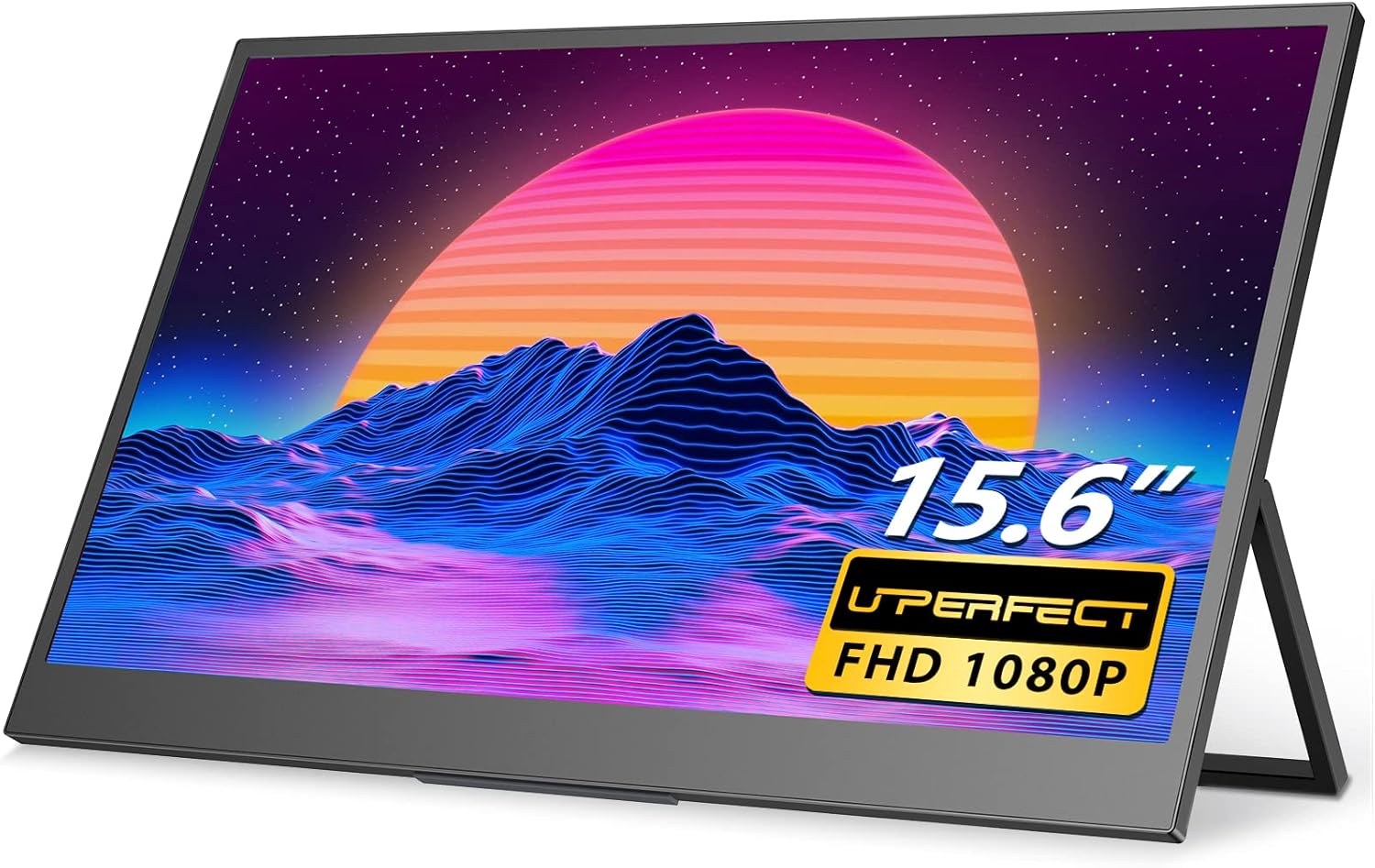
Figure 1.1: UPERFECT 15.6-inch Portable Monitor.
2. Key Features
The UPERFECT Portable Monitor offers a range of features designed for optimal performance and portability:
- 15.6-inch Full HD (1080P) Display: Provides crisp and clear visuals.
- HDR Support: Enhances contrast and color accuracy for a more dynamic viewing experience.
- 350 cd/m² Brightness: Offers improved visibility in various lighting conditions.
- Ultra-Slim and Lightweight Design: Weighing approximately 2 pounds, it is highly portable for travel and on-the-go use.
- Integrated Foldable Kickstand: Allows for flexible viewing angles and stable placement.
- VESA Mount Compatibility: Supports 75x75 VESA mounting for alternative setup options.
- Versatile Connectivity: Equipped with two USB-C ports (one on each side) and one Mini HDMI port for broad device compatibility.
- Built-in Dual Stereo Speakers: Provides audio output without external speakers.
- 3 Milliseconds Response Time: Ensures smooth visuals, particularly beneficial for gaming.

Figure 2.1: Brightness comparison, highlighting the UPERFECT monitor's superior luminance.

Figure 2.2: The monitor features an integrated kickstand with 180-degree adjustability.

Figure 2.3: The monitor's lightweight and thin design for enhanced portability.
3. Package Contents
Please verify that all items are present in the package:
- UPERFECT 15.6-inch Portable Monitor
- USB-A Power Adapter (15W)
- USB-C to USB-C Cable
- Mini HDMI to HDMI Cable
- USB-A to USB-C Cable
4. Setup and Connections
This section details how to connect your portable monitor to various devices.
4.1. Port Overview
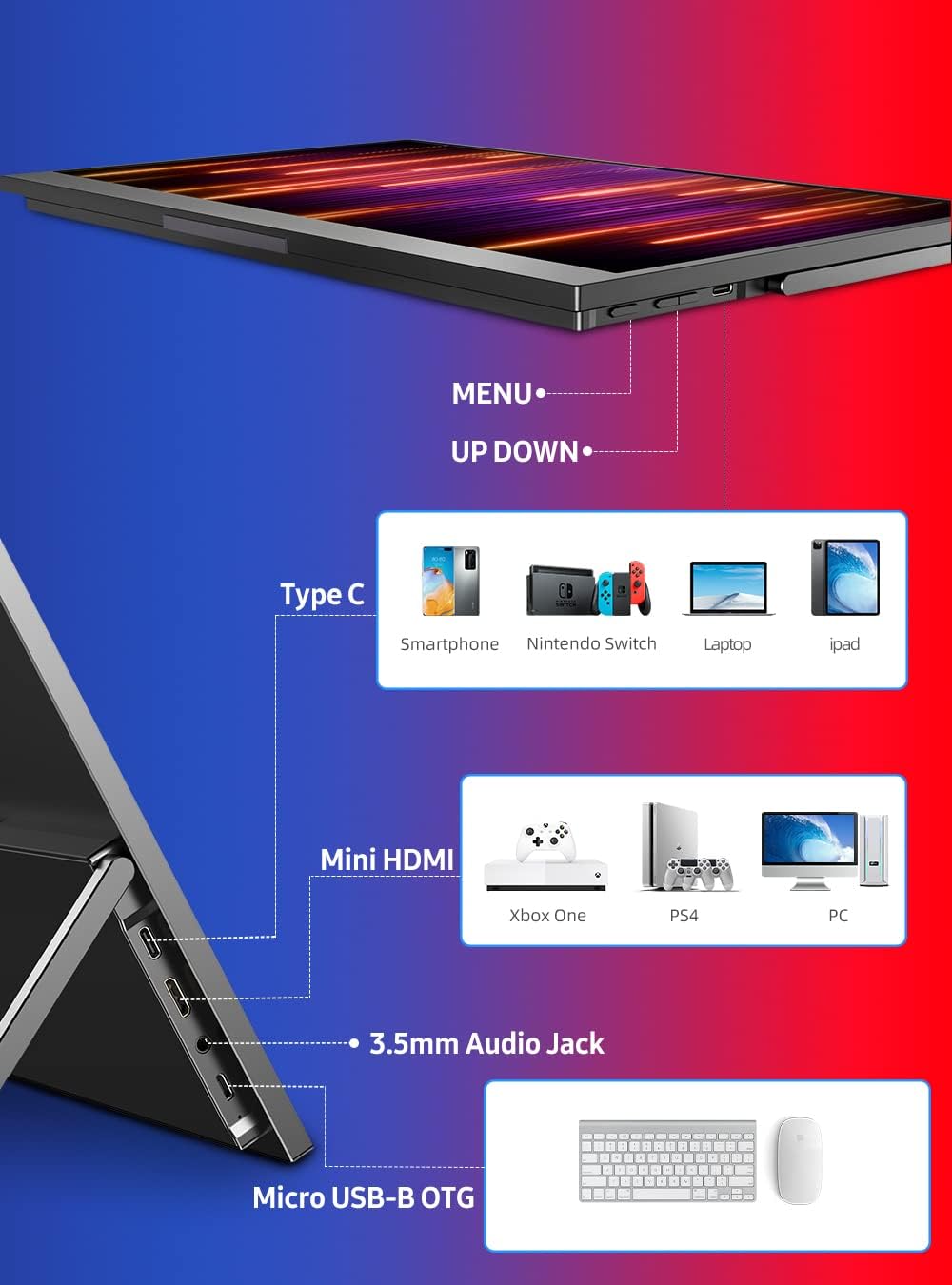
Figure 4.1: Overview of monitor ports and control buttons.
- USB-C Ports (x2): For power, video, and audio transmission with compatible devices.
- Mini HDMI Port: For video and audio input from devices with HDMI output.
- 3.5mm Audio Jack: For connecting external headphones or speakers.
- Micro USB-B OTG: For connecting a keyboard or mouse.
4.2. Connecting to Devices
Ensure the monitor receives sufficient power for optimal performance. Power can be supplied via a USB-C port from a compatible device or an external power adapter.
- Laptop/PC (USB-C with DisplayPort Alt Mode):
- Connect one end of the USB-C to USB-C cable to your laptop's USB-C port (ensure it supports DisplayPort Alt Mode).
- Connect the other end to either USB-C port on the monitor.
- If the laptop cannot provide enough power, connect the monitor to the 15W USB-A power adapter using the USB-A to USB-C cable.

Figure 4.2: Powering the monitor via a power bank for extended use.
- Laptop/PC (HDMI):
- Connect one end of the Mini HDMI to HDMI cable to your laptop's HDMI port.
- Connect the Mini HDMI end to the monitor's Mini HDMI port.
- Connect the monitor to the 15W USB-A power adapter using the USB-A to USB-C cable for power.
- Gaming Consoles (Nintendo Switch, PS4, Xbox):
- For Nintendo Switch, connect via USB-C to USB-C cable. Ensure the Switch is powered.
- For PS4/Xbox, connect via Mini HDMI to HDMI cable.
- Always connect the monitor to the 15W USB-A power adapter using the USB-A to USB-C cable for power when connecting to gaming consoles.

Figure 4.3: Connecting the monitor to a Nintendo Switch for portable gaming.
- Smartphones:
- For phones supporting DisplayPort Alt Mode over USB-C, connect directly with a USB-C to USB-C cable.
- For other phones, an adapter (not included) may be required to convert to HDMI or USB-C video output.
- Ensure the monitor receives power from an external source if the phone cannot supply sufficient power.
5. Operating the Monitor
This section covers basic operation and OSD (On-Screen Display) menu navigation.
5.1. Power On/Off
- To power on, ensure the monitor is connected to a power source and a video input. The monitor will typically power on automatically.
- To power off, disconnect the power source.
5.2. OSD Menu Navigation
The monitor features physical buttons for navigating the OSD menu, typically labeled MENU, UP, and DOWN (refer to Figure 4.1 for button locations).
- Press the MENU button to open the OSD menu.
- Use the UP and DOWN buttons to navigate through menu options.
- Press the MENU button again to select an option or confirm a setting.
- To exit the OSD menu, navigate to the 'Exit' option or wait for the menu to time out.
5.3. Adjusting Settings
Within the OSD menu, you can adjust various display settings:
- Brightness/Contrast: Adjust the overall luminance and contrast ratio.
- Color Settings: Modify color temperature, hue, and saturation.
- Input Source: Manually select the video input (USB-C 1, USB-C 2, Mini HDMI).
- Aspect Ratio: Change between 16:9, 4:3, or other available ratios.
- Volume: Adjust the volume of the built-in speakers or connected headphones.
5.4. Screen Orientation
The monitor supports both horizontal (landscape) and vertical (portrait) orientations. This can be adjusted via your connected device's display settings.

Figure 5.1: Monitor used in both horizontal and vertical modes, showcasing VESA mount compatibility.
6. Maintenance and Care
Proper maintenance ensures the longevity and performance of your monitor.
- Cleaning the Screen: Use a soft, lint-free cloth slightly dampened with water or a non-abrasive screen cleaner. Avoid harsh chemicals or abrasive materials.
- Cleaning the Casing: Wipe the exterior with a soft, dry cloth.
- Storage: When not in use, store the monitor in a cool, dry place, away from direct sunlight and extreme temperatures.
- Handling: Avoid dropping the monitor or subjecting it to strong impacts. Do not place heavy objects on top of it.
7. Troubleshooting
If you encounter issues with your monitor, refer to the following common problems and solutions:
| Problem | Possible Cause | Solution |
|---|---|---|
| No display/No signal | Incorrect input source selected; Loose cable connection; Insufficient power. | Check cable connections; Select correct input source via OSD; Ensure monitor receives adequate power. |
| Flickering screen | Cable interference; Power fluctuations; Graphics driver issues. | Try a different cable; Ensure stable power supply; Update graphics drivers on connected device. |
| No sound from speakers | Volume too low; Muted; Incorrect audio output selected on device. | Increase monitor volume via OSD; Check device's audio settings; Ensure monitor is selected as audio output. |
| Monitor not turning on | No power supply; Faulty cable. | Verify power connection; Try a different USB-C cable and power adapter. |
| Image is blurry or distorted | Incorrect resolution setting; Cable quality. | Set display resolution to 1920x1080 on your device; Use high-quality cables. |
If the problem persists after attempting these solutions, please contact UPERFECT customer support.
8. Specifications
Detailed technical specifications for the UPERFECT Portable Monitor:
| Specification | Value |
|---|---|
| Model Number | 156H02SG |
| Screen Size | 15.6 Inches |
| Resolution | FHD 1080p (1920x1080) |
| Aspect Ratio | 16:9 |
| Image Brightness | 350 cd/m² |
| Response Time | 3 Milliseconds |
| Connectivity | 2 x USB-C, 1 x Mini HDMI, 1 x 3.5mm Audio Jack, 1 x Micro USB-B OTG |
| Product Dimensions | 14.33 x 0.63 x 8.98 inches |
| Item Weight | 2 pounds |
| VESA Compatibility | 75x75mm |
9. Warranty and Support
UPERFECT is committed to providing excellent customer service and product support.
- Warranty: This product comes with a 3-year worry-free service. Please retain your proof of purchase for warranty claims.
- Customer Support: For any inquiries, technical assistance, or warranty claims, please contact UPERFECT customer service. We offer 24/7 timely customer service.

Figure 9.1: UPERFECT customer support information.


