
1. Introduction
Thank you for purchasing the UPERFECT 15.6-inch Portable Touch Monitor. This manual provides essential information for setting up, operating, and maintaining your new device. Please read it thoroughly before use to ensure optimal performance and longevity.
This portable monitor features a 15.6-inch Full HD (1920x1080) IPS panel, offering a wide viewing angle and vibrant colors with 100% sRGB coverage and a 2000:1 contrast ratio. It boasts a fast 5ms response time and a 60Hz refresh rate, making it suitable for various applications including work, entertainment, and gaming. Connectivity options include USB Type-C and Mini HDMI, providing versatile compatibility with a range of devices.
2. Package Contents
Please verify that all items listed below are included in your package:
- 15.6-inch Portable Monitor x 1
- Mini HDMI Cable x 1
- Type-C to Type-C Cable x 2
- USB to Type-C Cable x 1
- Power Adapter x 1
- Protective Case x 1
- Instruction Manual x 1
3. Product Features
- 15.6-inch Full HD IPS Panel: Delivers crisp, clear images with vibrant colors and wide viewing angles.
- 100% sRGB Color Gamut: Ensures accurate and rich color reproduction for an immersive visual experience.
- 2000:1 Contrast Ratio: Provides deep blacks and bright whites for enhanced image depth.
- 5ms Response Time & 60Hz Refresh Rate: Offers smooth visuals, reducing motion blur for gaming and fast-paced content.
- 5-Point Multi-Touch Screen: Enables intuitive interaction (touch functionality is active only when connected via Type-C and compatible with Windows 10 or later, and USB3.1 compatible smartphones).
- Ultra-Slim Bezel & Lightweight Design: Features a frameless design for an immersive viewing experience and is highly portable.
- Built-in Speakers: Provides audio output without the need for external speakers.
- HDR & AMD FreeSync Support: Enhances visual quality with improved contrast and reduces screen tearing.
- Versatile Connectivity: Equipped with two USB Type-C ports (for video and power) and one Mini HDMI port (for video).
- Horizontal and Vertical Display Support: Allows for flexible screen orientation to suit various tasks and preferences.
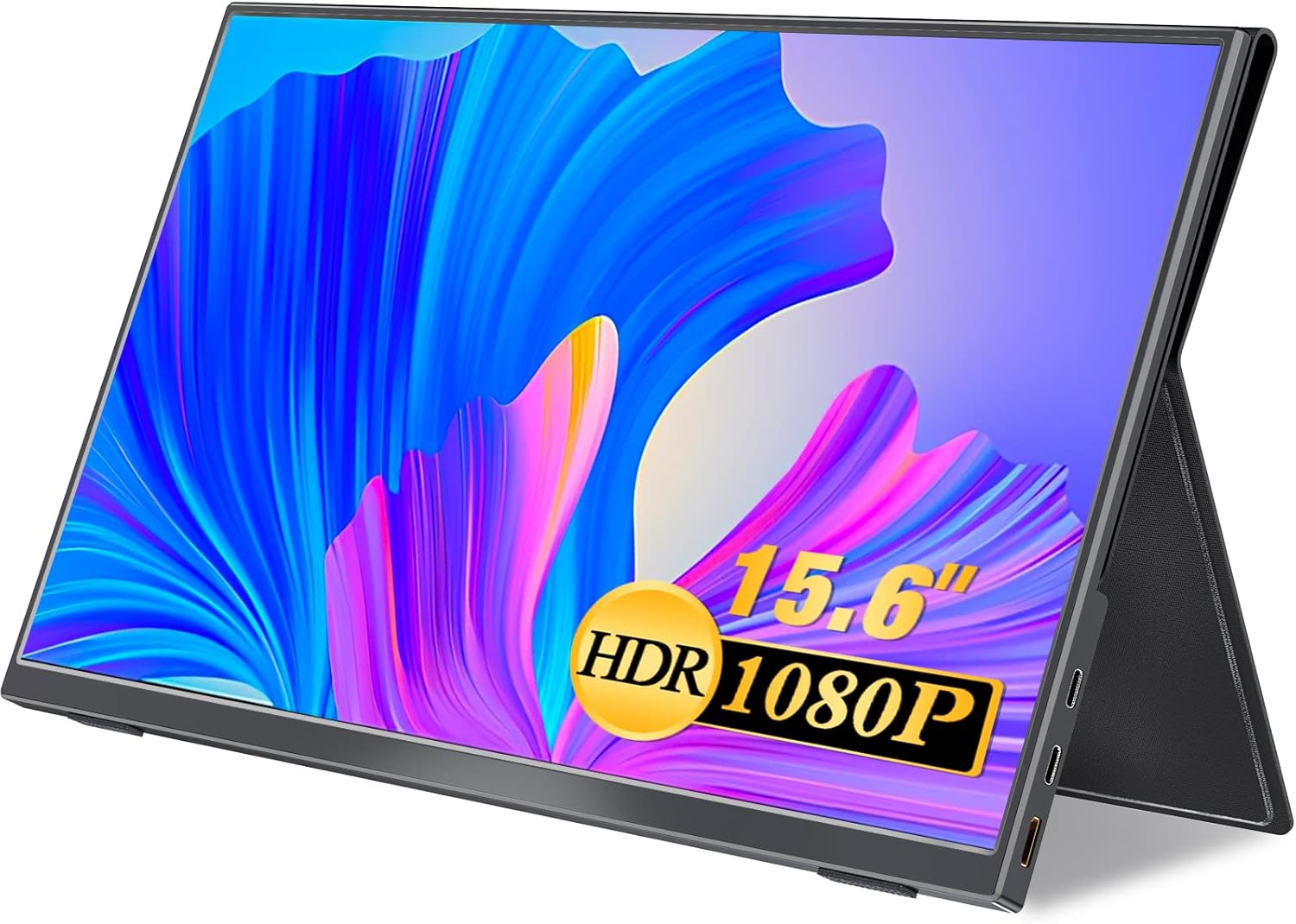
Image 1: UPERFECT 15.6-inch Portable Touch Monitor with its protective case acting as a stand.

Image 2: Illustration of the monitor's slim profile (4mm) and lightweight nature (700g).

Image 3: The monitor's protective case doubles as a portable stand.
4. Setup Instructions
4.1 Connecting to Devices
The UPERFECT portable monitor offers flexible connectivity options. Ensure your source device supports the chosen connection type.
4.1.1 USB Type-C Connection (Single Cable Solution)
For devices with a full-featured USB Type-C port (supporting DisplayPort Alternate Mode and power delivery), a single USB Type-C to Type-C cable can provide video, audio, power, and touch functionality.
- Connect one end of the provided Type-C to Type-C cable to the monitor's USB Type-C port.
- Connect the other end of the cable to your device's full-featured USB Type-C port.
- The monitor should automatically detect the signal and power on. If not, press the power button.
Note: Touch functionality requires a compatible device (Windows 10 or later, or USB3.1 compatible smartphone) and a full-featured Type-C connection.
4.1.2 Mini HDMI Connection (Requires External Power)
For devices with an HDMI output, use the Mini HDMI port. This connection requires a separate power source for the monitor.
- Connect one end of the provided Mini HDMI cable to the monitor's Mini HDMI port.
- Connect the other end of the Mini HDMI cable to your device's HDMI output.
- Connect the provided USB to Type-C cable to one of the monitor's USB Type-C ports and the other end to the power adapter, then plug the adapter into a power outlet.
- The monitor should display the signal. If not, press the power button.
4.2 Device Compatibility
This monitor is compatible with a wide range of devices, including:
- Gaming Consoles: PS4, PS5, Xbox, Nintendo Switch
- Computers: Laptops, PCs (Windows, macOS)
- Smartphones (with full-featured USB Type-C output)
- Cameras

Image 4: Overview of connectivity options including HDMI and USB Type-C, and examples of compatible devices like cameras, game consoles, laptops, and PCs.

Image 5: A multi-display setup demonstrating the monitor's frameless design and its use as a secondary screen for productivity.
5. Operating Instructions
5.1 Power On/Off
To power on the monitor, press the POWER/BACK button located on the side of the monitor. To power off, press and hold the POWER/BACK button for a few seconds until the screen turns off.
5.2 On-Screen Display (OSD) Menu
The OSD menu allows you to adjust various display settings. Navigate the menu using the MENU/UP/DOWN jog dial/button.
- Press the MENU/UP/DOWN button to open the OSD menu.
- Rotate the MENU/UP/DOWN button up or down to navigate through menu options.
- Press the MENU/UP/DOWN button to select an option or confirm a setting.
- Press the POWER/BACK button to go back to the previous menu or exit the OSD menu.
Common OSD Settings:
- Brightness/Contrast: Adjust the display's luminance and contrast levels.
- Color Settings: Modify color temperature, hue, and saturation.
- Volume: Control the audio output level of the built-in speakers.
- Input Source: Manually select the video input (USB-C 1, USB-C 2, Mini HDMI).
- HDR Mode: Enable or disable High Dynamic Range.
- Aspect Ratio: Adjust the screen's aspect ratio.
5.3 Touch Functionality
The monitor supports 5-point multi-touch for intuitive control. This feature is active when connected via a full-featured USB Type-C cable to a compatible device.
- Tap: Single touch for selection.
- Swipe: Drag a finger across the screen to scroll or navigate.
- Pinch: Use two fingers to zoom in or out.

Image 6: Visual representation of various touch gestures supported by the monitor, including tap, swipe, and pinch.

Image 7: Demonstrating intuitive touch operation on the monitor, connected to a smartphone, without needing a separate mouse.
5.4 Display Orientation
The monitor supports both horizontal (landscape) and vertical (portrait) display orientations. The orientation can be adjusted through your connected device's display settings.

Image 8: The monitor shown in both horizontal and vertical modes, illustrating its adaptability for different tasks and setups.
6. Maintenance
6.1 Cleaning the Screen
To clean the screen, gently wipe it with a soft, lint-free cloth. For stubborn marks, lightly dampen the cloth with water or a screen-cleaning solution specifically designed for electronic displays. Avoid using harsh chemicals, abrasive cleaners, or alcohol-based solutions, as these can damage the screen surface.
6.2 General Care
- Avoid placing heavy objects on the monitor.
- Keep the monitor away from direct sunlight, heat sources, and extreme temperatures.
- Do not expose the monitor to water or excessive humidity.
- When transporting the monitor, use the provided protective case to prevent scratches and damage.
7. Troubleshooting
If you encounter issues with your UPERFECT portable monitor, please refer to the following common solutions:
| Problem | Possible Cause | Solution |
|---|---|---|
| No display/"No Signal" message | Incorrect input source selected, loose cable connection, insufficient power, incompatible device. |
|
| Touch function not working | Not connected via Type-C, incompatible operating system, device does not support touch output. |
|
| Screen flickering or unstable display | Loose cable, power fluctuations, cable quality. |
|
| Poor color reproduction or image quality | OSD settings, HDR mode, source device settings. |
|
| No sound from speakers | Volume too low, muted, incorrect audio output selected on device. |
|
8. Specifications
| Panel Size | 15.6 inches |
| Aspect Ratio | 16:9 |
| Resolution | 1920 x 1080 (Full HD) |
| Panel Type | IPS Non-glare |
| Brightness | 300 cd/m² |
| Contrast Ratio | 2000:1 |
| Response Time | 5ms |
| Refresh Rate | 60Hz |
| Color Gamut | 100% sRGB, 72% NTSC |
| Interfaces | USB Type-C x 2 (Video/Power), Mini HDMI x 1 (Video) |
| Speakers | Built-in |
| Product Weight | Approx. 700g (monitor only) |
| Packaged Dimensions | 39.2 x 25.4 x 6.2 cm |
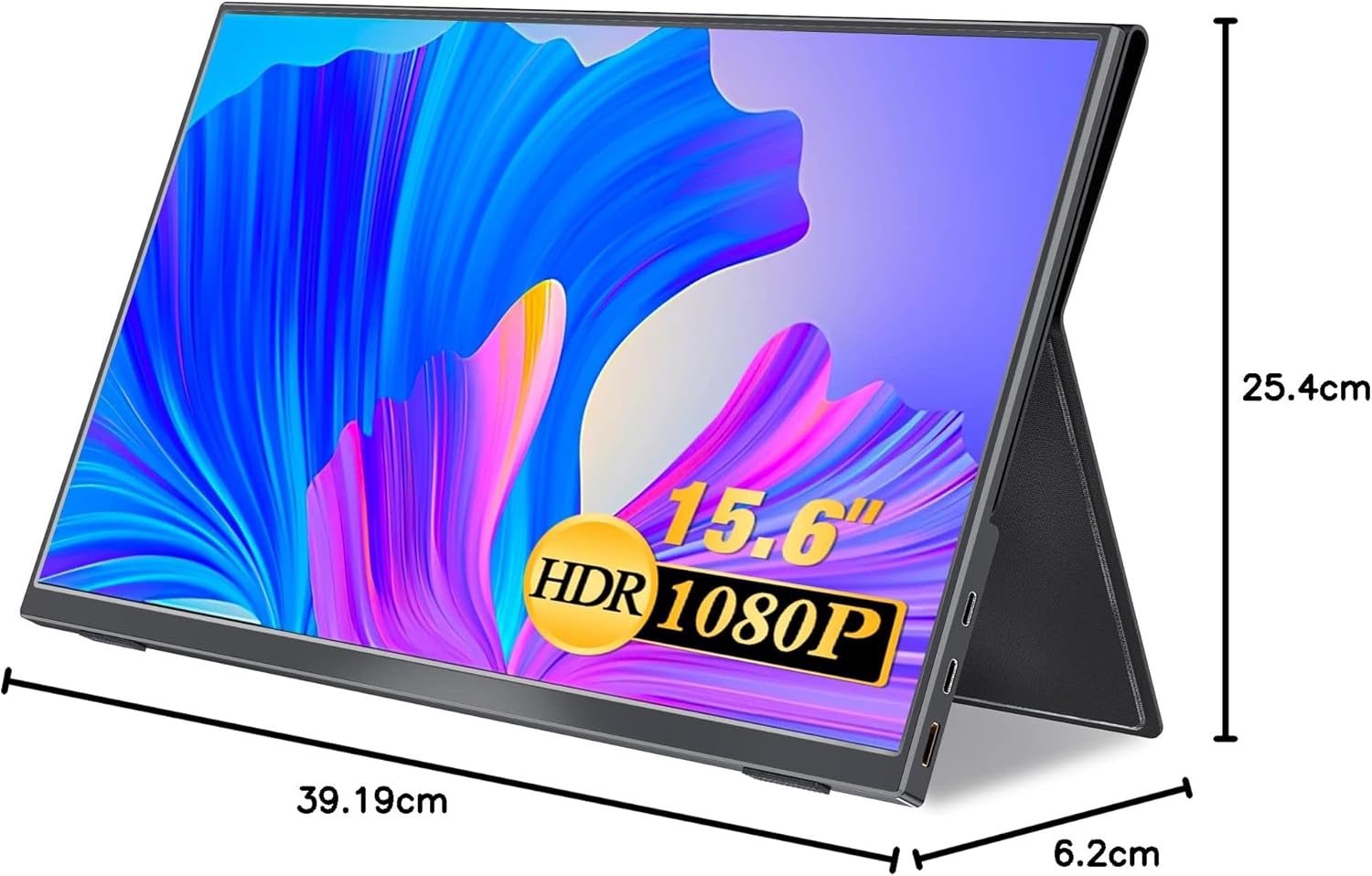
Image 9: Diagram showing the physical dimensions of the UPERFECT portable monitor.
9. Warranty and Support
UPERFECT is committed to providing reliable quality assurance and comprehensive after-sales service for its products. We strive to continuously improve our products based on customer feedback and needs.
If you have any questions, concerns, or require technical assistance regarding your UPERFECT 15.6-inch Portable Touch Monitor, please do not hesitate to contact our customer support team. Refer to the contact information provided with your purchase or on the official UPERFECT website for assistance.


