
1. Safety Information
Please read all instructions carefully before assembly and use. Failure to follow these instructions may result in injury or product damage. Keep this manual for future reference.
- This desk requires assembly. Ensure all components are correctly installed before use.
- The maximum weight capacity for this desk is 220 pounds (100 kg). Do not exceed this limit.
- When adjusting the desk height, ensure there are no obstructions above or below the desk that could interfere with its movement.
- Keep children and pets away from the desk during operation.
- Do not attempt to manually force the desk up or down. Use only the electric control panel.
- Ensure the power cord is properly connected and routed to prevent tripping hazards or damage.
- For optimal stability, ensure the desk is placed on a level surface.
Important Note: When using the LED control panel to adjust height, the three height keys must be pressed and held continuously until the desired height is reached.
2. Package Contents
Verify that all components are present before beginning assembly. If any parts are missing or damaged, please contact customer support.
- Desktop (71"x32" Black Top)
- Desk Frame (Black Frame)
- 4 Legs
- Control Panel
- Power Adapter and Cable
- Assembly Hardware (screws, bolts, etc.)
- Instruction Manual
3. Assembly Instructions
Assembly typically requires two people. Please follow these steps carefully. A power drill may be helpful for some steps, but is not strictly required.
- Unpack Components: Carefully remove all parts from the packaging and lay them out on a clean, soft surface to prevent scratches.
- Attach Legs to Frame: Securely attach the four legs to the desk frame using the provided hardware. Ensure all connections are tight.
- Install Desktop: Place the desktop upside down on a soft surface. Carefully align the assembled frame with the pre-drilled holes on the underside of the desktop. Secure the frame to the desktop using the appropriate screws.
- Mount Control Panel: Attach the LED control panel to the underside of the desktop, typically on the front edge, using the provided screws.
- Connect Cables: Connect the motor cables from the legs to the control box. Connect the control panel cable to the control box. Finally, connect the power adapter to the control box and plug it into a power outlet. Ensure all cables are neatly managed to avoid interference with desk movement.
- Initial Setup: Once assembled, carefully flip the desk upright. Perform an initial height calibration by pressing and holding the 'Down' button until the desk reaches its lowest point, then release. The desk is now ready for operation.

Figure 3.1: Fully assembled FLEXISPOT 4 Leg Standing Desk.
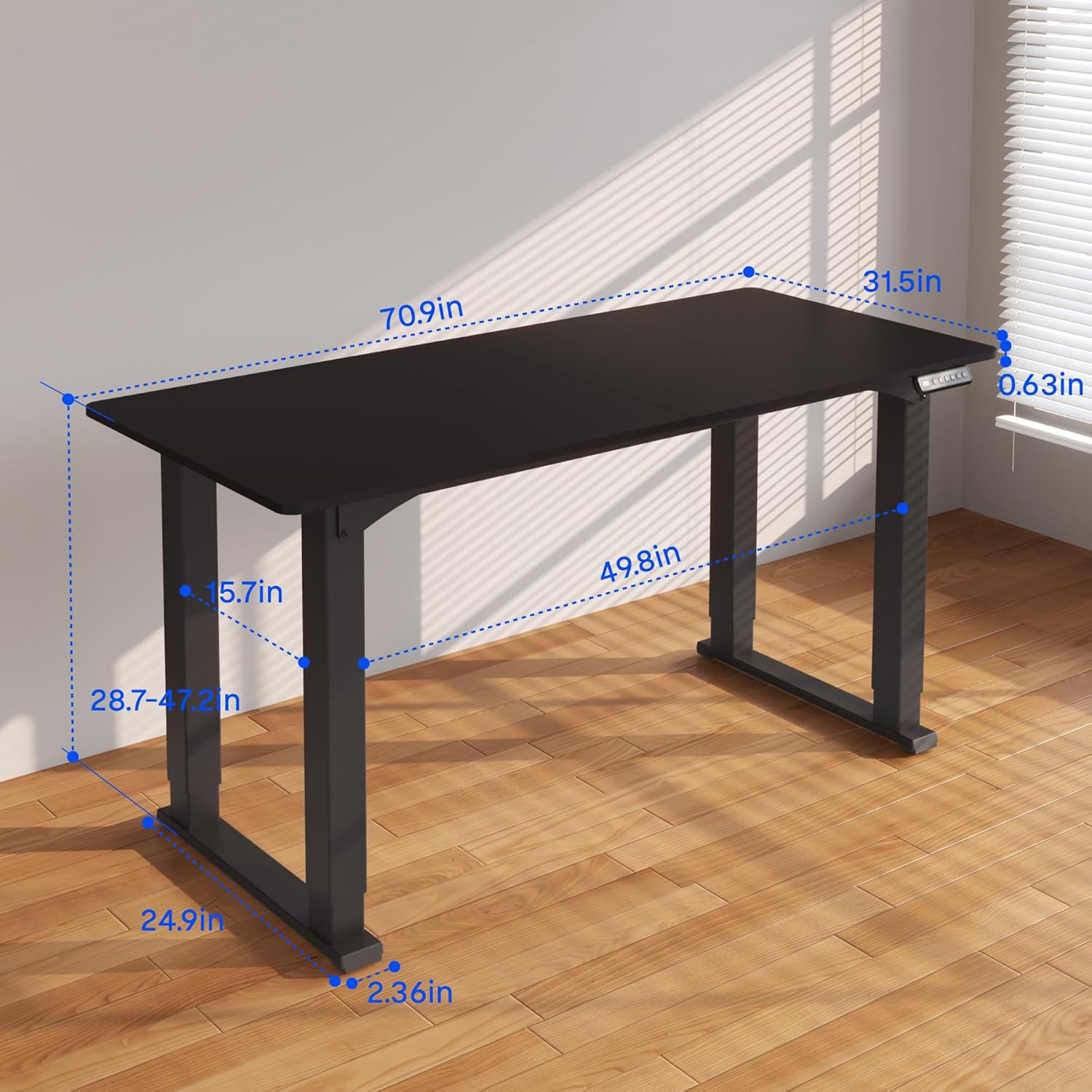
Figure 3.2: Detailed dimensions of the desk, including height range and desktop size.
4. Operating Instructions
The FLEXISPOT 4 Leg Standing Desk features an intuitive LED control panel for easy height adjustments and memory settings.
4.1. Control Panel Overview

Figure 4.1: Digital Keypad with memory functions and up/down controls.
- Up/Down Arrows (▲ / ▼): Press and hold to adjust the desk height upwards or downwards. The current height is displayed on the LED screen.
- Memory Buttons (1, 2, 3): These buttons allow you to save and recall preferred height settings.
- Memory Set Button (M): Used to program a height into a memory slot.
4.2. Adjusting Height
To adjust the desk height, press and hold the ▲ (Up) or ▼ (Down) arrow button until the desk reaches your desired position. The desk will move smoothly between 28.7 inches and 47.2 inches.
4.3. Saving Memory Presets
You can save up to three preferred height settings for quick recall:
- Adjust the desk to your desired height using the Up/Down arrows.
- Press the 'M' button. The LED display will show 'S-'.
- Within 3 seconds, press one of the memory buttons (1, 2, or 3). The LED display will show 'S-1', 'S-2', or 'S-3' to confirm the setting has been saved.
4.4. Recalling Memory Presets
To move the desk to a saved height, press and hold the corresponding memory button (1, 2, or 3) until the desk reaches the programmed height.
4.5. Anti-Collision System
The desk is equipped with an anti-collision system to prevent damage. If the desk encounters an obstruction during movement, it will stop and reverse slightly. Remove the obstruction before resuming operation.

Figure 4.2: Anti-collision system in action, preventing damage from obstructions.
5. Maintenance
Regular maintenance ensures the longevity and smooth operation of your standing desk.
- Cleaning: Wipe the desktop and frame with a soft, damp cloth. Avoid harsh chemicals or abrasive cleaners.
- Cable Management: Periodically check and organize cables to prevent tangles and ensure they do not interfere with the desk's movement.
- Fastener Check: Occasionally check all screws and bolts to ensure they remain tight. Retighten if necessary.
- Motor Care: The electric motors are maintenance-free. Do not attempt to lubricate or disassemble them.
6. Troubleshooting
If you encounter issues with your desk, refer to the following common problems and solutions:
- Desk Not Moving:
- Check if the power cord is securely plugged into both the desk and the wall outlet.
- Ensure all motor cables are properly connected to the control box.
- Perform a reset: Press and hold the 'Down' button until the desk reaches its lowest point and slightly retracts, then release.
- Uneven Movement or Wobbling:
- Ensure the desk is on a level surface. Adjust the leveling feet if necessary.
- Check that all assembly screws and bolts are tightened securely.
- Verify that the weight on the desk does not exceed the maximum capacity of 220 lbs and is evenly distributed.
- Error Codes on Display:
- If an error code appears, try performing a reset as described above.
- If the error persists, disconnect power for 10 minutes, then reconnect and try again.
- Consult the manufacturer's website or contact customer support with the specific error code.
- Memory Presets Not Working:
- Ensure you are pressing and holding the memory button until the desk reaches the saved height.
- Re-program the memory presets if they are not recalling correctly.
If these steps do not resolve the issue, please contact FLEXISPOT customer support for further assistance.
7. Specifications
| Feature | Specification |
|---|---|
| Brand | FLEXISPOT |
| Model Number | QS2B-1880-AU |
| Desktop Size | 71"D x 32"W (approx. 180.3cm x 81.3cm) |
| Adjustable Height Range | 28.7" to 47.2" (approx. 72.9cm to 119.9cm) |
| Maximum Weight Capacity | 220 lbs (100 kg) |
| Frame Material | Metal |
| Top Material | Wood |
| Color | Black Frame & Black Top |
| Control Type | LED Digital Keypad with Memory Presets |
| Special Features | 4-Leg Design, Anti-Collision System, Corded Operation |
| Assembly Required | Yes |
8. Warranty and Support
FLEXISPOT provides comprehensive warranty coverage for your peace of mind:
- 5-Year Warranty: Covers the desk frame and motor components.
- 2-Year Warranty: Covers the control panel and other electronic parts.
For warranty claims, technical support, or any questions regarding your FLEXISPOT product, please visit the official FLEXISPOT website or contact their customer service department. Please have your model number (QS2B-1880-AU) and proof of purchase available when contacting support.


