
Introduction
This manual provides comprehensive instructions for setting up, operating, maintaining, and troubleshooting your Apple iPad (9th Generation). Please read this guide thoroughly to ensure optimal use of your device.

Image: Front view of the Apple iPad (9th Generation) with its display active.
1. Setup
1.1 Unboxing and Initial Inspection
Carefully remove all components from the packaging. Verify that all items listed below are present and undamaged.
- iPad (9th Generation)
- USB-C to Lightning Cable
- 20W USB-C Power Adapter
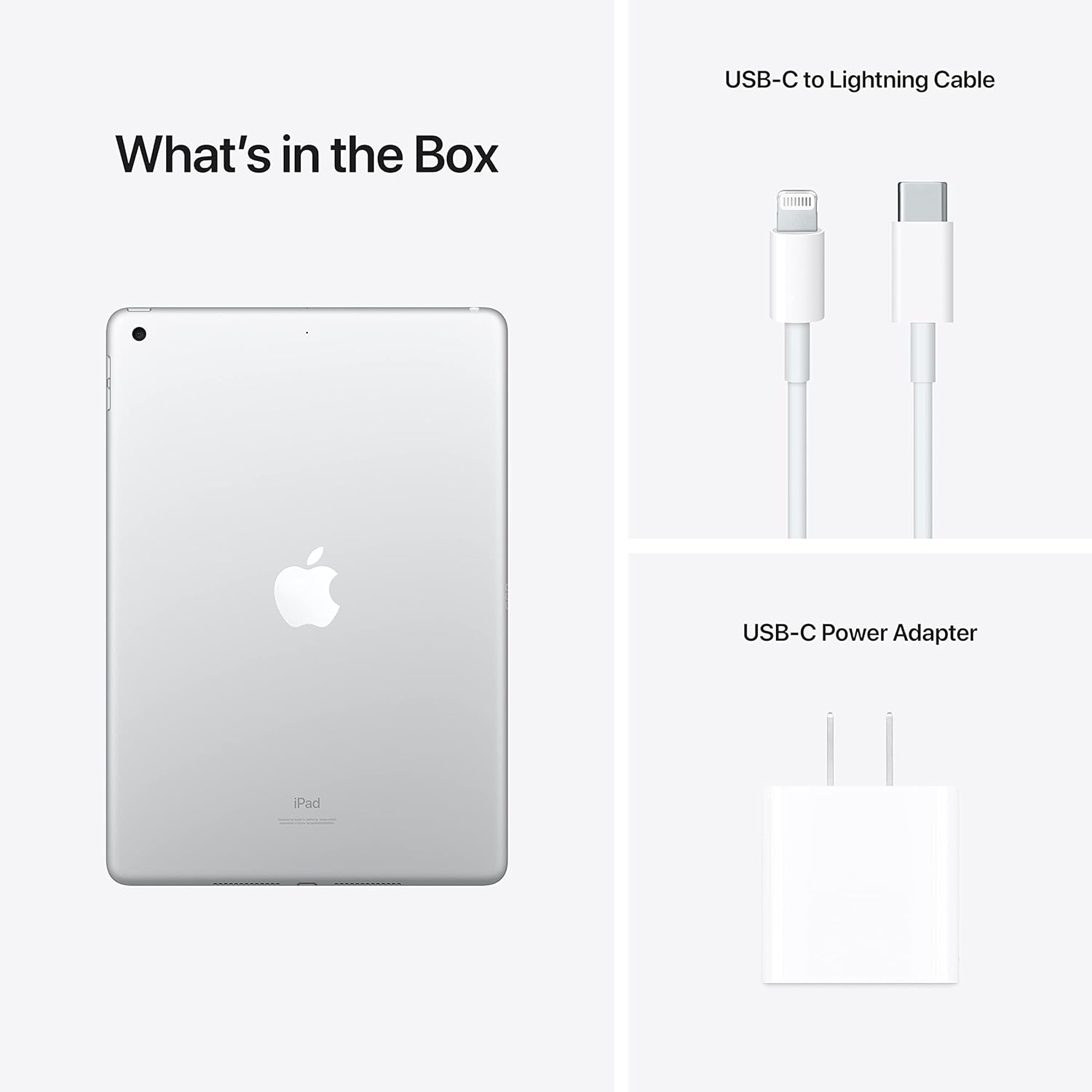
Image: The iPad and its included accessories: USB-C to Lightning Cable and 20W USB-C Power Adapter.
1.2 Charging the iPad
Before first use, it is recommended to fully charge your iPad. Connect the USB-C to Lightning cable to the iPad's Lightning port and the 20W USB-C Power Adapter. Plug the adapter into a power outlet.
The battery icon on the screen will indicate charging status. A full charge typically takes a few hours.
1.3 Powering On and Initial Configuration
- Press and hold the Top button until the Apple logo appears.
- Follow the on-screen instructions to select your language, region, and connect to a Wi-Fi network.
- Set up Touch ID for secure unlocking and purchases.
- Sign in with your Apple ID or create a new one. This is essential for downloading apps and using Apple services.
- Configure other settings such as Location Services, Siri, and analytics preferences.
2. Operating Your iPad
2.1 Basic Navigation
- Home Button: Press once to return to the Home screen. Double-press to open the App Switcher. Press and hold for Siri.
- Touch ID: Integrated into the Home button for secure authentication.
- Top Button: Press to wake or sleep the iPad. Press and hold to power off.
- Volume Buttons: Located on the side to adjust audio volume.

Image: Detail of the iPad's side, highlighting the top button, volume controls, and rear camera lens.
2.2 iPadOS and Applications
Your iPad runs on iPadOS, designed for intuitive multi-touch gestures. Swipe from the bottom to go home, swipe down from the top-right for Control Center, and swipe down from the center for Search.
Access millions of applications through the App Store. Essential apps like Safari, Mail, Photos, and Messages are pre-installed.
2.3 Wi-Fi Connectivity
To connect to a Wi-Fi network:
- Go to Settings > Wi-Fi.
- Turn on Wi-Fi.
- Select your desired network from the list.
- Enter the password if prompted and tap Join.
2.4 Using the Cameras
The iPad (9th Generation) features a 12MP Ultra Wide front camera with Center Stage and an 8MP Wide back camera.
- Open the Camera app.
- Tap the shutter button to take photos.
- Switch between photo, video, and other modes by swiping.
- Center Stage automatically keeps you in the frame during video calls.
2.5 Accessories (Sold Separately)
The iPad (9th Generation) is compatible with the Apple Pencil (1st Generation) for drawing and note-taking, and the Smart Keyboard for a comfortable typing experience.

Image: User interacting with the iPad and Smart Keyboard.

Image: Visual representation of core features including the A13 Bionic chip, battery life, camera, and accessory compatibility.
3. Maintenance
3.1 Cleaning Your iPad
To clean your iPad, use a soft, lint-free cloth. Avoid abrasive materials, aerosols, solvents, or ammonia-based cleaners. For stubborn marks, slightly dampen the cloth with water. Do not spray cleaners directly onto the iPad.
3.2 Battery Care
To maximize battery lifespan:
- Avoid extreme temperatures.
- Keep the software updated.
- Optimize settings like screen brightness and background app refresh.
- For long-term storage, charge the iPad to about 50% and power it off.
3.3 Software Updates
Regularly update your iPadOS to ensure optimal performance, security, and access to the latest features. Go to Settings > General > Software Update to check for and install updates.
3.4 Storage Management
To manage your iPad's storage, go to Settings > General > iPad Storage. Here you can see how much space is used by apps and media, and offload or delete content to free up space.
4. Troubleshooting
4.1 Device Not Responding
If your iPad is unresponsive, try a force restart:
- Press and hold both the Home button and the Top button simultaneously.
- Continue holding until the Apple logo appears.
- Release both buttons.
4.2 Wi-Fi Connection Issues
- Ensure Wi-Fi is enabled in Settings > Wi-Fi.
- Restart your Wi-Fi router.
- Forget the network and reconnect: Go to Settings > Wi-Fi, tap the "i" next to your network, then tap Forget This Network. Rejoin the network.
- Reset Network Settings: Go to Settings > General > Transfer or Reset iPad > Reset > Reset Network Settings. This will reset all network settings, including Wi-Fi passwords.
4.3 App Issues
If an app is not working correctly:
- Force quit the app: Double-press the Home button, then swipe the app's preview up and off the screen. Reopen the app.
- Restart your iPad.
- Check for app updates in the App Store.
- Delete and reinstall the app.
4.4 Factory Reset (Data Erase)
Warning: A factory reset will erase all data and settings from your iPad. Back up your device before proceeding.
To perform a factory reset: Go to Settings > General > Transfer or Reset iPad > Erase All Content and Settings. Follow the on-screen prompts.
5. Specifications
| Feature | Detail |
|---|---|
| Model Number | MK2P3LL/A |
| Brand | Apple |
| Model Name | iPad (9th Generation) |
| Memory Storage Capacity | 256 GB |
| Screen Size | 10.2 Inches |
| Display Resolution Maximum | 2160x1620 Pixels |
| Product Dimensions | 9.87 x 6.85 x 0.3 inches |
| Item Weight | 1.07 pounds |
| Batteries | 1 Lithium Ion battery (included) |
| Date First Available | September 14, 2021 |
6. Warranty Information
Your Apple iPad (9th Generation) is covered by a limited warranty provided by Apple. This warranty typically covers manufacturing defects for a specified period from the date of purchase.
For detailed information regarding warranty terms, conditions, and coverage, please refer to the official Apple warranty documentation included with your product or visit the official Apple Support website:
Apple Product Warranty Information
Additional protection plans, such as AppleCare+, may be available for purchase separately to extend coverage and support.
7. Support and Resources
For further assistance, technical support, or to explore more features of your iPad, please visit the official Apple Support website:
You can find articles, user guides, community forums, and contact options for Apple support specialists.


