
TP-Link Archer AX55
TP-Link Archer AX55 Wi-Fi 6 Router User Manual
Model: Archer AX55
1. Introduction
The TP-Link Archer AX55 is a high-performance dual-band AX3000 Wi-Fi 6 router designed to deliver faster speeds, greater capacity, and reduced network congestion for your home. It supports the latest Wi-Fi 6 (802.11ax) standard, ensuring a more responsive and efficient wireless experience for all your connected devices.
Key features include:
- Next-Gen Gigabit Wi-Fi 6 Speeds: Up to 2402 Mbps on 5 GHz and 574 Mbps on 2.4 GHz bands for smoother streaming and faster downloads.
- Increased Capacity: OFDMA technology allows more devices to connect simultaneously without compromising speed.
- Expanded Coverage: Four high-gain external antennas with Beamforming technology provide strong, reliable Wi-Fi throughout your home.
- Improved Battery Life: Target Wake Time (TWT) helps devices consume less power.
- Enhanced Security: Features like WPA3 and TP-Link HomeShield offer robust network protection.
- Versatile Connectivity: Includes Gigabit WAN/LAN ports and a USB 3.0 port for file sharing.
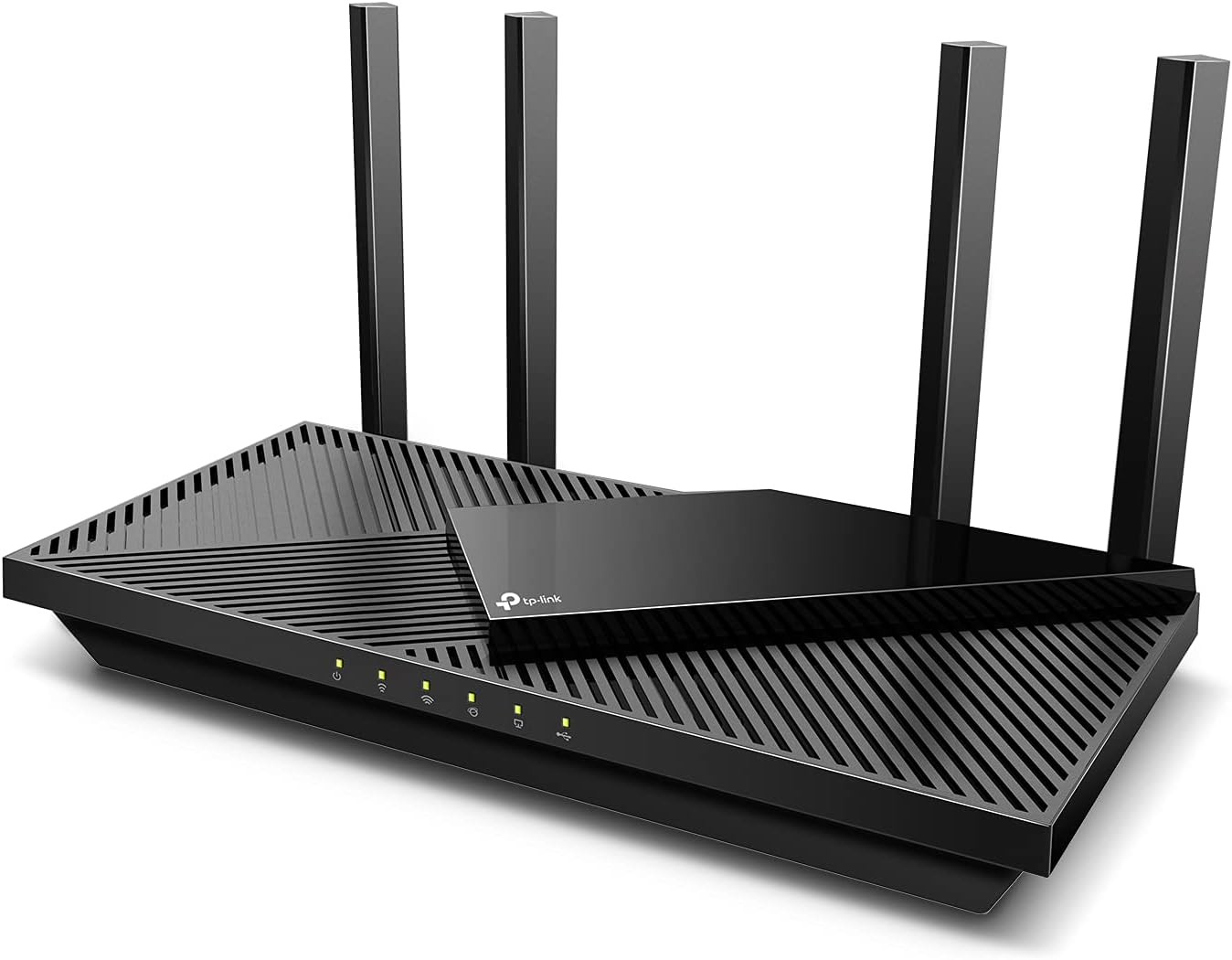
This image shows the sleek design of the Archer AX55 router with its four external antennas and indicator lights on the front panel.
2. What's in the Box
Verify that all items are present in your product package:
- Wi-Fi Router Archer AX55
- Power Adapter
- RJ45 Ethernet Cable
- Quick Installation Guide
3. Setup Guide
3.1 Hardware Connection
- Power Off: Disconnect the power from your modem.
- Connect Router: Connect the Ethernet cable from your modem's LAN port to the blue WAN/LAN port on your Archer AX55 router.
- Power On: Power on your modem, then power on your Archer AX55 router. Wait for the indicator lights on the router to stabilize.
- Connect Devices: Connect your computer or other devices to the router via an Ethernet cable (to any yellow LAN port) or wirelessly using the default Wi-Fi network name (SSID) and password found on the label at the bottom of the router.

This diagram illustrates the rear ports of the router, including the blue WAN/LAN port, four yellow Gigabit LAN ports, a USB 3.0 port, the power button, and the power input.

The bottom label provides essential information such as the default Wi-Fi network name (SSID), wireless password, and a QR code for easy setup via the Tether app. It also shows the model number and MAC address.
Default Wi-Fi Credentials: SSID: TP-Link_488C, Password: 90490583
MAC Address: B0-A7-B9-4F-48-8C
3.2 Configuration via TP-Link Tether App
The easiest way to set up and manage your Archer AX55 router is through the TP-Link Tether app, available for both Android and iOS devices.
- Download App: Search for "TP-Link Tether" in the Apple App Store or Google Play Store and install the app.
- Launch App & Log In: Open the Tether app and log in with your TP-Link ID. If you don't have one, create it first.
- Add Router: Tap the "+" icon in the app and select "Router" then "Wireless Router". Follow the on-screen instructions to connect your router.
- Customize Settings: The app will guide you through setting up your internet connection, creating a new Wi-Fi network name and password, and configuring other advanced settings.

This image illustrates the user-friendly interface of the Tether app, showing steps like connecting to the router and confirming successful setup.
4. Operating the Router
4.1 Wi-Fi Connectivity
The Archer AX55 supports dual-band Wi-Fi 6, providing both 2.4 GHz and 5 GHz networks. You can choose to combine these into a single SSID using Smart Connect for optimal performance, or keep them separate.

This image highlights the router's ability to connect multiple devices concurrently, supporting streaming, gaming, and smart home devices with OFDMA and 4-streams technology.
4.2 USB 3.0 Port Usage
The integrated USB 3.0 port allows you to share files and media across your network. Connect an external hard drive or USB drive to the port to create network storage accessible by all connected devices.
4.3 HomeShield Security
TP-Link HomeShield is a premium security service that protects your home network and IoT devices. Basic features are free and include Network Security Scan, IoT Device Identification, Basic Parental Controls, Quality of Service, and Basic Weekly/Monthly Reports. Advanced features are available with a Pro Plan subscription.

This image details the security and privacy commitment of TP-Link, showcasing HomeShield's built-in services like Router Security Scan, IoT Protection, Web Protection, Intrusion Prevention, and Parental Controls.

This graphic illustrates the different levels of HomeShield protection, from basic network scanning and parental controls to advanced features like DDoS Attack Prevention and IoT Device Protection available with a subscription.
4.4 VPN Clients & Server
The Archer AX55 supports both VPN client and VPN server functionalities. This allows you to establish secure connections to remote networks or enable devices on your network to access VPN services directly through the router.
4.5 EasyMesh Compatibility
The router is EasyMesh compatible, allowing you to create a seamless whole-home mesh Wi-Fi system by adding other EasyMesh-compatible devices. This expands your Wi-Fi coverage and eliminates dead zones.

This image demonstrates how the four high-gain external antennas and Beamforming technology work together to provide strong, reliable Wi-Fi coverage across your entire home, reaching multiple devices.

This animated image shows how Wi-Fi signals extend throughout a multi-story home, indicating comprehensive coverage for all connected devices.
5. Maintenance Tips
- Optimal Placement: Place the router in a central location, away from obstructions and interference sources (e.g., microwaves, cordless phones).
- Firmware Updates: Regularly check for and install firmware updates via the Tether app or the router's web management interface to ensure optimal performance and security.
- Cooling: The Archer AX55 features an improved cooling design. Ensure adequate ventilation around the router to prevent overheating, which can impact performance.
- Regular Reboot: Periodically reboot your router (unplug and replug the power adapter) to clear its memory and refresh network connections, which can resolve minor performance issues.

This animated image provides an X-ray view of the router, emphasizing its larger heat sink and redefined case design that promotes efficient cooling to maintain top speeds.
6. Troubleshooting
6.1 No Internet Access
- Check Cables: Ensure the Ethernet cable from your modem is securely connected to the blue WAN/LAN port on the router.
- Reboot Devices: Power cycle your modem and router. Wait for both devices to fully boot up.
- ISP Connection: Verify that your Internet Service Provider (ISP) connection is active.
6.2 Poor Wi-Fi Signal or Speed
- Router Placement: Move the router to a more central location, away from walls, large metal objects, and other electronic devices that may cause interference.
- Antenna Adjustment: Adjust the router's antennas for optimal signal reception.
- Interference: Reduce interference from other devices operating on the same frequency bands (2.4 GHz or 5 GHz).
- Device Compatibility: Ensure your devices support Wi-Fi 6 for optimal performance.
This video provides a comprehensive overview of the Archer AX55 router, showcasing its features, design, and connectivity options to help users understand its capabilities and troubleshoot common issues.
7. Specifications
| Feature | Detail |
|---|---|
| Product Dimensions | 12.99 x 9.45 x 2.87 inches |
| Item Weight | 1.66 pounds |
| Model Number | Archer AX55 |
| Wireless Standard | 802.11ax (Wi-Fi 6) |
| Frequency Band Class | Dual-Band (2.4 GHz & 5 GHz) |
| Wi-Fi Speeds | 2402 Mbps (5 GHz), 574 Mbps (2.4 GHz) |
| Ethernet Ports | 1x Gigabit WAN/LAN, 4x Gigabit LAN |
| USB Port | 1x USB 3.0 |
| Antennas | 4x High-Gain External Antennas |
| Special Features | QoS, Guest Mode, WPS, Internet Security, Remote Access, EasyMesh Compatible, VPN Clients & Server, HomeShield |
| Compatible Devices | Gaming Console, Security Camera, Personal Computer, Tablet, Smart Television, Smartphone |
8. Important Notes & Legal Disclaimer
Please read the following important information regarding the product's performance and features:
- Maximum wireless signal rates are physical rates derived from IEEE Standard 802.11 specifications. Actual wireless data throughput, wireless coverage, and number of connected devices are not guaranteed and will vary due to network conditions, client limitations, and environmental factors.
- Use of 802.11ax (Wi-Fi 6) and its features (OFDMA, HE160, TWT) requires clients to also support corresponding features.
- The 160 MHz bandwidth may be unavailable in the 5 GHz band in some regions/countries due to regulatory restrictions.
- Actual power reduction by Target Wake Time may vary due to network conditions, client limitations, and environmental factors.
- HomeShield includes the Free Basic Plan. Fees apply for the Pro Plan.
- Use of WPA3 requires clients to support WPA3.
- This router may not support all mandatory features as ratified in IEEE 802.11ax specification. Further software upgrade for feature availability may be required.
- Actual network speed may be limited by the rate of the product's Ethernet WAN or LAN port, the rate supported by the network cable, Internet service provider factors, and other environmental conditions.
9. Warranty and Support
For warranty information and technical support, please refer to the official TP-Link website or the Quick Installation Guide included in your product package.
- Online Support: Visit TP-Link Support for FAQs, user manuals, firmware updates, and contact information.
- Protection Plans: Additional protection plans may be available for purchase to extend coverage beyond the standard warranty.
Related documentsArcher AX55


Ask a question about this manual
Ask about setup, troubleshooting, compatibility, parts, safety, or missing instructions. Manuals+ will review the question and use this page’s manual context to help answer it.