1. Product Compatibility
This keyboard case is designed for specific iPad models. Please verify your iPad's model number, typically found on the back of your device, to ensure compatibility.
- iPad 9th Generation (2021) 10.2 inch: Models A2602, A2603, A2604, A2605
- iPad 8th Generation (2020) 10.2 inch: Models A2270, A2428, A2429
- iPad 7th Generation (2019) 10.2 inch: Models A2197, A2198, A2200
- iPad Air 3rd Generation (2019): Models A2152, A2123, A2153
- iPad Pro 10.5 inch (2017): Models A1701, A1709
This product is not compatible with any other iPad models.
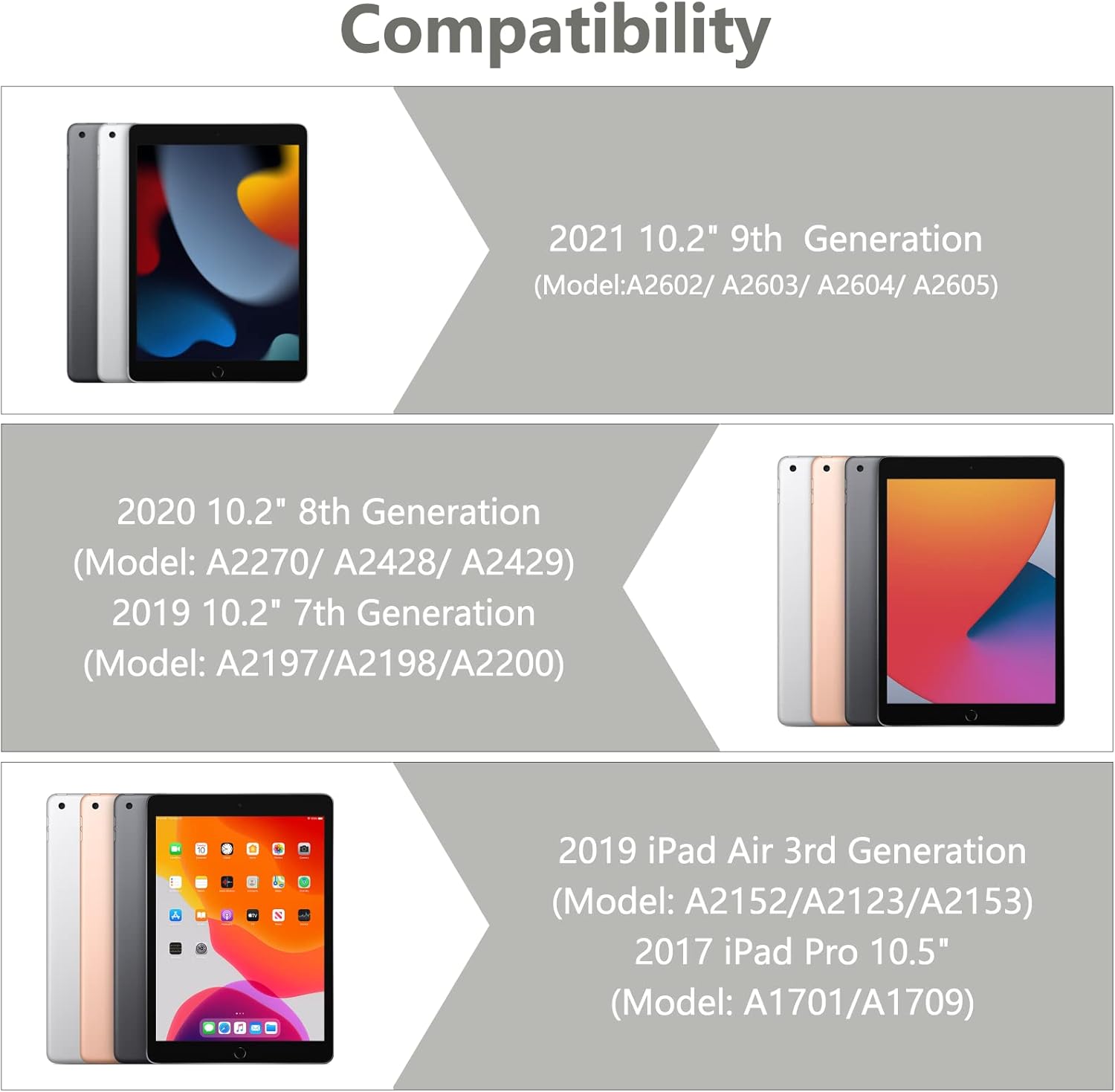
Image 1.1: Visual guide illustrating the compatible iPad models for this keyboard case.
2. Package Contents
Please ensure all items are present in the package upon unboxing:
- 1 x iPad Case with Keyboard (integrated)
- 1 x Wireless Bluetooth Keyboard (detachable)
- 1 x Transparent Keyboard Protector
- 1 x USB Charging Cable
- 1 x User Guide

Image 2.1: Overview of all components included in the product package.
3. Setup Instructions
3.1 Installing Your iPad
- Gently align your iPad with the case's frame.
- Press the iPad firmly into the case, ensuring all edges are securely seated. The precise cutouts will align with your iPad's ports and buttons.
3.2 Connecting the Wireless Bluetooth Keyboard
The keyboard connects to your iPad via Bluetooth. Follow these steps to pair the devices:
- Ensure the keyboard is fully charged.
- Turn on the keyboard by sliding the power switch to the 'ON' position. The indicator light will illuminate.
- Press the 'Connect' button on the keyboard. The Bluetooth indicator light will begin to flash, indicating it is in pairing mode.
- On your iPad, go to Settings > Bluetooth.
- Turn on Bluetooth. Your iPad will search for available devices.
- Select 'Bluetooth Keyboard' (or a similar name) from the list of devices.
- If prompted, enter the pairing code displayed on your iPad onto the keyboard and press 'Enter'.
- Once paired, the Bluetooth indicator light on the keyboard will stop flashing and remain solid or turn off, and your iPad will show the keyboard as 'Connected'.

Image 3.1: The BAIBAO keyboard case with an iPad inserted and the detachable keyboard positioned for typing.
4. Operating Instructions
4.1 Detachable Keyboard Functionality
The keyboard is magnetically attached to the case, allowing for easy detachment and repositioning. This provides flexibility for various usage scenarios.

Image 4.1: Illustration of the magnetic adsorption mechanism that secures the keyboard to the case.
4.2 Multiple Viewing Angles
The case features a thoughtful design that allows you to adjust your iPad to various comfortable viewing angles. This is ideal for typing, watching videos, or making presentations.

Image 4.2: Diagram demonstrating the adjustable viewing angles of the iPad when placed in the case.
4.3 Auto Sleep/Wake Function
The smart cover automatically puts your iPad to sleep when closed and wakes it up when opened, helping to conserve battery life.

Image 4.3: Visual representation of the automatic sleep and wake functionality when opening and closing the case.
4.4 Integrated Pencil Holder
The case includes a dedicated slot for your Apple Pencil, preventing it from being lost and keeping it readily accessible.
4.5 Keyboard Features
- Tactile Response: Each key features a spring mechanism for a responsive typing experience.
- Hotkeys and Media Keys: The keyboard includes special function keys for quick access to common iPad features.
- Multi-System Support: The keyboard supports Android, iOS, and Windows systems, enhancing its versatility.
5. Maintenance
5.1 Charging the Keyboard
The keyboard is powered by a built-in Li-ion battery. Use the provided USB charging cable to charge it.
- Connect the small end of the USB cable to the charging port on the keyboard.
- Connect the larger end of the USB cable to a USB power adapter (not included) or a computer's USB port.
- The keyboard power indicator will flash red when charging is required.
- A full charge typically takes 2-3 hours.
- The keyboard can operate for at least 80 hours on a full charge and has a standby time of 130 days.
5.2 Cleaning the Case and Keyboard
To maintain the appearance and functionality of your product:
- Wipe the case with a soft, damp cloth. Avoid harsh chemicals or abrasive cleaners.
- For the keyboard, use a soft, dry cloth. A transparent keyboard protector is included to help keep the keys clean.
- Ensure the keyboard is powered off before cleaning.
6. Troubleshooting
6.1 Keyboard Not Connecting to iPad
- Ensure the keyboard is powered on and fully charged.
- Verify that Bluetooth is enabled on your iPad.
- Make sure the keyboard is in pairing mode (Bluetooth indicator flashing).
- Forget the device on your iPad's Bluetooth settings and attempt to re-pair.
- Restart both your iPad and the keyboard.
6.2 Keys Not Responding
- Check the keyboard's battery level and charge if necessary.
- Ensure the keyboard is properly connected via Bluetooth.
- Remove the keyboard protector to ensure it is not interfering with key presses.
6.3 Auto Sleep/Wake Not Functioning
- Ensure your iPad is correctly seated within the case.
- Check your iPad's settings to ensure 'Lock/Unlock' is enabled under 'Display & Brightness' (or similar, depending on iOS version).
7. Specifications
| Product Dimensions | 11.38 x 8.15 x 1.18 inches |
| Item Weight | 1.9 pounds |
| Connectivity Technology | Bluetooth |
| Keyboard Description | Multi Functional |
| Special Feature | Hotkeys, Media Keys, Ergonomic |
| Material | Acrylonitrile Butadiene Styrene (ABS) |
| Battery Type | 1 Lithium Ion battery (included) |
| Battery Life (Operating) | Up to 80 hours |
| Battery Life (Standby) | Up to 130 days |
8. Warranty and Support
This product is designed for durability and performance. While specific warranty details are not provided in this manual, BAIBAO is committed to customer satisfaction.
If you encounter any issues with your product, have questions regarding its model or function, or require assistance, please contact BAIBAO customer service. We are eager to resolve any problems you may experience.
Please refer to the contact information provided with your purchase or visit the official BAIBAO website for support.


