
1. Introduction and Overview
The EPOS Impact D 30 USB ML headset offers premium audio performance and powerful wireless reach, designed for clear communication in professional environments. It features EPOS Voice technology and a noise-cancelling microphone to ensure natural and clear conversations, prioritizing the customer experience.
This headset is ideal for users requiring plug-and-play functionality and a streamlined design, especially in hot-desking scenarios. With robust DECT security certification and protected pairing, your calls remain secure from third-party interception. The double-sided wearing style promotes focus, and single connectivity to a PC makes it accessible for various users.
- Premium Audio: EPOS VoiceTM technology and noise-cancelling microphone for clear calls.
- Powerful Wireless Range: Move freely up to 55 m/180 ft in typical offices, or up to 180 m/590 ft line of sight.
- Simple Connectivity: Plug-and-play with single-connectivity to your PC/Softphone.
- Extended Talk Time: Enjoy up to 12 hours of talk time on a single charge.
2. What's in the Box
Your EPOS Impact D 30 USB ML headset package includes the following components:
- Headset
- Base Station
- USB Cable
- Printed Quick Guide
- Printed Safety Guide

Figure 1: Contents of the EPOS Impact D 30 USB ML package, including the headset, base station, USB cable, quick guide, and safety guide.
3. Setup Instructions
Follow these steps to set up your EPOS Impact D 30 USB ML headset for optimal use:
- Connect the Base Station: Plug the provided USB cable into the base station and then into an available USB port on your PC/Softphone.
- Charge the Headset: Place the headset onto the base station. The headset will begin charging automatically. A solid blue light on the headset indicates it is fully charged.
- Power On: Slide the 'On/Off' switch on the headset to the 'On' position.
- Pairing: The headset is designed for plug-and-play functionality with your PC/Softphone via the base station. For initial setup, ensure your PC recognizes the base station as an audio device.
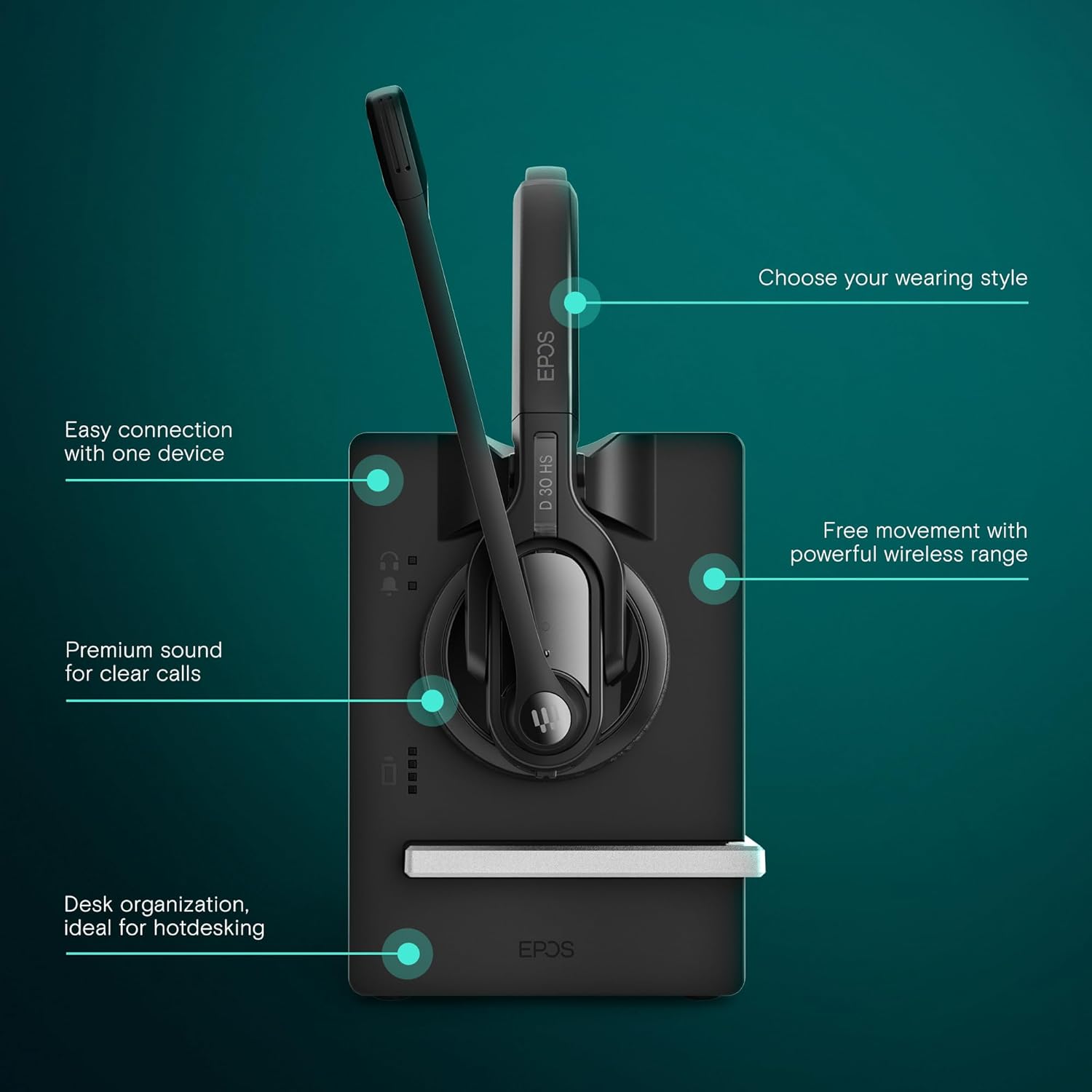
Figure 2: Visual guide for connecting the EPOS Impact D 30 USB ML headset to its base station and PC, highlighting easy connection and wireless range.
Video 1: Official EPOS video demonstrating the setup and key features of the Impact D 30 USB ML Headset, including connectivity and charging.
4. Operating Instructions
The EPOS Impact D 30 USB ML headset is designed for intuitive operation during calls and media playback.
- Call Control: Use the multi-function button on the headset to answer or end calls.
- Mute Microphone: A dedicated mute button is available on the microphone boom for quick privacy during calls.
- Volume Adjustment: Adjust the listening volume using the volume controls located on the headset.
- Wearing Style: The headset features a double-sided wearing style for optimal focus. The microphone boom is adjustable to position it correctly for clear voice pickup.

Figure 3: Close-up of the EPOS Impact D 30 USB ML headset, illustrating the one-touch call control, microphone, and volume adjustment buttons.

Figure 4: The EPOS Impact D 30 USB ML headset designed for optimized performance with Unified Communications platforms.
5. Battery and Charging
The headset is equipped with a Lithium Ion battery, providing up to 12 hours of talk time. It supports fast charging to minimize downtime.
- Charging Time: Approximately 1 hour for a full charge.
- Battery Life: Up to 12 hours of talk time.
- Charging Indicator: The headset will display an indicator light when charging on the base station.

Figure 5: The EPOS Impact D 30 USB ML headset placed on its charging base, illustrating the quick charging capability for extended use.
6. Maintenance
To ensure the longevity and optimal performance of your EPOS Impact D 30 USB ML headset, follow these maintenance guidelines:
- Cleaning: Regularly wipe the headset and base station with a soft, dry cloth. Avoid using harsh chemicals or abrasive materials.
- Storage: When not in use, store the headset on its base station or in a cool, dry place away from direct sunlight and extreme temperatures.
- Battery Care: Avoid fully discharging the battery frequently. Charge the headset regularly, even if not in daily use, to maintain battery health.
7. Troubleshooting
If you encounter issues with your EPOS Impact D 30 USB ML headset, consider the following troubleshooting steps:
- No Audio/Microphone Not Working: Ensure the base station is securely connected to your PC and recognized as the default audio device. Check the headset's power and mute status.
- Poor Audio Quality: Verify the headset is within range of the base station. Ensure there are no obstructions causing interference. Check PC audio settings.
- Headset Not Charging: Confirm the USB cable is properly connected to the base station and a power source. Ensure the headset is correctly seated on the charging contacts of the base station.
- Pairing Issues: Refer to the quick guide for specific pairing instructions. Ensure no other DECT devices are causing interference.
8. Specifications
Detailed technical specifications for the EPOS Impact D 30 USB ML Headset:
| Feature | Specification |
|---|---|
| Model Name | IMPACT D 30 USB ML |
| Item Model Number | 1000992 |
| Connectivity Technology | Wireless |
| Wireless Communication Technology | DECT |
| Headphones Jack | USB |
| Frequency Response | 6800 Hz |
| Battery Life | 12 Hours |
| Charging Time | 12 Hours (Note: This likely refers to total usage time, not charging time. Fast charging is a feature.) |
| Noise Control | Active Noise Cancellation |
| Compatible Devices | UC Optimized devices, Desk Phones, Computers, Laptops, Smartphones |
| Item Weight | 3 Ounces |
| Product Dimensions | 7.8 x 6.57 x 3.23 inches |
| Material | Plastic |
9. Warranty and Support
The EPOS Impact D 30 USB ML headset comes with a manufacturer's warranty. For detailed information regarding warranty terms, conditions, and duration, please refer to the documentation included in your product packaging or visit the official EPOS support website.
For technical assistance, troubleshooting, or any product-related inquiries, please contact EPOS customer support. Contact details can typically be found in your quick guide or on the manufacturer's website.


