Download PDFFree PDF. The Save button below keeps a bookmark and private notes in your account.
Ulefone Armor X9 Pro Rugged Smartphone User Manual
Model: Armor X9 Pro
1. Introduction
This manual provides essential information for the proper use and maintenance of your Ulefone Armor X9 Pro rugged smartphone. Please read it thoroughly to ensure optimal performance and longevity of your device. The Ulefone Armor X9 Pro is designed for durability, featuring robust protection against water, dust, and drops, making it suitable for various challenging environments.
2. Package Contents
Verify that all items are present in your product package:
Ulefone Armor X9 Pro Smartphone
USB Cable
SIM Tray Ejector
User Manual
3. Device Layout
Familiarize yourself with the physical components of your Ulefone Armor X9 Pro.
Figure 3.1: Rear view of the Ulefone Armor X9 Pro, highlighting the dual camera setup, LED flash, and regulatory information labels.
The device features a ruggedized body with reinforced corners and a textured back for enhanced grip and durability. The rear panel includes the main camera module and LED flash. Side buttons provide control for power, volume, and a customizable key. The front features a 5.5-inch display and a front-facing camera.
4. Setup
4.1. SIM Card and TF Card Installation
To install your SIM card(s) and/or TF (microSD) card:
Locate the SIM card tray on the side of the phone.
Insert the SIM tray ejector tool into the small hole next to the tray and press firmly until the tray pops out.
Place your Nano-SIM card(s) and/or TF card into the designated slots on the tray, ensuring proper orientation.
Carefully reinsert the tray into the phone until it clicks into place. Ensure the tray is fully sealed to maintain water and dust resistance.
4.2. Initial Power On
Press and hold the Power button located on the side of the device until the Ulefone logo appears. Follow the on-screen instructions to complete the initial setup, including language selection, Wi-Fi connection, and Google account setup.
5. Operating System: Android 11
The Ulefone Armor X9 Pro runs on Android 11, offering an intuitive user experience with enhanced privacy controls, improved notification management, and new features like chat bubbles and screen recording.
Figure 5.1: The Ulefone Armor X9 Pro running the Android 11 operating system.
5.1. Basic Navigation
Home Screen: Swipe left or right to access different home screens.
App Drawer: Swipe up from the bottom of the screen to view all installed applications.
Notifications: Swipe down from the top of the screen to access notifications and quick settings.
Gestures: Utilize Android 11's gesture navigation for a fluid experience (e.g., swipe up to go home, swipe from the side to go back).
6. Key Features
6.1. Ruggedness and Durability
The Armor X9 Pro is built to withstand harsh conditions, certified with IP68/IP69K ratings for water and dust resistance, and MIL-STD-810G for drop protection.
Figure 6.1: The Armor X9 Pro showcasing its waterproof and dustproof capabilities in a muddy environment.
Video 6.1: An official product video demonstrating the Ulefone Armor X9 Pro's rugged features, including water, dust, and drop resistance.
Waterproof: Can withstand submersion in water up to 1.5 meters for 30 minutes.
Dustproof: Fully protected against dust ingress.
Drop-proof: Designed to survive drops from up to 1.2 meters onto concrete.
6.2. Performance
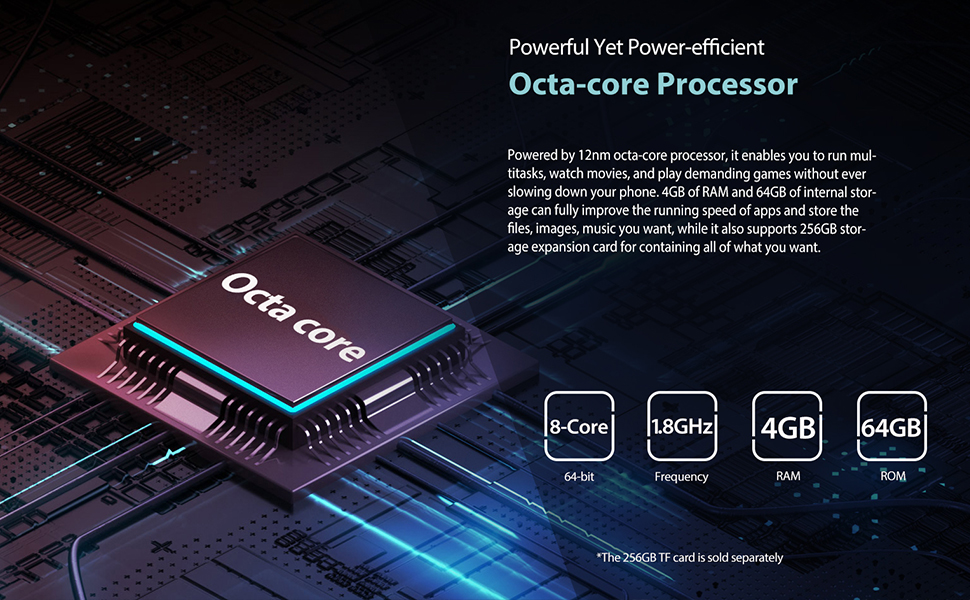
Equipped with an Octa-core processor, 4GB of RAM, and 64GB of internal storage, the Armor X9 Pro delivers smooth performance for daily tasks and applications.
Figure 6.2: Visual representation of the MT6762 Octa-core processor and its key specifications.
Processor: MT6762 Octa-core for efficient multitasking.
Storage: 64GB ROM provides ample space for apps and files, expandable via TF card up to 256GB (sold separately).
6.3. Camera System
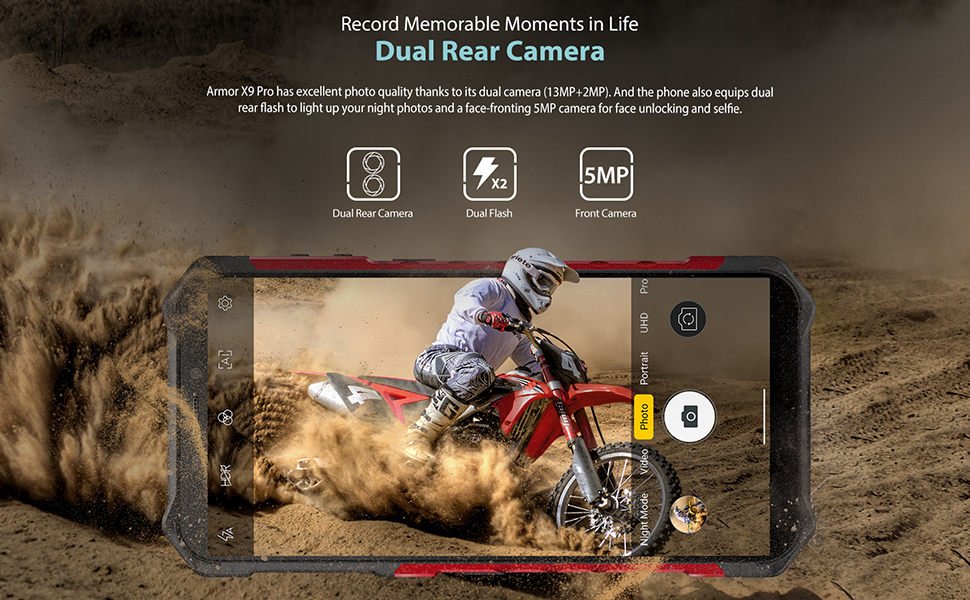
Capture memorable moments with the dual rear camera and front camera.
Figure 6.3: The Armor X9 Pro's camera interface, demonstrating its 13MP+2MP dual rear camera capabilities.
Rear Camera: 13MP main sensor + 2MP secondary sensor with dual flash.
Front Camera: 5MP for selfies and video calls.
6.4. Display
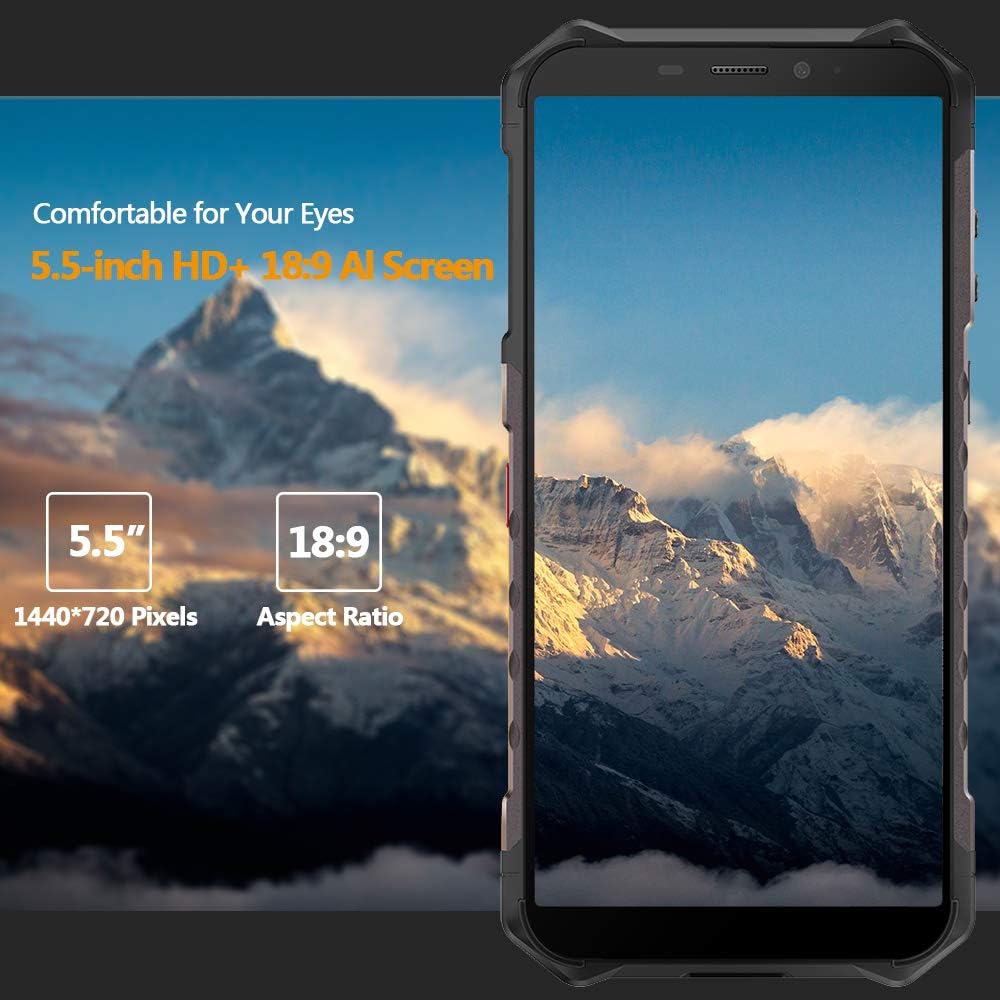
Enjoy clear visuals on the 5.5-inch HD+ display.
Figure 6.4: The 5.5-inch HD+ display of the Armor X9 Pro, featuring an 18:9 aspect ratio and 1440x720 pixel resolution.
Size: 5.5-inch HD+ (1440x720 pixels).
Aspect Ratio: 18:9 for a comfortable viewing experience.
6.5. Battery and OTG Function
The large battery capacity ensures extended usage, and the OTG function adds versatility.
Figure 6.5: The Armor X9 Pro demonstrating its OTG (On-The-Go) function to reverse charge another device, powered by its 5000mAh battery.
Battery: 5000mAh for long-lasting power.
OTG: Supports On-The-Go function for data exchange and reverse charging other devices.
6.6. Custom Key
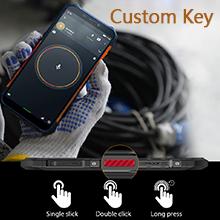
The customizable side key allows for quick access to frequently used functions or apps.
Figure 6.6: The custom key can be programmed for various actions with single, double, or long presses.
6.7. Gloves Mode
Operate the touchscreen even while wearing gloves, ideal for outdoor or industrial use.
Figure 6.7: Gloves Mode allows for touchscreen operation while wearing gloves.
6.8. Underwater Mode
Capture photos and videos underwater with a dedicated mode that optimizes touch input and camera settings for submerged use.
Figure 6.8: The phone in Underwater Mode, capturing visuals while submerged.
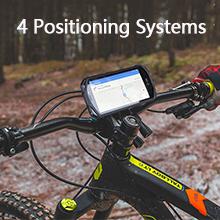
6.9. Positioning Systems
The device supports multiple global navigation satellite systems for accurate positioning.
Figure 6.9: The Armor X9 Pro utilizing its GPS functionality for navigation.
Supports GPS, GLONASS, Galileo, and BeiDou for reliable location tracking.
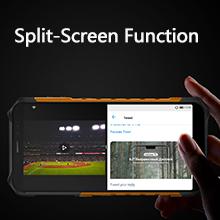
6.10. Split-Screen Function
Multitask efficiently by running two applications simultaneously on the screen.
Figure 6.10: The split-screen function allows for simultaneous use of two applications.
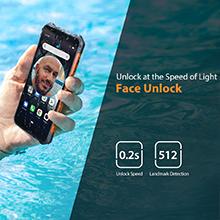
6.11. Face Unlock
Securely unlock your device using facial recognition technology.
Figure 6.11: Face Unlock provides quick and secure access to your device.
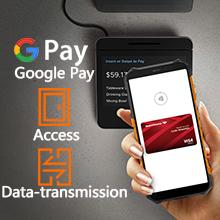
6.12. NFC and Google Pay
Utilize NFC for convenient mobile payments and data transmission.
Figure 6.12: The Armor X9 Pro supports NFC for Google Pay and other data transmission.
7. Maintenance
To maintain the performance and appearance of your Ulefone Armor X9 Pro:
Regularly clean the screen and body with a soft, damp cloth.
Ensure all port covers are securely closed to maintain water and dust resistance.
Avoid exposing the device to extreme temperatures or direct sunlight for prolonged periods.
Do not use harsh chemicals or abrasive materials for cleaning.
8. Troubleshooting
This section addresses common issues you might encounter with your device.
Issue
Possible Solution
Device does not power on
Ensure the battery is charged. Connect to a charger for at least 10 minutes before attempting to power on again.
Poor network signal
Check SIM card installation. Move to an area with better network coverage. Restart the device.
Touchscreen unresponsive
Restart the device. If the issue persists, perform a factory reset (data will be lost).
Battery drains quickly
Close background applications. Reduce screen brightness. Disable unused features like Wi-Fi, Bluetooth, GPS.
9. Specifications
Key technical specifications for the Ulefone Armor X9 Pro.
Feature
Specification
Operating System
Android 11.0
RAM
4 GB
Memory Storage Capacity
64 GB
Screen Size
5.5 Inches
Battery Capacity
5000 Milliamp Hours
Wireless Communication Technologies
Cellular, Wi-Fi
Cellular Technology
4G
GPS
True
Audio Jack
3.5 mm
Item Weight
8.3 ounces (235 Grams)
10. Warranty and Support
For warranty information and technical support, please refer to the warranty card included in your package or visit the official Ulefone website. Keep your proof of purchase for warranty claims.
Ask about setup, troubleshooting, compatibility, parts, safety, or missing instructions. Manuals+ will review the question and use this page’s manual context to help answer it.