
1. Introduction
Thank you for purchasing the XElectron C50 1080P Projector. This manual provides essential information for setting up, operating, and maintaining your projector to ensure optimal performance and longevity. Please read this manual thoroughly before using the product and retain it for future reference.
2. Safety Information
- Do not look directly into the projector lens when the lamp is on. The intense light can cause eye damage.
- Ensure proper ventilation around the projector. Do not block ventilation openings.
- Keep the projector away from water, moisture, and flammable materials.
- Use only the power adapter supplied with the projector.
- Do not attempt to repair the projector yourself. Refer all servicing to qualified personnel.
- Place the projector on a stable, level surface to prevent damage from falling.
3. Package Contents
Verify that all items listed below are included in your package:
- XElectron C50 Projector
- Remote Control
- Power Adapter
- HDMI Cable
- Warranty Card

Image: Contents of the XElectron C50 Projector package, including the projector, remote, cables, and documentation.
4. Product Overview
4.1 Projector Dimensions and Weight
The XElectron C50 projector is designed to be compact and portable.

Image: Diagram showing the dimensions of the XElectron C50 projector: 26 cm (length), 21.2 cm (width), 10.2 cm (height), and a weight of 1.900 kg.
4.2 Ports and Controls
Familiarize yourself with the various input/output ports and control buttons on your projector.

Image: Rear and side views of the XElectron C50 projector, highlighting the 3.5 mm Audio Port, AV Port, HDMI 1, HDMI 2, USB 1, USB 2, IR receiver, and Power Port.
4.3 Remote Control Functions
The included remote control allows for convenient operation of the projector from a distance.

Image: Diagram of the XElectron C50 remote control, labeling buttons such as ON/OFF, MUTE, PAUSE/PLAY, navigation (UP, DOWN, LEFT, RIGHT, OK), SOURCE, MENU, EXIT, VOLUME DOWN, and VOLUME UP.
5. Setup
5.1 Placement and Projection Distance
Optimal image quality depends on correct projector placement and distance from the screen.

Image: A guide illustrating recommended projection distances and corresponding screen sizes for the XElectron C50 projector. For example, 3.5 ft distance for a 35-inch screen, up to 20 ft for a 300-inch screen. Recommended screen size is 100 to 120 inches.
5.2 Power Connection
- Connect the power adapter to the projector's Power Port.
- Plug the power adapter into a suitable electrical outlet.
- Press the power button on the projector or remote control to turn it on.
5.3 Focus and Keystone Adjustment
- Focus: Rotate the focus ring near the lens until the projected image is sharp and clear.
- Keystone Correction: If the image appears trapezoidal, use the keystone adjustment feature (manual or digital, refer to on-screen menu) to correct the image shape. The C50 supports vertical keystone correction.
6. Operating Instructions
6.1 Powering On/Off
- Power On: Press the power button on the projector or the remote control.
- Power Off: Press the power button again. Confirm shutdown if prompted.
6.2 Input Source Selection
Use the 'SOURCE' button on the remote control or the projector's control panel to cycle through available input sources (HDMI 1, HDMI 2, AV, USB).
6.3 Connecting Devices
- HDMI: Connect devices like laptops, set-top boxes, or gaming consoles using an HDMI cable to either HDMI 1 or HDMI 2 port.
- USB: Insert a USB drive into the USB 1 or USB 2 port to play media files directly.
- AV: Use the AV port for older devices with composite video output.
6.4 Wireless Connectivity
The XElectron C50 supports various wireless connection options for enhanced versatility.
Bluetooth Connection
Connect Bluetooth audio devices like headphones or speakers to the projector.

Image: The XElectron C50 projector with a Bluetooth logo, surrounded by icons of various Bluetooth audio devices like headphones, earbuds, and speakers, indicating support for wireless audio connections.
Wi-Fi, Miracast, and AirPlay (Screen Mirroring)
Wirelessly mirror content from your smartphone, tablet, or laptop to the projector.
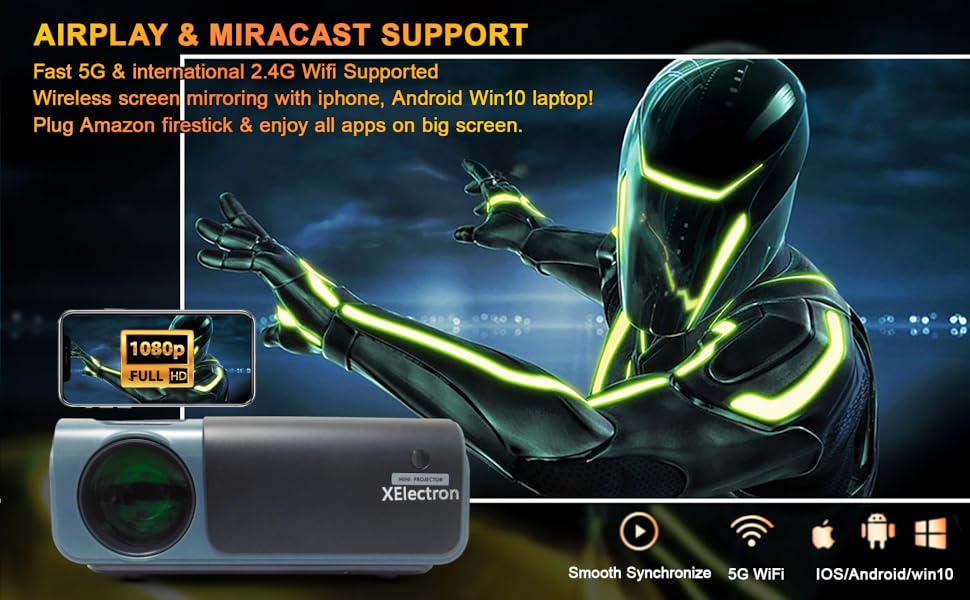
Image: A graphic illustrating the XElectron C50 projector supporting AirPlay and Miracast for wireless screen mirroring from iOS, Android, and Windows devices, including a phone displaying content mirrored to a large screen.
- Ensure your projector and device are connected to the same Wi-Fi network.
- Select the appropriate screen mirroring option (Miracast for Android/Windows, AirPlay for iOS) from the projector's menu.
- Follow the on-screen instructions to connect your device.
6.5 Gaming Setup
Connect your gaming console via HDMI or use wireless screen mirroring for mobile gaming.

Image: A person playing a racing game on a large projected screen using a gamepad, with icons indicating connectivity options like USB 1, USB 2, HDMI 1, HDMI 2, and VGA for expanding gaming possibilities with the C50 projector.
7. Maintenance
- Lens Cleaning: Use a soft, lint-free cloth specifically designed for optical lenses to gently wipe the projector lens. Do not use abrasive cleaners.
- Dust Filter Cleaning: Regularly check and clean the dust filters to ensure proper airflow and prevent overheating. Refer to the projector's exterior for filter locations.
- Storage: When not in use for extended periods, store the projector in a cool, dry place, protected from dust and direct sunlight.
- Ventilation: Ensure the projector's ventilation openings are clear of obstructions during operation.
8. Troubleshooting
If you encounter issues with your XElectron C50 projector, refer to the following common problems and solutions:
| Problem | Possible Cause | Solution |
|---|---|---|
| No image projected | Power cable loose, incorrect input source, device not connected | Check power connection, select correct input source, ensure source device is on and connected. |
| Image is blurry or out of focus | Focus ring not adjusted, projector too close/far from screen | Adjust the focus ring. Ensure projector is within recommended projection distance. |
| Image is trapezoidal | Projector not perpendicular to screen | Use keystone correction feature to adjust the image shape. |
| No sound | Volume too low, external audio device not connected, source device audio settings | Increase projector volume. Check external speaker connection. Verify audio output settings on source device. |
| Cannot connect via Wi-Fi/Bluetooth | Incorrect settings, device compatibility, network issues | Ensure Wi-Fi/Bluetooth is enabled on both devices. Check network connection. Refer to specific connection instructions in Section 6.4. |
| Projector overheats or shuts down | Blocked ventilation, prolonged use in hot environment | Ensure ventilation openings are clear. Operate in a well-ventilated area. Allow projector to cool down. |
9. Specifications
Detailed technical specifications for the XElectron C50 Projector:
- Brand: XElectron
- Model: C50M
- Display Technology: LED, LCD
- Native Resolution: 1920 x 1080 (1080p Full HD)
- Supported Resolution: Up to 4K
- Image Brightness: 7500 Lumens
- Image Contrast Ratio: 10000:1
- Aspect Ratio: 16:9
- Standing Screen Display Size: Up to 300 Inches
- Product Dimensions: 26 x 21.2 x 10.2 cm
- Item Weight: 1.5 kg
- Processor Count: 4
- Flash Memory Installed Size: 8 GB
- Hardware Interface: 3.5mm Audio, AV, 802.11 ac/b/g/n (Wi-Fi), Bluetooth, HDMI (x2), USB (x2)
- Wireless Type: 2.4 GHz Radio Frequency, 5.8 GHz Radio Frequency, Bluetooth
- Compatible Devices: iPhone, Android Phone, Set-top box, Laptop, TV Box, etc.
- Special Features: 300 inch Display, Bluetooth, Native 1080P Resolution, Built-in Speakers, Vertical Keystone correction
- Speakers Nominal Output Power: 20 Watts
- Noise Level: 40 Decibels
- Voltage: 230 Volts
- Wattage: 70 Watts
- Power Source: AC
- Refresh Rate: 60 Hz
- Mounting Type: Ceiling Mount supported
- Model Year: 2021
10. Warranty and Support
XElectron is committed to providing excellent customer service and product support.
- Warranty: The XElectron C50 Projector comes with a 12-month manufacturer warranty. Please refer to the included Warranty Card for detailed terms and conditions.
- Customer Service: For any technical assistance, troubleshooting, or warranty claims, please contact XElectron customer service.
- Response Time: Expect a prompt reply within 24 hours for inquiries.
- Official Guide: Technical help is available to solve any problems you may encounter.

Image: Graphic detailing XElectron's customer support, including 24-hour reply, 12-month manufacturer warranty, lifetime customer service, and official technical guides.
