
Prolink DL-7303
Prolink DL-7303 4G+ AC1200 Wireless LTE Router User Manual
Model: DL-7303
1. Introduction
The Prolink DL-7303 is a 4G+ Fixed Wi-Fi Router designed to provide stable and fast wireless internet access. It supports 4G+ LTE FDD/TDD networks, offering download speeds up to 300Mbps and AC1200 Wi-Fi for up to 64 concurrent users. This manual will guide you through the setup, operation, and maintenance of your device.
2. Product Overview
2.1 Package Contents
- Prolink DL-7303 4G+ AC1200 Wireless LTE Router
- Power Adapter
- Ethernet Cable
- Quick Installation Guide
2.2 Device Layout
Familiarize yourself with the ports, buttons, and indicators on your router.

Figure 1: Rear view of the Prolink DL-7303 router, displaying the power input, USB port, and four yellow LAN/WAN ports.
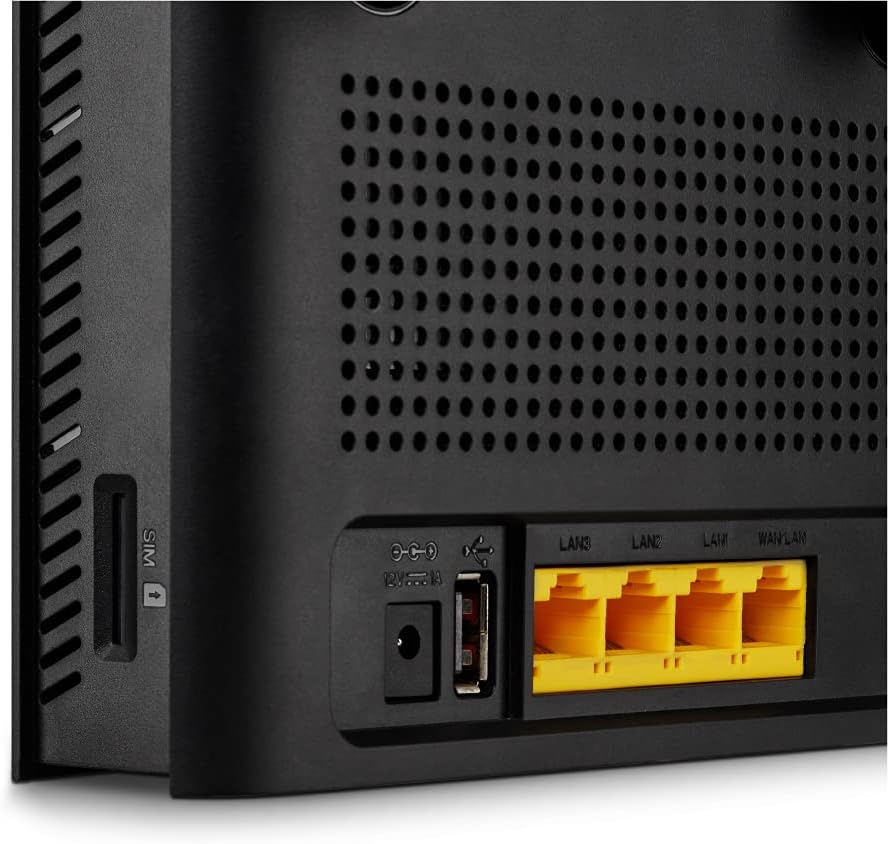
Figure 2: Side view of the Prolink DL-7303 router, highlighting the SIM card slot.

Figure 3: Front view of the Prolink DL-7303 router, showing the LED indicators for power, network status, and Wi-Fi.
2.3 Key Features
- 4G+ LTE Connectivity: Supports download speeds up to 300Mbps.
- AC1200 Dual-Band Wi-Fi: Provides 2.4GHz and 5GHz wireless networks for high-speed connections.
- Multi-User Support: Connects up to 64 wireless devices concurrently.
- Plug & Play: Automatic Network Selection (Auto APN) for easy setup with a SIM card.
- Gigabit LAN Ports: Four full Gigabit LAN ports for wired devices.
- Samba File Sharing: Allows sharing files from a connected USB storage device.
- Prolink mWiFi App: Mobile application for managing network settings, Wi-Fi password, SMS/USSD, and connected devices.
- LTE Failover: Automatically switches to 4G+ LTE connection if fixed broadband is disrupted.
3. Setup Guide
3.1 Inserting the SIM Card
- Ensure the router is powered off.
- Locate the SIM card slot on the side of the router (refer to Figure 2).
- Insert your standard-sized SIM card into the slot until it clicks into place. Ensure the SIM card is correctly oriented.

Figure 4: Illustration of inserting a SIM card into the router's dedicated slot for immediate internet connection.
3.2 Powering On the Router
- Connect the provided power adapter to the router's power input port (refer to Figure 1).
- Plug the power adapter into a wall outlet.
- The router will automatically power on. Wait for the LED indicators on the front panel to stabilize. The 4G+ LTE indicator should turn solid blue or green, indicating a successful network connection.
3.3 Initial Wi-Fi Connection
Once the router is powered on and connected to the 4G+ LTE network:
- On your computer or mobile device, search for available Wi-Fi networks.
- Select the Wi-Fi network name (SSID) corresponding to your Prolink DL-7303 router. The default SSID and password are usually found on a label on the bottom of the router.
- Enter the Wi-Fi password when prompted.
- You should now be connected to the internet.
4. Operating Instructions
4.1 Connecting Devices
- Wireless Devices: Connect smartphones, tablets, laptops, and other Wi-Fi enabled devices using the Wi-Fi SSID and password. The router supports up to 64 concurrent wireless connections.
- Wired Devices: Use an Ethernet cable to connect devices like desktop computers, smart TVs, or gaming consoles to any of the four Gigabit LAN ports on the rear of the router.

Figure 5: The Prolink DL-7303 router providing both 2.4GHz and 5GHz Wi-Fi bands for wireless devices, and Gigabit LAN ports for wired connections like TVs, computers, and NAS.
4.2 Using the Prolink mWiFi App
The Prolink mWiFi app allows you to manage your router settings conveniently from your smartphone.
- Download the Prolink mWiFi app from the Google Play Store or Apple App Store.
Download Prolink mWiFi App (Android) - Connect your smartphone to the router's Wi-Fi network.
- Open the app and follow the on-screen instructions to log in.
- Through the app, you can:
- Change Wi-Fi password and SSID.
- Monitor connected devices.
- Access SMS/USSD functions.
- Manage data usage and set traffic alerts.
- Perform easy configuration tasks.

Figure 6: Overview of the Prolink mWiFi app, illustrating its capabilities for managing network settings, changing passwords, monitoring connected devices, and accessing SMS/USSD functions.
4.3 Samba File Sharing
The router supports Samba file sharing, allowing you to share files from a USB storage device connected to the router's USB port.
- Connect a USB hard disk or flash drive to the USB port on the rear of the router (refer to Figure 1).
- Ensure the device is formatted correctly (e.g., FAT32, NTFS).
- Access the shared files from other devices connected to the same network using network discovery or by entering the router's IP address in your file explorer.
- Refer to the Prolink mWiFi app or the router's web interface for specific Samba sharing settings.
5. Advanced Features
5.1 LTE Failover
The LTE Failover feature ensures continuous internet connectivity. If your primary fixed broadband connection experiences an outage, the Prolink DL-7303 will automatically switch to its 4G+ LTE connection, preventing downtime.
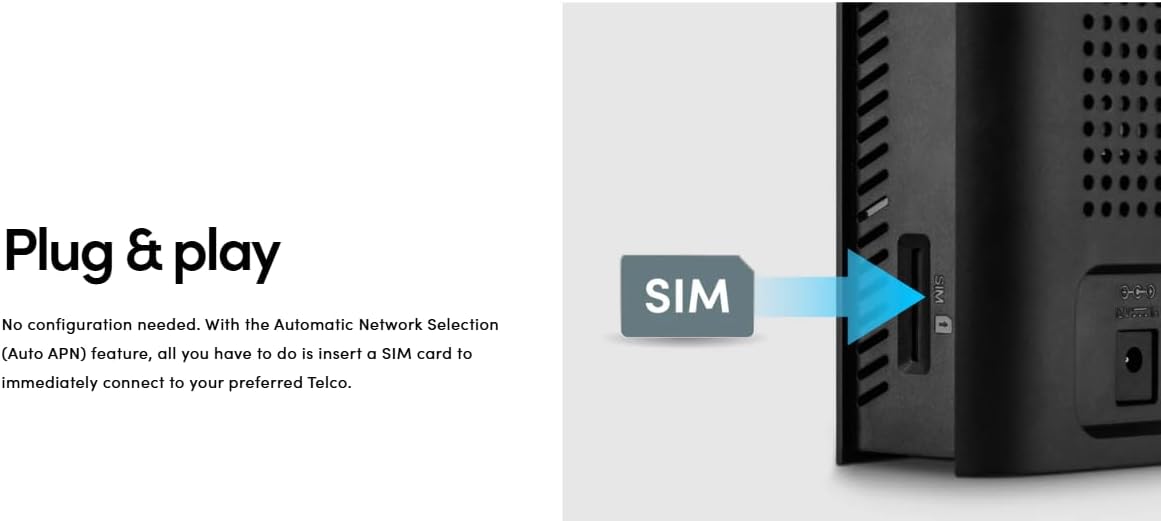
Figure 7: Diagram showing how the Prolink DL-7303 router provides LTE failover. When fixed broadband is disrupted, the router automatically switches to the 4G+ mobile broadband connection to maintain internet access.
6. Maintenance
- Placement: Place the router in a central location, away from obstructions and other electronic devices that may cause interference.
- Cleaning: Use a soft, dry cloth to clean the router. Do not use liquid cleaners or aerosols.
- Firmware Updates: Regularly check the Prolink website or the mWiFi app for firmware updates to ensure optimal performance and security.
- Restarting: If you experience network issues, try restarting the router by unplugging the power adapter, waiting 10 seconds, and then plugging it back in.
7. Troubleshooting
7.1 No Internet Connection
- Check if the SIM card is correctly inserted and activated.
- Verify that the 4G+ LTE indicator on the router is solid, indicating a stable mobile network connection.
- Ensure your device is connected to the correct Wi-Fi network or LAN port.
- Restart the router and your connected devices.
- Check your data plan with your mobile service provider.
7.2 Slow Wi-Fi Speed
- Move closer to the router to improve signal strength.
- Reduce the number of connected devices or bandwidth-intensive activities.
- Ensure the router is placed in an open area, free from obstructions.
- Check for firmware updates.
7.3 Cannot Access Router Settings (Web Interface/App)
- Ensure your device is connected to the router's network.
- Verify the correct IP address for the web interface (usually 192.168.1.1 or similar, check router label).
- Confirm you are using the correct login credentials.
- Try clearing your browser's cache or using a different browser.
8. Specifications
| Feature | Detail |
|---|---|
| Brand | Prolink |
| Model Name | DL-7303 |
| Wireless Type | 802.11ac (AC1200 Dual-Band) |
| 4G+ LTE Speed | Up to 300Mbps Download |
| Frequency Band Class | Dual-Band (2.4GHz, 5GHz) |
| Connectivity Technology | Wi-Fi, Ethernet |
| Antenna Type | Internal |
| LAN Ports | 4 x Gigabit LAN |
| Special Features | Access Point Mode, LTE Failover, Samba File Sharing |
| Compatible Devices | Tablet, PC, Smartphone, Smart TV, Gaming Consoles |
| Recommended Uses | Home, Small Office, Outdoor/Travel |
| Item Model Number | DL-7303 |
| Voltage | 12 Volts |
| Package Dimensions | 22.8 x 15.6 x 6.6 cm |
| Item Weight | 520 g |
9. Warranty and Support
For local warranty and technical support, please contact Prolink directly:
- Email: support@prolink2u.com
- Phone: (65) 6357 0666
Prolink is an established Singapore brand since 1991, offering direct support from their warehouse.
Related documentsDL-7303


Ask a question about this manual
Ask about setup, troubleshooting, compatibility, parts, safety, or missing instructions. Manuals+ will review the question and use this page’s manual context to help answer it.