Introduction
The UMIDIGI A11 Pro Max is a powerful Android 11 smartphone designed for a seamless user experience. Featuring a Helio G80 gaming processor, a large 6.8-inch FHD+ display, a versatile triple camera system, and a long-lasting 5150mAh battery, this device is built to handle your daily tasks, entertainment, and communication needs. This manual provides essential information to help you set up, operate, and maintain your device.
Setup
1. Package Contents
Before you begin, ensure all items are present in your package:
- UMIDIGI A11 Pro Max Smartphone
- Power Adapter
- USB Type-C Cable
- SIM Eject Tool
- Protective Case (may vary by region)
- Screen Protector (pre-applied or included)
- Quick Start Guide
2. SIM Card and MicroSD Card Installation
The UMIDIGI A11 Pro Max supports dual Nano-SIM cards and a MicroSD card simultaneously. Use the provided SIM eject tool to open the SIM tray.
- Locate the SIM tray on the side of the device.
- Insert the SIM eject tool into the small hole next to the tray and push gently until the tray pops out.
- Carefully pull out the SIM tray.
- Place your Nano-SIM cards into the SIM 1 and SIM 2 slots, ensuring the gold contacts face downwards.
- If using, place your MicroSD card into the dedicated MicroSD slot.
- Gently push the tray back into the slot until it is flush with the device body.

Image: The SIM tray showing slots for two Nano-SIM cards and one MicroSD card, indicating simultaneous use.
3. Charging the Battery
Your device comes with a 5150mAh battery. For optimal performance, fully charge the device before first use.
- Connect the USB Type-C cable to the charging port at the bottom of the phone.
- Connect the other end of the cable to the power adapter.
- Plug the power adapter into a wall outlet.
- The charging indicator will appear on the screen.
Image: Visual representation of the phone's 5150mAh battery and its 10W fast charging capability via a Type-C port.
4. Power On/Off
- To power on: Press and hold the Power button (located on the right side) until the UMIDIGI logo appears.
- To power off: Press and hold the Power button, then select "Power off" from the options on the screen.
- To restart: Press and hold the Power button, then select "Restart" from the options.
Operating Your Device
1. Physical Features and Design
The UMIDIGI A11 Pro Max features an iconic flat-edged metal frame combined with AG matte glass on the back, providing a comfortable grip and a premium feel while resisting fingerprints.

Image: Close-up views of the phone's flat metal edges, AG matte glass back, and port/button placements.
Familiarize yourself with the button and port locations:
- Volume Buttons: Located on the side, typically above the power button.
- Power Button/Fingerprint Scanner: Located on the side, used for power control and biometric authentication.
- Customizable Button: A dedicated button on the side that can be programmed for quick access to a specific function or app.
- USB Type-C Port: Located at the bottom for charging and data transfer.
- 3.5mm Audio Jack: Located on the top or bottom for headphones.

Image: The back of the phone with labels pointing to the volume buttons, power button/fingerprint scanner, customizable button, and SIM slot.
2. Display and Navigation
The UMIDIGI A11 Pro Max features a 6.8-inch FHD+ FullView Display with a 2460x1080P resolution and a 20.5:9 cinema-grade ratio, providing an immersive visual experience.

Image: The phone displaying a scenic landscape, highlighting its large 6.8-inch FHD+ screen and high resolution.
Navigate the device using standard Android touch gestures:
- Tap: Select an item or open an app.
- Swipe: Scroll through screens or lists.
- Pinch: Zoom in or out on images and web pages.
- Long Press: Access contextual menus or move icons.
3. Camera Features
The device is equipped with a versatile triple camera system:
- 48MP Main Camera: For high-resolution photos with rich detail.
- 16MP Ultra-Wide Angle Camera (120° FOV): Capture broader scenes, ideal for landscapes and group photos.
- 2MP Macro Camera: For detailed close-up shots of small objects.
- 24MP In-screen Front Camera: For high-quality selfies and video calls, enhanced with AI beautify features.
- Night Mode: Improves photo quality in low-light conditions.
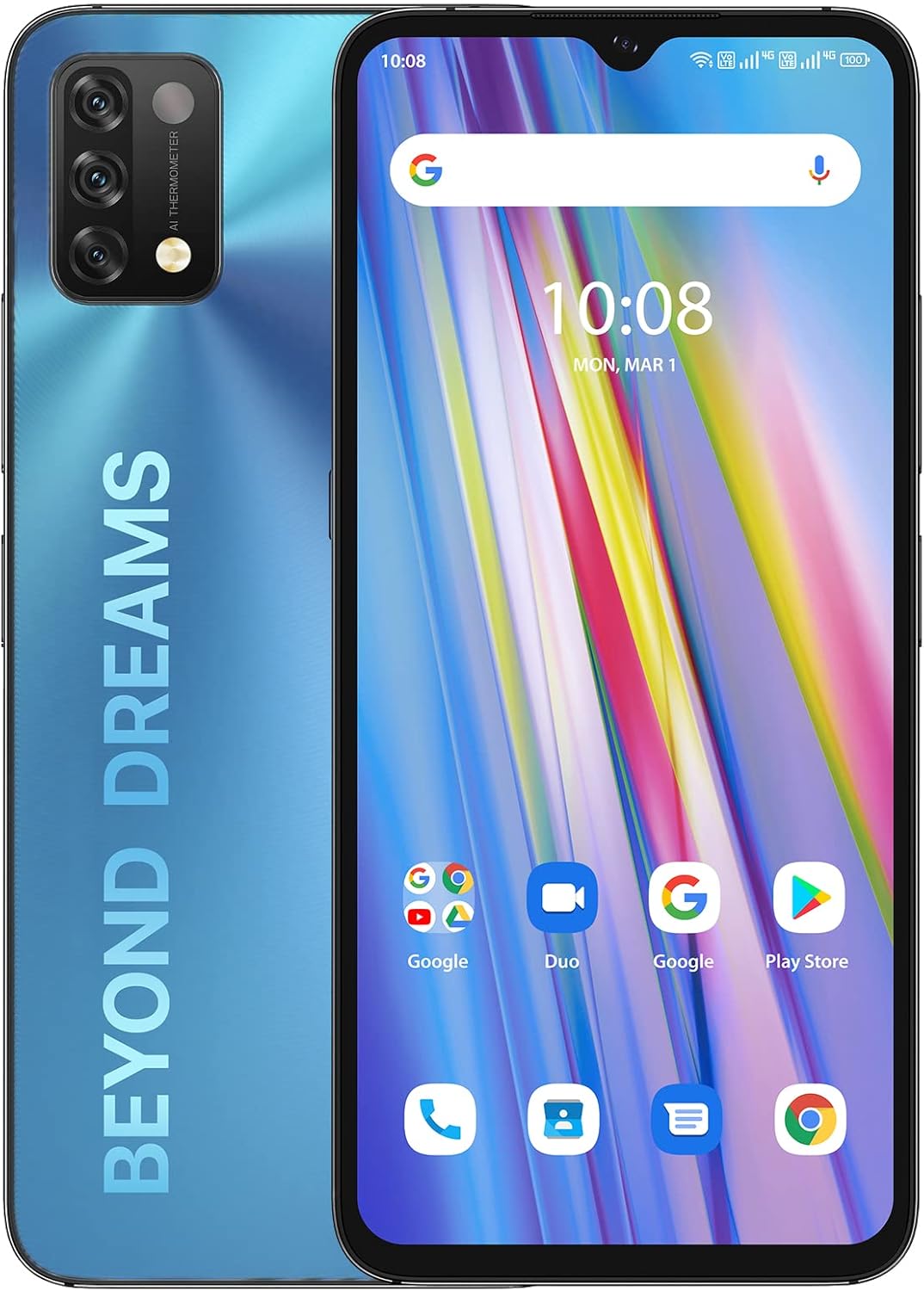
Image: The rear of the UMIDIGI A11 Pro Max, highlighting the triple camera module and LED flash.
4. Performance and Storage
Powered by the Helio G80 gaming processor, the UMIDIGI A11 Pro Max offers smooth performance for applications, videos, and games. It comes with 8GB RAM and 128GB internal storage, expandable up to 256GB via MicroSD card.

Image: A visual representation of the Helio G80 processor and memory specifications, with a phone displaying a game.
5. Security Features
- AI Face Unlock: Unlock your phone quickly and securely using facial recognition.
- Side-Mounted Fingerprint Scanner: Integrated into the power button for convenient and fast unlocking.
6. Connectivity
The UMIDIGI A11 Pro Max supports Dual 4G VoLTE and is compatible with most GSM and CDMA carriers, supporting over 30 global bands for wide network compatibility.
Maintenance
1. Battery Care
- Avoid extreme temperatures, as they can degrade battery life.
- Use only the original charger and cable provided with your device.
- Do not leave the phone charging for extended periods after it reaches 100%.
- If the device will not be used for a long time, charge it to about 50% before storing.
2. Cleaning Your Device
- Use a soft, lint-free cloth to clean the screen and body.
- Avoid using harsh chemicals, abrasive cleaners, or compressed air.
- Keep ports free of dust and debris.
3. Software Updates
Regularly check for and install software updates to ensure your device has the latest features, security patches, and performance improvements. You can usually find this option in Settings > System > System update.
Troubleshooting
If you encounter issues with your UMIDIGI A11 Pro Max, refer to the following common solutions:
| Problem | Solution |
|---|---|
| Device won't turn on | Ensure the battery is charged. Connect to charger for at least 10 minutes. If still unresponsive, perform a forced restart by holding the Power button for 10-15 seconds. |
| Cannot connect to network | Check if SIM card is properly inserted. Verify mobile data is enabled in settings. Restart the device. Contact your carrier to confirm network compatibility and service status. |
| Apps are slow or crashing | Close background apps. Clear app cache (Settings > Apps > [App Name] > Storage > Clear cache). Restart the device. Ensure sufficient storage space is available. |
| Battery drains quickly | Reduce screen brightness. Disable unused features like Wi-Fi, Bluetooth, GPS. Close power-intensive apps. Check battery usage in settings to identify culprits. |
| Fingerprint scanner not working | Ensure your finger is clean and dry. Re-register your fingerprints in settings. Ensure the sensor area is clean. |
If the problem persists, please contact UMIDIGI customer support for further assistance.
Specifications
| Feature | Detail |
|---|---|
| Model | UMIDIGI A11 Pro Max |
| Operating System | Android 11 |
| Processor | Helio G80 Gaming Processor (2 GHz CPU Speed) |
| RAM | 8 GB |
| Internal Storage | 128 GB (Expandable up to 256GB) |
| Display | 6.8-inch FHD+ FullView Display, 2460 x 1080 Resolution, 20.5:9 Ratio |
| Rear Camera | 48MP Main + 16MP Ultra-Wide (120°) + 2MP Macro |
| Front Camera | 24MP In-screen |
| Battery Capacity | 5150 mAh |
| Charging | 10W Type-C Fast Charging |
| Connectivity | Dual 4G VoLTE, Wi-Fi, Bluetooth, GPS |
| SIM Card Slots | Dual Nano-SIM + MicroSD (dedicated slot) |
| Security | AI Face Unlock, Side-Mounted Fingerprint Scanner |
| Dimensions | 6.61 x 2.98 x 0.34 inches |
| Weight | 7.4 ounces (210 Grams) |
Warranty and Support
UMIDIGI provides a standard warranty for its products. Please refer to the warranty card included in your product packaging for specific terms and conditions, including warranty period and coverage details. Keep your proof of purchase for warranty claims.
Customer Support
For technical assistance, troubleshooting, or warranty inquiries, please contact UMIDIGI customer support. You can often find support contact information on the official UMIDIGI website or through the seller from whom you purchased the device.
- Online Support: Visit the official UMIDIGI website for FAQs, support articles, and contact forms.
- Amazon Message: If purchased via Amazon, you can send a message to the seller ("UMIDIGI Official store") through your order details for assistance.
When contacting support, please have your device model (UMIDIGI A11 Pro Max) and purchase information ready.


