
Introduction
This manual provides essential information for setting up, operating, maintaining, and troubleshooting your Lenovo IdeaCentre AIO 3i 22-inch All-in-One Computer. The IdeaCentre AIO 3i is a compact and powerful desktop solution, featuring an 11th generation Intel Core i3 processor, 8GB DDR4 RAM, and a 256GB SSD for efficient performance. Its 22-inch Full HD touchscreen display, complemented by Harman-certified stereo speakers, offers an enhanced user experience. This guide will help you maximize the functionality of your device, including its integrated webcam and various connectivity options.
What's in the Box
Verify that all components are present in the packaging:
- Computer
- User Guide
- Power Cord
- Keyboard
- Mouse

Figure 1: Included items in the Lenovo IdeaCentre AIO 3i package.
Product Overview
The Lenovo IdeaCentre AIO 3i is designed for versatility and performance. It features a sleek, compact design with a 22-inch Full HD touchscreen display. The system is powered by an Intel Core i3-1115G4 processor, 8GB DDR4 RAM, and a 256GB SSD, ensuring fast boot times and responsive operation. Integrated Harman Kardon-certified stereo speakers provide clear audio.

Figure 2: Front view of the Lenovo IdeaCentre AIO 3i All-in-One Computer.
Key Features:
- Processor: Intel Core i3-1115G4 for efficient multitasking.
- Memory: 8GB DDR4 RAM for smooth application performance.
- Storage: 256GB SSD for rapid data access and system responsiveness.
- Display: 22-inch Full HD (1920 x 1080) touchscreen with narrow bezels for immersive viewing and intuitive interaction.
- Audio: Harman Kardon-certified stereo speakers for high-quality sound.
- Webcam: Built-in retractable webcam (up to 5M clarity) for privacy and video conferencing.
- Connectivity: Wireless LAN (2x2 802.11 ac), Bluetooth, multiple USB 2.0 and 3.2 ports, 1000 LAN, and HDMI-out.
Ports and Connections:
The IdeaCentre AIO 3i offers a variety of ports for connecting peripherals and external devices:
- 2 x USB 2.0 ports
- 2 x USB 3.2 Gen 2 Type-A ports (up to 10 GB/s data transfer)
- 1 x HDMI-out port
- 1 x 1000 LAN (Ethernet RJ-45)
- 1 x Microphone/Earphone combo jack
- 1 x Power DC jack
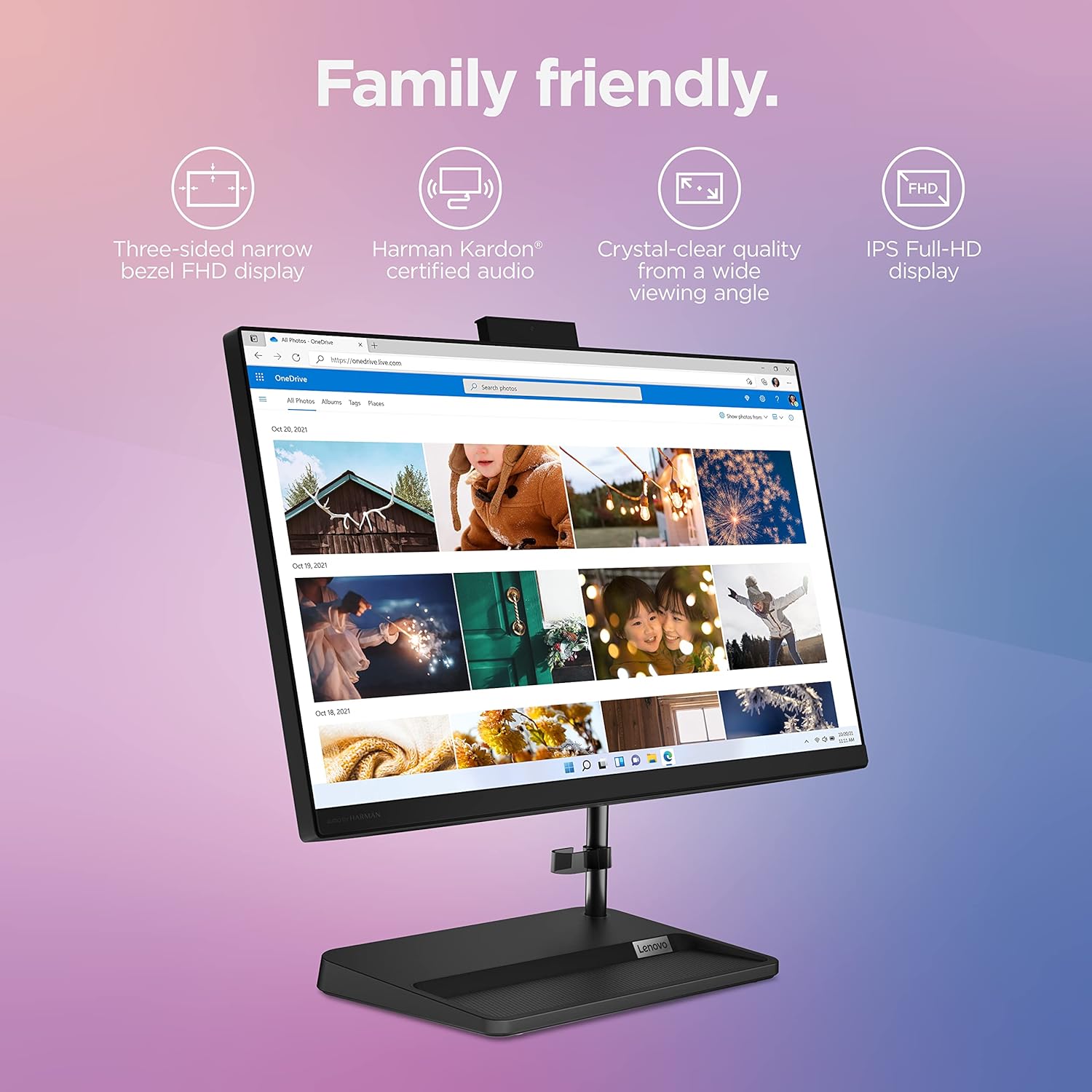
Figure 3: Rear ports of the Lenovo IdeaCentre AIO 3i.
Adjustable Display and Webcam:
The monitor stand supports a tilt range of -5° to +25°, allowing for comfortable viewing angles. The integrated webcam can be physically pushed down for privacy, providing an additional layer of security.

Figure 4: Adjustable tilt feature of the IdeaCentre AIO 3i display.
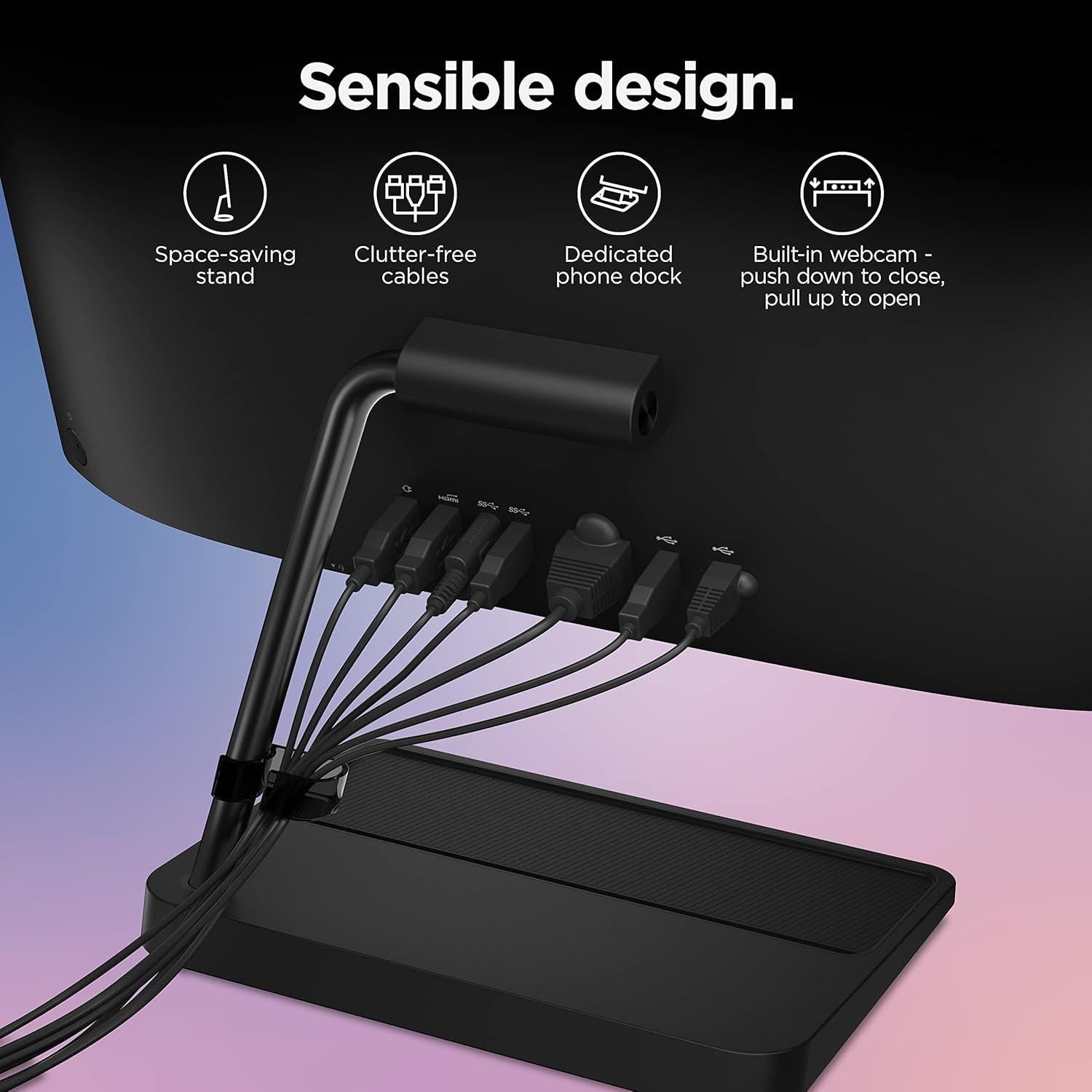
Figure 5: Retractable webcam for privacy on the IdeaCentre AIO 3i.
Windows 11 Features:
The computer comes pre-installed with Windows 11, offering enhanced security and productivity features. OneDrive PC Backup automatically backs up your Desktop, Documents, and Pictures folders, providing peace of mind.
Video 1: This video demonstrates how Windows 11 protects your photos, documents, and other files through OneDrive PC Backup, ensuring automatic backup of Desktop, Documents, and Pictures folders for data security and peace of mind.
Setup Instructions
- Unpack the Computer: Carefully remove all components from the packaging. Place the All-in-One computer on a stable, flat surface.
- Connect Power: Plug the power cord into the DC-in port on the back of the computer, then plug the other end into a power outlet.
- Install Keyboard and Mouse Batteries: Insert the required batteries into the wireless keyboard and mouse.
- Connect Wireless Receiver: Locate the USB wireless receiver (usually found in the mouse or keyboard packaging) and plug it into an available USB port on the computer.
- Power On: Press the power button, typically located on the side or bottom bezel of the display.
- Initial Windows Setup: Follow the on-screen instructions to complete the Windows 11 setup process, including language selection, network connection, and user account creation.
- Connect to Internet: Connect to your Wi-Fi network or plug an Ethernet cable into the LAN port for internet access.
Operating Instructions
Using the Touchscreen:
The 22-inch Full HD display supports touch input. Use gestures similar to a smartphone or tablet for navigation, zooming, and interacting with applications. Lightly tap to select, pinch to zoom, and swipe to scroll.
Windows 11 Navigation:
Familiarize yourself with the Windows 11 interface. The Start menu provides quick access to applications and settings. Use the taskbar for pinned apps and open windows. Explore the Widgets panel for personalized information.
Using the DVD RW Drive:
The integrated DVD RW drive allows you to read and write CDs and DVDs. Insert a disc into the drive, and the system will typically prompt you with options for playback or data management.
Connecting Peripherals:
Utilize the various USB ports to connect external devices such as printers, external hard drives, or additional input devices. The HDMI-out port allows you to connect an external monitor or TV.
Maintenance
- Cleaning: Use a soft, lint-free cloth to clean the screen and exterior surfaces. For the screen, a specialized screen cleaner can be used. Avoid harsh chemicals.
- Software Updates: Regularly check for and install Windows updates and driver updates to ensure optimal performance and security.
- Data Backup: Utilize OneDrive PC Backup or other external storage solutions to regularly back up important data.
- Ventilation: Ensure that the computer's ventilation openings are not blocked to prevent overheating.
Troubleshooting
No Power:
- Check if the power cord is securely connected to both the computer and the power outlet.
- Verify that the power outlet is functional by plugging in another device.
Display Issues:
- If the screen is blank, ensure the computer is powered on and not in sleep mode.
- Adjust display brightness settings.
Connectivity Problems:
- For Wi-Fi issues, restart your router and modem. Check network settings on the computer.
- For wired connections, ensure the Ethernet cable is properly connected.
- For wireless keyboard/mouse, check battery levels and ensure the USB receiver is correctly plugged in.
Webcam Not Working:
- Ensure the webcam is extended (pulled up) and not pushed down for privacy.
- Check privacy settings in Windows to ensure applications have permission to access the camera.
Specifications
| Feature | Specification |
|---|---|
| Brand | Lenovo |
| Model Name | IdeaCentre AIO 3i 22 |
| Model Number | F0G5006JUS |
| Operating System | Windows 11 |
| CPU Model | Intel Core i3-1115G4 |
| CPU Speed | 2.4 GHz (Max 4.1 GHz) |
| RAM Memory Installed | 8 GB DDR4 (3200 MHz) |
| Memory Storage Capacity | 256 GB SSD |
| Screen Size | 21.5 Inches |
| Display Resolution Maximum | 1920x1080 Pixels (Full HD) |
| Display Type | LCD, Touchscreen |
| Graphics Coprocessor | Integrated Graphics |
| Optical Storage Device | DVD+RW |
| Connectivity Technology | Bluetooth, Ethernet, USB, Wi-Fi (802.11ac) |
| Total USB Ports | 4 (2x USB 2.0, 2x USB 3.2 Gen 2) |
| Total Number of HDMI Ports | 1 (HDMI-out) |
| Item Dimensions | 19.3 x 7.3 x 15.94 inches |
| Item Weight | 13.38 Pounds |
Warranty and Support
Your Lenovo IdeaCentre AIO 3i 22-inch All-in-One Computer comes with a 1-year Limited Parts and Labor warranty. For technical assistance, troubleshooting beyond this manual, or warranty claims, please contact Lenovo customer support. Refer to the official Lenovo website or the included user guide for detailed contact information and support resources.