
Swarmir A21
Swarmir Bluetooth Speaker with Lights and Wireless Charging
Model: A21
Introduction
This manual provides essential information for the safe and efficient operation of your Swarmir Bluetooth Speaker with Lights and Wireless Charging. Please read this manual thoroughly before use and retain it for future reference.

Image: Front view of the Swarmir Bluetooth Speaker with a smartphone placed on its wireless charging pad, surrounded by colorful LED lights.
Product Features
- Multifunctional Design: Combines a Bluetooth speaker, night light, wireless charging station, and phone holder into one compact device.
- Dynamic Lighting: Features 7 solid colors and 2 dynamic colored light modes to enhance ambiance.
- Advanced Bluetooth Connectivity: Equipped with Bluetooth 5.0 for stable and extended wireless range (up to 30 feet), compatible with phones, tablets, and other Bluetooth-enabled devices.
- Qi Certified Wireless Charging: Supports fast wireless charging up to 10W (with QC3.0 adapter) for compatible smartphones, including temperature control and overcharge protection.
- User-Friendly Controls: Humanized buttons allow easy control of volume, song skipping, call answering, and light modes.
- Eye Protection: Smooth surface and high-quality LED lights ensure no flicker, strobing, or glare, providing comfortable illumination.
What's in the Box
- Swarmir Bluetooth Speaker with Lights and Wireless Charging
- Power Cable (USB-C)
- User Manual
Setup Guide
- Power Connection: Connect the provided power cable to the speaker and plug it into a power source. Use the original adapter for normal operation.
- Placement: Place the speaker on a stable, flat surface. The integrated phone holder is designed to securely hold your smartphone during wireless charging or media viewing.

Image: Close-up of the speaker's top panel showing the control buttons and the text "Original adapter is required for normal use".
Operating Instructions
Power On/Off
To power on the device, press the play/pause button located on the top panel. The speaker will emit an audible confirmation. To power off, press and hold the play/pause button.
Bluetooth Pairing
- Ensure the speaker is powered on.
- On your smartphone or Bluetooth-enabled device, navigate to the Bluetooth settings.
- Search for available devices. The speaker will appear as "A21" or "Swarmir".
- Select the speaker to pair. A confirmation sound will indicate successful pairing.
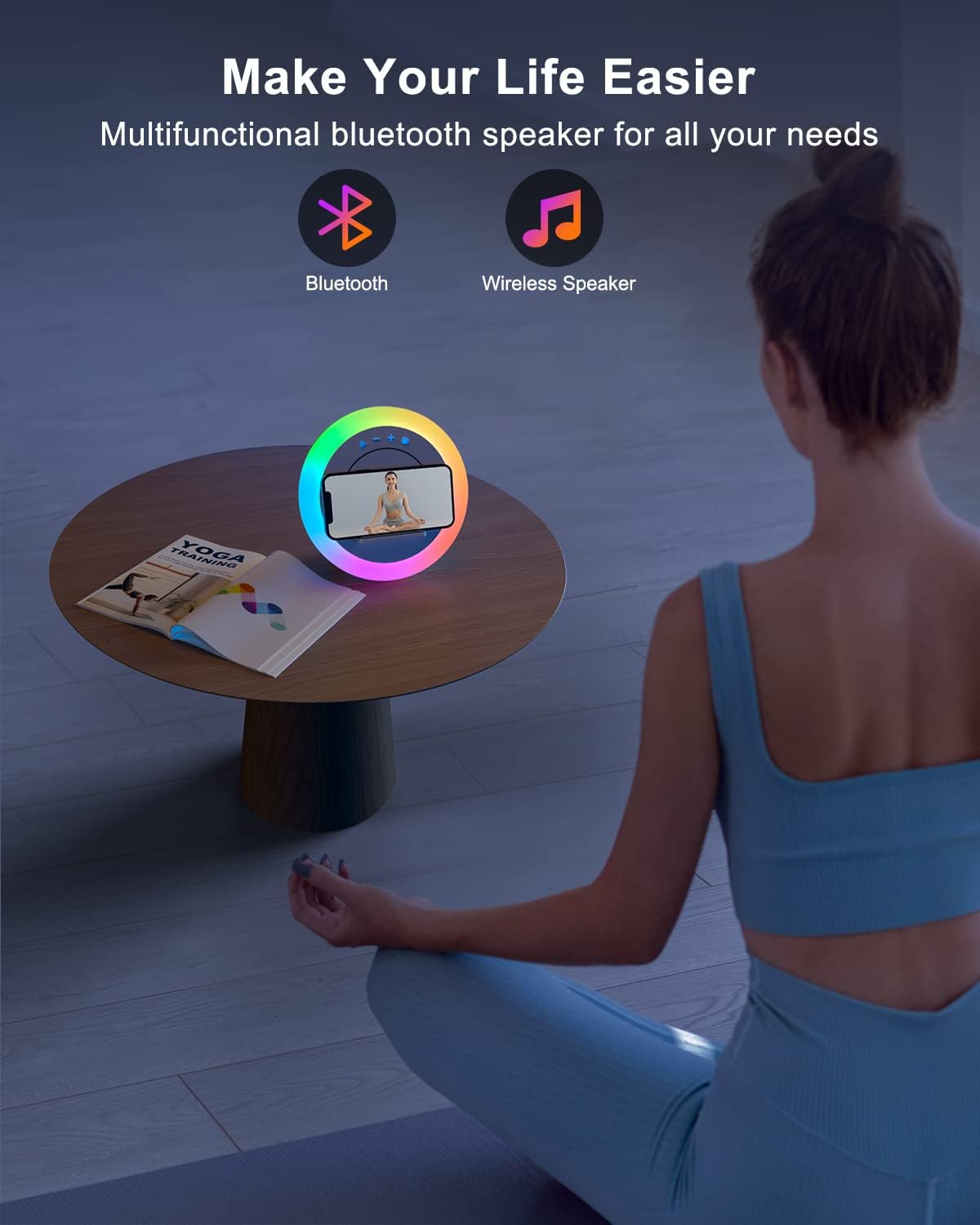
Image: The Swarmir speaker on a table with icons for Bluetooth and wireless speaker, highlighting its dual functionality.
Light Control
The speaker features multiple lighting modes. Press the light button (circular icon) on the top panel to cycle through 7 solid colors and 2 dynamic color modes. The lights can also sync with music for an enhanced visual experience.

Image: The Swarmir speaker showcasing different lighting experiences, including solid colors and a rainbow mode.
Video: Official Swarmir video demonstrating the ambient light display of the speaker, showcasing various color changes and effects.
Wireless Charging
To use the wireless charging function, ensure your smartphone is Qi-enabled. Place your device on the silicone phone holder. The dots on the panel will flash to indicate that your phone is charging. For optimal performance, use the QC3.0 adapter provided.
- Ensure your phone supports wireless charging.
- Remove any metal objects, magnets, metal casings, clips, or card holders from your phone.
- Avoid charging in overheated environments.
- If charging issues occur, try restarting your phone or the device.
- Avoid thick protective cases (> 0.07") and other accessories when charging.

Image: The Swarmir speaker functioning as a sleep assistant, providing soft light and wireless charging for a phone on a nightstand.
Volume Control and Song Navigation
Use the '+' and '-' buttons on the speaker to adjust the volume. A short press will change the volume. To skip songs, press and hold the '+' or '-' buttons. If the speaker volume is low, first adjust it on the speaker, then increase the volume on your connected phone if needed.
Maintenance
To ensure the longevity and optimal performance of your Swarmir speaker, follow these maintenance guidelines:
- Cleaning: Use a soft, dry cloth to clean the surface of the speaker. Do not use abrasive cleaners or solvents.
- Storage: Store the speaker in a cool, dry place away from direct sunlight and extreme temperatures when not in use.
- Handling: Handle the device with care to avoid physical damage.
Troubleshooting
| Problem | Possible Cause | Solution |
|---|---|---|
| Device does not power on. | Power cable not fully plugged in or not using original adapter. | Ensure the USB cable is fully plugged in. Use the original adapter provided with the product. |
| Wireless charging is not working. | Phone not Qi-enabled, foreign objects, thick case, or overheating. | Verify phone supports wireless charging. Remove metal objects, magnets, or thick cases (>0.07"). Avoid charging in overheated environments. Try restarting the phone or device. |
| Bluetooth connection issues. | USB cable partially plugged in. | Ensure the USB cable is fully plugged in. Re-pair the device if necessary. |
| Speaker volume is too low. | Speaker volume or phone volume is set too low. | First, press the "+" button on the speaker to adjust its volume. If still low, increase the volume on your phone. |
Specifications
- Brand: Swarmir
- Model: A21
- Product Dimensions: 3"D x 6"W x 8"H
- Item Weight: 1 Pound
- Color: White
- Material: Silicone
- Connectivity Technology: Bluetooth 5.0
- Wireless Charging: Qi Certified, up to 10W (with QC3.0 adapter)
- Light Source Type: LED
- Brightness: 99 Lumen
- Wattage: 2 watts
- Control Method: Button, Voice
- Power Source: Wired Electric (requires power cable)
- UPC: 760988316738
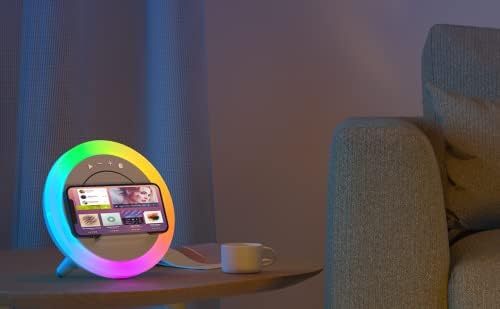
Image: Side profile of the Swarmir speaker, highlighting its compact design.
Warranty and Support
For warranty information and customer support, please refer to the contact details provided by the manufacturer, Swarmir, at the time of purchase or visit their official website. Keep your purchase receipt for warranty claims.
Related documentsA21

Ask a question about this manual
Ask about setup, troubleshooting, compatibility, parts, safety, or missing instructions. Manuals+ will review the question and use this page’s manual context to help answer it.