
1. Introduction
Thank you for purchasing the Rosewill BLITZ K50 RGB BR Wired Gaming Mechanical Keyboard. This manual provides detailed instructions on how to set up, operate, maintain, and troubleshoot your new keyboard. Please read this manual thoroughly before use to ensure optimal performance and longevity of your device.
2. Package Contents
Please check the package contents to ensure all items are present:
- Rosewill BLITZ K50 RGB BR Mechanical Gaming Keyboard
- Detachable Palm Rest
- Keycap Removal Kit
- User Manual (this document)
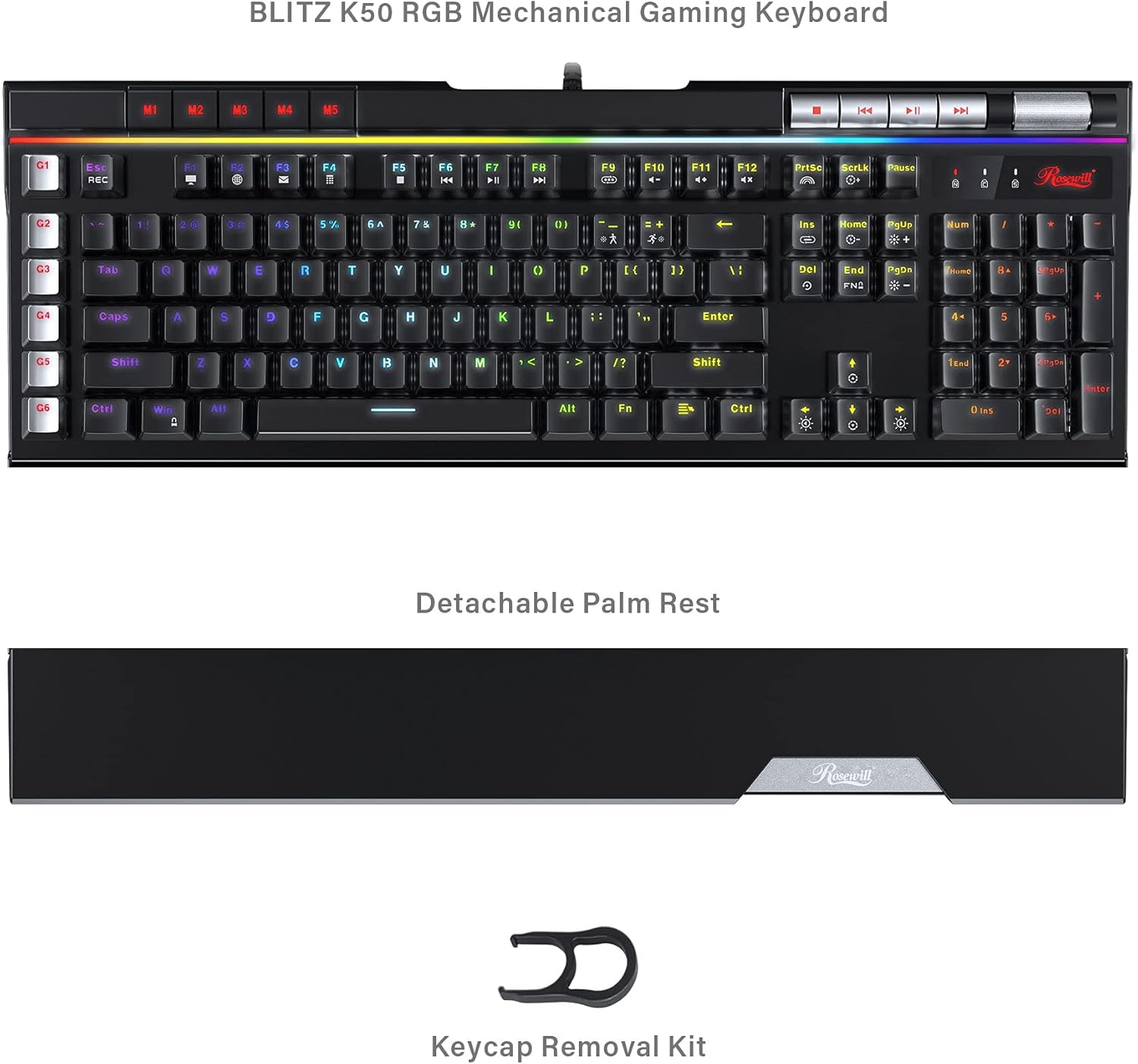
Image: The Rosewill BLITZ K50 RGB BR keyboard shown with its detachable palm rest and the included keycap removal kit, illustrating the complete package contents.
3. Product Overview
The Rosewill BLITZ K50 RGB BR is a full-sized wired gaming mechanical keyboard designed for performance and customization. It features durable Outemu brown tactile mechanical switches, N-Key rollover, and anti-ghosting for precise input during intense gaming sessions. The keyboard also includes dedicated macro keys, customizable RGB backlighting, and convenient media controls.

Image: A comprehensive view of the Rosewill BLITZ K50 RGB BR keyboard, showcasing its full layout, RGB backlighting, and dedicated function keys.
Key Components:
- Mechanical Switches: Equipped with genuine Outemu brown tactile mechanical switches for a responsive typing and gaming experience.
- Macro Keys (G1-G6): Six dedicated, programmable macro keys on the left side for custom command chains.
- RGB Backlighting: Individual key backlighting with multiple customizable modes and effects.
- Dedicated Media Controls: Buttons for play/pause, skip, and a volume roller for quick audio adjustments.
- USB Passthrough Ports: Two built-in USB 2.0 ports for connecting additional peripherals.
- Detachable Palm Rest: Provides ergonomic support during extended use.
4. Setup
Follow these steps to set up your Rosewill BLITZ K50 RGB BR keyboard:
- Connect the Keyboard: Plug the USB connector of the keyboard cable into an available USB port on your computer. The keyboard is plug-and-play and does not require additional drivers for basic functionality.
- Attach Palm Rest (Optional): Align the detachable palm rest with the bottom edge of the keyboard and gently push to secure it in place.
- Install Software (Optional): For advanced customization, including macro programming and RGB lighting effects, download the BLITZ K50 RGB BR software suite from the official Rosewill website. Follow the on-screen instructions for installation.

Image: A user operating the Rosewill BLITZ K50 RGB BR keyboard, demonstrating its typical setup on a desk with a computer monitor.
5. Operating Instructions
5.1. Basic Keyboard Functions
The keyboard functions as a standard QWERTY keyboard. All standard keys (letters, numbers, symbols, function keys) operate as expected upon connection.
5.2. RGB Backlighting Control
The BLITZ K50 RGB BR features 5 customizable RGB modes and 14 pre-programmed backlighting effects. Use the dedicated lighting control keys to cycle through modes and adjust brightness.
- Fn + Ins: Cycle through pre-programmed lighting effects.
- Fn + Home: Adjust lighting brightness (5 levels).
- Fn + PgUp: Change lighting speed/direction for certain effects.
- Fn + Del: Cycle through custom RGB modes.
- Fn + End: Adjust individual key color in custom modes.
- Fn + PgDn: Reset lighting to default.
5.3. Macro Key Programming (G1-G6)
The six dedicated macro keys (G1-G6) can be programmed to execute complex command chains with a single press. Programming can be done via the keyboard's on-board recording function or through the software suite.
On-board Recording:
- Press the REC key (above G1). The REC indicator will flash.
- Press the desired macro key (G1-G6) you wish to program. The REC indicator will continue to flash.
- Type the sequence of keys you want to record.
- Press the REC key again to save the macro. The REC indicator will turn off.
For more advanced macro programming, including delays and specific key combinations, use the BLITZ K50 RGB BR software.
5.4. Dedicated Media Controls & USB Passthrough
The keyboard features dedicated media control buttons and a volume roller for convenient audio management. Two USB 2.0 passthrough ports are also available for connecting other devices.

Image: A detailed view of the multimedia control buttons and the metallic volume roller located on the top right of the keyboard, highlighting their accessibility.
- Media Buttons: Use the dedicated buttons for Play/Pause, Previous Track, and Next Track.
- Volume Roller: Roll up to increase volume, roll down to decrease volume. Press to mute/unmute.
- USB Passthrough: Connect your mouse, headset, or other USB devices to the two USB 2.0 ports located on the keyboard for easy access.
5.5. Software Customization
The BLITZ K50 RGB BR software suite allows for comprehensive customization of your keyboard. You can customize lighting effects, program macros, reassign keys, and save up to 3 profiles.
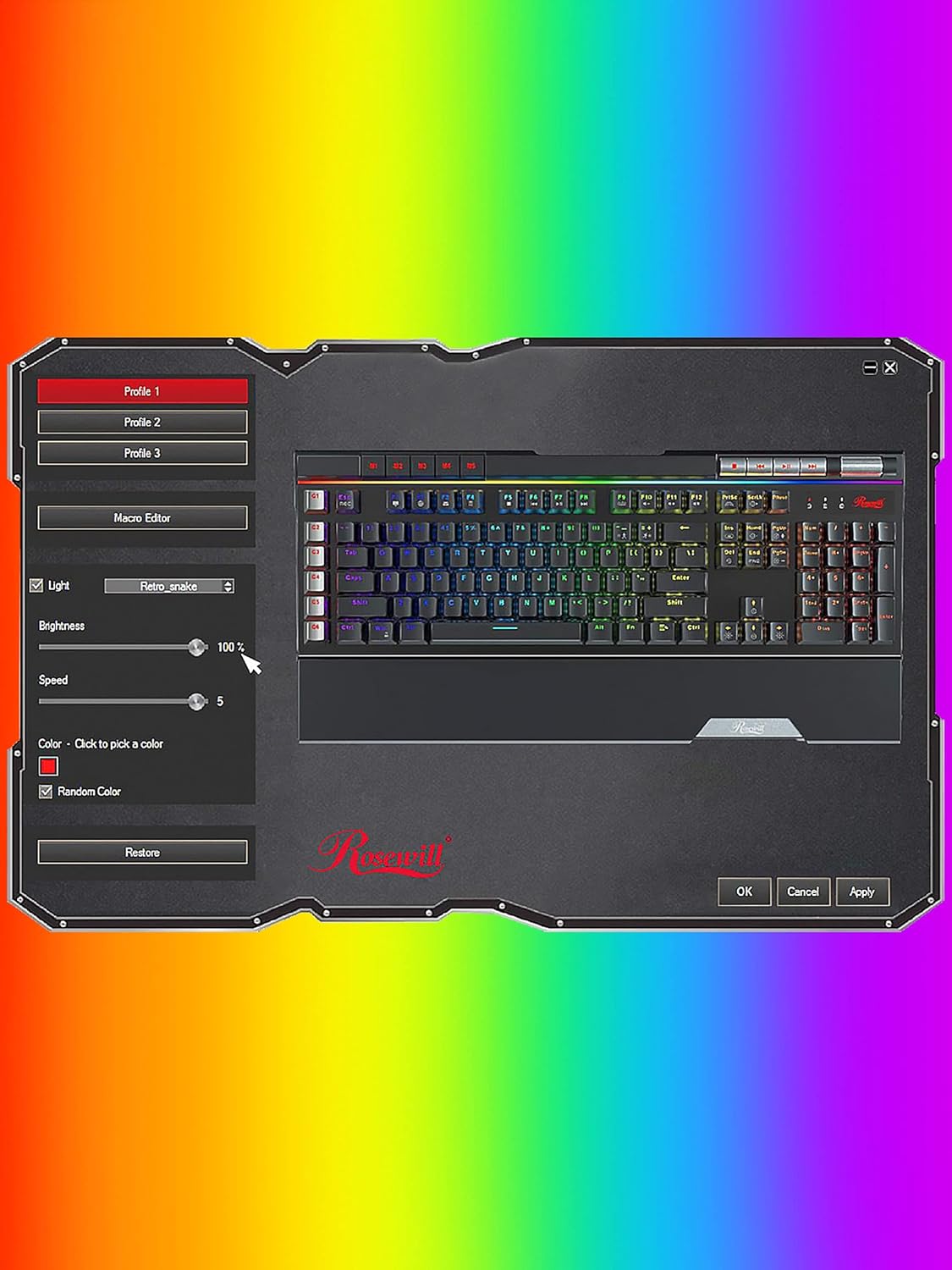
Image: A screenshot of the Rosewill BLITZ K50 RGB BR software interface, showing options for lighting control, macro editing, and profile management.
Refer to the software's built-in help or the Rosewill website for detailed instructions on using the software suite.
6. Maintenance & Care
To ensure the longevity and optimal performance of your keyboard, follow these maintenance guidelines:
- Cleaning: Use a soft, dry cloth to wipe down the keyboard surface. For dust and debris between keycaps, use compressed air. The included keycap removal tool can be used to carefully remove keycaps for deeper cleaning.
- Avoid Liquids: Do not expose the keyboard to liquids. In case of spills, immediately disconnect the keyboard and allow it to dry completely before reconnecting.
- Storage: Store the keyboard in a cool, dry place away from direct sunlight and extreme temperatures.

Image: A close-up view of the Outemu brown mechanical switches beneath removed keycaps, illustrating the internal components for maintenance and customization.
7. Troubleshooting
If you encounter issues with your keyboard, refer to the following troubleshooting steps:
- Keyboard not responding:
- Ensure the USB cable is securely connected to your computer.
- Try connecting the keyboard to a different USB port.
- Restart your computer.
- Backlighting not working or incorrect:
- Check if the brightness is set to maximum using Fn + Home.
- Cycle through lighting modes using Fn + Ins or Fn + Del.
- If using the software, ensure settings are applied and the software is running correctly.
- Try resetting the lighting to default (Fn + PgDn).
- Macro keys not working:
- Ensure macros are correctly recorded or programmed via the software.
- Check if the macro profile is active if using software.
- USB Passthrough ports not working:
- Ensure the keyboard's main USB cable is connected to a powered USB port on your computer.
- Try connecting a different device to the passthrough port to confirm the issue is with the port or the device.
8. Specifications
Detailed technical specifications for the Rosewill BLITZ K50 RGB BR keyboard:
| Feature | Specification |
|---|---|
| Model Number | BLITZ K50 RGB BR |
| Keyboard Type | Wired Gaming Mechanical Keyboard |
| Switch Type | Outemu Brown Tactile Mechanical Switches |
| Number of Keys | 104 |
| Anti-Ghosting | N-Key Rollover |
| Backlighting | RGB (14 pre-programmed effects, 5 customizable modes) |
| Macro Keys | 6 Dedicated (G1-G6) |
| Media Controls | Dedicated buttons + Volume Roller |
| USB Passthrough | 2 x USB 2.0 Ports |
| Connectivity | USB 2.0 |
| Operating System Compatibility | Windows XP / Vista / 7 / 8 / 10 and above |
| Dimensions (L x W x H) | 47.6 x 22.8 x 3.9 cm (18.74 x 8.97 x 1.53 inches) |
| Weight | 1.17 kg (2.58 lbs) |

Image: A technical diagram illustrating the length, width, and height measurements of the Rosewill BLITZ K50 RGB BR keyboard.
9. Warranty and Support
Rosewill products are designed for reliability and performance. For warranty information, technical support, or service inquiries, please visit the official Rosewill website or contact their customer support directly. Please retain your proof of purchase for warranty claims.
