
1. Introduction
This manual provides essential information for setting up, operating, maintaining, and troubleshooting your ASUS ROG Strix G15 G513IC-EB73 gaming laptop. The ROG Strix G15 is designed to deliver a high-performance gaming experience with its powerful AMD Ryzen CPU and NVIDIA GeForce RTX 3050 GPU, a 144Hz Full HD display, and advanced thermal management.
Please read this manual thoroughly to ensure proper usage and to maximize the lifespan of your device.
2. What's in the Box
Verify that all items are present in the packaging:
- ASUS ROG Strix G15 G513IC-EB73 Gaming Laptop
- Power Adapter & Cord
- User Guide (this document)
- Warranty Card
3. Initial Setup
3.1. Connecting the Power Adapter
Connect the power adapter to the laptop's power input port, located at the rear of the device. Plug the power cord into an electrical outlet. It is recommended to fully charge the laptop before initial use.
3.2. First Boot and Windows Setup
Open the laptop lid and press the power button, located on the top-right of the keyboard deck. The laptop will power on and guide you through the Windows 10 Home setup process. Follow the on-screen instructions to configure your operating system, network settings, and user accounts.
3.3. Updating Drivers and Software
After completing the initial Windows setup, ensure all drivers and software are up to date for optimal performance and stability. You can use the pre-installed MyASUS application or visit the official ASUS support website to download the latest drivers for your model.
Official video demonstrating the features and functionalities of the MyASUS software, which allows for system customization and service access.
4. Laptop Components and Ports
4.1. Overview

Front view of the ASUS ROG Strix G15 laptop, showcasing the display and keyboard area.
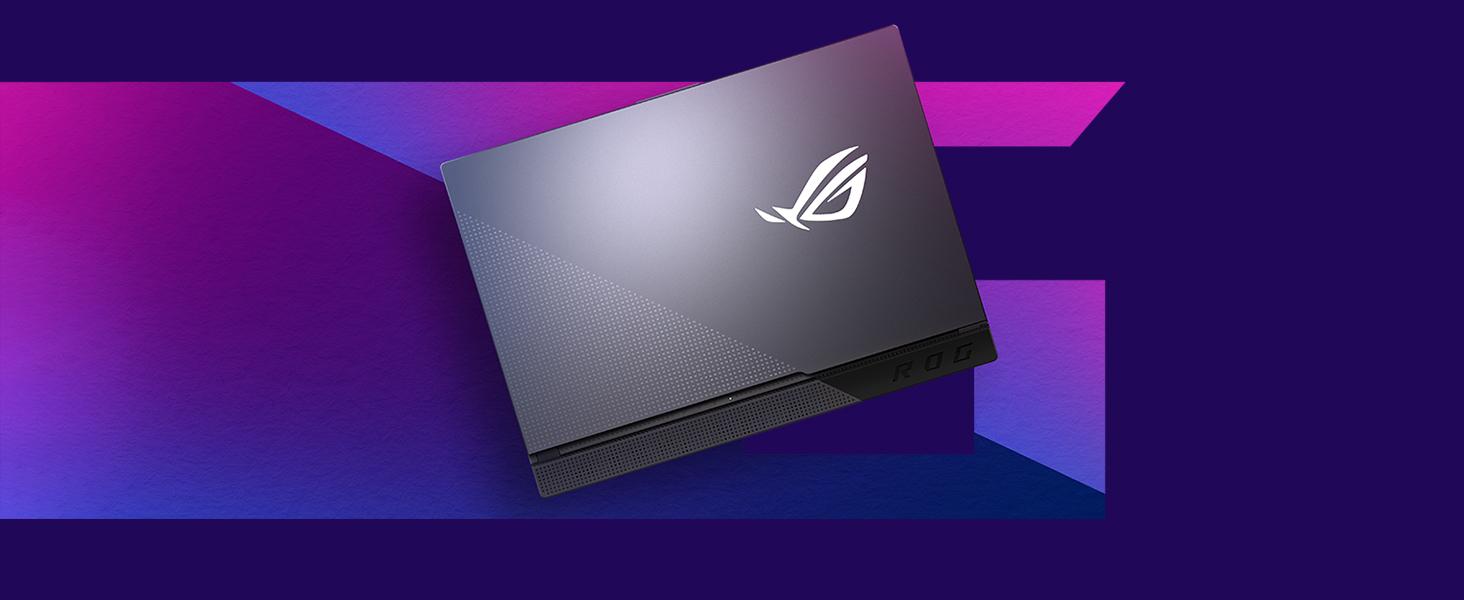
The streamlined design of the ROG Strix G15, emphasizing its aesthetic and functional form factor.
4.2. Keyboard and Touchpad

Top-down view of the RGB backlit keyboard and touchpad.
The laptop features a Chiclet-style keyboard with customizable RGB backlighting. The touchpad supports multi-touch gestures for navigation.
4.3. Ports and Connectivity

Right side of the laptop with USB Type-A ports and audio jack.

Rear view of the laptop, showing power, USB-C, HDMI, Ethernet, and USB Type-A ports.

Detailed illustration of the various connectivity ports available on the ROG Strix G15.
The laptop offers comprehensive connectivity:
- USB 3.2 Gen 1 Type-A: Multiple ports for peripherals.
- USB 3.2 Gen 2 Type-C: For high-speed data transfer and display output.
- HDMI (2.0b): For connecting external displays.
- LAN RJ45 Jack: For wired network connection.
- 3.5mm Audio Combo Jack: For headphones or headsets.
- Wi-Fi 6 (802.11ax) & Bluetooth 5: For wireless connectivity.
4.4. Cooling System

Diagram showing the airflow and components of the ROG Intelligent Cooling system.

Bottom view of the laptop, highlighting the ventilation grilles for cooling.
The ROG Strix G15 features an Intelligent Cooling thermal system with Thermal Grizzly Liquid Metal Thermal Compound and multiple fan outlets to maintain optimal temperatures during intensive use.
5. Operating Your Laptop
5.1. Power Management
To power on the laptop, press the power button. To shut down, click the Start button in Windows, then select Power > Shut down. You can also use sleep mode to quickly resume your work or hibernate for longer periods of inactivity to save battery.
5.2. Keyboard Functions
The keyboard includes dedicated function keys (Fn) that, when combined with other keys, control various laptop features such as screen brightness, volume, keyboard backlighting, and display output. Refer to the keyboard legends for specific functions.
5.3. Audio Settings
The laptop is equipped with Dolby Atmos speakers for an immersive audio experience. Adjust volume using the dedicated function keys or through Windows sound settings. For private listening, connect headphones to the 3.5mm audio combo jack.
Official product video providing an overview of the ASUS ROG Strix G series, highlighting key features and design elements.
6. Maintenance and Care
6.1. Cleaning
- Use a soft, lint-free cloth to clean the screen and chassis.
- For stubborn marks, lightly dampen the cloth with water or a mild, non-abrasive cleaner.
- Avoid spraying liquids directly onto the laptop.
- Regularly clean the ventilation grilles to prevent dust buildup, which can affect cooling performance.
6.2. Battery Care
- Avoid fully discharging the battery frequently.
- For prolonged storage, charge the battery to about 50-60% and store the laptop in a cool, dry place.
- Use only the original ASUS power adapter.
6.3. Storage
When not in use, store the laptop in a protective sleeve or bag to prevent scratches and dust accumulation. Avoid exposing the laptop to extreme temperatures or direct sunlight.
7. Troubleshooting
7.1. Wi-Fi or Bluetooth Connectivity Issues
- Restart: Try restarting your laptop.
- Toggle: Disable and re-enable Wi-Fi or Bluetooth through Windows settings or the MyASUS application.
- Drivers: Ensure your wireless and Bluetooth drivers are up to date. Check the ASUS support website for the latest versions.
- Router/Device: Verify that your Wi-Fi router is functioning correctly or that your Bluetooth device is discoverable and charged.
7.2. System Crashes or Reboot Loops
- Updates: Ensure Windows and all drivers are updated. System instability can sometimes be resolved with software updates.
- Safe Mode: If the system is in a reboot loop, try booting into Windows Safe Mode to diagnose software conflicts or driver issues.
- System Restore: Use Windows System Restore to revert to a previous stable state if a recent software installation caused the issue.
- Reinstallation: As a last resort, consider reinstalling Windows. Back up your data before proceeding.
7.3. Overheating
- Ventilation: Ensure the laptop's ventilation grilles are not obstructed. Use the laptop on a hard, flat surface.
- Cooling Pad: For extended gaming sessions, consider using an external cooling pad.
- Fan Mode: Adjust fan profiles in the Armoury Crate software (if installed) to a more aggressive cooling mode.
8. Technical Specifications
| Feature | Specification |
|---|---|
| Brand | ASUS |
| Model Name | ASUS ROG Strix G15 |
| Model Number | G513IC-EB73 |
| Screen Size | 15.6 inches |
| Display Type | FHD IPS-Type |
| Display Resolution | 1920 x 1080 pixels (144Hz) |
| CPU Model | AMD Ryzen 7 4800H (8 Cores, up to 4.2 GHz) |
| Graphics Card | NVIDIA GeForce RTX 3050 (4GB GDDR6) |
| RAM Memory | 8 GB DDR4 3200MHz |
| Storage | 512 GB PCIe NVMe SSD |
| Operating System | Windows 10 Home |
| Connectivity | Wi-Fi 6 (802.11ax), Bluetooth 5 |
| Ports | 3x USB 3.2 Gen 1 Type-A, 1x USB 3.2 Gen 2 Type-C, 1x HDMI 2.0b, 1x RJ45 LAN, 1x 3.5mm Audio Combo Jack |
| Audio | Dolby Atmos Speakers, Built-in Microphone |
| Battery | 4-cell Lithium Ion, 56 watt-hours |
| Item Weight | 4.6 pounds |
| Dimensions (L x W x Thickness) | 13.94" x 10.2" x 1.02" |
9. Warranty and Support
9.1. Warranty Information
Your ASUS ROG Strix G15 G513IC-EB73 comes with a 1-year International warranty. It is also eligible for 1-year free Domestic Accidental Damage Protection (ADP) upon registration. For standard hardware warranty repair, 1-way free shipping is provided, with 2-way free shipping for eligible repairs.
Please refer to the included Warranty Card for detailed terms and conditions, and instructions on how to register your product for ADP.
9.2. Customer Support
For technical assistance, driver downloads, or service requests, please visit the official ASUS support website. You can also utilize the MyASUS application on your laptop for convenient access to support resources and system diagnostics.


